

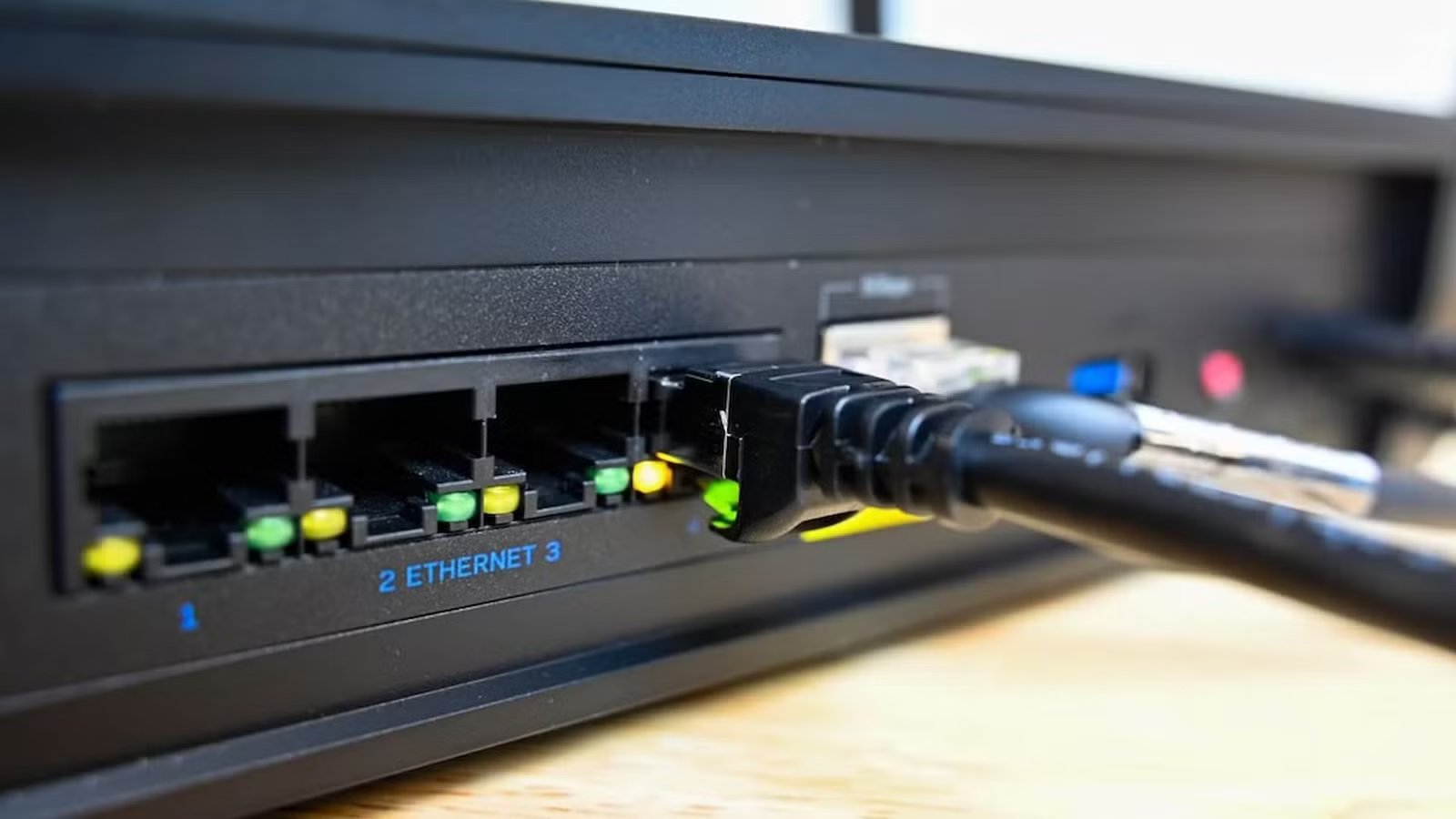
Unreliable Wi-Fi is the most frustrating and common issue we deal with. It’s a real struggle when you have to deal with buffering screens, dropped video calls, issues with your smart home, and slow download speeds that usually make even new devices seem old. For years, the default advice for solving this problem has been to replace your old router. Performance does not depend on purchase price. If you master a few cheap software tweaks and small physical adjustments, you can get back significant speed and stability without spending money.
DNS adjustments
It makes your internet respond quicker
Credit: Lucas Gouveia/Justin Duino/How-To Geek
Changing your router settings to use a public Domain Name System (DNS) provider like Cloudflare or Google makes websites load faster. Instead of changing your raw Wi-Fi speed an altering how it works, it makes the connection setup between your device and the internet faster. The DNS is basically a digital phone book for the Internet. While you use regular names to find websites, computers need to translate those into numerical IP addresses to find the server.
When these servers have heavy traffic, you get a spike in resolution times, which causes the delay. By going into your router’s network settings and manually changing your DNS to a fast public resolver like Google’s Public DNS (8.8.8.8) or Cloudflare’s alternative (1.1.1.1), you bypass your ISP’s slow directory.
Quiz
8 Questions · Test Your Knowledge
Home networking & Wi-Fi
Think you know your routers from your repeaters — put your home networking know-how to the ultimate test.
Wi-FiRoutersSecurityHardwareProtocols
Begin
What does the ‘5 GHz’ band in Wi-Fi offer compared to the ‘2.4 GHz’ band?
ALonger range but slower speedsBFaster speeds but shorter rangeCBetter wall penetration and faster speedsDLower interference but identical speeds
That’s right! The 5 GHz band delivers faster data rates but loses signal strength more quickly over distance and through walls. It’s ideal for devices close to the router that need maximum throughput, like streaming 4K video.
Not quite — the 5 GHz band actually offers faster speeds at the cost of range. The 2.4 GHz band travels farther and penetrates obstacles better, which is why smart home devices and older gadgets often prefer it.
Continue
Which Wi-Fi standard, introduced in 2021, is also known as Wi-Fi 6E and extends into a new frequency band?
A802.11acB802.11axC802.11beD802.11n
Correct! 802.11ax is the technical name for Wi-Fi 6 and Wi-Fi 6E. The ‘E’ variant extends the standard into the 6 GHz band, offering a massive swath of new, less-congested spectrum for faster and more reliable connections.
The answer is 802.11ax — that’s Wi-Fi 6 and Wi-Fi 6E. Wi-Fi 6E adds support for the 6 GHz band, giving it far less congestion than the crowded 2.4 GHz and 5 GHz bands. 802.11be is actually the upcoming Wi-Fi 7 standard.
Continue
What is the default IP address most commonly used to access a home router’s admin interface?
A192.168.0.1 or 192.168.1.1B10.0.0.1 or 172.16.0.1C255.255.255.0 or 255.0.0.0D127.0.0.1 or localhost
Spot on! The vast majority of consumer routers use either 192.168.0.1 or 192.168.1.1 as the default gateway address. Typing either into your browser’s address bar will bring up the router’s login page — just make sure you’ve changed the default password!
The correct answer is 192.168.0.1 or 192.168.1.1. These are the most common default gateway addresses for home routers. The 255.x.x.x addresses are subnet masks, and 127.0.0.1 is your own machine’s loopback address, not a router.
Continue
Which Wi-Fi security protocol is considered most secure for home networks as of 2024?
AWEP (Wired Equivalent Privacy)BWPA (Wi-Fi Protected Access)CWPA2 with TKIPDWPA3 (Wi-Fi Protected Access 3)
Excellent! WPA3 is the latest and most robust Wi-Fi security protocol, introduced in 2018. It uses Simultaneous Authentication of Equals (SAE) to replace the older Pre-Shared Key handshake, making it far more resistant to brute-force attacks.
The answer is WPA3. WEP is completely broken and should never be used, WPA is outdated, and WPA2 with TKIP has known vulnerabilities. WPA3 offers the strongest protection, and if your router supports it, you should enable it right away.
Continue
What is the primary difference between a mesh Wi-Fi system and a traditional Wi-Fi range extender?
AMesh systems only work with fiber internet connectionsBRange extenders create a seamless single network while mesh systems create separate SSIDsCMesh nodes communicate with each other to form one seamless network, while extenders create a separate networkDMesh systems are always wired, while extenders are always wireless
Exactly right! Mesh systems use multiple nodes that talk to each other intelligently, handing off your device seamlessly as you move around your home under one SSID. Traditional range extenders typically broadcast a separate network and can cut bandwidth in half as they relay the signal.
The correct answer is that mesh nodes form one intelligent, seamless network. Range extenders are actually the ones that often create separate SSIDs (like ‘MyNetwork_EXT’) and can significantly reduce speeds. Mesh systems are far superior for large homes with many devices.
Continue
What does DHCP stand for, and what is its main function on a home network?
ADynamic Host Configuration Protocol — it automatically assigns IP addresses to devicesBDirect Hardware Control Protocol — it manages router firmware updatesCDistributed Hosting and Caching Protocol — it speeds up web browsingDDynamic Hypertext Communication Protocol — it secures data transmissions
Perfect! DHCP (Dynamic Host Configuration Protocol) is the unsung hero of home networking. Every time a device joins your network, your router’s DHCP server automatically hands it a unique IP address, subnet mask, and gateway info so it can communicate without manual configuration.
DHCP stands for Dynamic Host Configuration Protocol, and its job is to automatically assign IP addresses to devices on your network. Without it, you’d have to manually configure a unique IP address on every single phone, laptop, and smart device — a tedious nightmare!
Continue
What is ‘QoS’ (Quality of Service) used for in a home router?
AEncrypting all traffic leaving the routerBPrioritizing certain types of network traffic over othersCAutomatically switching between 2.4 GHz and 5 GHz bandsDBlocking malicious websites using a DNS filter
That’s correct! QoS lets you tell your router which traffic gets priority. For example, you can prioritize video calls or gaming over a family member’s file download, ensuring your Zoom meeting doesn’t freeze just because someone is downloading a large update.
QoS — Quality of Service — is actually about traffic prioritization. By tagging certain data types (like VoIP calls or gaming packets) as high priority, your router ensures latency-sensitive applications get bandwidth first, even when the network is congested.
Continue
What does the ‘WAN’ port on a home router connect to?
AOther computers in your home network via EthernetBA wireless access point for extending Wi-Fi coverageCYour modem or ISP-provided gateway to the internetDA network-attached storage (NAS) device
Correct! WAN stands for Wide Area Network, and the WAN port is where your router connects to the outside world — typically to your cable modem, DSL modem, or ISP gateway. The LAN ports on the other side connect to devices inside your home network.
The WAN (Wide Area Network) port connects your router to your ISP’s modem or gateway — essentially your entry point to the internet. The LAN (Local Area Network) ports are for connecting devices inside your home. Mixing them up can cause your network to not function at all!
See My Score
Challenge Complete
Your Score
/ 8
Thanks for playing!
Try Again
Switching to a public DNS lowers the response time for that initial lookup. New tabs will open faster, videos will start playing sooner, and connection errors will be reduced. Setting this up in your router is a good idea since it adds these faster routes to every device on your network automatically.
The high-ground strategy
Stop blasting half your signal into the floor
Moving your router to a higher position is great for improving your home network for free, because keeping it hidden away is a mistake. Wi-Fi routers act like a light bulb, broadcasting signals that work best when they have a clear path. Since radio waves travel downwards and outwards from a high point, putting your router on the floor or hiding it behind a TV is a mistake.
If your router is on the ground, you’re blasting half of its signal into the floor. Keeping the device at ground level also forces wireless waves to compete with metal appliances, cabinets, and thick wood furniture. Also, keep it clear of clutter like bags or storage bins.
To fix this, move your router to a high shelf or mount it on a wall, so the signal travels down without hitting furniture. This should be about five to seven feet off the ground. This lets the Wi-Fi signal clear barriers and gives a stronger connection to the devices below it. The signal travels better when it isn’t bumping against couches or other obstacles.
Be smarter with your channels
Move your network out of traffic jams
If your internet is slow or drops randomly, you might have a Wi-Fi channel traffic jam. Routers broadcast signals on different radio frequencies divided into channels. Most routers default to a crowded channel that gets interference from neighbors using similar equipment. When multiple routers use the same channel, they compete for airtime, which leads to slower speeds and unreliable connections.
On the 2.4 GHz band, you should only pick channels 1, 6, or 11. These are the only non-overlapping channels. The 5 GHz band has more channels with less overlap, so just pick a channel that looks empty. Once you find the best path, log in to your router’s admin dashboard and set your network to that specific frequency.
I also found that lowering the channel width on the 2.4 GHz band to 20 MHz is a smart move. This narrower width is basically like having a motorcycle in traffic, so it lets you have a smoother connection in busier areas.
The firmware upgrade
Update your router software
It’s easy to forget that you need to update your router’s firmware. Routers run on firmware, which is the software that controls how the device works. Manufacturers release updates to fix bugs, improve performance, and make sure your network is secure. If you want to be more technical, you can replace the manufacturer’s software with open-source options like DD-WRT, OpenWrt, or Tomato.
Flashing your router with these gives you features usually hidden by the manufacturer. You can adjust network controls, use Quality of Service to focus on heavy tasks, and even increase transmission power for better range.
This is also a good way to use old equipment again. You can turn an old router into a Wi-Fi repeater to remove dead zones without buying a mesh system. You have to make sure to download the exact file for your model, because flashing the wrong software can brick the device. Also, boosting transmission power makes the router run hotter, so make sure it stays well-ventilated.
The centralized hub method
Put the router in the middle of your house
A good way to improve your network performance is to move your router to the middle of your house. Wi-Fi signals travel outward in a shape like a sphere. Basically, central placement gives you the most even coverage. I used to keep my router in a corner, and I’ve had friends who kept theirs inside dressers. This wastes so much of the signal in places you won’t use it.
When a router is against an outside wall, the radio energy is absorbed by the outdoors or lost. A central spot reduces the distance waves travel through thick barriers. Every time a Wi-Fi signal passes through brick, drywall, or metal, the signal loses strength. A spot in the middle of your house means there are fewer physical obstructions between the router and your devices, which preserves signal integrity.
To get the best result, combine this with elevating your router to chest height or higher on an open bookshelf or a desk.
Small upgrades make a big difference
You don’t have to buy new hardware to get a faster experience. The most effective solutions can be cheap and simple. The real improvement in your Wi-Fi performance comes from a series of free, strategic adjustments instead of an expensive router upgrade. You have to realize that poor configuration and a misunderstanding of how Wi-Fi works are usually what cause performance bottlenecks instead of hardware limitations. You can keep your router running well for years just by playing to its strengths.
