

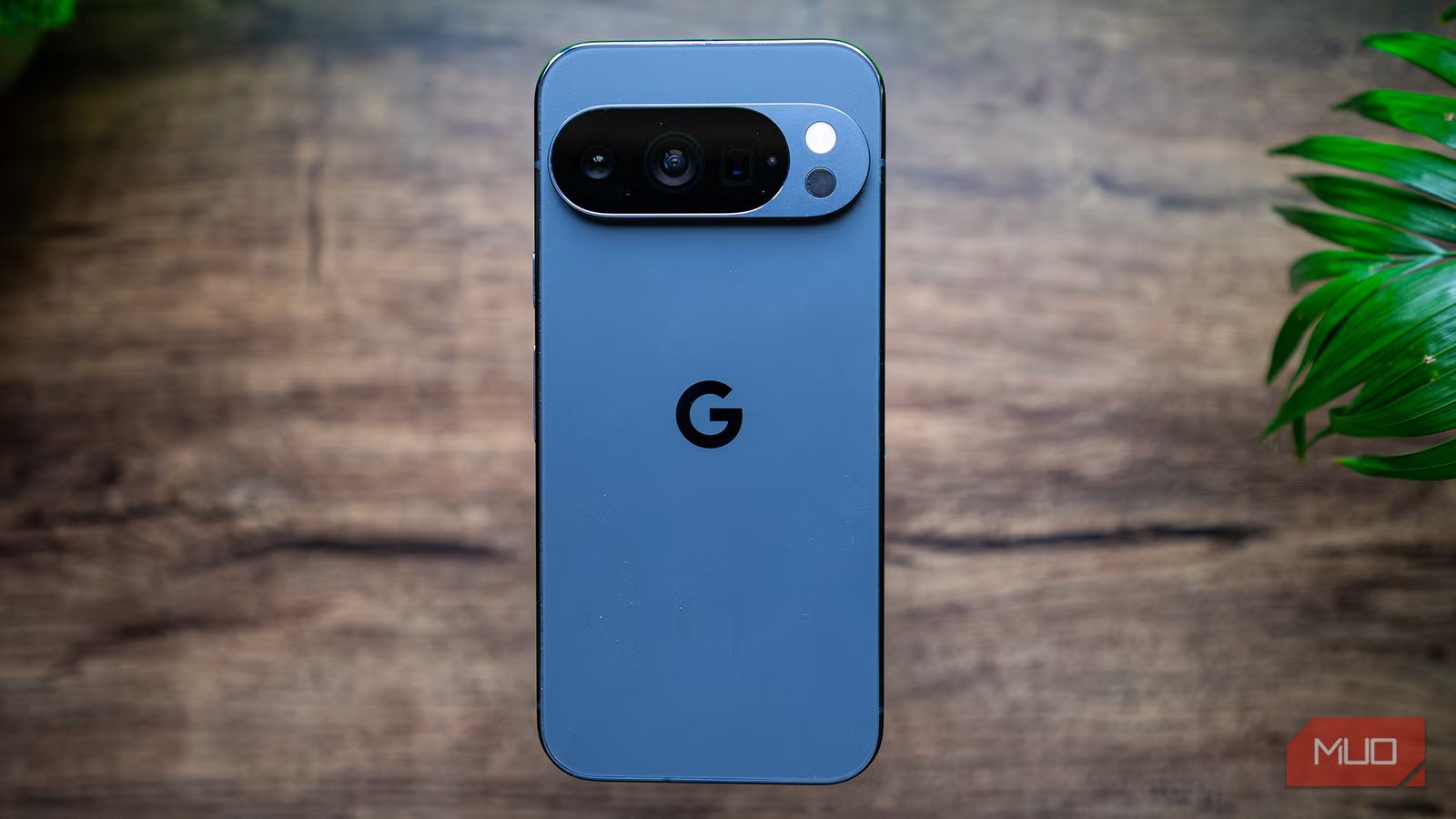
I have used Google phones in the past (before they were called Pixel). Out of the lot, I loved my Google Nexus 5, which LG developed. However, in recent years, Samsung has taken over my primary phone charging, with an iPhone as my secondary phone. Right now, although I own a Galaxy S26 Ultra, I use the Galaxy S24 Ultra, because, in my opinion, it is the best-looking Ultra phone from Samsung for now, and is a hardware beast even today.
But the One UI interface is a bit too colorful for me, and I wanted the clean, minimalist vibe of the Google Pixel. What followed were hours of UI tweaks, third-party app installations, and de-bloating of unnecessary stuff from my phone. But after the dust settled, I realized that faking the Google experience wasn’t worth it, and I should’ve bought a Pixel instead.
Related
I Will Switch to Pixel If Google Copies This Samsung Feature
It’s hard to beat a good routine.
The illusion of “Stock Android” customization
A process of grinding
Credit: Sagar Naresh/MUO
The first step to Pixel-ifying my Samsung Galaxy phone was getting rid of the manufacturer’s heavy software skin, which for me was One UI. I love One UI, and it is one of the best OEM skins available out there, with the latest One UI eight adding a bunch of new features. However, it doesn’t make your phone look serious.
The main problem of not only Samsung’s One UI but also with all other Android skins is that you will find duplicate apps. For instance, for Google Messages, Samsung has Samsung Messages; for Google Play Store, there is a Samsung Galaxy Store, for Google Calendar, there is Samsung Calendar, and so on.
On top of this, Samsung also has Bixby, Smart Switch, Samsung Cloud, Samsung News, Samsung Weather, and whatnot. Unfortunately, basic hiding won’t do much, as background processes will continue to eat your battery. To get a clean setup, I looked up how to remove bloatware on Android without rooting and took a deep dive into the developer options.
Then I installed Shizuku and Canta to surgically remove unnecessary bloatware from my Pixel-like setup. With Shizuku, you can gain elevated permissions to act as a bridge, allowing apps to use ADB, whereas Canta uses this bridge to uninstall apps.
Launchers are only skin deep
It’s time for plastic surgery
After removing the unwanted apps, it is time to get the correct clothes, i.e., clean skin. The launcher is the biggest visual change you can make in your Pixel-ifying your phone. But the process is not that simple, as there are so many apps that promise you the Pixel look.
After hours of hunting and trying, I decided Lawnchair is the closest thing to a Pixel Launcher. It has a search pill at the bottom, and a vertical app drawer. Nova does offer granular tweaking capabilities, but for that, you need a lot of patience.
While the interface was almost taken care of, the biggest issue came up — the Pixel At a Glance widget. For those who don’t know, it is a widget that shows your upcoming calendar event and the weather. For that, you can long-press on the home screen, select Widget, choose Google, and then add the Add a Glance widget, or use Smartspacer, which gives you a bit more options than Google’s official widget.
But that is just scratching the surface; setting everything up, granting permissions, linking accounts, and tweaking display settings require a lot of effort and time.
Replace every default app with Google’s
This is the step that can make or break your mindset for this process
Credit: Sagar Naresh/MUO
Once you have uninstalled all the duplicate Samsung apps, it is time to install the Google equivalents. You have to install Google Phone, set it as default, and then repeat the process for other apps, including Messages, Calendar, Keyboard, Photos, Contacts, and more.
Some of them install cleanly, but for others, you have to bend the rules. They may ask you to transfer the data from your source to that particular app, etc.
But after going through all of it, I ended up with a phone that runs Google’s stack. Then I had to get the Pixel icons, and by the time I thought I was ready, a notification just broke the dream.
As soon as I pulled down the notification shade or the Settings menu, I was thrown back into Samsung’s One UI ecosystem. The fonts weren’t consistent; the animations were different (thanks to the third-party launcher), and in many apps, the icons just weren’t there.
Related
8 Google Apps I’ve Ditched for Samsung’s Better Alternatives
Google’s got gaps. Samsung filled them.
The hard truth about time and money
You just can’t fake a Pixel
Installing the GCam mod was one of the main points that made me think I was only wasting my time. The final nail in the coffin was the Pixel-only features that you just can’t get on any phone other than a Google Pixel.
You won’t get Magic Eraser, Best Take, Photo Unblur, Audio Magic Eraser, or Video Boost. There is a whole list of Pixel-only features I missed, even though Samsung has its own take on most of them. At the end, I was using a phone that was wearing Google Pixel clothes on top of a Samsung body.
The phone I made after spending hours was nice, but not Pixel-nice. And it did not take me a few minutes to decide to go back to making my phone what it was originally.
My take, you should not bother customizing
I’m not saying customization is pointless. I myself customize my phone to my liking and present it in a way that makes it appear as an extension of me. But I never considered making it look like a different phone. That just takes away the fun of the original phone, leaving you in the middle of nowhere.
It would be best to get a Google Pixel phone if you really want to experience a clean Android experience. The cost of a Pixel A-series phone is not out of budget and can be a great secondary phone. The best part is that most of the Pixel features now work on older and budget models too. So, you don’t have to get the latest flagship to get the magic. All in all, it is better to buy a brand’s phone and stick to what they offer to actually understand what’s in store for you.
