

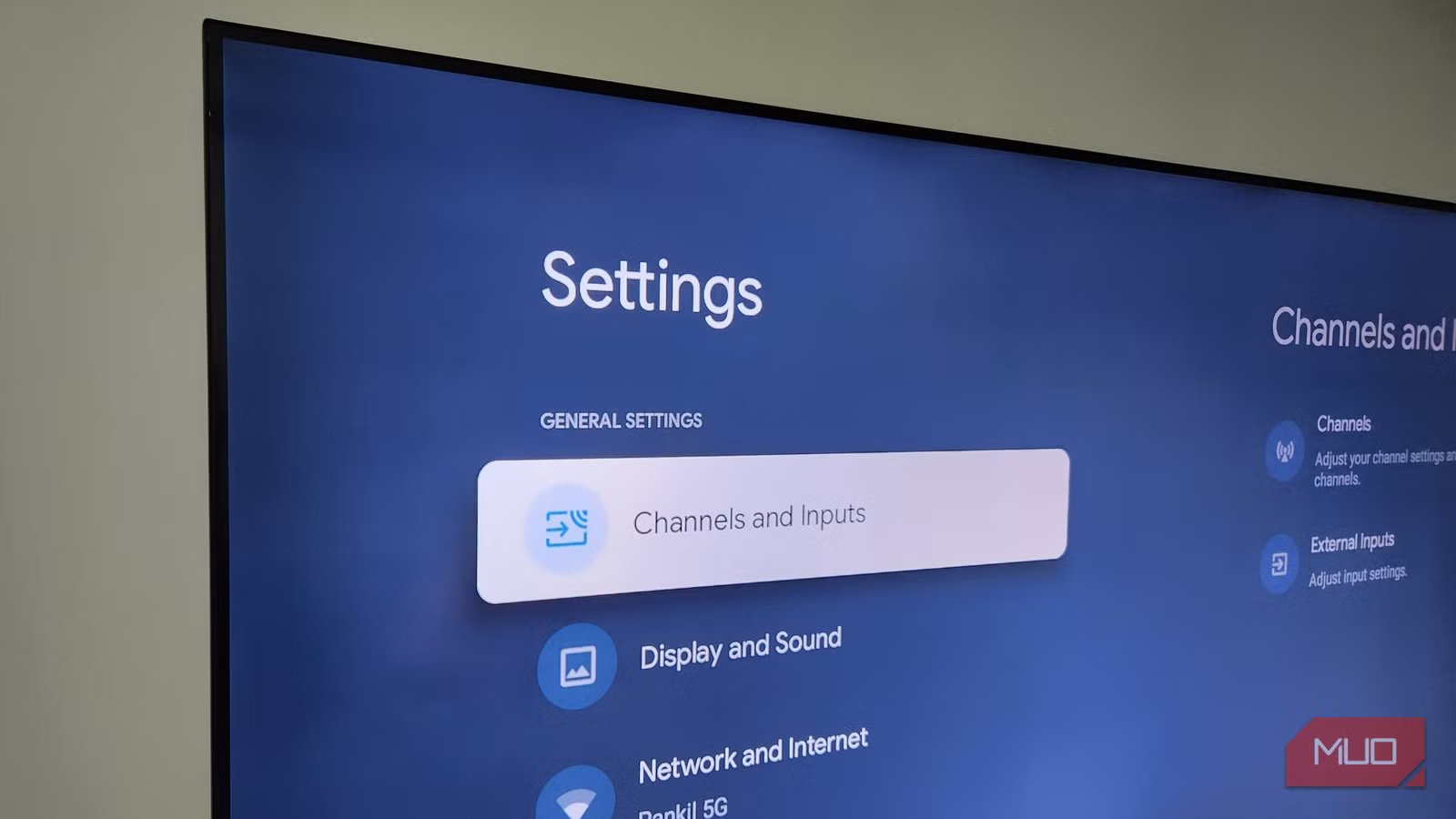
Your Android TV probably felt lighting fast when you first got it. Apps opened instantly, navigation felt smooth, and switching menus barely took a second. But then, somewhere along the way, things changed. The home screen started lagging, apps started taking forever to launch, and even basic navigation became sluggish.
It’s not that your Android TV has become old or less powerful over time. In most cases, it’s the old cache data on your TV that usually hinders performance. The good news is that clearing it and restoring your TV’s speed takes less than a minute.
Related
I found 5 Google TV features hiding in plain sight that completely changed how I use the platform
The default experience leaves out some of its best features.
Why your Android TV slows down over time
It starts small, then adds up
Image Credit: Pankil ShahCredit: Pankil Shah/MakeUseOf
Every app you use on your Android TV stores temporary files known as cache data. Streaming apps are especially guilty here because they constantly save thumbnails, previews, and playback data in the background. This way, instead of loading the same content again and again, the app can pull it instantly from storage to make things feel faster. So yes, cache is designed to help your apps run smoothly.
But the thing is, when that cache keeps piling up for weeks or months, it starts to hurt more than help. Over time, it can make apps bloated and inefficient. So instead of speeding things up, cache can actually slow things down.
And it’s not just apps. Android TV itself builds up system cache in the background. Every recommendation row on your home screen, every featured banner, every autoplaying preview, and even those screensavers generate cache files. Over time, that clutter can affect performance.
Another problem with cache is the storage it takes. Your Android TV relies heavily on free storage to operate smoothly, but most of them ship with very limited internal storage, sometimes as little as 8GB. After accounting for the OS and preinstalled apps, you’re left with even less usable space. So even if you don’t install any new apps, cache alone can eat into that space. And when free space starts running low, that’s when you’ll notice lag and slower app launches.
A quick cache cleanup can help a lot
It’s instant and effective
Clearing the cache is an easy way to make your Android TV run smoothly. It removes all the temporary files that apps and the system have hoarded over time. And the best part is, unlike phones, Android TV lets you clear all the cache at once.
To do this, head to Settings > System > Internal shared storage > Cached data, then hit OK to confirm. Alternatively, you can also clear the cache for individual apps, which can be handy if a specific app is freezing, crashing, or showing errors. For that, head to Settings > Apps > See all apps and choose the app from the list. Then, hit Clear cache.
Since cache is not essential data, deleting it doesn’t log you out or erase important app data. Your accounts, watchlists, and settings remain unaffected. The only thing you might notice is that apps take a bit longer to open the first time afterward, since they need to load everything from scratch, but that’s completely normal.
While there’s no real downsides to clearing the cache, it’s not something you should do every day or week. Ideally, you should only clear the cache when you notice performance issues or random errors.
Other things that can improve performance
More optimization, more speed
Screenshot by Pankil Shah — No attribution required
Clearing the cache isn’t the only thing that you can do to speed up your Android TV. Restarting it every once in a while can also help. It sounds almost too simple, but rebooting clears temporary memory and gives your TV a clean slate. To do this, head to Settings > System > Restart, or simply unplug the power cord for a few seconds and plug it back in.
Another thing that’s helpful is removing apps you no longer use. And you shouldn’t stop at apps you’ve installed yourself. With a bit of effort, it’s also possible to remove all the bloatware on your Android TV. This will free up storage space, reduce background activity, and make the TV run more smoothly.
Finally, you should make sure your Android TV is updated to the latest software. These updates aren’t just about new features. They often include performance improvements, bug fixes, and optimization that can improve your TV’s performance. Head to Settings > System > About > System update to download and install any pending system updates.
Like every device, your Android TV is bound to slow down over time. That part is inevitable. But it’s not always the hardware to blame, and there’s a lot you can do to bring back that lost performance. Clearing the cache is just one of those simple fixes that make a noticeable difference without much effort. If you’re still not satisfied, though, disabling animations is another quick fix that can make the interface feel faster and fluid.
