

My approach to DNS over the years has been like most people’s: pick a provider and apply it to all my devices. But despite going through the options of privacy-focused, filtering-heavy, and security-first providers, my home network still felt inconsistent. I experienced gaming consoles struggling to connect, unexpected VPN drops, and certain devices going offline without a clear trigger.
In the end, I figured out there was no problem with my Wi-Fi or router. Things were breaking only because I was forcing all my devices to use the same DNS behavior. Changing this was the only fix I needed.
One DNS rule created conflicting priorities
Every device on my network needed something completely different
One thing I had not considered was how a work laptop, smart speaker, and gaming console are different and don’t need the same thing from DNS. Because this never occurred to me, I configured them all to work under the same filtering rules.
I loved blocking trackers, so I had set up aggressive filtering across the network. This was counterproductive for devices that depended on domains that filtering blocked. As a result, specific gaming services timed out, and some smart home devices became unreliable. However, I initially scapegoated the router because all these devices were still showing strong signals.
Devices rarely announce DNS failures, which makes them difficult to diagnose. Everything will look fine, but they will not work properly. It finally clicked that different device categories had different needs.
Device
Primary need
Why it matters
Gaming console
Low-latency, minimal filtering/unrestricted access
Filtering can block matchmaking and auth endpoints
Kids’ tablet
Category filtering + SafeSearch enforcement
Applies even in third-party browsers, not just the default one
Work laptop
Encrypted DNS with malware blocking
Keeps work traffic isolated from household filtering logs
Smart TV
Resolver with broad domain compatibility
Overly strict resolvers can break app authentication flows
Smart home devices
Minimal filtering, maximum tolerance
Many call home to obscure domains that blocklists flag incorrectly
DNS issues also did not care about benchmarks, because even when a server looks fast, you may still experience compatibility issues in real use. What mattered most was consistent DNS behavior across devices.
Related
Router vs. Computer DNS Settings: Here’s What Was Faster
Comparing DNS at the router versus PC level led to real improvements in my network’s speed and performance.
DNS profiles solved problems I blamed on my router
The hardest part wasn’t setting them up — it was finding the device causing the problem
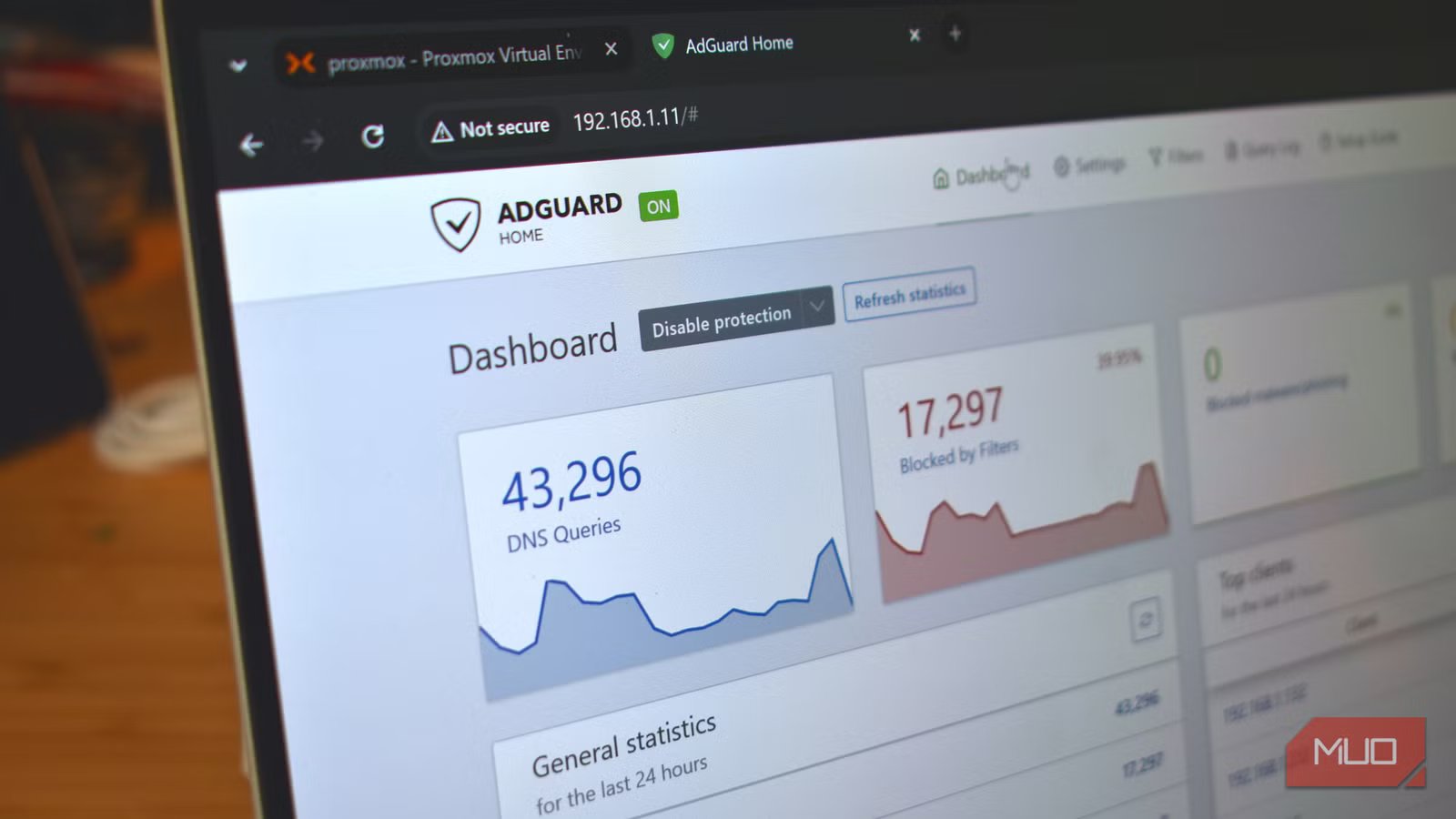
DNS profiles are named configurations with three distinctions: they bundle a resolver, filtering rules, and preferences for logging. They then assign a distinct configuration to specific devices. For me, I assigned filtered DNS to family devices, an unrestricted resolver to my gaming console, and security filtering with encrypted DNS to work laptops.
Regardless of the tool you use, you can typically configure DNS profiles, even though this feature may be priced differently:
Tool
How profiles work
What it costs
NextDNS
Separate profile per device group, each with a unique DoH/DoT endpoint
Free up to 300k queries/month, then $1.99/month
AdGuard Home
Per-client settings assigned by IP or MAC address
Free, self-hosted (runs on a Raspberry Pi)
Pi-hole
Device groups with different blocklists
Free, self-hosted
Firewalla Gold/Purple
Native per-device policies from a mobile app
$218–$349 hardware, no subscription
Even though it took just an hour for me to set up profiles, it took much longer to figure out the device that was ignoring them. The laptop seemed to be bypassing my DNS configuration each time I used its browser. I figured out that Chrome’s DNS setting used the OS resolver when available, which caused the browser to upgrade to encrypted DNS and bypass my router-level profile; changing the browser’s DNS setting fixed it.
I ensured DHCP reservations are set for all my devices to avoid a situation where a device reconnects and lands in the wrong DNS profile.
Matching DNS providers to what each device actually does
The right resolver depends on the job, not on which review ranked it highest
Yadullah Abidi / MakeUseOf
In the past, my approach was hunting down a single best DNS provider. But in practical terms, you realize that DNS providers are optimized for different purposes. The root of my problem was believing one could excel at everything.
Once I learned that DNS providers aren’t one-size-fits-all, I started treating each one like a tool for a specific task.
DNS provider type
Optimized for
Real tradeoff to know
Privacy-focused (e.g., Quad9, Cloudflare 1.1.1.1)
Personal devices, work laptops
Occasional compatibility quirks with obscure app domains
Family filtering (e.g., CleanBrowsing, NextDNS with filters)
Kids’ devices
Overblocking is common (expect to manually allowlist some legitimate sites)
Security-focused (e.g., Quad9, Cloudflare Gateway)
General browsing on shared devices
False positives can block legitimate services without obvious error messages
Minimal filtering (e.g., Cloudflare 1.1.1.1, Google 8.8.8.8)
Gaming consoles, IoT devices
No protection against malicious domains
ISP default DNS
Streaming devices in some households
Some ISPs use local DNS to route traffic to nearby CDN servers (switching providers can occasionally push traffic to a more distant edge node)
Gaming devices were where I saw the biggest difference after removing aggressive filtering. It eliminated the matchmaking and login issues I sometimes faced.
How little I had to think about the network
Although experts discuss a ‘fastest’ DNS, I found speeds similar in practice and negligible differences. The real change happened in my head. I was thinking far less of the network because it didn’t need constant troubleshooting or tweaking; it was predictable and reliable.
DNS profiles may not be for everyone, but if a device behaves unreliably for no clear reason or your filtering poorly fits some devices, try DNS profiles.
