

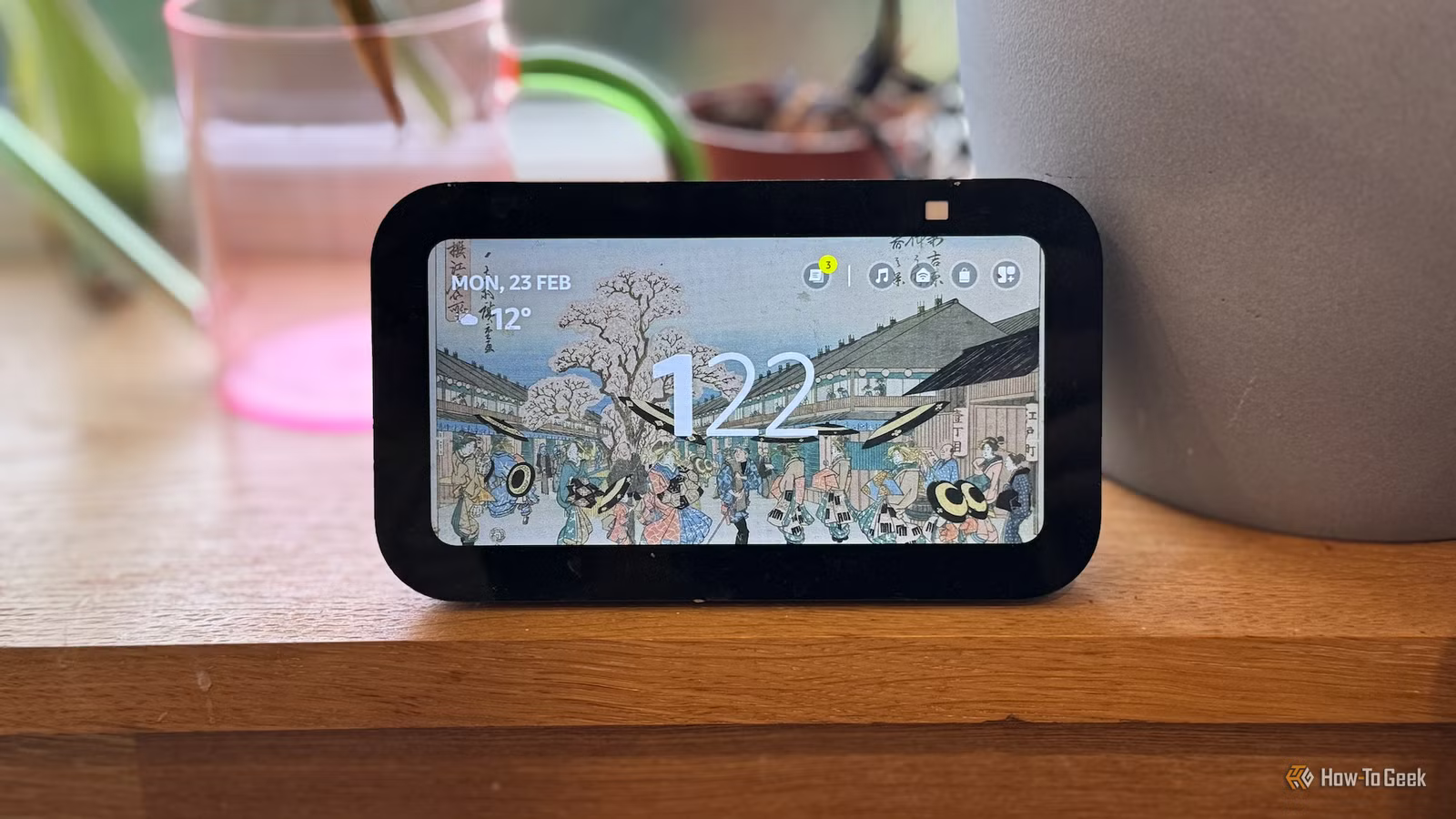
Like many people, I bought Amazon Echo smart speakers, thinking that they were the future of the smart home. Being able to control your smart home using your voice seems ideal, but the reality is that Amazon’s proprietary system is restrictive and only supports fairly basic automations.
You don’t need to throw out your Echo devices, however, because Home Assistant can make Alexa smarter.
Connecting Home Assistant to Alexa
A Nabu Casa subscription makes things simple.
Connecting Home Assistant and Alexa is incredibly simple if you have a Home Assistant Cloud subscription. This subscription offers a number of benefits, including quick and secure remote access to Home Assistant from anywhere, managed remote backups, and cloud-based text-to-speech (TTS) for natural spoken announcements.
Another benefit is simple voice assistant integration. You can connect Home Assistant to your Alexa account quickly and easily. In Settings > Voice assistants, toggle Alexa on. In the “Expose” tab, you choose which entities you want Alexa to control. It’s worth starting by exposing just a few entities to test that it works, as otherwise, Alexa may discover a huge number of new devices.
On the Alexa app on your phone, add the Home Assistant skill, and you’ll be prompted to sign in with your Nabu Casa account. Once you’ve done so, you’re connected. Say “Alexa, discover new devices,” and all your exposed entities should appear in Alexa as new devices.
You can connect Home Assistant to Alexa without a subscription, but it’s fairly complicated. You have to make Home Assistant reachable from outside your home network, then set up Amazon Developer and AWS accounts, and create a smart home skill in the Alexa Developer Console. It can be done, but Home Assistant Cloud makes it so much easier.
Display
No
Dimensions
3.9” x 3.3” x 3.6”
Looking for a stylish addition to your smart home? This smart speaker looks great and sounds great.
Giving Alexa access to Home Assistant devices
You choose what Alexa can see
Once you’ve connected Alexa and Home Assistant, you can choose which entities you want Alexa to be able to see. You can add a wide range of different Home Assistant domains to Alexa, including lights, cameras, climate, and media players, as well as input booleans, binary sensors, scenes, and scripts. When you expose more entities, you may need to say “Alexa, discover new devices” again before they become visible in Alexa.
Once you’ve added entities to Alexa, you can control them using your voice. For example, if you expose an entity called “hallway light,” you can just say, “Alexa, turn on hallway light,” and your light should turn on, even if you’ve never connected it directly to Alexa. The command isn’t telling the light to turn on directly; it’s telling Home Assistant to tell the light to turn on.
Many devices offer more than just on and off. With lights, you can say “set the hallway light to 50%” to change the brightness, or “make the study light red,” and the light will respond accordingly. For typical smart home devices, you should be able to control them with voice commands just like you can with devices that are connected directly to Alexa.
How Home Assistant makes Alexa more powerful
Replacing routines with powerful automations
Credit: Adam Davidson / How-To Geek
Turning lights on and off with your voice is something Alexa could already do, although connecting Alexa to Home Assistant does enable you to control smart home devices that aren’t directly compatible with Alexa. The real power, however, comes from using Alexa to run automations, scripts, and scenes.
Alexa only allows you to build the most basic automations in the form of “if this, then that.” The ability to add conditions to automations is very limited; if you want to create a complex automation that only runs when certain criteria are met, Alexa can’t help you build it. Even with Alexa+, you’re still not getting anything close to the depth of automation you can build in Home Assistant.
Related
Your Echo speakers can now be a surround sound home theater system
Grab a handful and make a smart home theater.
By connecting Alexa to Home Assistant, you can stop creating automations in Alexa altogether. Instead, you can build them all in Home Assistant and only use Alexa to trigger them. You can expose input booleans to Alexa, so a simple option is to create an input boolean that you can use to trigger your automation and turn it on and off with your voice.
Using scripts and scenes is even easier. If you expose a script to Alexa, activating the script with your voice will run the script, and the same applies to scenes.
What Home Assistant adds to your Echo devices (and what it doesn’t)
Make Alexa say whatever you want
The ability to control your Home Assistant devices with your voice and trigger scripts, scenes, and automations makes connecting Home Assistant to Alexa more than worthwhile. You also get some other useful features.
Using the Alexa Devices integration, you can send messages to Echo devices that they will read aloud. For example, you can create an automation in Home Assistant that gets all your Echo devices to say “someone is at the front door” whenever your doorbell is rung. You can also send text commands to Echo devices that effectively let you run commands on your Echo smart speakers as if you had spoken to them directly.
I’ve been using the Alexa Media Player custom component from HACS for several years, and while it can be a little flaky, you can use it to turn your Echo smart speakers into media players that you can control from Home Assistant.
I’m not able to expose my Echo speakers as media players for Music Assistant, although there is a new experimental feature that’s designed to let you do just that. At the time of writing, I’ve still not been able to get this to work.
Using Alexa with Home Assistant doesn’t fix everything
Home Assistant can make Alexa far more powerful, turning it into a genuinely useful way to control your smart home. This doesn’t solve the more glaring issues with Alexa devices, however, such as privacy concerns and the lack of local control. If you want those things, you might want to consider setting up a local smart speaker of your own.
