

Android phones today are more powerful than ever, yet they somehow still end up feeling slower after a few months of use. It’s the same processor, same software, and same amount of RAM, but it just feels slow. The real difference is usually the number of apps installed on the phone. The more apps you have, the more background processes Android has to deal with.
So I recently decided to manually manage background permissions for apps on my phone to see if it’d help. Not only did my phone feel more responsive, but with less background activity, battery life improved too.
Related
Your Samsung phone can optimize itself overnight — here’s how to set it up
Make these changes for a faster phone each day.
How background apps can drag performance down
The RAM hogs you never see
Credit: Brady Snyder / MakeUseOf
RAM plays a huge role in how smooth your Android phone feels in daily use. It’s what allows your phone to keep apps ready in the background, switch between tasks quickly, and make navigation smooth. But when too many apps start chewing through memory behind the scenes, things can slow down really quickly.
When your phone has very little free RAM to work with, apps take longer to open, scrolling feels uneven, and even simple things like opening menus can become choppy. And yes, this can happen even on phones with 8GB or more RAM.
The reason for this is simple. By default, Android allows every app you install to work in the background freely. A lot of apps take advantage of this and constantly refresh, sync, or worse, track your location. An easy way to spot such apps is by checking your phone’s RAM usage menu.
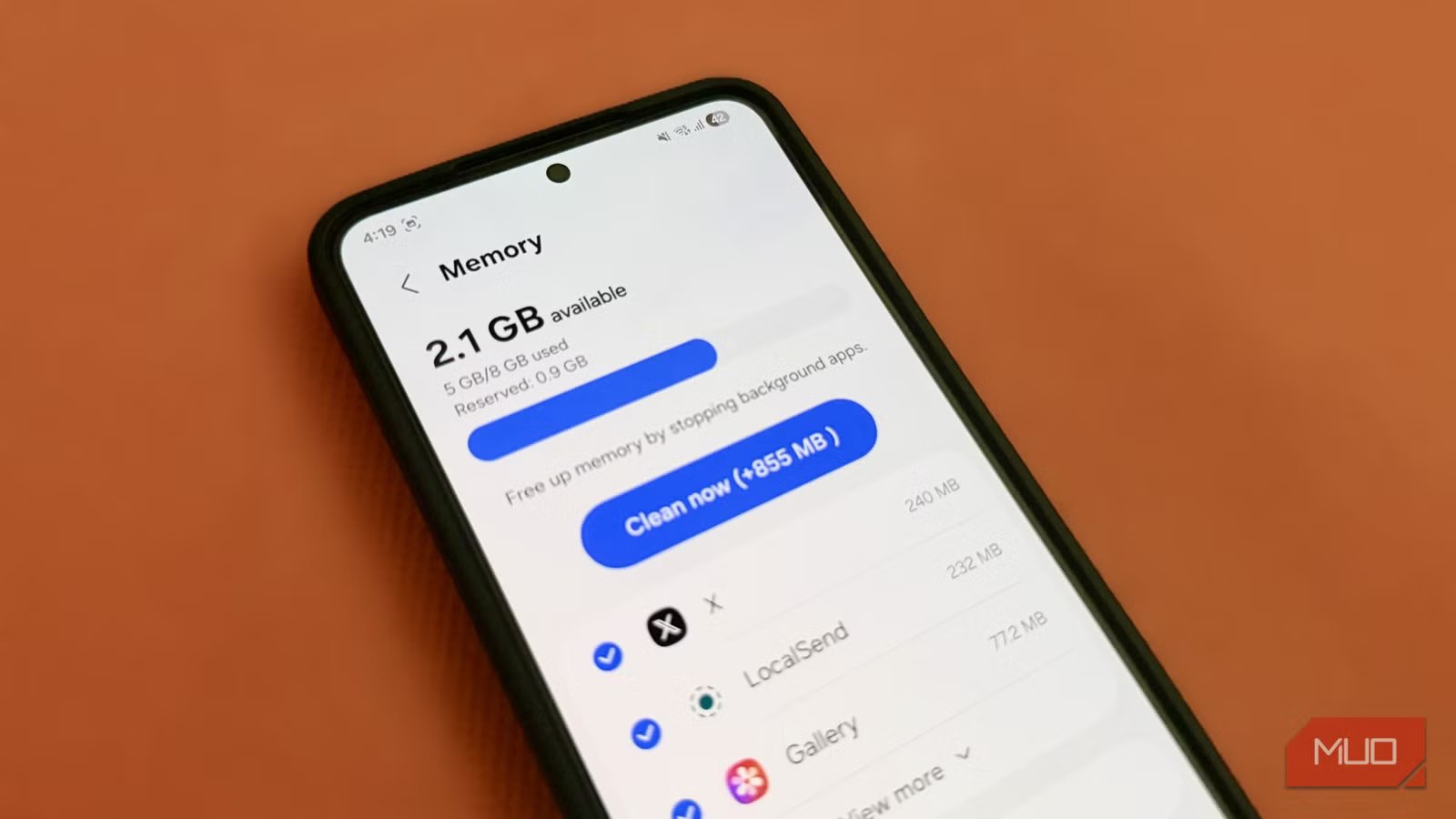
Head to Settings > Device care > Memory, and you’ll see a list of apps along with how much RAM they’re using. Don’t be surprised if you see apps you haven’t opened all day. Weather apps, shopping apps, and even social media apps are some of the biggest offenders.
Limit background activity for apps that don’t need it
The one tweak changes how your phone performs
To be fair, Android already does a decent job of managing memory usage on its own. Still, it can’t fully compensate for apps that insist on running constantly in the background. A simple way to put a stop to this is to revoke background usage permission for apps that are overusing it without actually benefiting you in a meaningful way.
Thankfully, it’s quite easy to do. Head to Settings > Apps and scroll through the list to find the app that’s using too much RAM. Open its app info page, go to Battery, and choose Restricted from the following menu. Return to the previous page, tap Mobile data and turn off Allow background data usage. You’ll need to repeat this for every app that’s running in the background without a good reason.
Another benefit of doing this is better battery life. Background apps don’t just consume RAM. They also constantly wake up the processor, refresh data, and perform other hidden tasks that drain the battery. Restricting unnecessary apps means less background activity, which naturally helps your phone last longer.
Of course, this isn’t something you should do for every app. Some apps absolutely need to run in the background to function properly. Messaging apps, email apps, health trackers, and anything that relies on real-time notifications should generally be left alone. That said, restricting background activity for shopping apps, rarely used social media apps, casual games, and other non-essential apps can do wonders for both performance and battery life.
Restricting apps works better than closing them
Pankil Shah/MakeUseOf
When it comes to freeing up RAM on Android, a lot of people simply clear the recent apps menu and think that’s enough. And while it does free up memory, the effect usually doesn’t last very long. It’s only a matter of time before apps with background usage permission start eating into your RAM all over again. So yes, that “Close all” button is more of a short-term bandage than an actual solution.
More importantly, clearing apps from the recent apps menu also shuts down apps you actually want running. That can lead to slower loading times the next time you open them, delayed notifications, and higher battery usage because the phone has to fully reload the app instead of resuming it. In other words, swiping away apps constantly creates more problems than it solves.
Restricting apps works much better. First, it lets you target apps that aren’t actually useful to you but still want to keep. You can still use the apps normally, but once you’re done, there’s no need to worry about closing them manually.
Honestly, there’s no shortage of ways to optimize your Android phone’s performance. Things like uninstalling apps, clearing the cache, disabling animations, and freeing up storage definitely work, but what I like about this particular tweak is that it doesn’t affect the apps I use daily or limit my phone in any way. Everything stays the same, just smoother, faster, and more efficient.
