

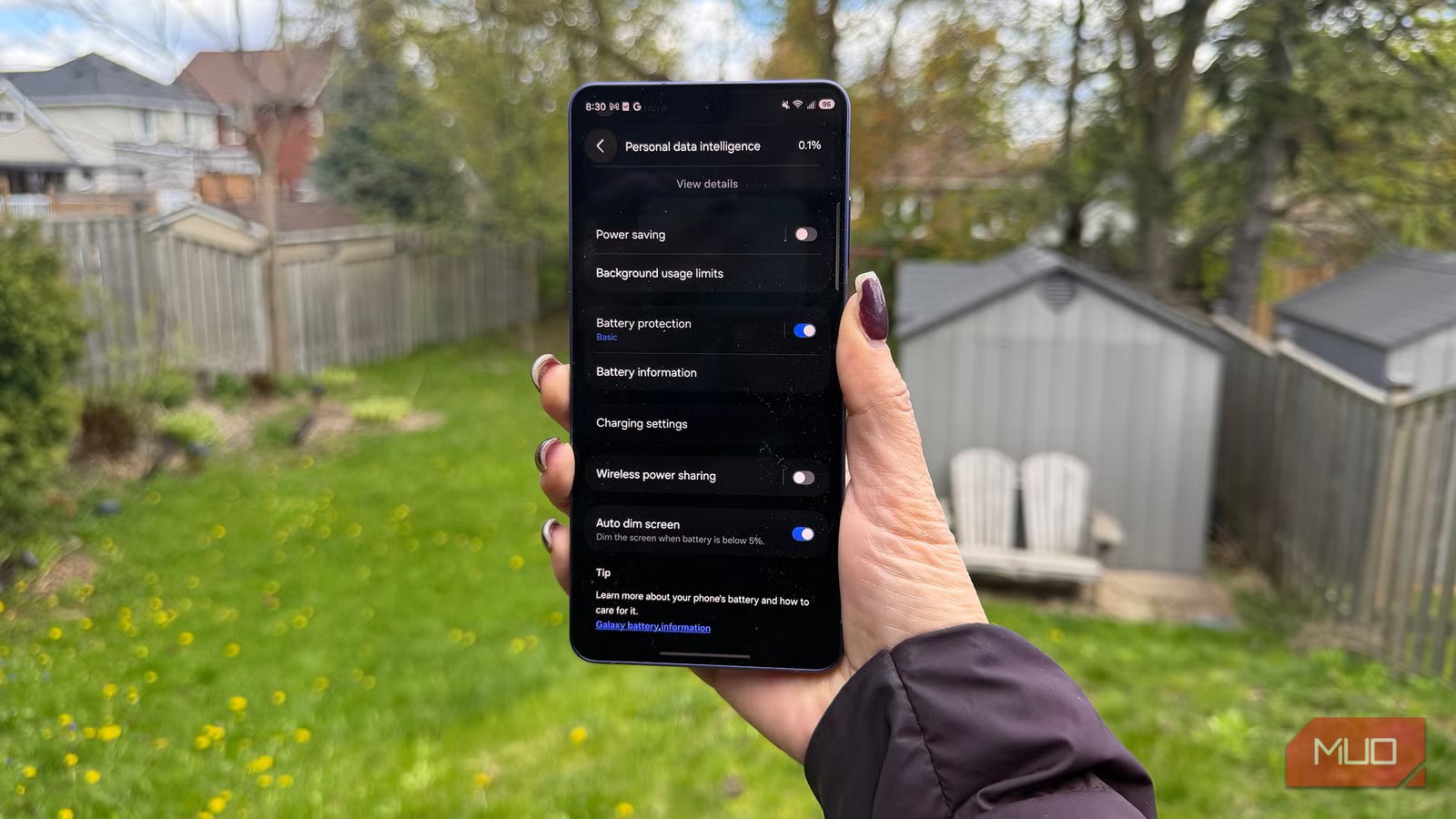
The latest smartphones boast improvements in battery life, with bigger batteries, longer battery life overall, and features like battery-saver mode. But there are still features and functions that can drain your battery more quickly than others, even if the phone is in standby mode. One feature you might not realize is draining your phone on standby, for example, is having mobile data always active. Turning this feature off prevents the phone from constantly trying to connect to a mobile network when you’re on Wi-Fi. But it also means the phone can take longer to connect to a cellular network once you leave a Wi-Fi zone. Plus, it requires entering developer settings to turn off.
There are more practical ways to help prolong your phone’s standby battery life, even if just by a smidge. Every minute and battery percentage counts, right? Once you place your phone down beside you, and you’re not using it at all, the phone’s battery is still slowly depleting, and some things running in the background that eat up battery don’t need to be. By tweaking a couple of settings, you can ensure that this drain happens more slowly than it needs to, and your phone can last for those crucial few extra minutes when you need it most.
Related
14 Proven and Tested Tips to Extend Battery Life on Android
Suffering from poor battery life on Android? Follow these tips to get more juice out of your Android device’s battery.
Display settings
Always on, auto-lock, brightness
An always-on display is useful, dimming the phone’s screen instead of turning it completely off when you put it down. This allows you to still see the wallpaper and details like the time, widgets, and notifications. This mode conserves battery more than keeping the phone’s screen lit up 24/7, considering your phone’s display drains the most battery. But it also drains the battery more quickly than a total turnoff. DXOMARK ran tests that found an always-on display can turn 400 hours of standby time into just 100 hours. Either turn off the always-on display during times when you don’t need it, like in the evening at home, during the day at work, or while on vacation. As a compromise, turn it off but leave raise to wake on. This way, any time you actively lift your phone, the screen lights up and you can see details.
A related feature is auto-lock or screen timeout, which determines the amount of time that passes between when you stop using the phone and the screen dims if you don’t manually put it to sleep. Not only is reducing this time good for the battery, but also good for privacy. Check your settings and if they are set to Never or several minutes, change it to one-to-two minutes, so your phone enters standby mode on its own quicker than you realize it does. While you’re at it, reduce screen brightness, a small habit that can add hours to a phone’s life. While this won’t matter in standby mode, high brightness can eat more battery life each time you wake the phone from standby, and it illuminates brighter than it needs to be.
Location services
Always searching and monitoring
Christine Persaud / MUO
You may need to have location services on for apps like maps and a fitness tracker or smartwatch. But location services don’t need to be on for all apps, or all the time. And the feature can drain your battery the same way that leaving Bluetooth and/or Wi-Fi on when you don’t need it does. Revoke this app permission when it isn’t needed, especially if you leave apps open that are actively tracking your location when they don’t need to be. It might be irritating to turn location services on and off as needed, as it can be with Bluetooth and Wi-Fi. But it may help extend your phone’s battery by preventing the phone from constant use of background GPS.
If you decide not to turn off location services altogether and want to keep it running for important apps, set apps like your camera and social media to only use Location Services when you’re using them. Most importantly, always fully close apps that you aren’t using so they aren’t running in the background, even in standby mode. If you navigate out of an app, but you haven’t shut it down completely, you’re technically still “using” it, and thus location services might still be running.
Small changes, big difference
Delay when you’re in the red
Christine Persaud / MUO
These small shifts won’t give you hours more of use per day. But they might add an extra few percent of battery life. This might sound meaningless, but it could be the difference between your phone dying 15 minutes before you can call your Uber and stretching battery life for that little bit of time long enough to order it. Even though the latest smartphones boast impressive battery life, it’s still easy to forget to recharge and end up in a panic because your phone is about to die. Take steps to change habits for your phone’s battery health and conserve battery life, not only while you’re using the phone but also when it’s in standby.
8.5/10
SoC
Snapdragon 8 Elite Gen 5
Display
6.9-inch Dynamic Super AMOLED 2X
RAM
12 or 16 GB
Storage
256GB, 512GB, or 1TB
The Samsung Galaxy S26 Ultra, like many flagship phones today, is pretty good on battery life. But there are still small things you can do to stretch it even further, including when it’s in standby mode.
