

Web scraping probably sounds like something reserved for developers and hackers, but it can be as simple as pulling data from a website straight into Excel without copying and pasting anything manually. Instead of switching between your browser and spreadsheet, you stay in Excel, paste in a website address, and have the data appear in your workbook almost instantly.
As complicated as that might sound, you don’t need Python, browser extensions, or any coding knowledge whatsoever. As long as you can access Power Query in your Excel app, which you should if you’re using Excel 2016 or later, you can pull in almost anything, from a simple product table to a live API feed.
Related
I cleaned up a messy imported spreadsheet in minutes using an Excel tool I’d ignored for years
You don’t need to fear imported spreadsheets anymore.
Use Power Query to pull in tables, files, and APIs into your spreadsheet
No code or external scraping tool required
The best entry point for web scraping in Excel is the From Web option in Power Query, which you’ll find in the Get & Transform Data group on the Data tab. Paste in a URL, and Excel will automatically try to detect any tables on the page. When it works, you can pull clean, refreshable data into your spreadsheet in just a few clicks. Of course, websites are not always that cooperative.
When a site doesn’t present its data in neatly formatted tables, Power Query’s Add Table Using Examples feature can still help you extract what you need. Instead of relying entirely on automatic detection, this feature lets you show Excel the kind of data you want. You can type a few sample values, such as the name of a timeline and its corresponding date range, or select them from the dropdown suggestions. Power Query then uses pattern recognition to scan the page and pull in matching data automatically.
The process starts the same way as a standard From Web import. In the Get & Transform Data group on the Data tab, select From Web, enter the webpage URL in the dialog box that appears, and click OK. If Excel prompts you to choose an authentication method, Anonymous is usually the default option and only requires you to click Connect.
To use Add Table Using Examples, look toward the lower-left corner of the Navigator window after the page loads. Clicking the button opens an interactive layout with a live web view of the page beside a blank table. From there, you can type example values directly into the columns and add more columns if needed. Just keep in mind that this feature only works with values up to 128 characters long, which makes it better suited for shorter fields like names, prices, IDs, and dates rather than long-form descriptions.
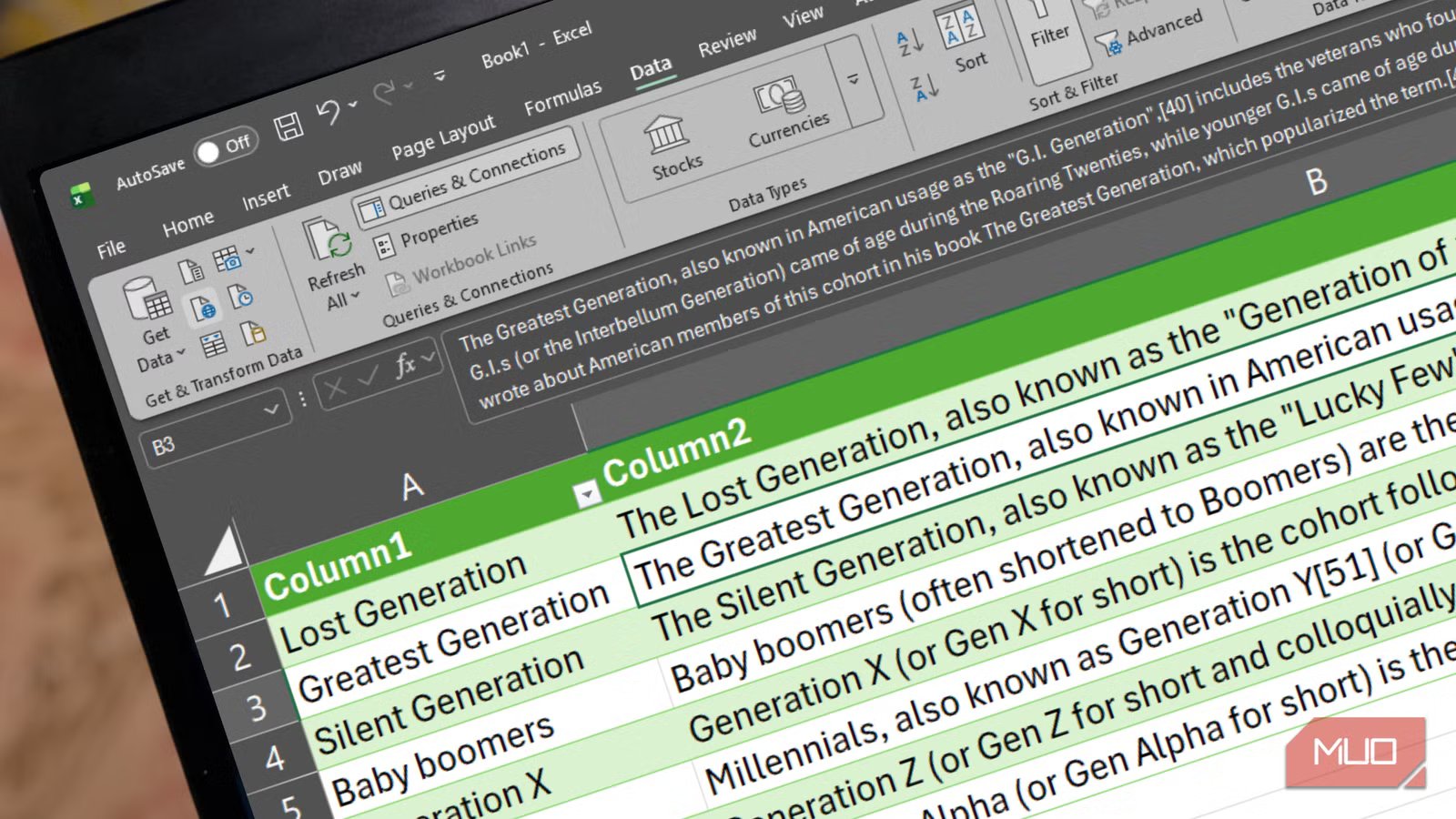
I tested this with Wikipedia’s Generations page because I wanted one column listing the generations and another containing their year ranges and descriptions. After adding an extra column, I typed “Lost Generation” and “1883 to 1900,” then selected the matching suggestions from the dropdown. I repeated the process for the Greatest Generation, and Excel automatically filled in the remaining generations for me. All I had to do after that was insert the table into my worksheet.
Screenshot by Ada
Power Query also goes beyond scraping standard HTML pages. You can connect directly to file URLs, including CSV files hosted on GitHub, JSON exports from internal systems, or XML feeds, and Excel will automatically parse the content into structured tables. It also supports authenticated Application Programming Interface (API) connections, which means you can work with services that require API keys without needing a separate scraping tool.
Under the hood, Power Query relies on three different functions depending on the type of source you’re connecting to:
Web.Contents
This function handles non-browser content, such as CSVs and JSON APIs, with the broadest authentication support.
Web.BrowserContents
This one is the modern default for HTML pages, built on Microsoft Edge’s WebView2 engine.
Web.Page
This is an older function built on Internet Explorer that’s still around for compatibility but increasingly being phased out.
For most modern workflows, you’ll mainly end up working with Web.Contents and Web.BrowserContents.
Building smarter web queries
Dynamic URLs, spreadsheet-driven parameters, and a few tricks for sites that don’t play nicely
Screenshot by Ada
Static queries that pull from a fixed URL are super useful, but Power Query becomes much more flexible when you start building dynamic queries. Instead of relying on one permanent link, you can create URLs from separate parts and swap parameters in and out whenever you need different data. For example, if you want to pull information for different subjects without rebuilding the query each time, you can assemble the URL directly inside Power Query.
In the From Web dialog box, select the Advanced option instead of Basic. From there, use the URL parts section to build the address piece by piece. In the first text box, enter the constant part of the URL, such as the scheme and path:
https://en.wikipedia.org/wiki/
You can then select Add Part to create additional sections for query fragments or variable values, such as a specific generation or country. For instance, you could set URL Part 2 to a parameter named Topic with the value Generation, then set Part 3 to #Social_generation. As you build the query, Excel generates a live preview of the final URL.
After selecting Transform Data in the Navigator window, you’ll enter the Power Query Editor, which is where you can manage those parameters more effectively. Under the Home tab, select Manage Parameters to create editable values that can be reused throughout your queries. That means you could later change the Topic parameter from Generation to Zillennials, and the tables in your worksheet would automatically refresh with data from that new page instead.
Screenshot by Ada
You can push this even further by connecting a query directly to values stored in your spreadsheet. This works especially well when you have a long list of identifiers, such as healthcare provider NPI numbers, customer IDs, or product SKUs. Inside the Power Query Editor, go to the Add Column tab and select Custom Column. There, you can write a formula that combines a base URL with values pulled from a column in your sheet.
Screenshot by Ada
For example, if you have a column containing sociological terms like Demographic_cohort or Cultural_generation, you could use a formula like this:
=Web.Page(Web.Contents(“https://en.wikipedia.org/wiki/” & Text.Replace(Text.Trim([Column1]), ” “, “_”))){0}[Data]
You may need to adjust the credentials or privacy settings if you haven’t connected to the site before, but once that’s done, the setup should work well. Instead of building queries one at a time, you can fetch data for hundreds of entries simultaneously by referencing a spreadsheet column.
If you still cannot pull the exact data you need from a webpage, your Chrome (or any other) browser’s developer tools can help. Open the Network tab, reload the page, and watch for the requests that load in the background. Many modern websites populate their pages through internal JSON APIs, which are often much easier to work with than the page itself. You might come across an endpoint that looks something like this:
https://en.wikipedia.org/w/api.php?action=parse&page=Generation&format=json
Connecting Power Query directly to an API endpoint like that, instead of scraping the visible webpage, will usually give you faster, cleaner, and more reliable results.
Worth learning, even if you never scrape anything
Power Query’s web connector is a fully supported, continuously updated feature that Microsoft has spent years improving. Even if you never end up doing serious web scraping, learning how it works can still save you a good amount of time.
Whether you’re tracking competitor prices, pulling public records, or automating data collection that would otherwise eat up your afternoon, spending an hour learning the basics is genuinely worthwhile. The return on that investment tends to show up much faster than you’d expect.
OS
Windows, macOS
Supported Desktop Browsers
All via web app
Developer(s)
Microsoft
Free trial
One month
Price model
Subscription
iOS compatible
Yes
Microsoft Excel is a powerful spreadsheet application used for data organization, analysis, and visualization. It supports formulas, functions, pivot tables, and charts to process complex datasets efficiently. Widely used in business and education, Excel also integrates with other Microsoft 365 apps for collaboration, automation, and real-time data insights.
