

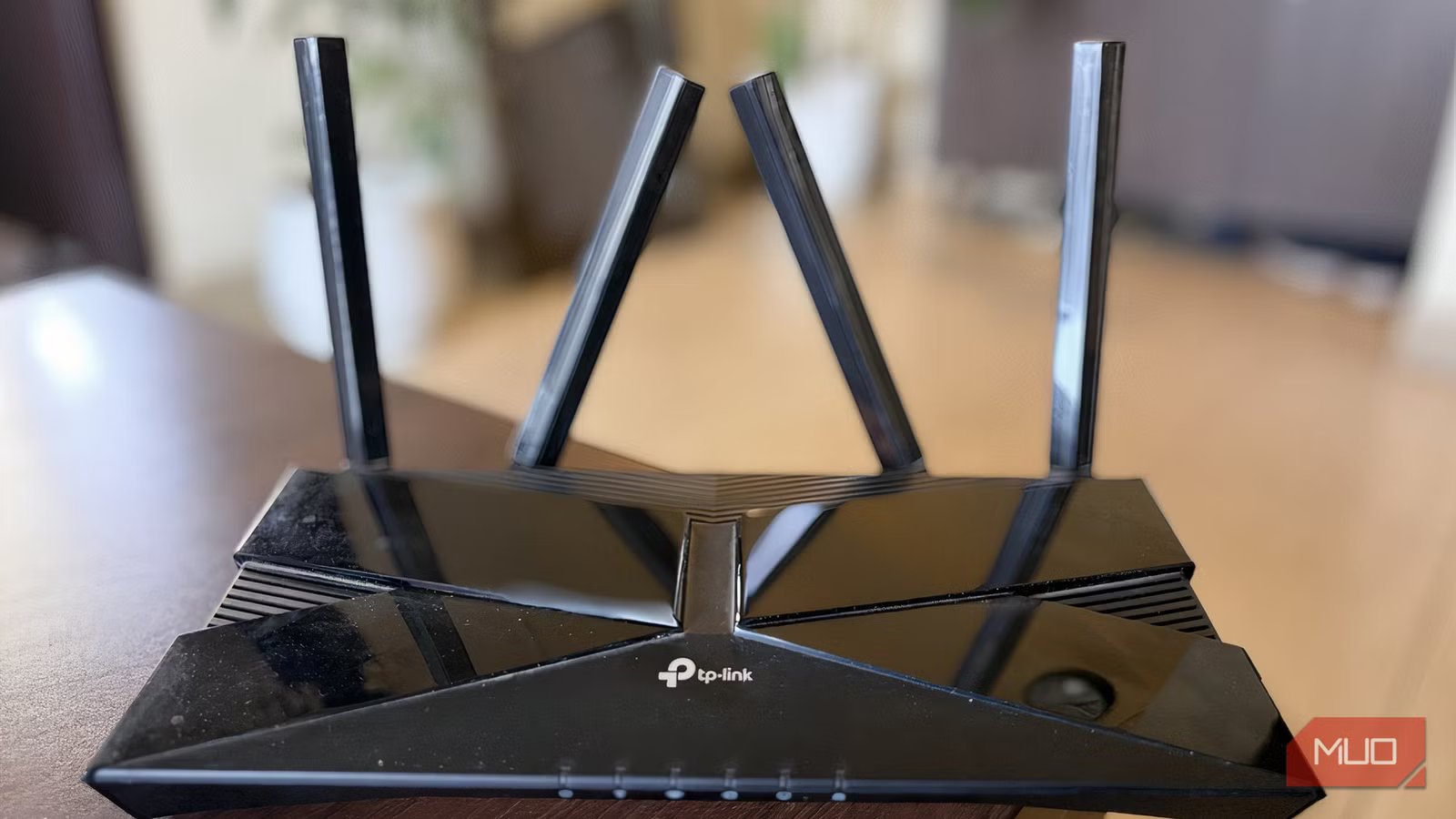
I have a fairly decent home internet connection. Not the fastest plan available, but more than enough for what I need, or at least that’s what I thought. For a while, I kept running into the same annoying problem: my TV would start buffering right in the middle of something I was watching on Apple TV, even though nothing else seemed to be obviously hogging the connection. I’d check my phone, fine. My laptop, fine. But the TV? Spinning wheel of doom.
It took me longer than I’d like to admit before I figured out what was actually going on. The culprit wasn’t my internet speed. It was a setting sitting right inside my router that I had never touched, and it turns out most people haven’t either.
Related
I changed one 2.4GHz Wi-Fi setting and my connection got much more stable
A simple change in my Wi-Fi setting fixed the issue, and the connection has been consistent ever since.
My router was treating every device like it deserved equal attention
Which sounds fair, until it really isn’t
Shaun Cichacki/MUO
The setting in question is Quality of Service (QoS). Most modern routers have it, but it’s almost always either turned off by default or left completely unconfigured. On the surface, the idea of equal treatment across your network sounds reasonable. Every device gets a fair slice of your bandwidth, right?
The problem is that not all internet traffic is created equal. When you’re downloading a file in the background, a few seconds of delay doesn’t matter. But when you’re streaming a show on your TV, jumping on a video call, or playing a few rounds of Counter Strike 2 with friends, even a small bandwidth squeeze is immediately noticeable. Your router doesn’t inherently know the difference; it just moves data. Without QoS, it happily hands bandwidth to whatever asks for it, regardless of how time-sensitive that traffic actually is.
So when my partner’s laptop decided to pull a large update in the background while I was watching Shrinking on Apple TV, the TV got squeezed out. The router wasn’t broken. It was just doing what it was told, which in this case was nothing particularly smart.
QoS changes that. It lets you tell your router what matters most, so streaming video, video calls, and gaming get priority over background tasks that can wait.
What QoS is actually doing under the hood
It’s less complicated than the name suggests
Think of your internet bandwidth like a single lane of road. Without QoS, every device, every app, every download has an equal claim to that lane. When traffic piles up, everyone slows down together. QoS essentially adds a priority system, letting certain types of traffic move to the front of the queue.
Most routers let you set this priority in a couple of different ways. Some let you prioritize by device, so your smart TV or game console always gets preferential treatment over a smart bulb or a background PC update. Others let you prioritize by traffic type, so streaming and video calls always get served before file transfers or general browsing.
The practical result is that when your network is overloaded, the things that would actually ruin your experience get protected. The stuff that can wait, waits. It’s a simple idea, but the difference it makes when your connection is being stretched thin is genuinely noticeable.
Finding the setting and actually turning it on
It takes about two minutes once you know where to look
Robin John / MakeUseOf
The exact location of QoS varies by router, but the general path is similar across most brands. Here’s how to find it through your router’s web dashboard:
- Open a browser on your phone or laptop and type your router’s IP address into the address bar. This is usually 192.168.0.1 or 192.168.1.1 — check the sticker on the bottom of your router if you’re not sure.
- Log in with your router’s admin credentials. These are usually printed on the router itself if you’ve never changed them.
- Once you’re inside the router dashboard, look for a section called QoS, Traffic Management, Bandwidth Control, or Advanced Settings. The name varies by brand.
- Enable QoS if it’s turned off, which it likely is.
- If your router gives you device-based prioritization, find your TV, streaming stick, or game console in the device list and set it to High priority.
- If it offers application or traffic-type prioritization, look for a streaming or media category and move it to the top of the queue.
- Save your settings and give it a moment to apply.
That’s genuinely all it takes. If you have a TP-Link router, you can skip the browser entirely and do all of this through the Tether app on your phone. It’s actually a nicer experience because it goes a step further. Beyond just setting priority devices, Tether lets you manually allot specific upload and download speeds to them, so you’re defining exactly how much bandwidth they get rather than leaving it vague.
Robin John / MakeUseOf
There’s also a duration control, which I found surprisingly useful. You can keep the priority active at all times, cap it at two or four hours, or set a fully customized schedule. So if you only need the TV prioritized during the evening hours, you can set that up once and forget about it.
One thing worth keeping in mind: if your router is quite old or running basic firmware, QoS options might be limited or absent entirely. In that case, it might be worth checking whether a firmware update is available, or whether it’s time to consider a newer router.
Related
I Stopped Buffering on My Smart TV With These Simple Setting Changes
My smart TV no longer buffers during playback, thanks to these settings.
The fix was already there, I just hadn’t turned it on
I went looking for a buffering problem and found the solution sitting on a menu I had scrolled past a dozen times without thinking about it. Once I enabled QoS and set my TV to high priority, the difference was immediate. Same internet plan, same router, same everything, just a smarter way of handling what was already there.
If you’ve been blaming your ISP or your Wi-Fi signal every time your stream hits a rough patch, it’s worth spending two minutes inside your router settings first. The answer might already be waiting for you.
