

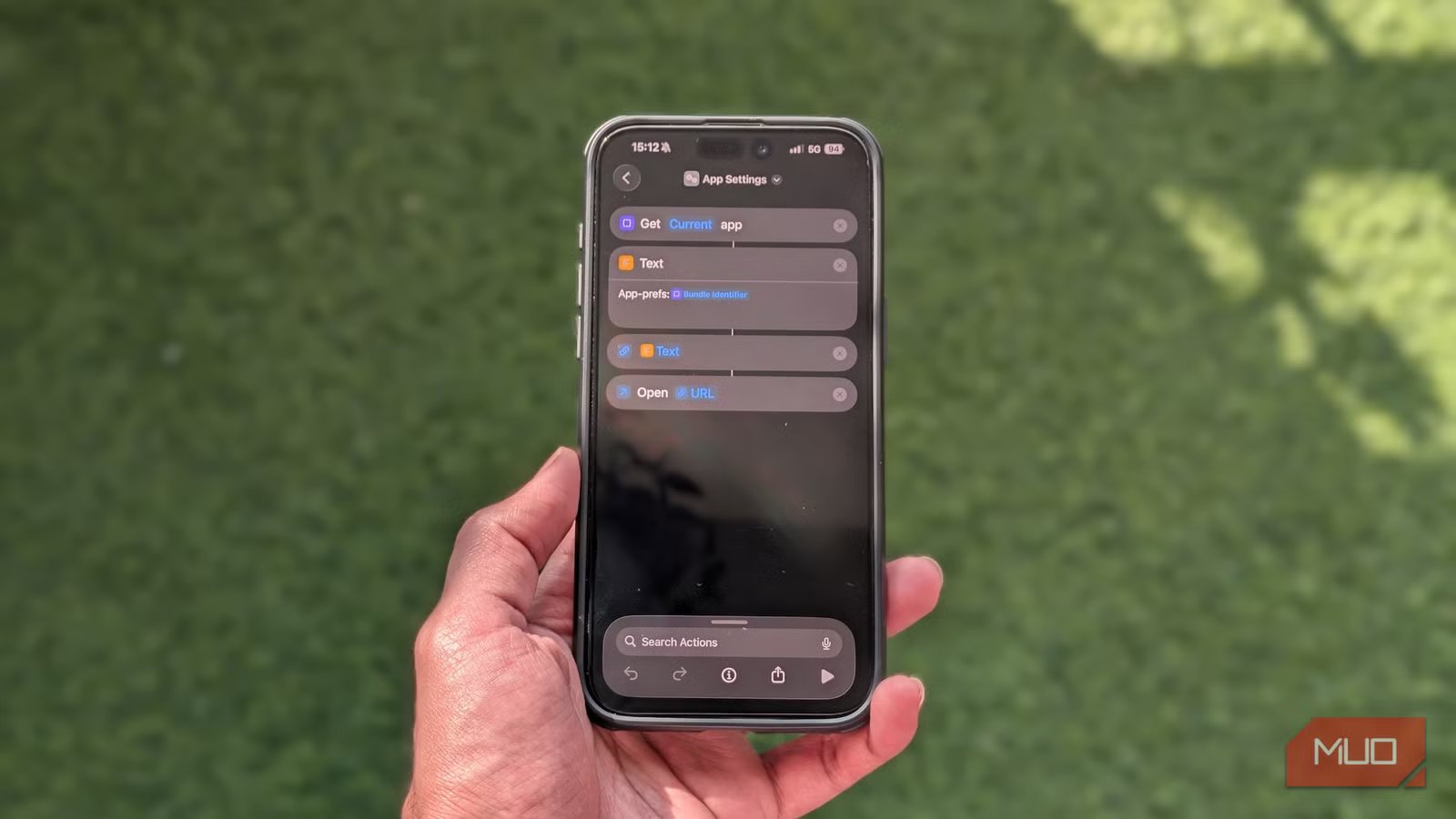
As someone who’s been using an iPhone for many years, there are certain aspects of iOS that I both truly admire and strongly dislike. While Apple has fixed some of my gripes with iOS 26, one of the most frustrating ones—digging through menus to change app settings—still exists. Thankfully, there’s a way to get around this.
The pain of finding app settings on an iPhone
A tedious process that involves multiple steps
Screenshot by Yash Wate — no attribution
Most iPhone apps typically include their own in-app settings. This lets you customize an app’s preferences or configure other options directly within the app itself. However, many settings, such as those for managing app permissions, configuring notifications, and more, aren’t available under in-app settings.
Accessing and configuring these settings involves opening the iPhone Settings app and navigating multiple menus, which can feel quite disruptive, especially when you’re in the middle of something. In contrast, Android has an easier way to access such app settings. You long-tap an app icon and select App info, which takes you directly to its settings in the Settings app.
While iOS doesn’t offer an easy way to access system-level app settings on an iPhone, there’s a workaround that lets you quickly jump into an app’s settings without leaving the current app. It involves using a shortcut called App Settings. While I’m not sure who came up with the shortcut first, it was shared in a post on Reddit by a user named grillinmuffins.
How does the App Settings shortcut streamline access to system-level app settings?
Just four simple actions are all it takes
The App Settings shortcut is pretty simple at its core. You first need to save it and set up a way to run it without leaving the current app. Once done, whenever you want to access the settings of an app that’s open on your screen, you can run this shortcut.
As soon as you do this, the shortcut identifies the active app and extracts its unique identifier. Based on this identifier, it constructs a URL string and sends it to the next action, which opens it and redirects you to the specified app’s settings page. All of this happens in the background, without requiring any intervention.
How to use the App Settings shortcut
Download the shortcut, choose how you want to run it, and you’re set
The easiest way to get started is to download the App Settings shortcut to your Shortcuts app library. To do this, open this link on your iPhone. When it brings up the Open in Shortcuts prompt, tap Open. This will redirect to the Shortcuts app. Tap the Add Shortcut button, and it’ll add the shortcut to your library.
Next, you need to set up a way to run this shortcut. There are multiple ways to do this. You can either add it as a control to your Control Center or assign it to one of the Back Tap gestures. If you have an iPhone with an Action Button, you can set it up to run the shortcut.
Of all the approaches, adding the shortcut to your Control Center is the easiest. To do this, access the Control Center by swiping down from the top-right edge of the screen. Then, long-tap an empty area and hit Add a Control. Use the search field at the top to look up the Run Shortcut action. Tap it, and you’ll be asked to choose the shortcut. Hit Choose and find the App Settings shortcut. You should now see the shortcut in your Control Center.
Alternatively, to assign the App Settings shortcut to a Back Tap gesture, go to Settings -> Accessibility -> Touch, scroll down to the bottom, and select Back Tap. Choose Double Tap or Triple Tap. On the following screen, scroll to the Shortcuts section and tap the App Settings shortcut.
If you want to set up the Action Button to run the App Settings shortcut, open Settings and select Action Button. Scroll left or right and select Shortcut. Tap the dropdown button and select the App Settings shortcut.
With the App Settings shortcut configured, using it is easy. First, open the app whose settings you want to access on your iPhone. Now, if you’ve added the shortcut to your Control Center, bring up the Control Center and tap the App Settings shortcut control. On the other hand, if you’ve set up the Double Tap gesture or configured the Action Button to run the shortcut, perform the double-tap or triple-tap gesture or press the Action Button, respectively.
This will take you to the app’s settings, where you can make the required changes. When you’re done, tap the arrow button (with the app name next to it) in the top-left corner, and it’ll take you back to the app you were previously using.
Accessing settings on an iPhone doesn’t have to be complicated
App Settings is a handy shortcut that you should start using right away to save extra steps when trying to access app-specific settings.
If you like the idea, you should also check out Federico Viticci’s Open Settings shortcut, which lets you quickly jump into the settings page for various iOS settings. The best part? You can edit and customize the shortcut based on your needs.
