

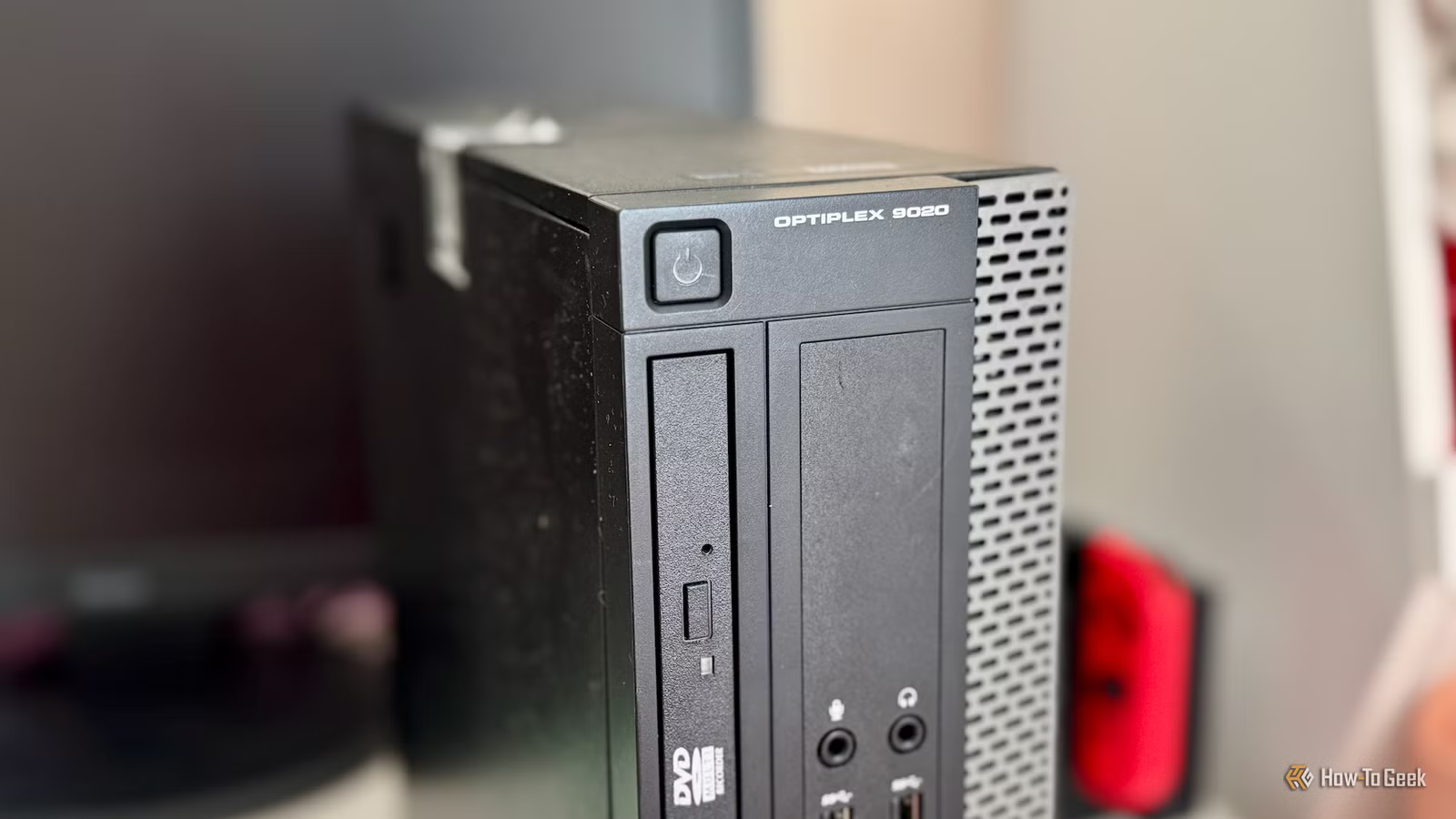
Building a homelab might sound like the kind of project that requires a big budget or an entire weekend, but it doesn’t have to. Any old PC or laptop collecting dust at home can be repurposed into a surprisingly capable homelab. With the right tools, the setup can be quick and beginner-friendly. Here’s how I turned my spare computer into a fully functional homelab for $0 in under an hour.
For context, the machine I’m using is fairly modest—an AMD Ryzen 3 2200G (released in February 2018), paired with 16GB of DDR4 RAM, a 250GB SATA SSD, a 500GB HDD, and a 100Mbps Ethernet connection. If this setup can handle a homelab, yours probably can too.
Installing the homelab OS
Done in 20 minutes
Technically speaking, the ideal homelab OS is Proxmox. However, it can feel a bit complex—especially if you’re new to networking or managing LXC containers. A simpler option is Ubuntu paired with Docker containers for each service you want to run. The downside is that a full desktop OS adds unnecessary overhead, which isn’t ideal when you’re working with limited hardware.
So, the middle ground I’ve decided to go with is ZimaOS. It’s a free, open-source NAS and home server OS built on top of CasaOS—a platform designed to simplify self-hosting. You get a clean browser-based dashboard, a built-in app store for self-hosted services, and Docker running quietly under the hood—no terminal required.
ZimaOS offers both free and paid tiers. The free version is limited to four disks and three users, which is more than enough for most homelabs, including mine. The ISO is about 1.3GB, and downloading plus flashing it to a USB drive took around 20 minutes—which happened to be the longest (and most boring) part of the process.
Setting up the homelab OS
Another 10 minutes
If you’ve ever installed a Linux distro from a USB drive, installing ZimaOS will feel familiar. First, head into your UEFI settings and disable Secure Boot—ZimaOS won’t boot otherwise. Save your changes and exit. Next, plug in the USB drive, restart your PC, and press the designated key to open the boot menu (usually F12, F11, or Del, depending on your system). Select the flashed USB drive, and the system will boot into ZimaOS.
You’ll be greeted with a retro-style, ncurses-based installer. Select “Install ZimaOS,” choose the target drive, confirm, and you’re done. On my system, the installation took less than three minutes.
After installation, remove the USB drive, restart the system, and you’ll boot into ZimaOS. You’ll only see a terminal at first, with no graphical interface. Note download the local URL displayed—looks like an IP address—and open it in a browser on another device connected to the same network. This launches the ZimaOS web-based setup wizard. Creating an account takes about a minute, after which you’ll land on the main dashboard.
The dashboard is clean and intuitive—easily one of the better-looking home server interfaces I’ve used. From here, you can browse files, manage storage, and install apps. For example, I had a 500GB HDD connected to the system, and adding it was as simple as selecting it from the storage panel and mounting it—ZimaOS recognized it instantly.
By default, ZimaOS is only accessible on your local network. To access it remotely (for example, from your phone on mobile data), you’ll need to set up Tailscale. There’s also a ZimaClient app for remote access, but it’s inconsistent and seems primarily designed for ZimaOS hardware like the ZimaCube.
Related
Windows vs. Linux: Which Is Best for Your Homelab?
Skipping Windows is the good choice.
Installing all the services
No more than 5 minutes
ZimaOS includes a built-in app store that’s as intuitive as the Apple App Store or Google Play. It features 150+ apps focused on self-hosting and homelab use cases—from basic file servers to more advanced tools like local AI deployments.
For my setup, I went with Nextcloud—a FOSS alternative to Google Drive and Jellyfin—a FOSS media server. If I were working with more powerful hardware, I’d also consider Immich—a FOSS alternative to Google Photos and Paperless-ngx, which is great for digitizing and organizing documents. Installing the apps is quick and straightforward. In my case, it took about two to three minutes to get everything up and running.
Related
Want a Private Homelab? Put These 12 Apps at the Top of Your List
The cloud is cool—until it leaks.
Configuring all the services
Took around 10 minutes
Once an app is installed, it appears directly on the dashboard. Click it to open the web interface in a new tab, or use the three-dot menu to access its settings. ZimaOS installs apps with sensible defaults, so unless you have specific requirements, you can skip most settings and jump straight into each app’s setup wizard.
For example, Nextcloud’s setup took about a minute. You create an admin account, choose the features you want, and you’re in. It effectively replaces Google Workspace, offering file storage, calendar, notes, and an office suite powered by LibreOffice with real-time collaboration.
Jellyfin follows a similar process. The setup wizard prompts you to create an account, set up a media library, and point it to your media folder. By default, ZimaOS assigns Jellyfin access to a standard Media directory. If you already have media stored elsewhere, you can update the path in Jellyfin’s settings. In my case, I pointed it to the 500GB HDD I mounted earlier.
Now, both Nextcloud and Jellyfin are feature-packed apps, and while they’re currently up and running, they are far from optimized. That said, I’m not going to push you down that rabbit hole here. Today was about getting a homelab up and running, and in a matter of 45 minutes, we’ve achieved our goal.
Related
These 3 Jellyfin plugins finally make it a worthwhile Netflix replacement
What’s a cool open source project without useful plugins?
And the homelab is ready in 45 minutes
There you have it—a simple, fully functional homelab up and running in under an hour, completely free. The entire experience is intentionally beginner-friendly: everything is GUI-based, Docker runs quietly in the background, and sensible defaults are applied out of the box. If you’ve been intimidated by homelabbing, ZimaOS is one of the easiest ways to get started right now.
Brand
KAMURI
CPU
i5-14450HX
The KAMRUI Hyper H2 Mini PC features an Intel Core i5-14450HX 10-core 16-thread processor and 16GB of DDR4 RAM. The included 512GB NVMe SSD comes with Windows 11 pre-installed so the system is ready to go out of the box.
