

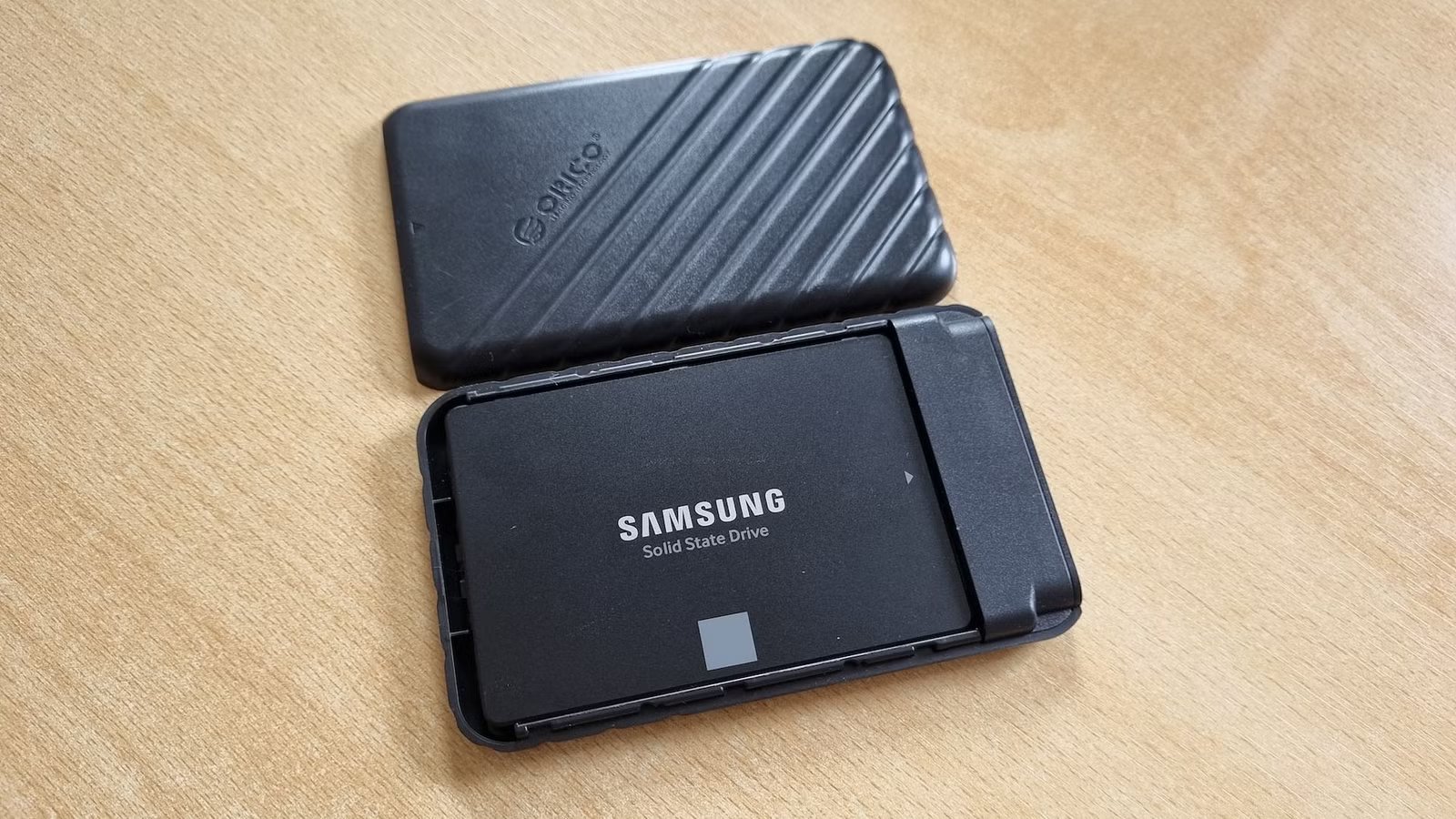
If you’ve got an old SSD lying around, one of the best things you can do with it is repurpose it into an external SSD. A DIY external SSD can also end up being lighter on your wallet than a regular external drive, especially now that storage prices have gone through the roof.
However, as simple as building your own SSD is, there are still some honest mistakes you can make, which you should avoid.
Don’t buy an incompatible SSD enclosure
Make sure your SSD fits the enclosure you’re eyeing before pulling the trigger
If you own a 2.5-inch SATA SSD, all you have to do is get a cheap enclosure for 2.5-inch SATA drives, right? Correct, just make sure it supports at least USB 3.0 transfer speeds (5Gbps or higher), because some cheap SATA enclosures only offer USB 2.0 bandwidth, which is fine for hard drives but bad news for SATA SSDs.
Also, don’t accidentally purchase a 3.5-inch enclosure; most do support both 2.5-inch SATA SSDs and 3.5-inch HDDs, but some are designed exclusively for 3.5-inch hard drives.
If you’re shopping for an M.2 SSD enclosure, make sure it can accommodate the specific M.2 SSD you want to turn into an external drive. SATA and NVMe M.2 SSDs share the same form factor, but they can feature different cutouts, or “notches,” on the part that goes into the M.2 slot.
Some SATA and NVMe M.2 drives use the B+M key layout—two notches. NVMe drives typically use the M key layout (one notch on the right), while some SATA M.2 models use the B key layout (one notch on the left). In general, M.2 external SSD enclosures support B+M and M key layouts, with most not supporting the B key layout. So if you’ve got a B key SATA SSD, be careful when choosing an enclosure.
Similarly, M.2 SSDs come in four common lengths: 2280 (the most popular), 2260, 2242, and 2230 (the most compact, usually found in handheld PCs and some thin-and-light laptops). If you’ve got a 2280 SSD, you should be fine since every M.2 enclosure supports that form factor. But if you’ve got a shorter SSD, make sure the enclosure you’re considering supports it before pulling the trigger.
Related
What Is the M.2 Expansion Slot, and How Can I Use It?
There’s a new open format sweeping the world of performance PCs, and it’s.
Don’t overspend on the enclosure
And vice-versa
Credit: Jordan Gloor / How-To Geek
M.2 external SSD enclosures come in various price tiers, depending on their maximum speed and other features. The most affordable ones top out at 5Gbps or 10Gbps, while you’ve also got USB 3.2 Gen 2×2 models with a maximum bandwidth of 20Gbps, as well as Thunderbolt and USB4 enclosures that can deliver up to 40Gbps. If you don’t own a USB4 or Thunderbolt device and plan to reuse an older PCIe 3 SSD or an M.2 SATA SSD, there’s no need to shell out extra cash for a pricier enclosure.
Similarly, purchase a USB 3.2 Gen 2×2 enclosure only if you own a device with USB 3.2 Gen 2×2 ports. I made the mistake of buying a USB 3.2 Gen 2×2 enclosure, shown below, because I’d thought I’d get 20Gbps bandwidth on my Mac Mini, which comes with Thunderbolt ports, and 10Gbps when using it with my desktop PC and handhelds. But the reality is that USB 3.2 Gen 2×2 works at 20Gbps only when connected to a matching USB 3.2 Gen 2×2 port. When plugged into a Thunderbolt or USB4 port, its maximum bandwidth drops to just 10Gbps. As you might’ve guessed, I discovered this the hard way; don’t repeat my mistake.
Credit: Goran Damnjanovic / How-To Geek
The same applies to SSDs. If you want to buy an SSD to turn into a DIY external drive, go for an affordable model because, at best, you’ll get 40Gbps bandwidth, which even the cheapest PCIe 4 SSDs can deliver. If you plan to get a 10Gbps or slower enclosure, feel free to pick the cheapest SSD you can find. Just make sure it’s a reliable model and not some AliExpress-type scam.
You shouldn’t use just any USB cable with your DIY SSD
You could be stuck at USB 2.0 speeds
Credit: Hannah Stryker / How-To Geek
Cables bundled with SSD enclosures can usually match the enclosure’s maximum speed, so you should be fine using the included cable. But if you want to use your own, make sure it’s fast enough.
The catch is that most USB cables, even USB-C ones, top out at USB 2.0 speeds since they’re made for fast-charging, not speedy data transfer. Grabbing the closest USB cable you have and plugging it into the enclosure will likely result in maximum bandwidth of only a few dozen megabytes per second.
Another tidbit most people building their first DIY external SSD aren’t aware of is that many cheap SSD enclosures (especially 2.5-inch SATA models) come with USB 3.0 Micro-B ports and cables, which are fast enough but far from common. If you want to use your own USB cables with the enclosure, get one that features either a USB-A or USB-C port.
Related
The hidden reason why your portable SSD is painfully slow
Please stop blaming your portable SSD for being painfully slow
After you build a DIY external SSD, don’t let it overheat
After you assemble your DIY SSD, keep it out in the open while transferring data. DIY external SSDs, especially NVMe drives, do heat up. Placing them on a blanket, your bed, or any other heat-insulating surface can drastically reduce their performance and even shorten their lifespan.
The best you can do is place them out in the open, on a surface with solid thermal dissipation properties. For instance, when I transfer large files on my external M.2 SSD, I place it on top of my aluminum Steam Deck dock, which helps it cool down. You can even use an active fan if you end up getting a Thunderbolt 4 or USB4 enclosure, which can drastically cool down the drive and even improve its maximum transfer speeds.
