

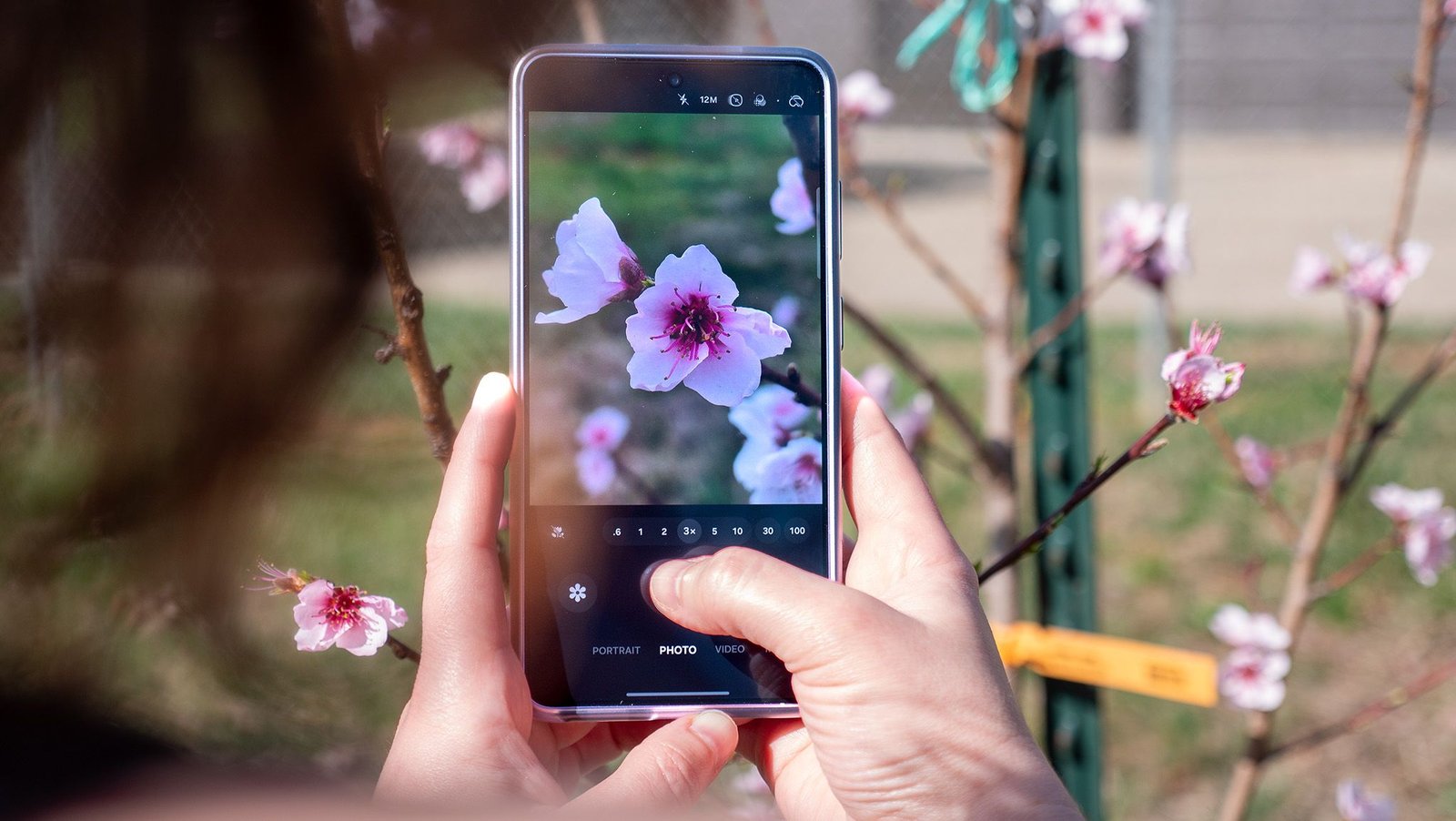
One of my favorite ways to take pictures with a smartphone is by using the telephoto lenses on the back. The Galaxy S26 Ultra has at least one more lens than most phones, giving Ultra users even more ways to take awesome shots, no matter how far away the subject is.
But I found myself a little… underwhelmed… by the quality of some of the “telephoto macro” shots I was taking with the Galaxy S26 Ultra. To say that many photos looked like they came from a 2010 phone isn’t an exaggeration, and I realized too late after the fact that these photos looked genuinely terrible. Take a closer look at any of the examples below to see what I mean.
Article continues below
You may like
Today’s best Samsung Galaxy S26 Ultra deals
Focus “Enhancer?” I don’t think so.
(Image credit: Android Central)
See all that nasty compression and lack of detail in the picture of my cat when Focus Enhancer is enabled in the comparison above? Click the full-screen button on the picture so you can see what I mean. It’s not just bad, it’s flat-out embarrassing for a $1300 phone released in 2026 to produce, but it turns out that this isn’t the Galaxy S26 Ultra hardware’s fault. It’s the software.
By default, the Galaxy S26 Ultra’s software automatically switches among the four rear cameras based on the phone’s distance from the subject, the lighting, and how far you’re zooming in. While this can work very well for some situations, I find that Samsung’s software thinks it’s smarter than it actually is. That’s why I prefer to turn off these tools and take control myself.
Don’t worry, turning off these options won’t remove your ability to take macro photos from any lens you want, but we’ll cover that in a bit.
The first step is to turn off Auto Lens Switching, which requires you to download Samsung’s camera assistant app. Thankfully, there’s a shortcut in the camera software, which eliminates a step Samsung used to require.
How to turn off Auto Lens Switching and Focus Enhancer
1. Open the camera app.
2. Tap the options button next to the camera zoom buttons. It looks like four dots.
3. Tap the settings gear to open camera settings.
What to read next
4. Scroll down to Camera Assistant and click the download button next to it.
5. When the Galaxy Apps store opens, tap the Install button to install Samsung Camera Assistant.
(Image credit: Android Central)
Now that Camera Assistant is installed and ready for use, go back to your camera app and open camera settings, then follow these steps:
1. In camera settings, scroll down to and tap Camera Assistant.
2. Near the top, toggle the switch for Auto lens switching to turn it off.
3. Navigate back to the camera viewfinder and tap the 3x zoom button.
4. Get within a few inches of any object until the Macro button appears to the left of the zoom buttons. It looks like a flower.
5. Tap the Macro button to disable Focus Enhancer. The icon will be greyed out and have a line crossed through it when it’s disabled.
(Image credit: Android Central)
“Telephoto macro” will transform your smartphone camera experience
As telephoto cameras have gotten better over the years, I’ve enjoyed using them to enhance my photography and create pictures that look like they were taken with a camera far more powerful than the one on your smartphone. That’s because photos taken with these sensors often feature a shallow depth of field and gorgeous bokeh (the background blur that makes a subject really stand out), along with crisp detail in the things you actually want to photograph.
If you’re someone who loves to take photos of animals, food, flowers, or even just artsy shots for Instagram (people still do that, right?), then the telephoto macro approach is what you’ve been looking for. And now that the automatic lens-switching nonsense has been turned off, you can pick the lens and get the shot just right, rather than play by the whims of software that doesn’t understand context.
Next time you take a photo, try tapping that 3x or 5x button and lining the shot up. You’ll need to pull the phone back just a little more — usually a few more inches — which also helps you frame the shot more intentionally.
Image 1 of 4
(Image credit: Android Central)(Image credit: Android Central)(Image credit: Android Central)(Image credit: Android Central)
For food, I find this allows me to compose my frames very specifically, adding a rich depth to the photo that makes it look like someone with a professional camera took it. Pictures of my family and pets are more commonly shot with telephoto lenses these days, as they highlight the subject and produce rich, portrait-quality images without the fringing and blur calculation errors that portrait mode makes.
I’ve also found that this helps get fine details into focus better, as well, including small parts like the pollen in a flower, or the bee buzzing around the petals. Trying to get up close and capture macro shots with the ultrawide camera — which is what the phone often uses when Focus Enhancer is enabled — produces images that are flat and lack depth or real focus.
(Image credit: Nicholas Sutrich / Android Central)
On the Galaxy S26 Ultra, the 5x lens is the biggest of the two telephoto sensors, which means that you’ll have to pull a little further back than on some other phones, but that larger sensor and new ALoP (All Lenses on Prism) sensor design can make your photos particularly impressive.
The Galaxy S26 Ultra gives you more telephoto lenses than most phones, so why not take advantage of each one’s unique atributes? Snap crisp, ‘Gram-ready photos with the latest sensors and upgraded software.
