

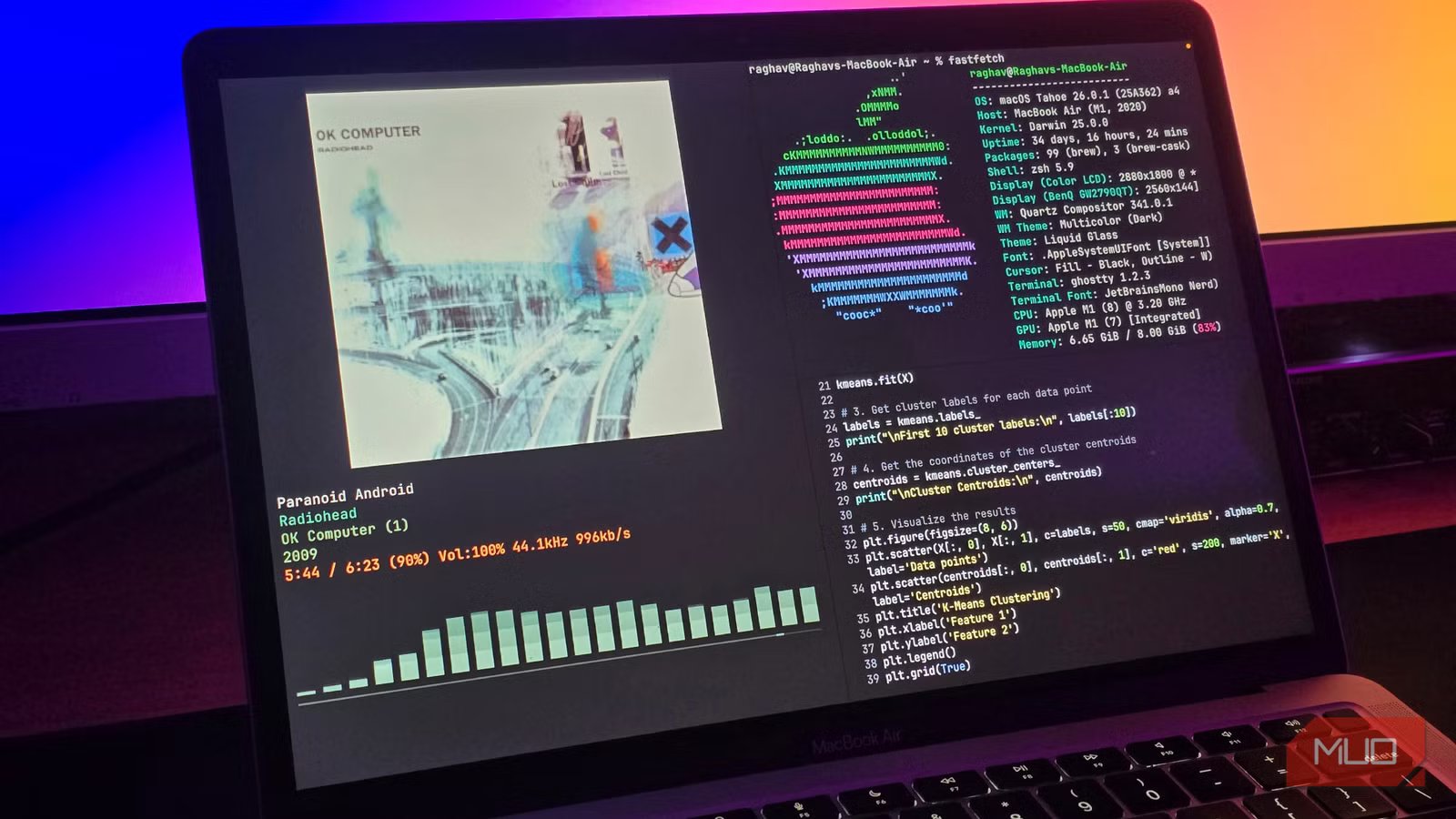
I have recently been moving more and more of my workflow entirely to the terminal, and for the most part it has been a great experience. One big thing I did not change for a long time though, was my terminal emulator.
I have tried plenty of options over the years, including iTerm2 and Alacritty, but I never got around to switching to them permanently. Recently though, I tried out Ghostty, and absolutely fell in love with it, and I think this is the best choice for me until something even better comes along.
GPU acceleration in your terminal is not as stupid as it sounds
No, it’s not for playing Doom
At first glance, the idea does sound extremely unnecessary. A terminal window just displays text; it does not play any videos or render any 3D scenes. So why would it ever need GPU acceleration?
The problem is that modern terminal usage is nothing like the old “type a command, get a line of output” workflow anymore.
Think of something common, like installing a big app or watching a build scroll by while you wait. The terminal suddenly fills up with lines flying past faster than you can read. Try scrolling back, resizing the window, or switching focus mid-command, and you will often feel it slow down or stutter for a moment. It doesn’t happen ALL the time, but it can definitely occur if you’re using your terminal as a full-blown IDE.
That is where hardware acceleration starts to matter. Instead of your CPU juggling both the actual work and the rendering of thousands of characters, the GPU takes over the drawing entirely. The CPU can focus on actually running your commands, while the GPU handles everything else.
It also helps massively with displaying images and other media directly inside the terminal, without the hacks older CPU-bound terminals use to do this.
Before you read ahead, it is worth clearing up a common misconception I have seen all over Reddit. A GPU-accelerated terminal will NOT make your commands run faster. Things like compiling code will take the same amount of time. The only performance gains you will notice are within the terminal interface itself.
Related
Sorry, Linux fans: This OS is actually the better Windows replacement
Not Linux, not Windows. Something better.
Ghostty should be your new default terminal
The name is scary, the app is not
Screenshot by Raghav – NAR
As I talked about earlier, Ghostty is a GPU-accelerated terminal, along with the likes of Alacritty, meaning you get all the smooth scrolling and overall responsiveness that comes with offloading rendering to the GPU.
But Ghostty is not good just because it is GPU-accelerated; it has a ton of other amazing features, too. One the user side, you get all the amazing features you’ll find on other great terminal emulators like iTerm2. For example, you can split the window to keep multiple processes visible on a single screen. I will admit it is not as versatile as using tmux, but for quick workflows, it is more than good enough and avoids the extra setup entirely.
It has proper support for modern fonts and ligatures, so text actually looks clean instead of slightly off. Unicode and emoji rendering work perfectly, which matters more than you would think once you eventually start going through vibe-coded pull requests.
Under the hood, Ghostty also supports modern terminal capabilities like the Kitty graphics protocol, which allows apps to render images and other media directly inside the terminal. If that sounds like a small deal, just see the difference between the stock macOS terminal (on the right) and Ghostty (on the left).
I am not trying to argue that Ghostty is the absolute best terminal emulator out there. There are plenty of great options, and some of them do specific things better. For me, Ghostty hits an excellent balance.
Ghostty’s themes won me over
There is a caveat, though
Screenshot by Raghav – NAR
Ghostty has more than a hundred built-in themes, and I am fairly confident you will find something you like in that list. To browse them all, you can run the following command directly inside Ghostty:
ghostty +list-themes
This opens an interactive preview where you can cycle through themes one by one and see how they look in real time. It’s very useful, since it shows pretty much how every workflow would look in that theme. Once you find a theme you like, copy its name somewhere, because applying it is unfortunately not as simple as selecting it from a GUI.
To set the theme, you’ll need to edit Ghostty’s config file manually. You can open it on Linux by entering this command:
nano ~/.config/ghostty/config
If you’re on macOS, you’ll instead need to type out this command:
nano $HOME/Library/Application Support/com.mitchellh.ghostty/config
Inside the file, add a line like this, replacing the name with the theme you chose:
theme = “theme-name”
While you’re at it, you will also notice options to change the font and tweak a few other settings. If you know what you’re doing, you can customize everything else from within this config file.
Save the file and restart Ghostty, and the theme will be applied. It’s a bit of a manual process for sure, which is the only complaint I have with Ghostty.
Related
I love the Linux terminal, but I still recommend the GUI
Real expertise is choosing the tool that reduces friction.
It’s a solid upgrade
Switching terminal emulators is rarely exciting, obviously. But still, sometimes it’s worth doing. There are a lot of improvements under the hood that you don’t really see up front, but make a huge difference.
If, for some reason, you still feel like Ghostty isn’t for you, I would recommend you check out something like Kitty or Alacritty, both of which also have GPU acceleration.
