

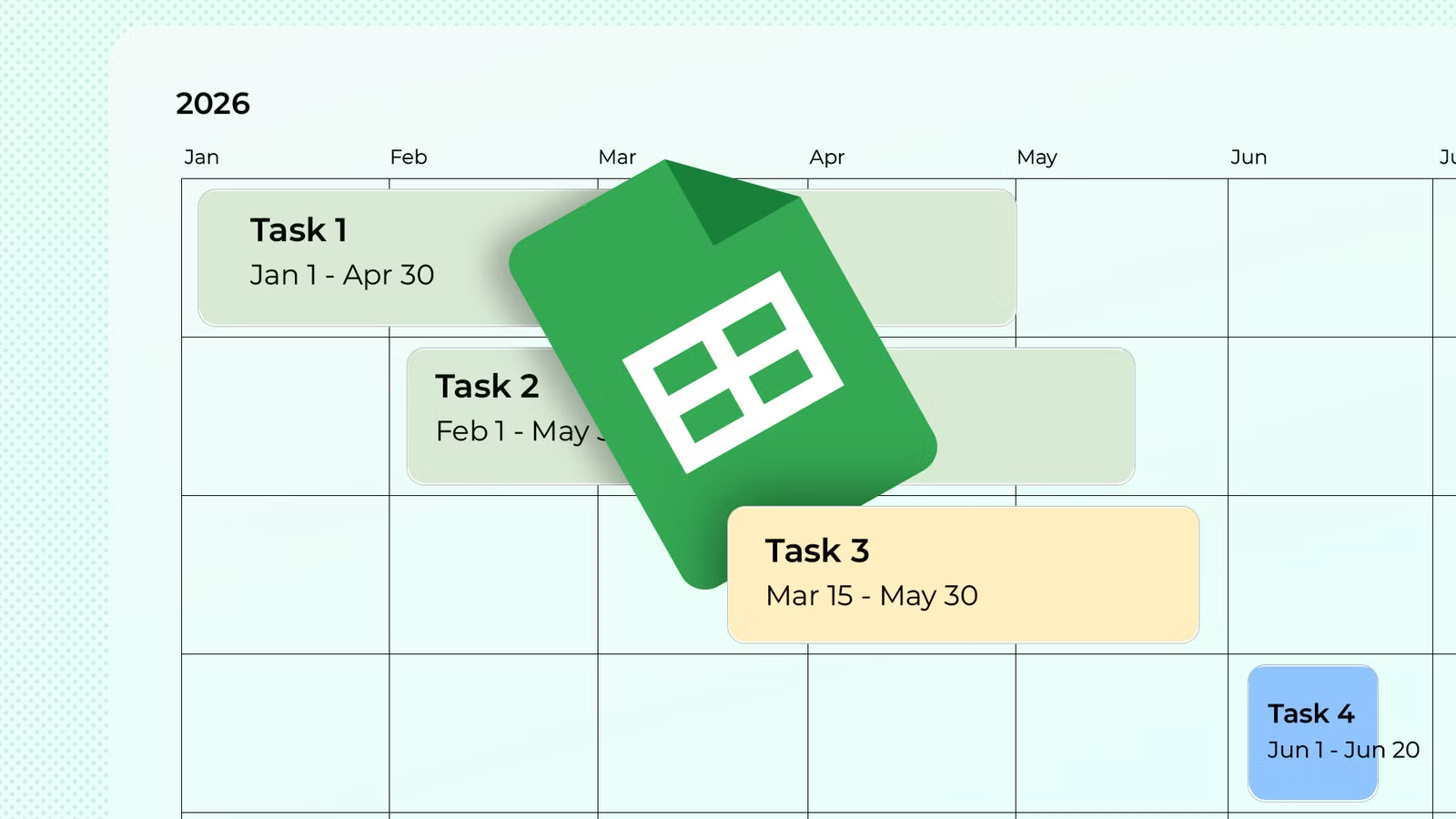
Google Sheets is hiding a massive productivity feature in plain sight: the timeline builder. It’s dynamic, it’s colorful, and best of all, it updates itself. So, forget the manual formatting—here’s how to build your own visualized project tracker in just five minutes.
You must be using Google Sheets in a desktop browser to create or configure a timeline. Once it’s complete, you can then view and interact with it on all devices.
Step 1: Set up your source data
Before you can create your timeline in Google Sheets, you need to give the program something to work with. At a minimum, your spreadsheet needs:
- Card Title: The name of the task.
- Start Date: This must be a valid date format.
- End Date or Duration: If you use an end date, make sure it’s the same day as or later than the start date, and use a valid date format. If it’s a duration, it should be either a number of days (such as 5) or a time in hh:mm:ss format.
Don’t waste time typing out long date strings—Google Sheets lets you double-click any cell in a date-formatted column to bring up a mini-calendar picker. To format a cell as a date, select it, and in the Format tab, click Number > Date.
Alongside the mandatory columns, I recommend you add three extra ones to make your timeline pop:
- Card Group: A category that the task fits into.
- Status: A column that contains words like “Pending,” “In progress,” and “Complete.”
- Card Detail: Brief task details.
Related
The Beginner’s Guide to Google Sheets
Find out how to do everything from sharing Sheets to automating tasks with macros.
Step 2: Convert your data into a table
Technically, you can build a Google Sheets timeline from a standard grid of cells, but you shouldn’t. If you use a standard range (like A1:F6), the moment you add a new task on row 7, your timeline will ignore it because it’s outside the original box.
To make this a set-and-forget project tracker, turn your data into a table. Select your entire dataset, including the headers, and in the Format tab, click “Convert to table.”
The data immediately snaps into a single table object.
If you want your timeline to be color-coded (such as by status), add colors to the relevant column, either manually or with conditional formatting.
You now have a secure dataset for your dynamic timeline.
Step 3: Generate the timeline
Unlike Excel, where you have to trick a line chart into looking like a project schedule, Sheets has a dedicated engine built just for this.
Select any cell in your data table, and in the Insert tab, click “Timeline.”
Your table range should be entered automatically in the pop-up that appears. However, if the range is incorrect, select your table (including the headers) manually on the grid to update it.
When you click “OK,” the timeline opens in a new tab.
Even though the timeline may appear to have been created with a fixed range (like A1:F6), because it’s linked to a formatted table, it will update automatically when you add a new row.
Related
4 Google Sheets Functions That Ease the Switch From Excel
Excel and Sheets share most functions—but not all.
Step 4: Customize the view
The Settings sidebar that appears in the new timeline tab is where you map your columns. Because you set up your source data correctly in Step 1, the start date, end date, and card title are automatically mapped to your timeline. If you entered a duration into your table, rather than an end date, make sure the correct column is selected in the “End date or duration” drop-down menu.
You can then play around with the optional fields. For the card color, select whichever column you used for the color-coding in Step 2, and for the other fields, select the corresponding column from your table.
Here’s how my timeline looks now, with tasks color-coded by status, grouped by category, and displaying all the key information.
That said, if you want to keep your timeline streamlined, you can choose “No option” for these additional options.
If you used a Duration column instead of an End date column, uncheck “Show weekends” to skip Saturdays and Sundays in your project length.
Step 5: Live updates and maintenance
Now that your timeline is complete, check out some additional tools to make the most of this powerful native tool.
The “Edit data” shortcut
If a project deadline shifts, you don’t have to go hunting through hundreds of rows in your source dataset to find the right entry. Instead, select a card to open the Card Details sidebar, and click “Edit data” to jump back to the relevant row in the original table.
The timescale toggle
At the top of the screen, you’ll find a button to switch between days, weeks, months, and quarters. This is useful for toggling between a “What’s happening this week?” view and a “What does the next six months look like?” perspective in just a couple of clicks.
Interactive elements
If you included a link to a website or another Google Sheets file in your Card Detail column, these become clickable in the Card Details sidebar when you select the relevant card.
Collaboration and sharing
Since this is Google Sheets, the timeline is built for teamwork. Anyone with View access can still use the timescale toggle to see the bigger picture, meaning they can zoom in or out without accidentally altering the finer details.
Related
How I Use Google Sheets as a Freelancer
Can’t live without Sheets!
Troubleshooting common issues
Even with a five-minute timeline setup, you might run into a few quirks. Here’s how to fix them:
If you see…
Try this…
A missing task
Make sure the start date isn’t blank and is earlier than (or the same as) the end date.
Dates that won’t sync
Click the down arrow in the column header, hover over “Edit column type,” and make sure the date columns are correctly formatted as recognized dates.
Incorrect end dates when you used the duration method
In the Settings sidebar, select your “Duration” column in the “End date or duration” drop-down menu, and make sure the end date in your source data is either a number of days or a time in hh:mm:ss format.
A timeline that doesn’t update when you add new rows
Ensure you converted your source dataset to a Google Sheets table (see Step 2).
An Invalid Range error when creating your timeline
Don’t type the table name—select the cell range.
No Timeline option in the Insert tab
Make sure you’re using a desktop browser, not a mobile or tablet app.
You don’t need a complex project management suite or hours of manual formatting to build a professional roadmap. By spending five minutes with Google Sheets’ native timeline tool, you get a dynamic, visual dashboard that stays in sync with your work. It’s yet another example of how Google Sheets can be more useful than Microsoft Excel.
