

For me, how my phone feels in day-to-day life matters a lot, so I’ve experimented with a bunch of tweaks over time. Quite recently, I changed five key settings, which made my Android feel brand-new again. But even after that, I felt the scrolling animations could still be smoother.
Being my curious self, I decided to explore further and try something new. I’m so glad I did. Changing just one additional Android setting transformed the experience: scrolling became buttery smooth, the phone felt far more responsive, and using it just became way too satisfying. And I’m pretty sure you’d want to try this out, too.
Related
I never set up a new phone without changing this setting
One tweak can seriously improve how your Android feels
What’s this feature on Android?
When your Android finally keeps up with you
No Attribution Required — Pexels/Link
Enhanced scrolling on Android is an accessibility setting that makes your phone feel smoother, faster, and far more responsive in everyday use. For instance, when you’re scrolling through a long article in Chrome, flipping through social media feeds, or probably multitasking between apps, you want your phone to react instantly and keep up with your actions.
In many cases, the default speed can feel a bit sluggish, and even minor stutters or lags can break the smooth, fluid experience you expect. That’s exactly where this setting comes in. By adjusting it, your Android responds more quickly to gestures, animations flow seamlessly, and the overall interaction with the smartphone feels natural, almost like giving your phone a much-needed performance boost without changing the hardware.
First stop: Developer Options
Android’s developer settings are packed with hidden tweaks, and improving scrolling smoothness is one of the simplest ones to try. Before you can access it, you’ll need to unlock Developer Options. Here’s how to do it:
- Open the Settings app on your Android phone.
- Scroll down and tap About Phone.
- Look for build number under device information, then tap it 7 times in quick succession.
- You’ll see a prompt showing how many taps are left.
- Enter your phone’s PIN, pattern, or password when asked.
- Once done, a message will appear saying, “You are now a developer!”
Cutting the fluff for smoother swipes
Once developer options are enabled on your Android phone, the next step is to turn off a few animation settings that directly affect scrolling smoothness. These animations look nice, but they can also add a slight delay to every swipe and scroll. Here’s what you need to do:
- Open the Settings app on your phone.
- Scroll down and tap System.
- Head to Developer Options.
- Scroll until you find the Drawing section.
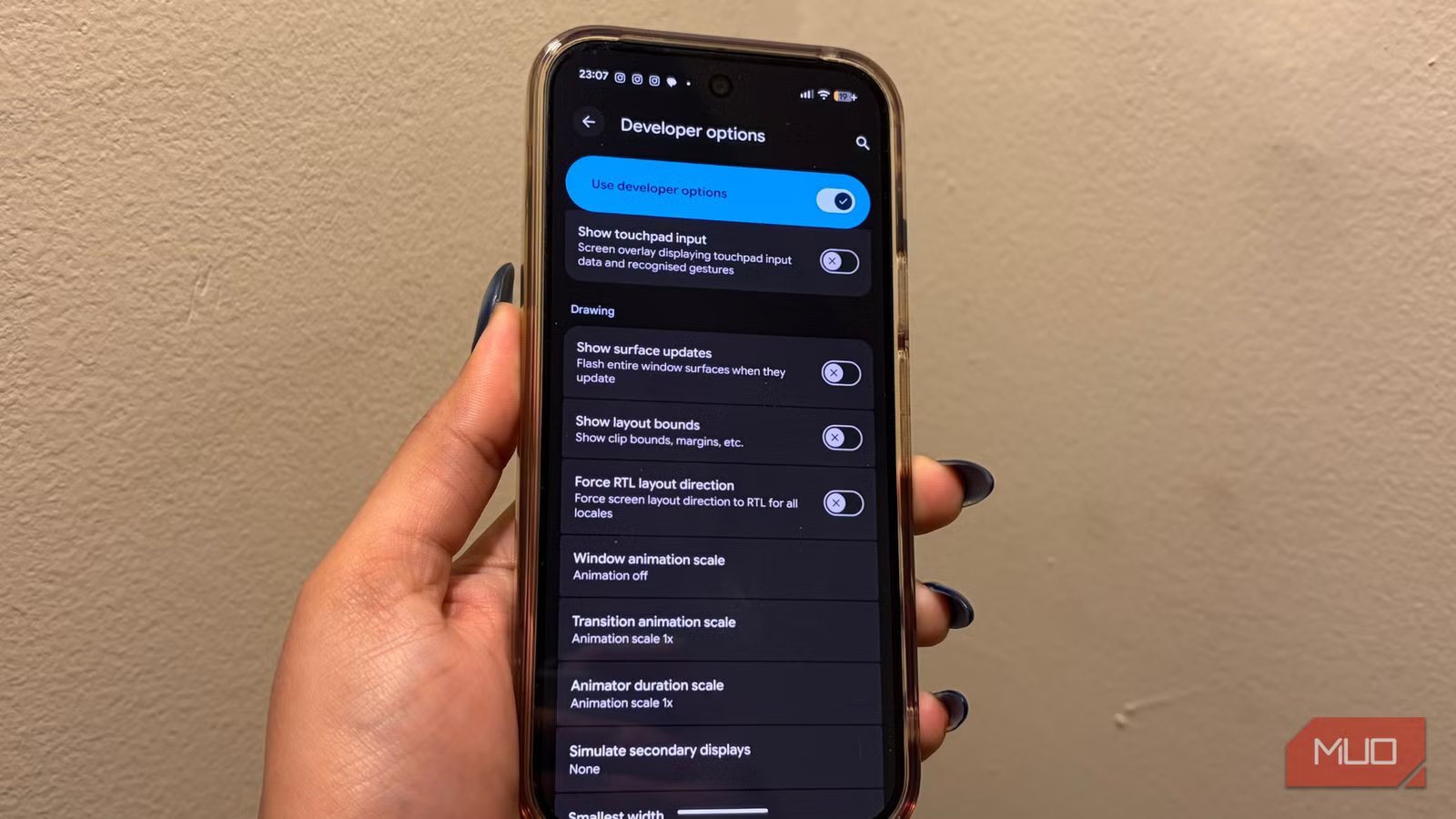
- You’ll see three options here: Window animation scale, Transition animation scale, and Animator duration scale.
- Tap each one and set it to Animation off.
Once these animations are disabled, your Android feels noticeably quicker. Scrolling becomes more immediate, app switching feels smoother, and the overall experience feels faster, with the difference being noticeable almost instantly.
Bonus: what those animation sliders really mean
Making sense of Android’s speed illusion
Credit: Shimul Sood / MakeUseOf
These animation settings control how fast things move on your phone. This affects everyday actions like opening and closing apps, switching between screens, scrolling through web pages, and navigating menus. When animations are quicker, everything feels more immediate. When they’re slower, the phone can feel laggy, even if it isn’t.
They do not boost performance in the traditional sense, but they change how fast your phone appears to respond.
Here’s what each setting controls, in simple terms:
- Window animation scale: This setting controls how quickly app windows open and close, including pop-up and dialog boxes.
- Transition animation scale: This simulates how fast the screen moves when switching between apps, changing screens, or probably when navigating within an app.
- Animator duration scale: This controls the speed of smaller on-screen movements, like menus sliding in or elements zooming. For instance, when you receive a notification, the way it falls on your screen is also controlled by this.
Here’s what the speed options actually mean in everyday use:
- 1x (Default): This is the normal speed Android is designed to run at.
- 0.5x (Lower values): Animations happen faster, making the phone feel snappier and more responsive.
- 2x, 5x or 10x (Higher values): Animations slow down, which is useful mainly for developers or users who prefer slower visual movement.
- Animation off: This setting is responsible for the fastest possible feel, though in some cases, it does make transitions feel a bit abrupt because of its fast nature.
Related
Everyone Should Try These 9 Android Accessibility Features
Even if you don’t rely on them to use Android, these features have something to offer.
Sometimes, smoothness is all your phone really needs
I’ve seen people replace their smartphones simply because they start feeling slow or underwhelming. While that’s completely a personal choice, I like to believe in getting the most out of a phone once I have paid for it. In situations like these, when my Android starts feeling a little tired, small tweaks can make a surprisingly big difference to how it feels in everyday use. They’re quick to try, easy to undo (if you don’t like them), but once you notice the difference in your usage, it’s genuinely hard to go back. And if you’re already in the mindset of fine-tuning your phone, there’s also a simple display tweak that lets you fit more content on the screen at once, making everyday use even more efficient without changing your hardware.
