

It’s been a few months since I got rid of 3-button navigation and started using gesture navigation, because the three-button bar felt a bit intrusive sitting on the screen all the time. The transition was slow and frustrating at times, but once it stuck, I started looking for gesture controls for everything else, too.
The good news is that Android, depending on the manufacturer, supports plenty of gestures out of the box. Some are enabled by default, others you can turn on and off. The better news is that you can just as easily add your own custom gestures with the help of MacroDroid, a free task automation app.
Built-in gestures are limited
Most Android gestures are useful, but rigid
Tashreef Shareef / MakeUseOfCredit: Tashreef Shareef / MakeUseOf
Most Android phones ship with a handful of gestures already baked in. On my Samsung phone, I can find them under Settings > Advanced features > Motions and gestures. Some of my favorites here include Double-tap to turn on screen, Mute with gestures (turn the phone face down to silence a call), and Palm swipe to capture a screenshot. Pixel phones have their own set, including Quick Tap, where double-tapping the back of the phone triggers a preset action. And there are other underrated Android gestures that most people never bother turning on.
The problem is that these gestures are fixed. The manufacturer picks the trigger, and the manufacturer picks the action. You don’t get to decide what Double-tap to turn off screen does, or what your palm swipe captures. Quick Tap on a Pixel fires one preset action and nothing else. You live with the pairing your phone maker chose for you.
There’s also no built-in way to create your own gesture in Android. You can’t open a menu and say, “when I shake my phone, do this”. What Android has instead is a healthy ecosystem of task automation apps that fill the gap, and that’s where MacroDroid comes in.
Related
These hidden Google Messages gestures make texting way smoother
Once you know these moves, Google Messages will never feel the same.
Building custom gestures with MacroDroid
A free automation app that hands you the controls
MacroDroid has been a quiet favorite in the Android automation community for years. It’s often pitched as the friendlier alternative to Tasker, and that reputation is fair. The interface is built around three clearly labeled boxes (Triggers, Actions, and Constraints), which makes it far less intimidating than Tasker’s deeply nested menus.
The app is free with ads, and there’s a one-time premium upgrade that removes ads and lifts the limit on the number of macros you can create. For most people, the free tier is enough to get started.
The part I want to focus on is that MacroDroid lets you build custom gestures by combining a sensor-based trigger with any action you want. To see how it works, here’s how I built my Shake to toggle flashlight macro from scratch.
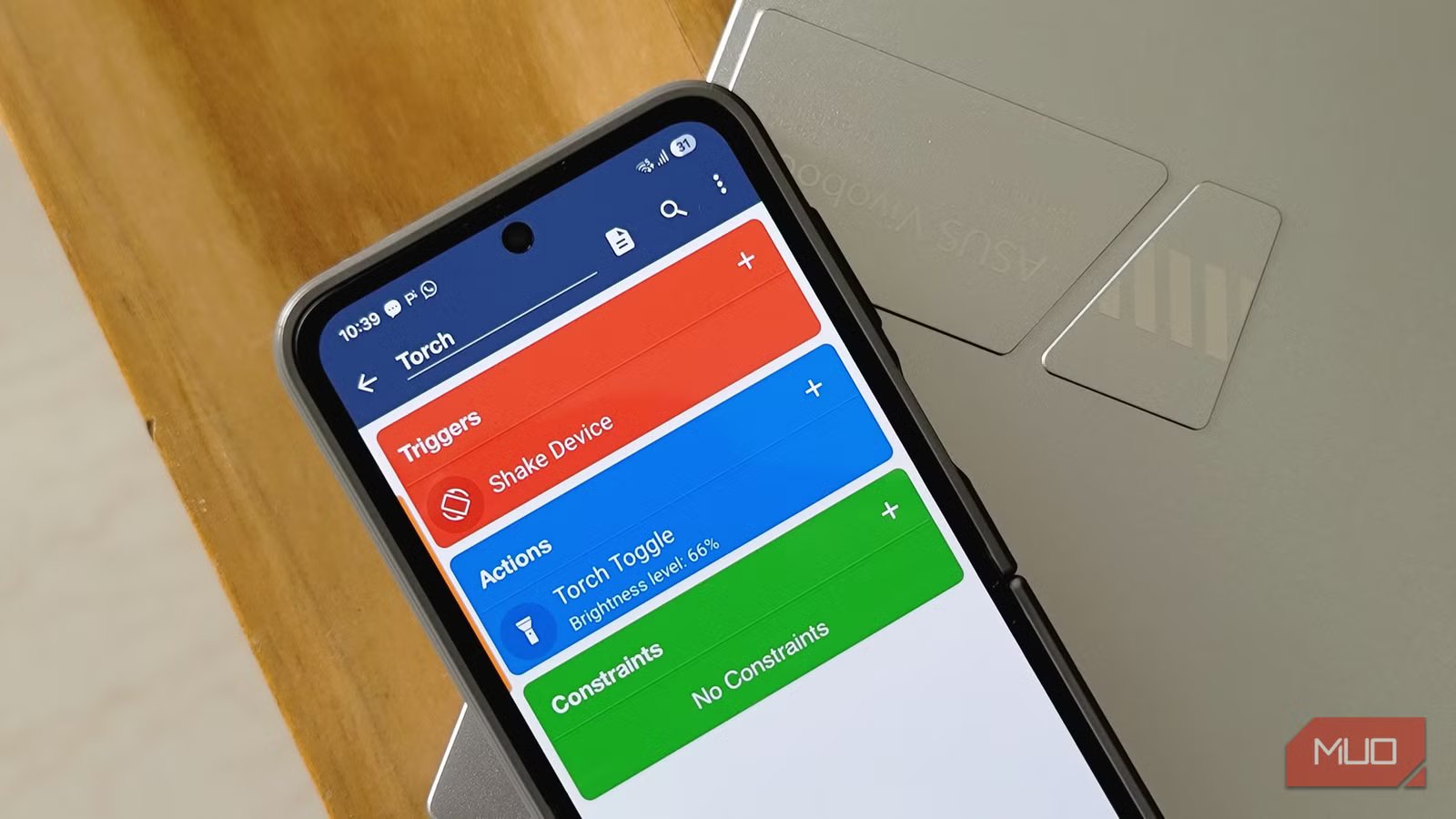
Open MacroDroid and tap the Add Macro button on the main screen. You’ll see three boxes labeled Triggers, Actions, and Constraints. Tap the + icon next to Triggers, then scroll down and pick Sensors > Shake Device.
Next, tap the + icon next to Actions and select Device Actions > Torch On/Off. Set it to Torch Toggle, which means a single shake turns the flashlight on, and another shake turns it off. Constraints are optional. You’d use them if you wanted the macro to only run when the screen is off, or only at night, or only when you’re not on a call. Give the macro a name at the top and save it.
That’s the whole loop: a trigger, an action, and an optional constraint. Once you understand that structure, you can build almost anything.
To adjust the Shake sensitivity, open Macrodroid, go to Settings > Trigger Options > Shake Trigger > Shake Sensitivity, and then set it to 2, so it doesn’t fire every time your phone moves in your pocket.
Cool custom gestures I’ve created so far
Three macros that I actually use every day
Tashreef Shareef / MakeUseOfCredit: Tashreef Shareef / MakeUseOf
The flashlight macro is the one I lean on most. I reach for my flashlight several times a day at night, mostly to check on my kids without turning the room lights on. I could ask Bixby to do it, but voice for fast action is clunky. Now I just shake the phone, the light comes on, shake again, it goes off. Shake Device is the trigger, Torch Toggle is the action, no constraints.
The second one is Raise to launch a voice assistant. The trigger is the Proximity Sensor set to Near, and the action is Voice Search. When I bring my phone close to my face, like when I’m holding it to my ear, the voice assistant pops up, and I can dictate a quick search or a reminder without unlocking the screen. I added a constraint that the screen has to be off; it would fire every time I picked up the phone from my desk.
The third one ties MacroDroid into my smart home setup. A shake fires a webhook through my automation stack to toggle the desk lamp, and a flip device gesture switches the bedroom lights to a Sleep scene. If you’ve already turned an older phone into a smart home sensor or controller, pairing MacroDroid gestures with that setup feels like a natural extension.
The last one is a productivity gesture for Obsidian. I use Fingerprint Gestures as the trigger and a UI Interaction swipe as the action, which lets me swipe up or down on the fingerprint reader to fold and unfold headings in my notes. It’s a small thing, but on a phone screen where every tap counts, having a hardware shortcut for an app-level action is genuinely useful.
Android gestures are incredibly powerful
What MacroDroid really changed for me isn’t a single gesture, but the underlying assumption that we are stuck with the default behavior of the phone. Once you’ve built a few macros, you stop thinking of your phone as a thing you operate, and start thinking of it as a thing you can fiddle with and customize to your liking. The shake, the proximity sensor, the fingerprint reader, and even the volume buttons can do whatever you want them to.
If you want to go further down the automation rabbit hole, Tasker is the heavier alternative with deeper scripting. But for building custom gestures without the steep learning curve, MacroDroid sits right in the sweet spot.
