

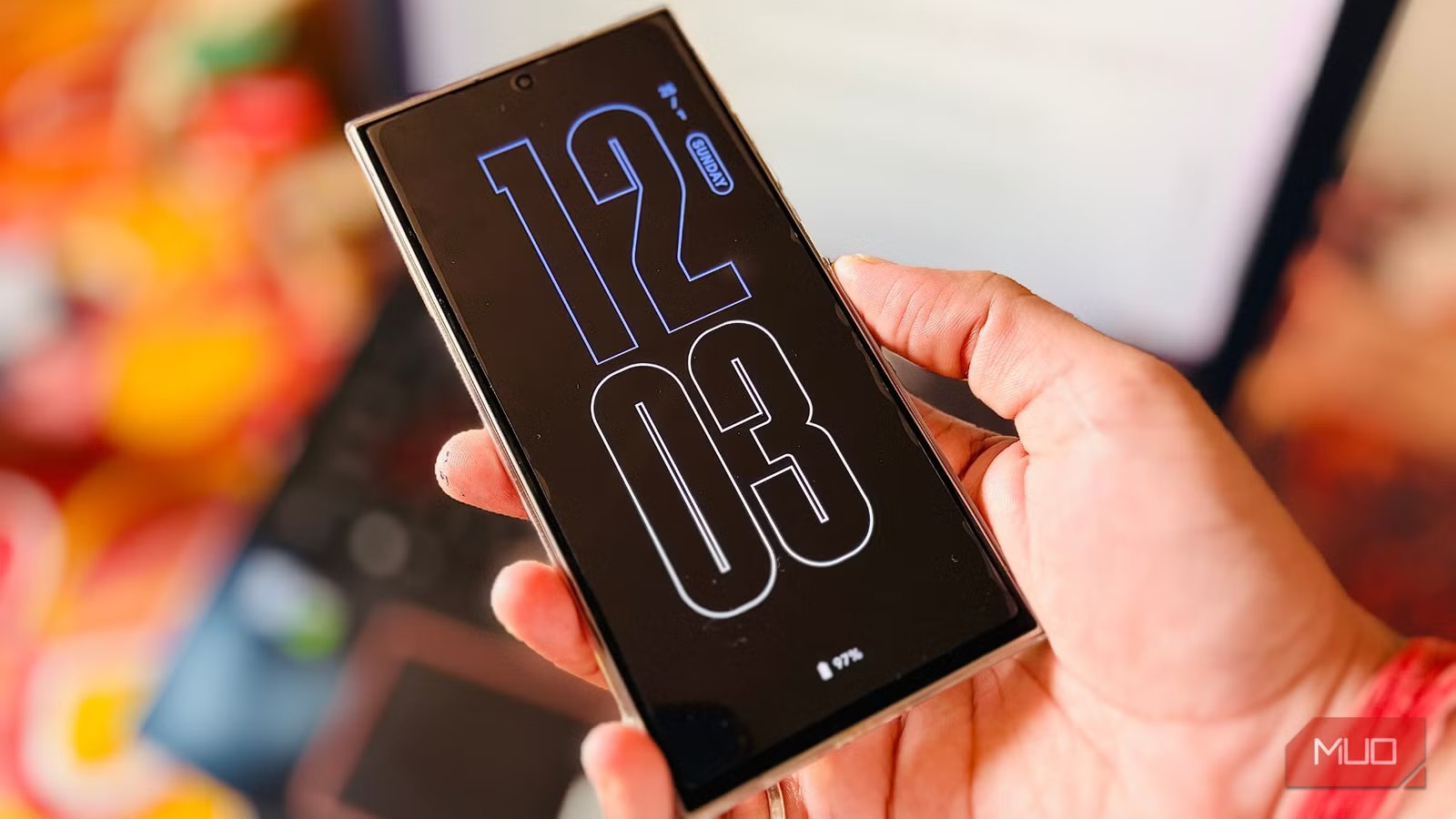
I use a Samsung Galaxy S24 Ultra as my main Android phone. While Apple took a while to introduce the Always on Display (AOD) feature, Android phones have had it for a bit longer. I use AOD to have a quick glance at the time, notifications, and what music I am listening to. Although there is a good amount of AOD customization Samsung offers via the Good Lock module, as a customization freak, I felt it was a bit limited.
After some time researching how to customize AOD, I stumbled upon the Muviz Edge app. For now, it is a permanent resident on my device, and here is why you should also use it.
Related
I’m never using a Samsung phone without this app again
My secret to a better Samsung experience
Why did I switch to Muviz Edge for my Always on Display?
Stock AOD customization is there, but it is limited
Credit: Sagar Naresh/MakeUseOf
Don’t get me wrong. I have explored all the customization options that are on offer by Samsung for its Always on Display. And let me tell you that it is fantastic and could be enough for most people. However, I like my Always on Display to have a bit of style and match my vibe. This is where I feel the OEM customization options are limited.
With Samsung’s customization via the LockStar and ClockFace module in the Good Lock app, you can do a lot of stuff. Right from changing the clock style (they have a dynamic clock as well that wraps around your image) to adding app shortcuts to adding custom text, to changing the wallpaper. But I find the clock style and stickers to be limited.
On top of this, if I play music through my favorite music streaming app, it just shows what’s playing in the Now Bar at the bottom.
I tried a few apps, but most of them were either battery-hogging or felt incredibly clunky. I wanted something lightweight and felt a part of my smartphone, not like an overlay. Muviz Edge not just gave me multiple different clock styles for AOD; it also turned the edges of my phone’s screen into a visualizer.
Setting up Muviz Edge is a breeze
The app itself is very straightforward and does what it is meant to do
As I mentioned, unlike some other Always On Display customization apps available on the Google Play Store, Muviz Edge is a bit basic when it comes to installation and setup. Here’s how to install it and set it up:
- Head over to the Google Play Store and search for Muviz Edge.
- Tap the Install button, and once installed, hit the Open button.
- Grant permission for Draw over Apps.
- On the welcome page, you will see three tabs under Show on. Tapping on each will ask for some permission, which you need to grant access to.
- That’s it!
The Muviz Edge app is now ready to be tweaked as per your preference, which we have discussed in the next section.
OS
Android
Price model
Free
The features that changed my lock screen
Simple, yet very effective
Credit: Sagar Naresh/MakeUseOf
Muviz Edge isn’t just a one-trick app where you customize the lock screen and are done. It has several layers of customization for music, which was my main intention in using this app.
In the Edge Lights section, you will see a variety of edge lighting designs:
- Mirror Rain
- Chase Around (paid)
- Corner Out
- Fire Dance (paid)
- Flat Bars
- Side Bars (paid)
- Bars Around (paid)
- Flat Ripples
- Side Ripples
- Flat Streaks
- Side Streaks
- Side Braids (paid)
- Strings Around (paid)
- Waves Around (paid)
- Flat Waves
- Side Waves (paid)
- Flat Flutter
- Side Flutter
- Serials Around (paid)
- Serial Lights (paid)
- Lights Around (paid)
- Side Lights
- Dot Particles (paid)
- Snow Particles (paid)
- Bubble Particles
The best part is that if you are on the free tier, you can still try the paid edge lighting options by watching a couple of ads (do note that the ads are quite long). There is also a long list of preset color options for the lights, or for paid users, you can apply ones from the album art.
Coming to AOD, there is a good range of Always On Display on offer. Though the AOD options are limited, they are the best ones out there. I’ve been using this app for around 10 days, and I have already tried all the AOD options the Muviz Edge app has on offer.
When you select an AOD, you get the option to change the clock style, size, hour color, minute color, date color, and controls color. There is also the option to change the background and use a custom image. You get the battery percentage and notifications icons so that you don’t miss out on the important stuff. The only thing missing from the app is that there is no option to add custom text, which is fine by me.
Breathes new life into your AOD
Since we are talking about free stuff, this app has plenty on offer. There may be other AOD apps available, but they have many features locked behind a paywall. Muviz Edge also has different packages that you can purchase, or you can go for an all-access pass that unlocks everything with a one-time payment.
Before you go ahead and spend your money, I would recommend you try the free version and see if that fits your bill, which is what I did, and I am still on the free tier. Above all, it is free, easy to use, and the best way to customize the Always On Display on your Android phone.
