

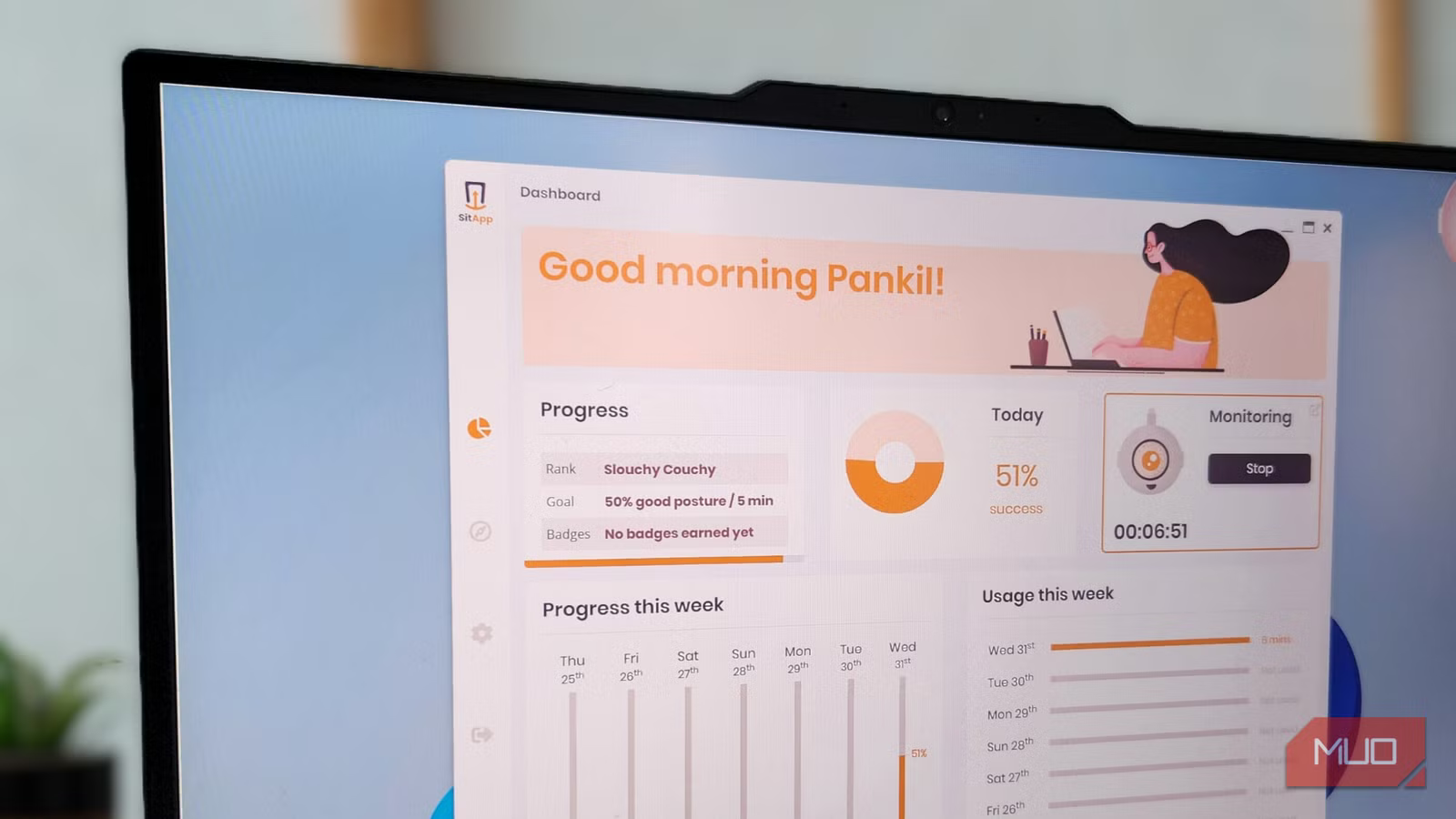
As someone who works on a computer all day, I’m constantly concerned about my posture and the long-term impact it can have on my body. Over the years, I’ve tried everything to keep a healthy posture, from investing in an ergonomic chair and a laptop stand to using an external keyboard. All of these things did help, but what ultimately improved my posture for good was a bit of persistent nagging.
SitApp is a simple app that keeps an eye on how you sit and notifies you when you start slipping into a bad posture. That constant, gentle push is what finally made the difference for me and fixed my posture for good.
OS
Windows and macOS
Price model
Free
SitApp is a free tool that keeps an eye on your posture using your webcam and reminds you to sit up straight.
What does SitApp do, exactly?
It notices what you don’t
Screenshot by Pankil Shah — No attribution required
SitApp works on a simple but brilliant idea. It runs in the background while you work and uses your webcam to keep an eye on your posture. The app uses machine learning to analyze the footage in real time, and when you start slouching or bending your neck forward, it flashes a clear slouch alert on the screen. The app works even if you’re using a standing desk.
If you’re using multiple screens, the alert shows up on every display, so there’s no escaping it. And if you somehow manage to ignore it, which is difficult, it’ll slowly turn the entire screen red. The second you fix your posture, everything goes back to normal. This constant feedback loop is what makes the app effective.
SitApp also features a neat dashboard that lets you track your progress. This tells you how much time you’ve spent sitting with good posture versus bad posture. You can see how well you’ve done over the entire week. And for accurate readings, it automatically pauses when you move away from your desk. So don’t worry, your coffee breaks won’t be counted as bad postures.
To keep things fun, SitApp adds badges and small achievements to reward you. It sounds gimmicky, but it works.
Setting up SitApp on your PC
Make sure you do this right
Once you’ve installed SitApp, it takes you through a series of prompts. It starts with some tips on how you can sit well by keeping the screen at eye level, using a stand, and pairing your setup with an external keyboard.
Next comes posture calibration, which is the most important part of the setup. You’ll need to train the app to recognize what good posture looks like for you. Make sure you sit comfortably and keep your back straight when you record this.
Similarly, you’ll need to record a slouch position so the app can recognize that too. You can add multiple positions, which improves accuracy. I recorded multiple positions where I leaned forward, tilted my head, or sank into the chair in different ways.
Once you’re done with the calibration, the app gets to work. You’ll see a SitApp window and a small eye icon that’ll appear in the top right corner. You can shrink the window further so that it doesn’t distract you. Diving into the SitApp Settings menu lets you move the alert eye to a different corner of the screen.
My first experience with SitApp wasn’t perfect. I kept getting alerts for even the slightest movements, which became more annoying than helpful. Thankfully, the app lets you recalibrate later. After a bit of tweaking, the alerts stopped and only popped up when I was maintaining a really bad posture.
I Made These 6 Changes to Make Working at My Desk Pain-Free
Some tweaks, and my desk is finally not out to ruin my back.
Best of all… it respects your privacy
Watching your posture without crossing a line
Screenshot by Pankil Shah — No attribution required
Any app that uses a webcam immediately raises a red flag. And honestly, that was my biggest hesitation while using SitApp. It needs the webcam running constantly. Even during the times when I paused the app, the webcam LED indicator stayed on. Of course, this isn’t something any of us are comfortable with.
The good news is that SitApp doesn’t record videos, take photos, or store any visual data. Everything happens locally on your PC. The app analyzes the webcam feed and then immediately discards that data. None of this data gets sent over the internet.
There’s one downside that’s worth mentioning. Since SitApp continuously uses the webcam, I did notice my laptop’s battery draining slightly faster. It wasn’t dramatic, but still noticeable. This isn’t a dealbreaker for me since I’m usually at my desk while working.
Out of all the things I tried to fix my bad posture, it’s funny how a simple app did the trick. Having used it for a week now, I’ve started catching myself sitting straighter without even thinking about it. I still slouch occasionally, but when I do, the app immediately alerts me so I can correct it.
