

Swapping out Bing and Edge is simple with this extension
I don’t know why I waited so long
Once I realized how easy swapping out Bing and Edge was, I kicked myself, as I could have done this years ago rather than just ignoring the problem. It turns out that replacing Bing in the Windows 11 Start Menu requires about two minutes of effort with minimal fuss or installation hassle… basically, anyone can do it.
You need the Chrometana Pro extension installed in Chrome, along with Wedge, to redirect searches and similar to Chrome instead of Edge. I’ve linked Wedge in the steps below, but it also appears as a link in the steps you’ll see on your screen.
- Install Chrometana Pro. The Settings page appears immediately following installation.
- Now, select your favorite search engine from the dropdown. Options such as Google, DuckDuckGo, and Yahoo are available, though you can set a custom search engine if you’d prefer.
- Next, input default app settings in the Start menu search bar and select the Best Match.
- Scroll to Google Chrome, select the option, then select Make Google Chrome your default browser.
- You’ll need to download and install Wedge, a program originally designed to redirect Cortana (remember?!), but it generally redirects Microsoft Edge links. It’s a standard installation process.
Once Wedge is installed, you’re good to go. Fire up your Start menu and try a web search — it’ll open in Chrome and head straight to Google.
You don’t have to use Google or Chrome
Don’t use Chrome? Want to steer clear of Google? Use another browser and search engine combination.
As Chrometana Pro is a Chrome browser extension, it should work in most Chromium-based browsers, such as Opera and Brave. You’ll need to go through the steps again in that respective browser, and I found that I needed to reinstall Wedge to redirect the links away from Bing, but the process was easy enough.
But if you’re completely off the Google grid and prefer Firefox, you’re also covered. Try the Foxtana Pro extension for Firefox to get started. It has the same features and is developed by the same person behind the Chrometana Pro extension, Marc Guiselin.
Again, follow the steps once you’ve installed the Foxtana extension; it’s a very similar process to what I’ve explained above.
Don’t want to replace Bing and Edge permanently? Try this instead
PowerToys Command Palette is a great alternative and has more functionality
In some cases, replacing the default Start menu options might not be an option. For example, your school or workplace may have locked down the Start menu with Group Policy settings, or you may share your machine with someone who prefers the Bing/Edge combo.
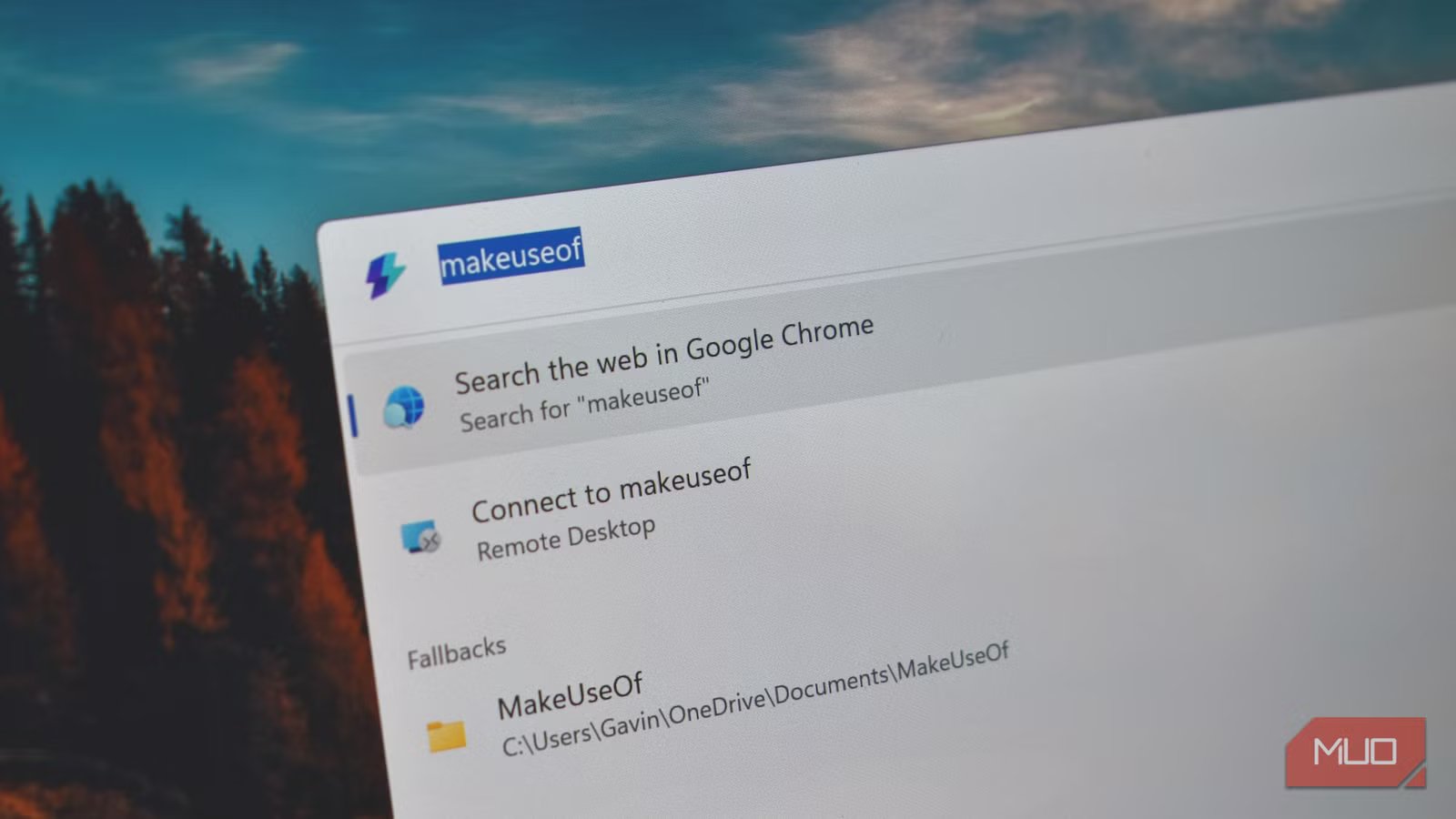
If that’s the case, one workaround is through Windows PowerToys, which features a really handy desktop-based search tool you can use to launch and search different programs. PowerToys Command Palette lives on your desktop and is easily accessed via a customizable keyboard shortcut. In many ways, Command Palette makes standard Windows Search pointless, and you’ll never want to go back.
- Download and install PowerToys.
- Once installed, select Command Palette from the sidebar. From here, you can customize shortcuts, toggle the extensions you want to use, set Command Palette’s visual style, and more.
Once you’ve had a fiddle with the settings, give it a try. Command Palette doesn’t so much as replace Bing and Edge in the Start menu as bypass them completely, meaning you never really have to use it again. It’s incredibly powerful, too, and has many more uses than just the occasional web search from your desktop.
While I think Command Palette is the best option to replace the Windows Start menu, it’s not the only option. You could also try the open-source Flow Launcher, which provides a similar experience.
Related
This PowerToys feature is so good it should be built into Windows
Windows search has competition—and it’s from Microsoft’s own PowerToys.
If you’re like me, you’ll be forever thankful to leave those frustrating Bing-powered, Edge-infused searches behind. My only regret is that I didn’t try to do something about this sooner, knowing now how easy it is to replace Bing in the Start menu.
But the reality is that if you’re considering replacing Bing and Edge, going the whole hog is actually easier and more efficient, plus Command Palette isn’t just for web search. It becomes a whole new way of controlling Windows, and you’ll never open the Start menu again.
