

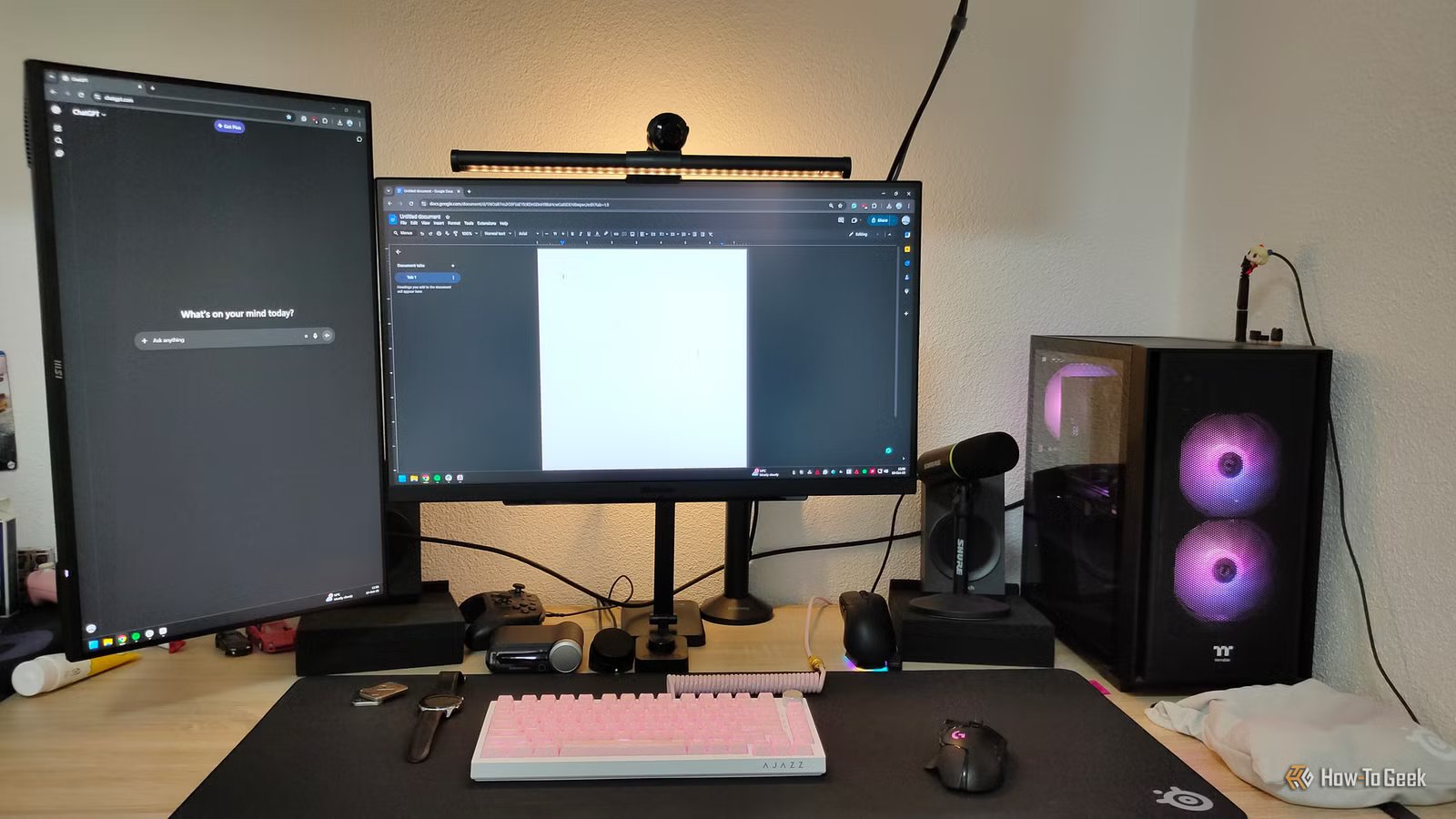
You’ve probably seen developers and power users running secondary displays vertically. To me, it always looked weird and unnecessary—we’re used to seeing monitors in landscape orientation. However, once I actually gave portrait mode a real try on my secondary monitor, it was surprisingly hard to look back.
A vertical monitor makes way more sense as a secondary screen
For most of us, using our primary monitor in vertical mode would feel pretty unnatural. Plus, for us gamers, that would mean having to rotate the monitor and flip the orientation in Windows settings each time we wanted to play games.
However, with secondary monitors, it’s a whole other story. While the main monitor is reserved for active work like dragging windows, scrolling through spreadsheets, and web browsing, the secondary monitor is more for visual reference and occasional interaction.
For me, this means running an AI chatbot like ChatGPT or Gemini on the secondary monitor, along with a few text documents, videos, and links, while everything that requires interaction stays on the primary monitor. For these purposes, a vertical orientation actually makes a lot more sense than keeping it in landscape mode.
Credit: Ismar Hrnjicevic / How-To Geek
Since chatbots and many text-heavy webpages are stacked vertically, and conversations generally flow from top to bottom, I get a lot more screen estate when the monitor is set to a vertical position. In practice, it basically means never having to scroll to see more text, which simplifies my workflow and keeps my mouse cursor chiefly on my primary screen.
To give you a point of reference, when I first tried using my monitor in vertical mode, I counted how many words I could see in vertical vs. landscape orientation—269 words in vertical mode, compared to only 115 in landscape. That’s more than twice as much text!
Credit: Ismar Hrnjicevic / How-To Geek
Outside of work, the extra vertical space also helps with other applications. Spotify shows me more songs in a playlist, video game guides display more critical information, and even Discord team chats allow me to see more of the conversation. The key goal is the same: keep scrolling to a minimum and avoid alt-tabbing out of my games, which is all solved with the help of a vertical secondary screen.
Really, I’ve only noticed two minor drawbacks. The first is that some apps and webpages don’t play ball with a vertical orientation—they assume all computer screens are horizontal and display the content incorrectly.
The second minor complaint has to do with URLs not being fully visible. This requires an extra step when I’m trying to copy-paste “clean” links, so I usually end up dragging the window to my primary screen to make things easier.
Once you put it on a monitor arm, everything clicks
Credit: HUANUO
If I’ve managed to convince you to flip your secondary monitor into vertical mode, even just to try it, you should know that this works best with a dedicated monitor arm. Even if your dual-monitor arm or your monitor’s stand allows vertical rotation, you might run into difficulties angling it or bringing it close enough for comfortable use.
One of the problems a vertical orientation solves is constant head rotation—rather than turning your head to the left each time you want to use it, you can often get away with just glancing over with your eyes.
The easiest way to achieve this comfortable viewing position is with a separate monitor arm. I use the Arctic X1 for my secondary monitor, and it’s doing a fantastic job.
Brand
Arctic
Max. Display Size
43″ (Ultrawide) / 40″ (Flat)
The ARCTIC X1 is a basic monitor arm that supports monitors up to 43″ ultrawide or 40″ standard, with a maximum weight of 22lbs. It offers tilt, swivel, and height adjustments for an ergonomic setup, with an easy-to-install table clamp design.
Vertical orientation takes up way less desk space
Credit: Ismar Hrnjicevic / How-To Geek
After my experiment using my secondary monitor in vertical mode, I fully expected to return to landscape when the week was over.
However, a couple of months later, that never happened, and one of the big reasons I wanted to keep it vertical had to do with desk space.
When you combine a monitor arm with vertical orientation, it’s surprising how little desk space a secondary monitor actually takes up.
Although the monitor is physically the same size, its narrow footprint leaves a lot more room for other desk accessories and peripherals. I also have a second desk right next to my primary one, and when someone sits there, there’s a chance they could knock into a landscape-oriented monitor—something that’s not a problem when it’s vertical.
I wish I’d done this years ago
Credit: Ismar Hrnjicevic / How-To Geek
Although I’ve only bought my secondary work monitor, the MSI PRO MP252, a few months ago, it’s far from my first experience with dual-monitor setups. I’d been using an old 19-inch monitor for years until it started smoking one hot summer day after I accidentally bumped the desk and shook it a little (I’m guessing something in the internal wiring came loose).
The big difference with the MSI PRO MP252 is that I actually took the time to find a monitor that supports VESA so that I can mount it to a monitor arm, which is a must-have for a work monitor.
It’s made a bigger difference in my day-to-day productivity and gaming than I could have ever anticipated. I am now a big believer in vertical monitors and always recommend this setup to anyone who is curious about a multi-monitor setup.
If you have a secondary monitor or are thinking of getting one, try flipping it into vertical mode; you might be surprised at how much it improves your workflow.
Related
Wider Isn’t Always Better: Why I Went Back to 16:9 from Ultrawide
Goodbye ultrawide, hello traditional.
