

I genuinely love using CarPlay. I’m constantly on the lookout for hidden features, and over time, I’ve even noticed a few small tricks that significantly improve the CarPlay experience. That said, my family primarily uses Android Auto, so whenever I’m traveling with them, switching over isn’t really optional.
I didn’t expect much either, but Android Auto really surprised me. I stumbled upon this feature that felt instantly practical and thoughtfully implemented, and it made me realize that I needed it on CarPlay, too. As much as I enjoy using CarPlay in my car, this one feature clearly gives Android Auto an upper hand. It’s actually one of those moments where you can’t help but feel, “Apple should already have this feature!” Hopefully, Apple will consider adding it soon.
Related
These 4 quick Android Auto games make every wait bearable
Waiting at a charger or drive-in? These quick Android Auto games make time fly effortlessly.
What’s this feature all about?
A smarter dashboard that keeps you safe
Credit: Shimul Sood / MakeUseOf
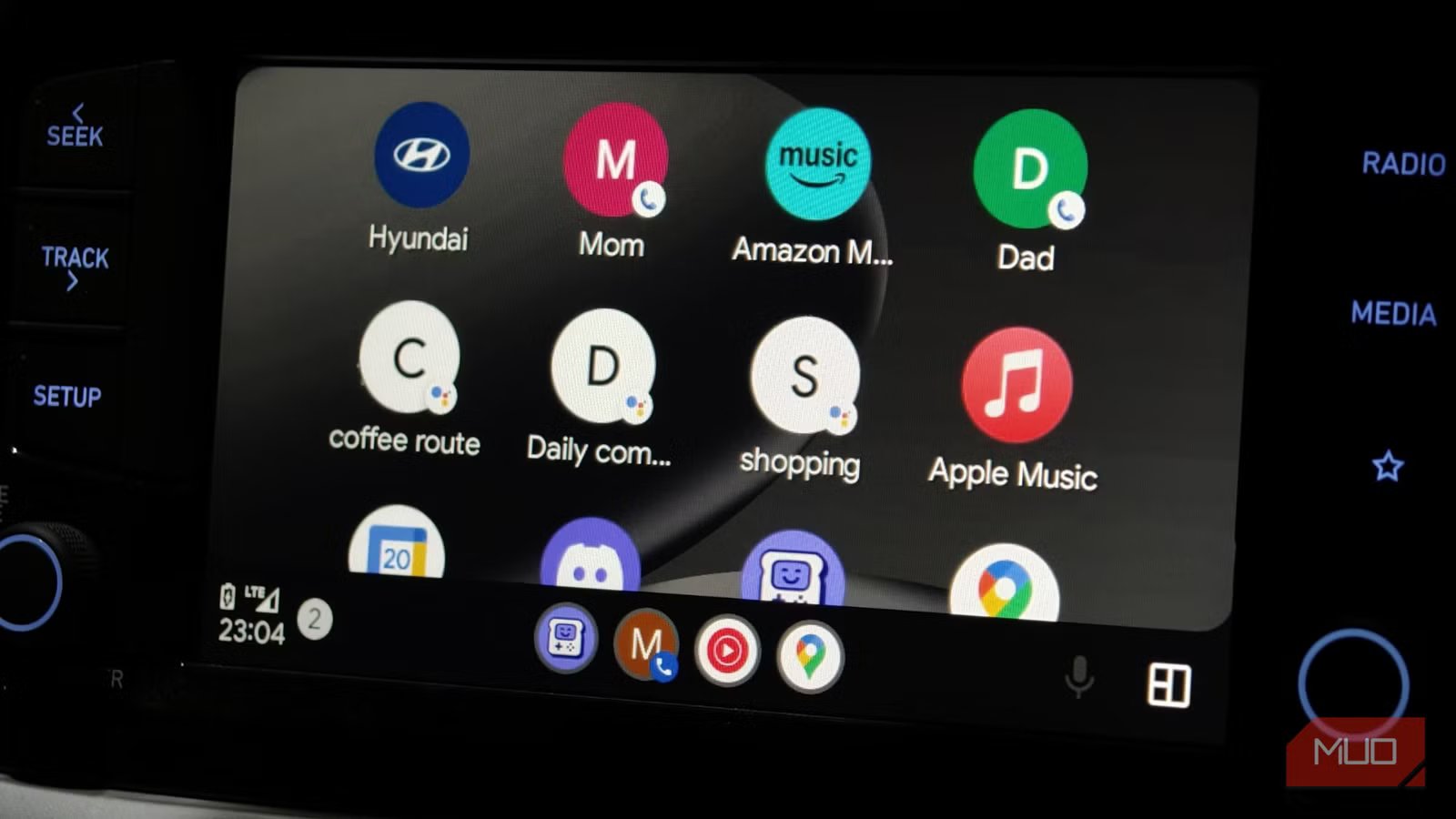
Customize Launcher on Android Auto gives you more control over how your car’s dashboard looks and functions. You can decide exactly which apps appear on the screen, rearrange them in a way that makes sense to you, and hide apps you never use to keep things clutter-free. For example, you can keep Google Maps, YouTube Music, and Phone right at the top, while removing apps you don’t need while driving.
It allows you to add shortcuts for quick access. You can pin your most-called contacts, like a family member or a friend, so you can call or message them with a single tap. You can even add Google Assistant actions, such as Navigate to Home, Play my driving playlist, or Call mom, making everyday tasks faster and safer on the road. Overall, it helps Android Auto feel more personalized, organized, and convenient when you’re behind the wheel.
Adding shortcuts to the launcher
Your most-used actions, right up front
To access the Customize Launcher option, follow these steps:
- Open the Settings app on your Android phone.
- Use the Search bar to find Android Auto, then tap on it.
- Under the Display section, select Customize Launcher.
- Tap Add a shortcut to the Launcher.
- Choose either Call a contact or an Assistant Action.
If you choose Call a contact, the settings will show you a list of your contacts. Simply pick the person you want to add, for example, your mom. Once selected, you’ll be taken back to the Customize Launcher screen, where the contact shortcut is automatically added to the launcher list. From here, you can tap and drag the shortcut to reposition it exactly where you want it on the dashboard.
If you select Assistant Action, you can create a custom voice command instead. Android Auto lets you choose from preset actions or type your own. For instance, you can add a command like Read my messages. You can also rename the shortcut, such as labeling it as Messages, so it’s easy to recognize on the screen. After setting this up, tap Add Shortcut to include it in the launcher.
Once all your shortcuts are added, you can freely drag and reorder them to prioritize what matters most. This way, your most-used contacts and actions stay right within reach, helping you stay focused and safer while driving.
Any shortcuts you set up while Android Auto is connected will only appear on the dashboard after you restart Android Auto. So, make sure to restart it once you’re done setting everything up.
Different actions for different needs
Customization that fits your routine
- Shopping: I still prefer shopping offline. There’s something about the mall experience that online shopping just can’t replace. Being able to feel the fabric, check the fit, and get a sense of how an outfit actually looks on me makes a big difference. Since visiting the mall is a weekly ritual, adding a shortcut like Let’s go to the mall is really useful. With one tap or command, I can pull up the directions without having to search for the location every single time.
- Daily commute: My dad travels to work every day, so setting up a daily commute shortcut for him made complete sense. I’ve added actions like Get directions to work or Let’s go to work to make navigation easy for him. He also enjoys listening to old ’90s music while driving, so I paired the commute shortcut with a dedicated playlist. This way, he can follow directions while his favorite tracks play in the background, making his daily drive more relaxed and enjoyable.
- My bi-weekly coffee route: A good cup of hot coffee is non-negotiable for me during workdays. When working from home starts to feel monotonous, I like stepping out for a coffee run. I’ve added a shortcut for this route that not only pulls up directions but also gives me quick updates like the weather, while playing my favorite music tracks along the way. It turns a coffee break into a refreshing mini-escape.
These examples barely scratch the surface of what shortcuts on Android Auto can do. I only wish this level of customization existed on CarPlay as well. For me, this flexibility alone is reason enough to choose Android Auto over CarPlay, and it absolutely deserves credit for getting the personalization right.
Related
How to Take Screenshots on Android When the App Doesn’t Allow It
Need to take a screenshot in a restricted app on Android? Here are two methods to try.
Don’t settle for a generic dashboard
Android Auto lets you do much more than navigate from point A to point B. You can send messages to family and friends, control music, and use a range of utility apps that make the driving experience better. What stands out to me the most is the freedom to customize everything. I can tweak the layout, choose what appears on the screen, and set it up the way I like.
That level of personalization gives me a sense of control without adding distraction. Whether it’s someone from my family behind the wheel or me, all these actions are designed to ensure safe driving. I’m not trading convenience for safety, or vice versa. Instead, Android Auto balances it out for me while keeping the focus on the road.
