

The long-awaited Google Health rebrand is here, and not everyone likes it. In fact, the sentiment regarding the fresh Google Health app is so negative that Google put out a support document highlighting the bugs it’s already squashed, and confirming that it is “committed to continuing to listen to feedback, add new capabilities, and fix existing issues, while being transparent with our users.” There are bad reviews criticizing the redesign on the App Store and Google Play Store.
I’ve been using the new app design, formerly the Fitbit app, since the Public Preview launched last year. If you aren’t satisfied with the new Google Health app, there are steps you can take to improve the experience. There’s quite a bit of room for customization available in the Google Health app, and these are the four things you should do first.
Today’s best Fitbit Air deals
Edit your focus tiles
(Image credit: Brady Snyder / Android Central)
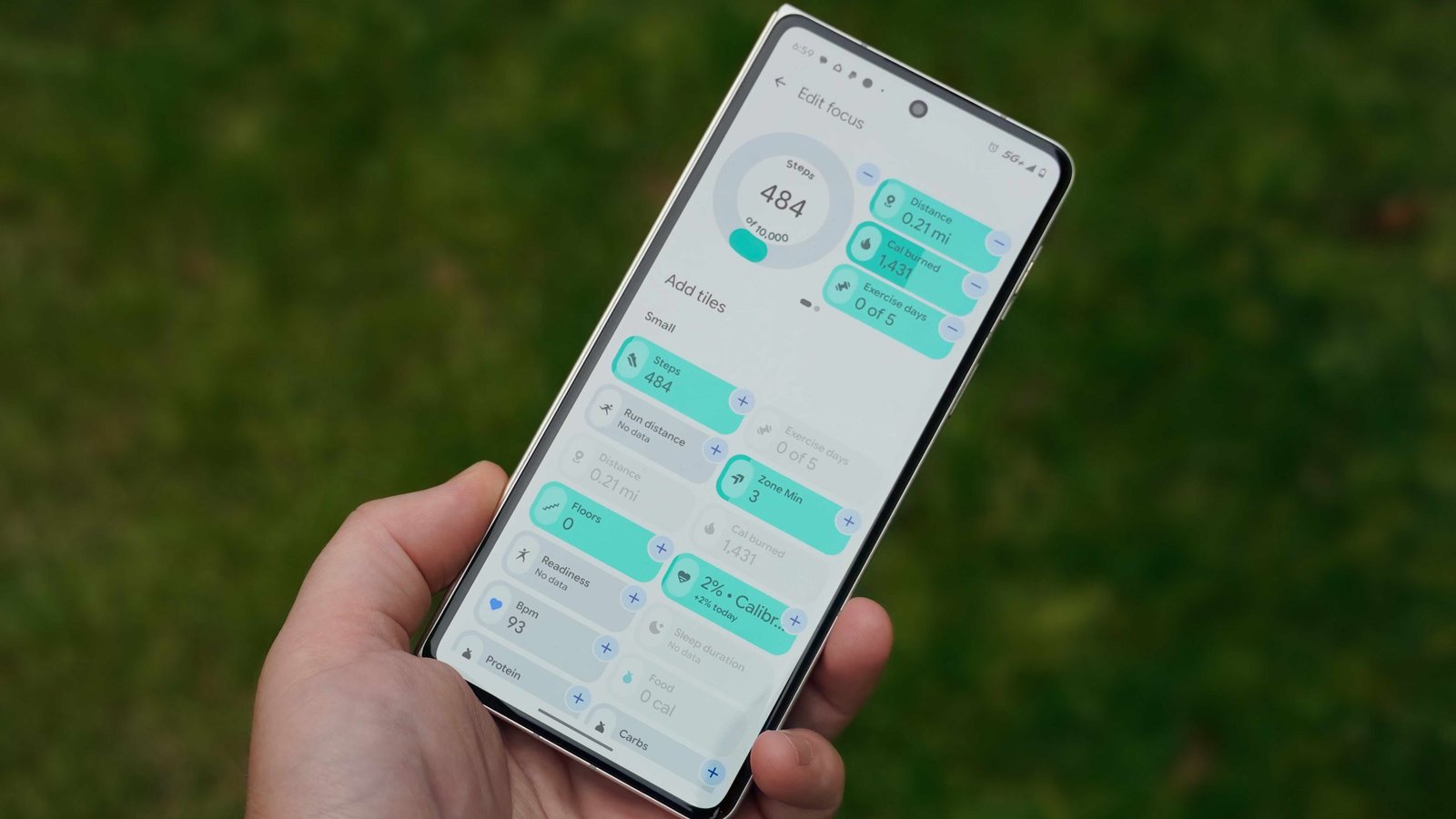
The new Google Health app puts focus tiles front and center. These are snapshots of individual data points, like your steps, distance, or calories burned. Tapping a focus tile opens a full-screen view of that metric, and you can see more data about the data point in day, week, month, three-month, and year views. The problem is that only four of those focus tiles fit on the homepage at once by default — the rest of the room is reserved for the Google Health feature, which you’ll only see with a subscription.
Latest Videos From
You may like
The good news is that you can change the focus tile arrangement to better work for you. When you first open the Google Health app, you’ll see a big focus tile and three smaller ones on the homepage. To see more, you’ll need to swipe to another page. The key to customizing the layout is editing the selection and size of the focus tiles.
Besides the Log and Start buttons, you’ll see a pencil-shaped Edit icon. Tapping this button opens a focus view editor that shows all available tiles. You can remove or add tiles, placing six small tiles or two large tiles on a single page. When you’re finished, simply press the Back arrow to return and save your changes.
Unfortunately, there’s no way to reorder the tiles without removing them all and adding new ones in the order you’d like. This is a big oversight — you should be able to touch and hold them like home screen apps or widgets to move things around. For now, this workaround will have to do.
Choose your key metrics
(Image credit: Brady Snyder / Android Central)
Honestly, I agree with some of the complaints about the main Today page in the Google Health app. It isn’t as data-dense as it could be, but there is a Health page that satisfies the itch for more information. Here, you’ll see your Health status and Key metrics. These include heart rate, weekly cardio, resting heart rate, active zone minutes, weight, energy burned, calorie intake, carbs, fat, protein, steps, exercise days, blood glucose, sleep duration, distance, floors, run distance, hydration, resilience, mindfulness, or body responses.
You can customize the Key metrics and set their order by tapping the Customize button. This is crucial to viewing the most important data at the top of the Health tab. For instance, calorie intake, carbs, fat, and protein are listed as default metrics, but I don’t log by food intake in the Google Health app. So, these are just taking up space that could be better used by another fitness metric.
Tap the + to add a metric or the – to remove one. Unfortunately, there’s no way to reorder the metrics without removing them all and re-adding them in a specific order, just like Today page tiles.
Sync apps with Google Health
(Image credit: Brady Snyder / Android Central)
You can sync third-party apps and devices with the Google Health app for a consistent experience. To do so, open the Google Health app and tap the Connections button in the top-left corner of the homepage. Then, tap Partner apps. Press Sync your favorite health apps and Set up to continue. This uses the Health Connect API to read and write data to or from other health apps, devices, or services. Tap Accept if you want to continue.
The app lets you choose to share Personal health records, Fitness and wellness data, or both. Then, hit Continue. Finally, press Allow all to permit the Google Health app to access fitness and wellness data. Tap Done when finished, and you’ll be able to share information using Health Connect with other apps and services.
Tell Health Coach your health goals
(Image credit: Brady Snyder / Android Central)
Finally, if you have the Google Health Premium (formerly Fitbit Premium) subscription, you can tell Google Health Coach your fitness goals. Health Coach is an AI-powered coach that uses custom Gemini smarts to analyze and advise you about your health progress. To tell Health Coach your goals, switch to the Fitness tab and tap Set your goal. This will open an experience with Google Health Coach where you can tell or ask the chatbot anything about your goals or health.
Although the $9.99 monthly Google Health Premium is completely optional, it’s clear the Health app is designed to work better with it than without it. Whether you’re a subscriber or not, these tips will help you customize the Google Health app and make it your own.
The perfect Google Health wearable
Google’s new Fitbit Air is a great entry into the Google Health ecosystem. It costs $99 and will track your health data for up to seven days before needing a recharge. You might also want to subscribe to Google Health Premium ($9.99/mo.) or Google AI Pro ($19.99/mo.) for access to the AI-powered Health Coach, although it’s completely optional.
