

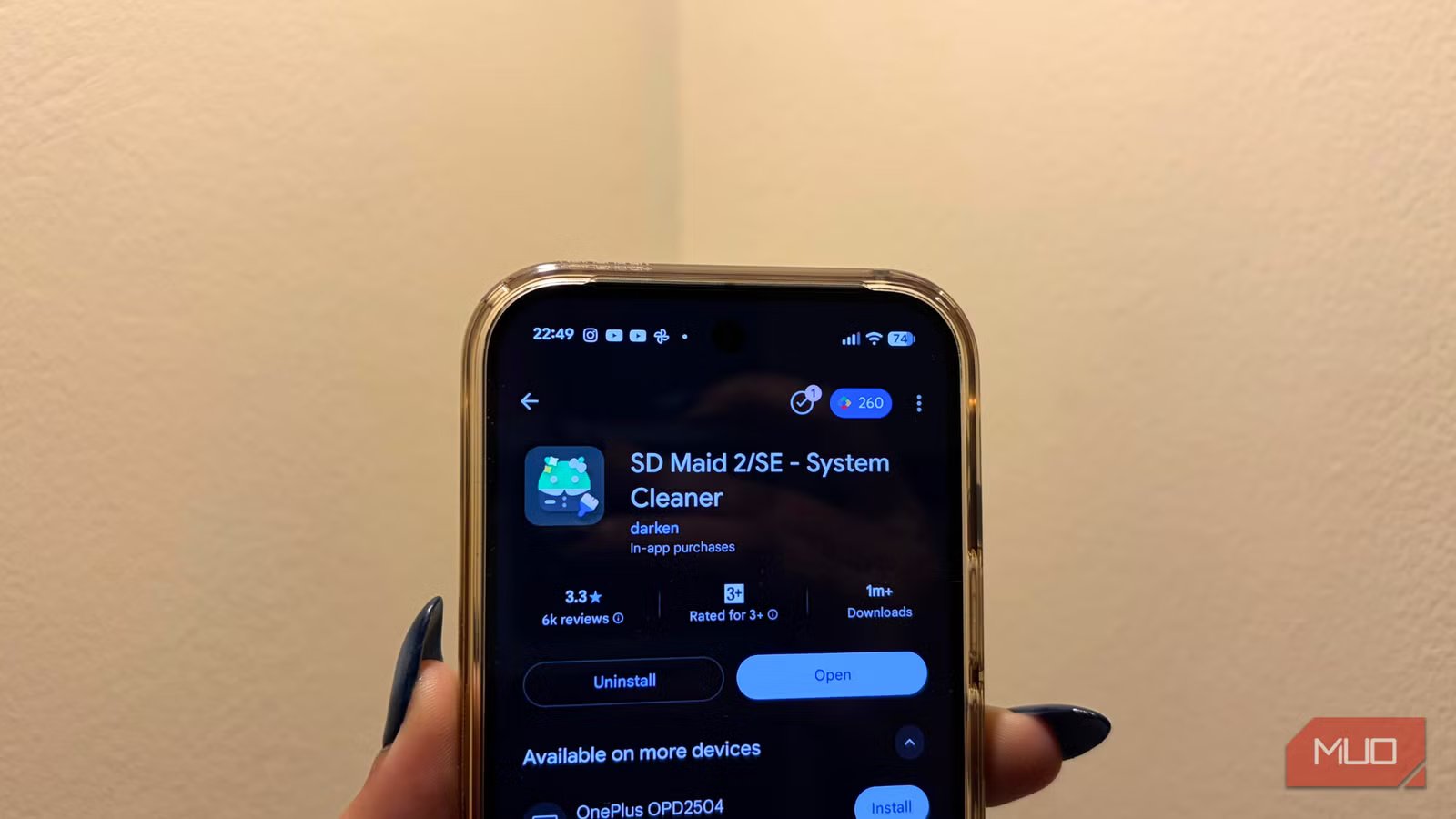
I’m tired of how system storage works on both Android and iPhone. Over time, it quietly eats into your phone’s storage with cached files, system data, and app leftovers, especially when you’re already running low on space. And I’m sure I am not the only one who’s felt this. It doesn’t seem like a big problem when you have plenty of storage available, but the moment you start hitting those limits, it becomes frustrating quickly. Constant storage warnings and the need to delete photos or apps just to free up space are enough to test anyone’s patience.
That’s exactly where this open-source tool made a real difference for my Android phone. It helped me understand what was actually taking up space and regain control over my storage, without relying on vague system estimates. While this app is only available for Android, iPhone users aren’t left out. If you’re looking to free up iCloud storage without losing important files, there’s a simple trick you can follow that achieves the same goal.
OS
Android
Price model
Free (paid version available)
A guided tour of everything quietly eating your storage
Credit: Shimul Sood / MakeUseOf
There’s a whole suite of free, open-source Android apps you probably didn’t know about, and SD Maid 2/SE fits right into that category. Designed to keep your phone clutter-free and storage in check, the app goes beyond basic cleaning by digging deep into the system to remove unnecessary files, leftover app data, and other digital junk that builds up over time.
It works on both rooted and non-rooted devices.
At its core, SD Maid 2/SE offers a suite of tools that tackle storage bloat from every angle.
- CorpseFinder hunts down residual files and folders left behind by apps you’ve already uninstalled; data that would otherwise sit there, doing nothing but wasting space.
- SystemCleaner targets superfluous system files that don’t belong to any active app, helping you reclaim storage safely.
- AppCleaner lets you clear expendable data from specific apps, ideal for apps that slowly balloon in size over time.
- Deduplicator scans your device for duplicate files, making it easier to remove redundant data.
- AppControl keeps a close eye on all the apps installed on your phone, giving you a better oversight of what’s running and what probably shouldn’t be.
- StorageAnalyzer breaks down where your storage is actually going, showing exactly what’s eating up space.
- Scheduler ties everything together by automating clean-ups, so maintenance happens in the background.
In short, SD Maid 2/SE cleans your phone and helps you understand and manage your storage. It is a useful tool if system storage has been driving you up the wall.
Setting things up the right way
A quick set-up so nothing feels sketchy later
Start by installing SD Maid 2/SE from the Google Play Store. Once installed, open the app and take a moment to read the welcome screen instead of skipping it, and then tap Continue. Now, the app clearly explains its privacy stance upfront. It has no ads or trackers and does not sell user data. Since this app is open source, you can inspect what it accesses and how it works, providing transparency rather than just a promise. After reading through the details, tap Continue at the bottom.
Related
6 ways to free up RAM in Windows when your PC starts slowing down
Freeing up vital memory on Windows only takes a moment, and your computer will feel much faster once you’re done.
On the next screen, enable the Important messages toggle and tap Continue again. This ensures you don’t miss important messages from the developer (if any).
To complete the setup, SD Maid 2/SE will request permission to access various parts of your device storage. Tap the Set-up access button to proceed. Here, you can decide exactly what the app can and cannot access. If your goal is to simply manage and clean storage, you can limit permissions to only those areas. If you want updates about ongoing operations, you’ll need to allow notification access as well.
The idea is to grant permissions based on how you plan to use the app. Nothing more, or nothing less. This way, the app remains useful without feeling intrusive, and you stay in control of your data.
A few taps that make lost storage reappear
Now that the app setup is out of the way, here’s how you can actually start freeing up system storage:
- Open the SD Maid 2/SE app.
- Head straight to SystemCleaner.
- Tap the Scan button.
The app will take a bit of time to comb through every accessible corner of your device, so be patient while it does its thing.
Once the scan is complete, tap Delete to remove unnecessary files it has flagged. If you’d rather double-check before committing, the confirmation pop-up also gives you a Show Details option. This lets you review what’s about to be deleted, so you can make sure nothing important is caught in the crossfire. When you’re satisfied, go ahead and confirm the deletion.
However, don’t stop there. To truly reclaim your storage, make sure you also run CorpseFinder, which clears the leftover data from apps you’ve already uninstalled, and AppCleaner, which targets expendable files within existing apps. Running these tools together ensures you’re not doing a surface-level cleanup but actually removing clutter that has been sitting around for far too long.
Taking back space without deleting what you love
It’s time to stop deleting apps and photos you actually care about just to deal with constant low-storage warnings. System clutter is the real issue, and open-source tools like SD Maid 2/SE are better suited to handle it. Once set up, the app handles the heavy lifting in the background, so you no longer have to manually manage storage.
What sets SD Maid 2/SE apart is that it keeps things transparent. You can see what’s being removed and why it’s safe, instead of relying on vague system eliminations. Combined with its clear, privacy-first approach, it feels more trustworthy than most cleaner apps. If system storage has been wearing you down, this is a more sensible and lasting solution than repeatedly deleting things you actually want to keep. That said, storage clutter isn’t limited to smartphones. If you’ve been noticing your Windows PC slowly running out of space as well, there’s a surprisingly untouchable folder that can help you recover nearly 20GB of storage.
