

My laptop had been gasping for storage for months. I deleted apps, cleared caches, emptied the trash, and still watched the available disk space creep lower, even after trying the standard ways to free up storage space in Windows 11 that usually solve the problem. Then a friend casually mentioned a free tool called dupeGuru, and I figured I had nothing to lose by trying it.
What I found on the other side of a five-minute scan was folders full of files I had downloaded twice, photos I had backed up three times over, and music that had multiplied across directories. If your storage feels tighter than it should, this might be the most useful thing you read today.
OS
Windows, macOS, Linux
Price model
Free
dupeGuru finds duplicate files using the fuzzy algorithm. It works on Linux, Windows, and macOS, and can be used on all sorts of files, including documents, audio, and video.
The thief draining your hard drive
The culprit was never the apps
Screenshot by Pankil Shah — No attribution required
Before discovering dupeGuru, I had a fuzzy understanding of how duplicate files accumulate. What I did not appreciate was just how relentlessly they bred. It’s often because Windows’ built-in storage recovery tools don’t exactly do a great job of finding and removing them.
Every time you download an email attachment, you already saved it somewhere, every time a backup tool makes a copy of a copy, every time you export a photo twice with slightly different filenames like “IMG_2047.jpg” and “IMG_2047_final.jpg,” you are adding another body to a pile that nobody ever audits. Music libraries are a particular offender. Years of syncing phones, switching apps, and ripping CDs can leave you with the same track living in four different folders under four subtly different names. Your computer treats each one as a unique, irreplaceable file, even though your ears cannot tell the difference.
This is the kind of problem that dupeGuru was built to solve. Released originally in 2004 and now a fully open-source, community-maintained project available on Windows, macOS, and Linux, it is free in every sense of the word.
Five clicks between you and a lighter computer
Pick a folder, pick a mode, watch the carnage unfold
When dupeGuru opens, the main window is bare. You will see the Application Mode selector at the top set to Standard by default, a Scan Type dropdown beside it, and a large empty panel labeled with a prompt to select folders and press Scan. At the very bottom, there is a small “+” button. That is your starting point.
Clicking “+” opens a file browser where you navigate to any folder you want to inspect. You can add a single folder, like Downloads, or go broader by adding Music, Pictures, Videos, Documents, and Desktop all at once. Each folder you add appears in the main panel with a “Normal” state, meaning dupeGuru will search it fully. You can add as many folders as you like before running a single scan.
Before hitting Scan, take a moment with the Scan Type dropdown. In Standard mode, the dropdown offers three choices: Filename, Contents, and Folders. The Filename option uses fuzzy matching to surface files with similar or nearly identical names. The Contents option goes deeper by comparing the actual data in each file, catching duplicates that have been renamed beyond recognition. The Folders option operates at the directory level and is useful for identifying entire duplicate subdirectories. For a first-time cleanup, Contents is the most thorough.
If you want to fine-tune things further, click More Options to open the settings panel. The most important control here is the Filter Hardness slider. Set to 95 by default, pulling it toward “More Results” loosens the matching criteria and flags near-duplicates, while nudging it toward “Fewer Results” tightens the comparison so thatonly near-perfect matches appear. There are also checkboxes to ignore files below a certain size, skip files above a size threshold, and automatically remove empty folders on deletion. Once your folders are loaded and your scan type is chosen, hit the Scan button in the bottom-right corner.
Related
How to Find and Delete Empty Folders on Windows
Get rid of useless folders on Windows and clean up your PC with these tips.
It reads between the files
dupeGuru investigates more than it looks
dupeGuru differs from a basic search utility in how it behaves depending on the Application Mode you choose, and this is worth exploring beyond the Standard default.
If you switch the mode to Music, the Scan Type dropdown changes entirely. Instead of Filename, Contents, and Folders, you now get options including Filename, Filename-Fields, Filename-Fields (No Order), Tags, and Contents. The Tags option is the standout here: rather than comparing file names, it reads the ID3 metadata embedded in your audio files, such as the artist name, track title, album, and bitrate. This means dupeGuru can catch two copies of the same song even when they live in completely different folders under completely different names. Running a Tags scan on my Music library alone surfaced 587 duplicates, accounting for 253.89MB of redundant files.
If you switch to Picture mode, the Scan Type dropdown simplifies to just two options: Contents and EXIF Timestamp. The Contents option performs a visual comparison of the actual image data, catching photos that have been resized or re-exported at a different quality setting. The EXIF Timestamp option matches photos taken at the same moment, which is handy for catching burst shots or duplicates created by photo-sync apps.
Related
Never share a photo before using this one-click privacy app
That innocent photo might expose where you live.
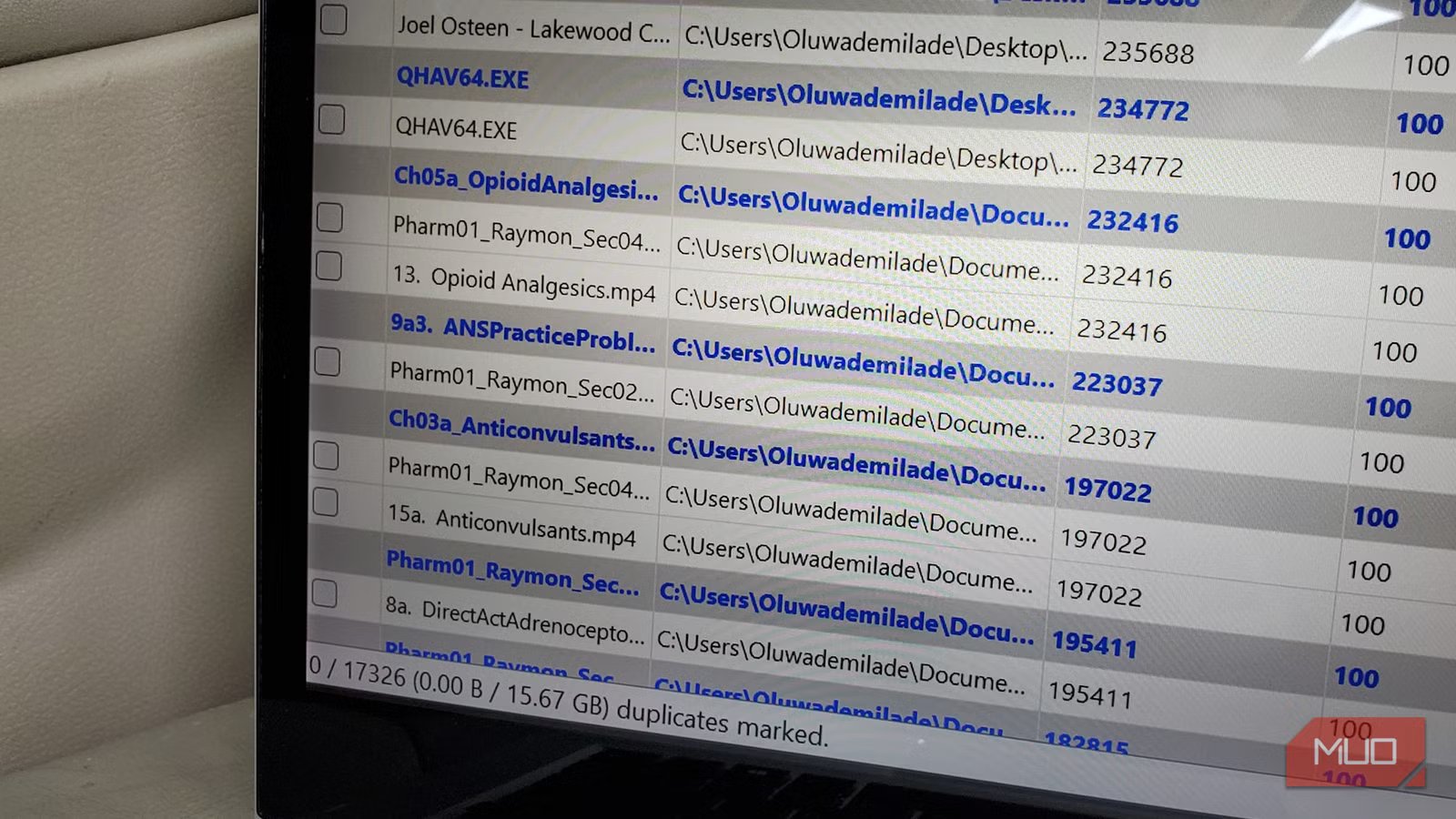
Once the scan completes in any mode, the Results tab opens automatically. Reference files appear highlighted in blue and bold text; these are the copies that dupeGuru considers the originals. The unchecked rows beneath each group are the duplicates. You can toggle a “Dupes Only” view at the top to collapse the reference files, making the list considerably easier to parse. From there, the Actions menu offers the full range of options: send marked files to the Recycle Bin, move them to another location, copy them elsewhere, or open the folder containing any individual file if you want to inspect it before deciding. When you choose to delete, a final Deletion Options dialog confirms how many files are headed to the Trash and asks whether you want to replace deleted duplicates with symbolic links pointing back to the reference file, which is a thoughtful option for anyone managing software libraries or linked assets.
After running scans across all my main folders, the final tally was 17,326 duplicates totaling 15.67 gigabytes. Every last one of them headed to the Recycle Bin, where I could scroll through the list one more time before permanently emptying it. The low-storage warning has not appeared since.
Go ahead, check your storage; I’ll wait
The tool did not ask anything complicated of me. It asked me to point it at three folders, choose a scan type, and then review what it found before touching a single file. That is a reasonable amount of effort for clearing nearly a quarter of a gigabyte in one session. If your hard drive has been accumulating files for a long time, dupeGuru will tell you the truth about what is actually in there — and it will do it for free.
