

I’ve had a Microsoft 365 subscription for a while, and it’s a solid suite if you use everything it offers. The problem is that I don’t. I never touched OneDrive’s full storage, I don’t need Teams, and paying for Microsoft Office features I ignored every month started to feel pointless.
So I swapped my entire Office setup for free alternatives — Google Docs, Google Sheets, Google Slides, Thunderbird, and LibreOffice — and my workflow hasn’t suffered for it. If you’re in the same boat of paying for more than you actually use, these free tools cover more ground than you’d expect.
Google Docs handles my writing just as well as Word
It does everything I need without the subscription baggage
Most of what I did in Word was basic, such as drafting articles, writing notes, and editing documents. None of that requires macros, mail merge, or the advanced formatting tools that justify a paid subscription. Google Docs handles all of it for free.
However, the real advantage is collaboration, since sharing a Google Doc and editing it in real time with someone else is very handy. Whereas Word’s online version also offers real-time collaboration within Microsoft 365, though Google Docs feels more convenient for quick sharing with non-Microsoft users. Comments, suggestions, and version history are built right in, and I don’t have to worry about emailing files back and forth.
Google Docs does lack a few things. Offline access requires setup through Chrome or Edge, and complex formatting options are limited compared to Word. If you regularly build documents with intricate layouts, custom styles, or detailed tables of contents, you’ll feel the difference.
But for everyday writing, I prefer Google Docs over Microsoft Word as it opens fast, syncs across devices, and stays out of my way. I’d rather have a simple tool that works well than a powerful one packed with features I never open.
Google Sheets replaced Excel for my everyday spreadsheet needs
Most of Excel’s power goes untouched if you’re not a power user
Excel is powerful; nobody’s arguing that. But most of that power goes untouched if you’re using it for budgets, trackers, or basic data organization. Google Sheets covers all of that and adds something Excel’s desktop version doesn’t do well: real-time collaboration without jumping through hoops.
I’ve used Google Sheets for everything from tracking expenses to building simple dashboards with charts. Formulas like VLOOKUP, IF, and COUNTIF work the same way, and functions like IMPORTRANGE let you pull data across spreadsheets — Excel doesn’t offer an out-of-the-box equivalent without using Power Query.
Where Sheets falls short is in handling large datasets. Once you push past a few thousand rows with complex formulas, it starts to lag noticeably. Features like pivot tables exist but feel less refined, and there’s no equivalent to Excel’s Power Pivot or advanced data modeling tools. For anything beyond moderate complexity, Excel still wins. But I rarely need that level of detail for personal or everyday work tasks. Google Sheets does the job without a subscription, and its add-ons help fill in the gaps when I need extra functionality.
Google Slides gets the job done for presentations
It’s simple, and for casual use, that’s the point
Screenshot by Yasir Mahmood
I don’t make presentations often, so paying for PowerPoint never made sense. When I do need a slide deck, Google Slides handles it without fuss. The basics are all there, including text, images, transitions, embedded videos, and a decent selection of templates. Sharing is where Slides pulls ahead, since you can send someone a link and collaborate on the same deck instantly.
PowerPoint is objectively the better tool for polished, design-heavy presentations. Its animation options are far more advanced, the template library is broader, and features like Morph transitions give you creative control that Slides can’t match. If you’re building investor pitch decks or conference talks, PowerPoint earns its price.
But for team meetings, class projects, or quick internal presentations, Google Slides does the job. It loads fast in the browser, doesn’t require installing anything, and exports to .pptx if someone specifically needs a PowerPoint file.
I switched from Outlook to Thunderbird for email
A free email client with no ecosystem strings attached
Afam Onyimadu / MUO
Outlook is deeply tied to the Microsoft 365 ecosystem, which is great if you rely on Teams, SharePoint, and OneDrive, but I don’t. I ditched Outlook because most of what it offered beyond sending and receiving email was wasted on me.
Thunderbird is free, open-source, and does exactly what you’d expect a desktop email client to do. It supports multiple accounts, has a built-in calendar, handles RSS feeds, and works with IMAP and POP3 out of the box. Setting up my Gmail and other accounts takes a couple of minutes. Thunderbird doesn’t push you toward a cloud storage service or nudge you into a subscription. It just manages your email.
That said, Thunderbird’s interface feels dated compared to Outlook’s polished design. It also lacks deep integration with Microsoft services, so if your workplace runs on Exchange or Teams, this isn’t a practical switch. But for personal email and light productivity, Thunderbird gives me everything Outlook did.
OS
Android, Windows, Linux & Mac
Price model
Free (open-source)
LibreOffice fills the gaps when I need offline power
It handles what Google’s web apps can’t
Yadullah Abidi / MakeUseOfCredit: Yadullah Abidi / MakeUseOf
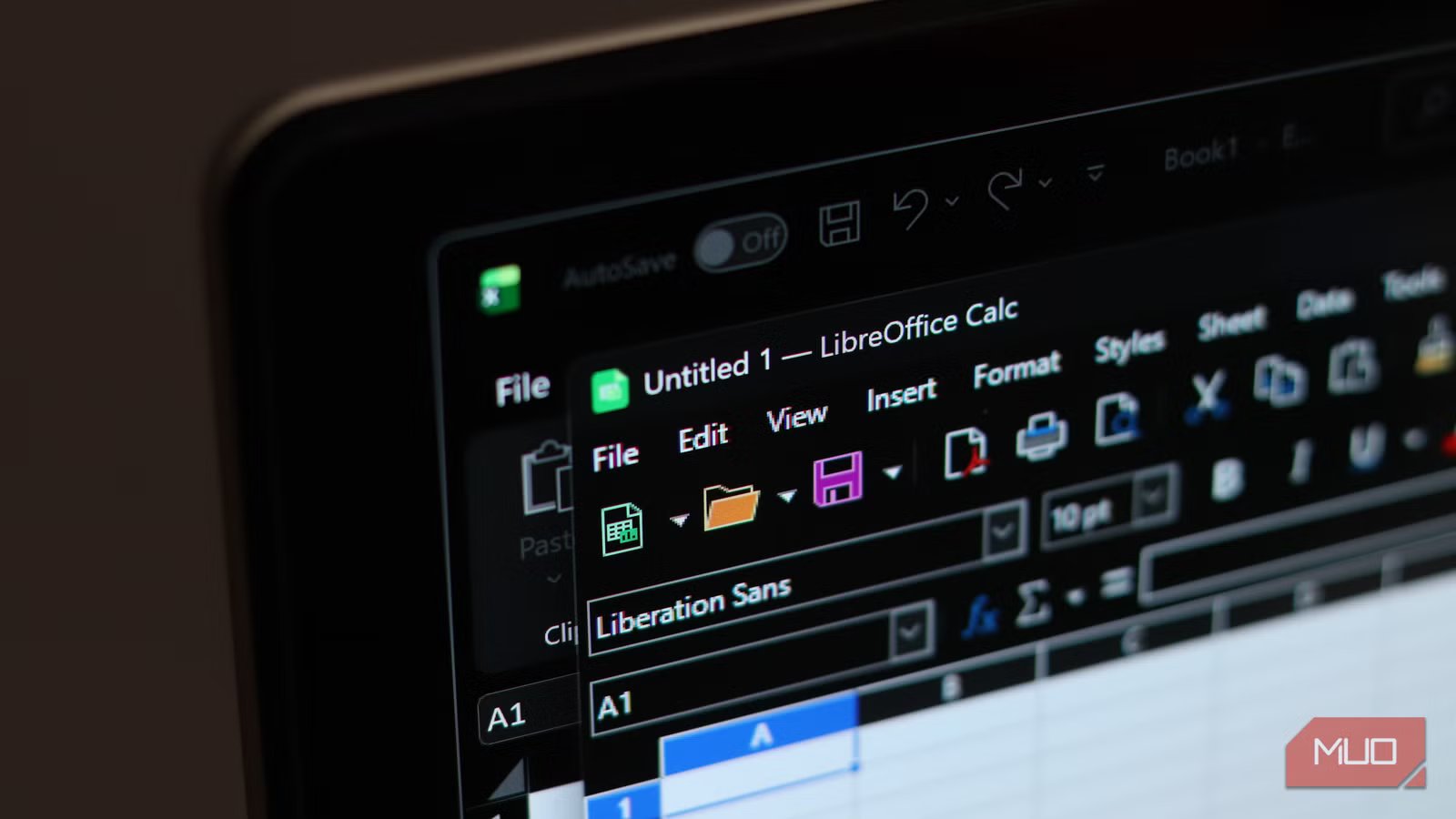
Google’s apps work well, but they need an internet connection to function at their best. I use LibreOffice when I’m offline or working with a document that Docs or Sheets can’t handle cleanly. The suite includes Writer, Calc, and Impress — direct alternatives to Word, Excel, and PowerPoint. It runs locally on your machine, opens and saves in Microsoft’s file formats (.docx, .xlsx, .pptx), and doesn’t require an account or subscription. For an offline tool, it’s surprisingly full-featured.
I mostly use LibreOffice when I receive a heavily formatted Word document that Google Docs would mess up during conversion. Calc is also handy for larger spreadsheets that slow down Sheets, since it processes data locally rather than relying on server performance.
However, LibreOffice’s interface looks old, and formatting can still shift slightly when opening Microsoft files. Real-time collaboration is essentially nonexistent. But paired with Google’s apps, LibreOffice rounds out the setup nicely. One handles cloud and collaboration; the other handles offline and complexity — together, they cover nearly everything.
OS
Linux, Android, Windows, macOS
Developer
LibreOffice
Price model
Free (open-source)
The free setup isn’t perfect, but it’s close enough
You might not miss Office as much as you think
The only feature I miss is Outlook’s calendar integration with Teams for scheduling work meetings. Everything else, such as writing, spreadsheets, presentations, and email, runs fine on free tools. If you’re still paying for Microsoft 365 out of habit rather than necessity, try going without it for a month. You might find that the subscription was solving problems you stopped having a while ago. Put that money toward a service you’ll actually use every day instead.
