

Microsoft’s Phone Link is the default way you can hook up your Android to your Windows PC wirelessly. It works reasonably well, syncs notifications, lets you access your photos on your PC, take calls, send messages, and it’s the only app you’ll ever need to connect your phone to Windows.
The problem is, any app that does way too many things will have to make some sacrifices. In the case of phone link, those sacrifices start showing up when you’re trying to transfer files between your phone and PC. Slow speeds and unreliable connections are just the tip of the iceberg. Thankfully, Google’s got your back.
Phone Link is good… until it isn’t
Microsoft’s app nails basics but falls apart when you push it
Phone Link is great, but it’s got two major problems: reliability and battery drain. It works fine when both your devices are on the same Wi-Fi network, and can even use mobile data to sync the two, but it has a persistent habit of showing your phone as offline even when all conditions dictate that it shouldn’t be.
If it works, it works seamlessly. If it doesn’t, you’ll be left scratching your head as to what’s going wrong. The connection also often drops after any sleep or idle period and requires a manual refresh. Phone Link is more useful than it looks, but only after you tweak a few settings.
The second problem is battery drain. Link to Windows, the Phone Link companion app on Android, has to maintain a persistent background connection to keep syncing notifications, calls, and messages to your PC. In order to do so, it constantly refreshes and keeps the network connection alive even when you’re not doing anything.
Depending on your phone, the drain may or may not be significant. On top of that, Microsoft recommends you disable battery optimization for the companion app on your phone, which can make the battery drain worse. I haven’t had any major problems with it, but when you’re out and working on the go, any battery drain away from a power socket can be troublesome.
Quick Share fixes what Phone Link gets wrong
Fewer features, but way fewer frustrations
Google’s Quick Share started off as Nearby Share, the search giant’s answer to Apple’s AirDrop for Android. After Google and Samsung decided to merge their sharing platforms under a single name, Quick Share appeared as the unified file-sharing tool across all Android devices, Chromebooks, and Windows PCs.
The Windows app is a standalone download from Google’s website or the Microsoft Store if you want the Samsung version (which only works with Galaxy devices). It does one thing, but it does it better than anything I’ve tried: sharing files fast wirelessly between your Android phone and Windows PC. It’s safe to say that Quick Share on Windows is finally good and a reliable way to transfer files regardless of where you are.
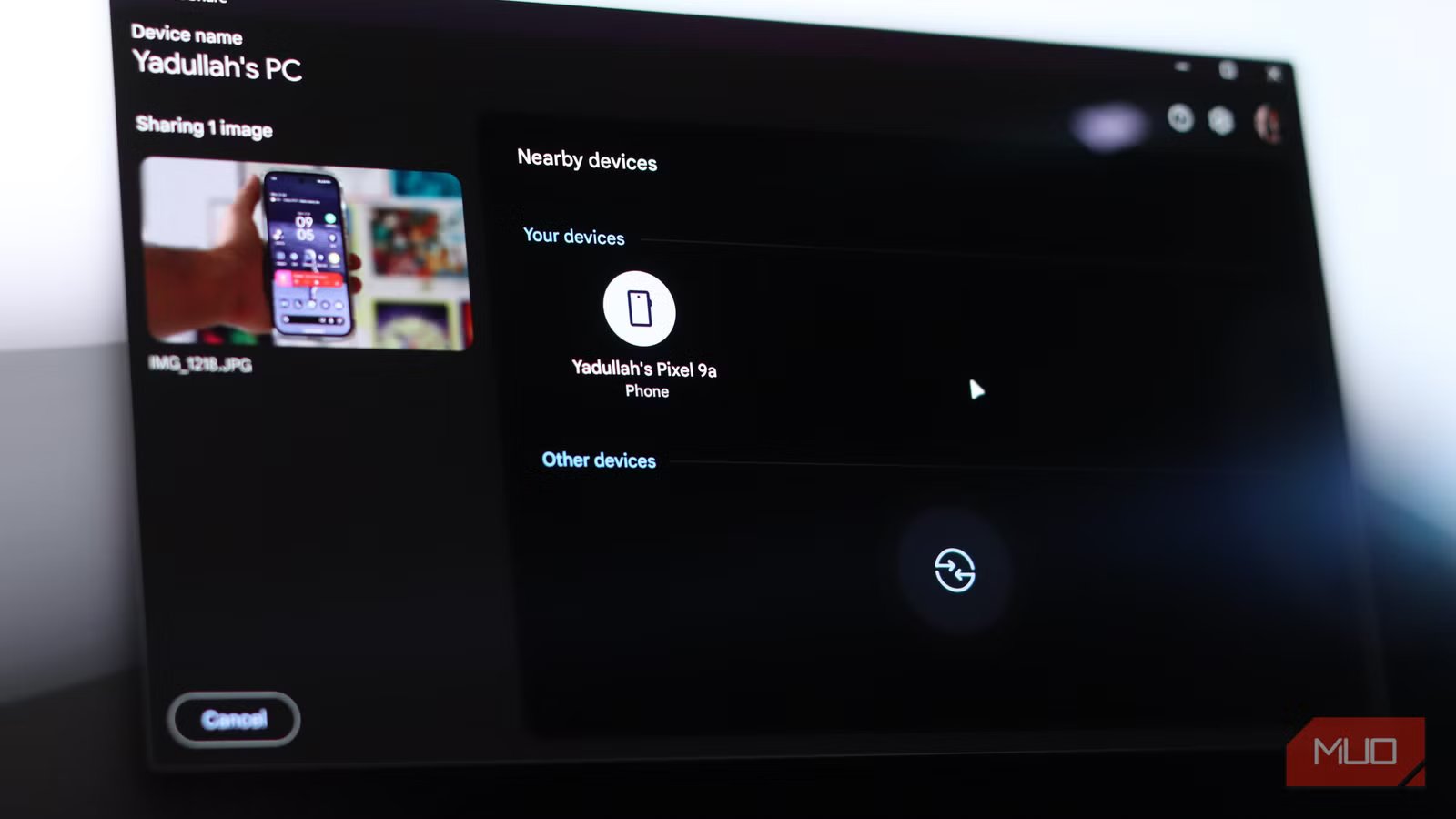
Setting up is also quite straightforward. There’s no companion app to install, no battery optimizations to disable, and no settings to tweak. You install the app on your Windows PC, sign in with your Google account if you want visibility across your own devices, and that’s it. Quick Share is already built into just about every Android phone, so there’s no setup to do on your phone. Once your Windows PC has the app installed, you can send photos, videos, documents, and entire folders back and forth between your phone and PC.
The speed gap isn’t even close
File transfers that feel instant
Yadullah Abidi / MakeUseOf
The main reason why you’d want to use Quick Share over Phone Link is the speed difference, which is nearly double for the former. On my network, under ideal conditions, Phone Link tops out at around 15 MB/s, which Quick Share often hovers near the 30 MB/s mark. It’s not always this fast, but it’s always faster than Phone Link. That gap may not be meaningful when sending a few photos back and forth between your phone and PC, but when you start sending larger files or entire folders, you’ll be glad you switched.
Quick Share has also fixed its reliance on Wi-Fi networks for a better user experience. Previously, both the sending and receiving devices needed to be on the same network for a file transfer to happen. If they weren’t, Quick Share fell back to Bluetooth, which is just not going to cut it for file transfers in 2026.
Now, Quick Share uses a Wi-Fi Direct or hotspot-style handshake, meaning your PC only needs Wi-Fi turned on, not necessarily connected to any network. This approach is faster than sending data over Wi-Fi networks, as you’re establishing a direct link between the two devices and using all available Wi-Fi bandwidth to send data across.
A UI that doesn’t get in the way
No clutter, no confusion, just send and receive
Yadullah Abidi / MakeUseOf
Apart from the speed advantage, it’s also much easier and faster to use the Quick Share app as compared to Phone Link. When you want to send a file, you open the Android sharing options, tap Quick Share, and your PC will appear as a target as long as the Quick Share app is running on your PC. As soon as you hit send, a notification will appear on your PC prompting you to accept the transfer, and that’s it.
Google has also been working to overhaul the app’s interface so it doesn’t look like a technical afterthought that would intimidate new users. It has a clean interface with an organized settings panel that lets you control who can see your device and send you files. The visibility options let you set the device you receive from everyone nearby, only your contacts, only your own devices, or no one.
It does one job—and does it well
Why simplicity beats an all-in-one approach
The biggest downside of using Quick Share is that it only does one thing: file transfers. If you want to sync your notifications, browse your image gallery, take calls, send messages, sync your clipboard, or more, Phone Link remains the gold standard. Quick Share is best used as a dedicated app for fast and hassle-free file transfers between two devices, nothing more.
Related
I absolutely love the new Phone Link on Windows 11
Phone Link joins my phone and PC together beautifully.
But considering just how unreliable Phone Link can be for a lot of Windows users, Quick Share will at least get the file-sharing hassle out of your way. As someone who’s been using Phone Link since the feature existed in Windows, I rarely use the calling function, and the notifications are more distracting than useful. The one thing I relied on it for—transferring files—is now significantly better with Quick Share, and I don’t think I’m going back.
