

One of the most basic things you do on a computer is copying and pasting. Yet somehow, it’s still more annoying than it should be. That’s exactly why I started looking for a better clipboard manager and found ClipShelf.
Windows has a clipboard manager, so why replace it?
It interrupts your workflow more than it helps
Modern versions of Windows already include a clipboard history feature you can access with Win+v. It’s a handy upgrade from the old single-item clipboard, letting you store several copied snippets at once. But in practice, it still feels like a tool you have to stop and open, rather than something that supports your workflow in the background.
Every time you want to paste something other than the most recent item, you need to press Win+V, find the right snippet, and click it. That might not sound like much, but when you’re copying and pasting dozens of things: links, quotes, images, or bits of text. It quickly becomes repetitive.
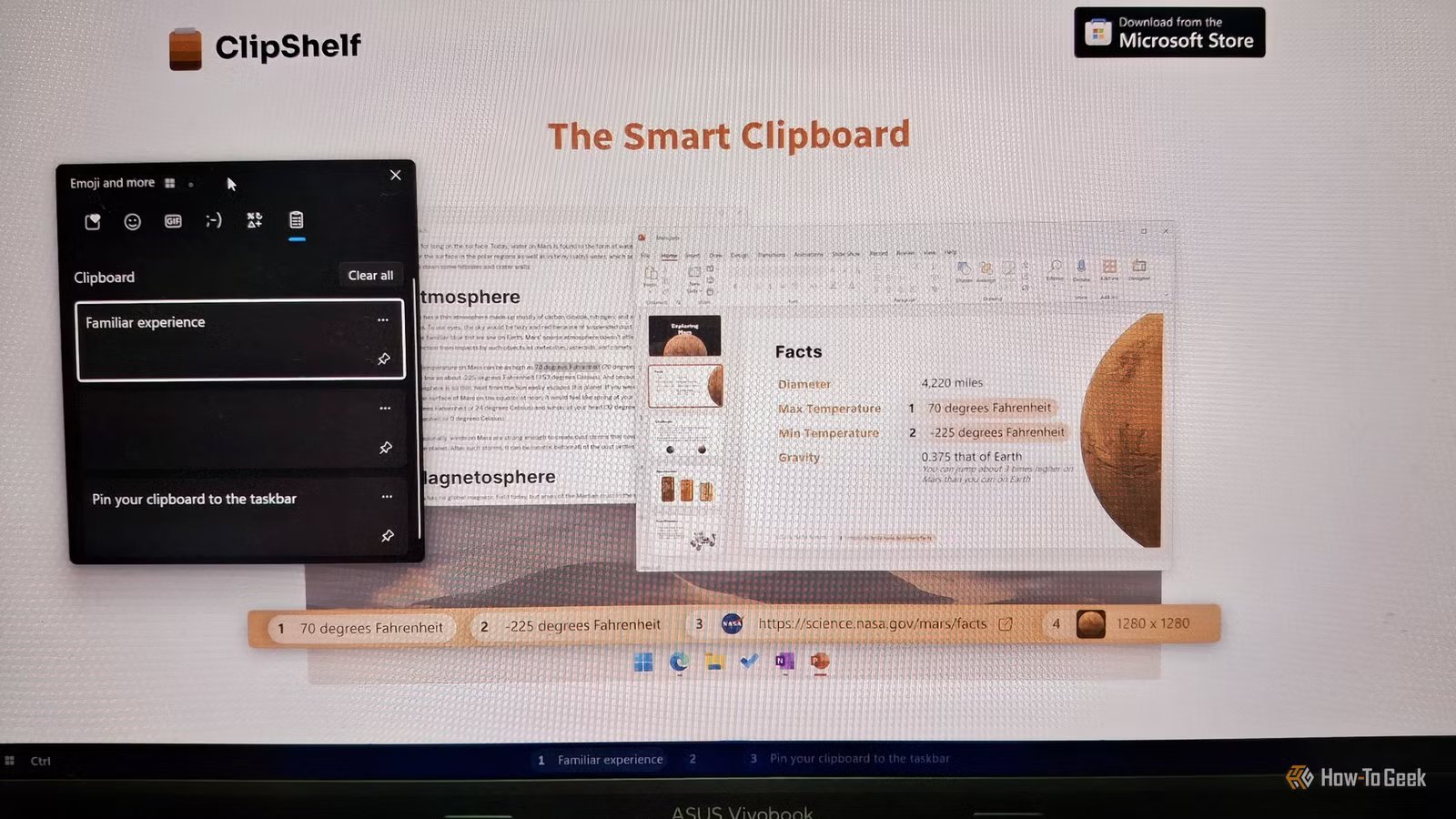
That’s where ClipShelf comes in. Instead of hiding clipboard history behind a keyboard shortcut, it keeps your copied items visible and instantly accessible.
Related
8 Ways to Clear the Clipboard on Windows 11
Wipe off all your copied data.
Installing and setting up ClipShelf
Using ClipShelf for the first time
You can find ClipShelf on the Microsoft Store. Once installed, open it. You’ll see a small bar at the bottom of your screen. Press the “Finish Setup” button. You’ll then see a privacy settings screen. Tweak them to your preferences and press “Continue.” Then you’ll see a screen that says you have been given a ClipShelf Pro free trial. Press “Continue.”
After that, you’ll see a tutorial screen. You can skip it or go through it. To go through it, click Try it out. The tutorial shows you how to use ClipShelf. In case you skipped it, you can see it later from Settings.
In ClipShelf, you copy anything as usual, whether text or an image. Once you copy something, you’ll see it appear in a bar at the bottom of your screen. If you copy multiple items, all of them will appear on the bar. To paste it, you use Windows+Ctrl+number, where number is the number written beside the copied item in the ClipShelf bar.
Clipshelf turns your clipboard into a persistent workspace
It pins it directly to your taskbar
Once you start using ClipShelf, the difference becomes clear almost immediately. Instead of hiding your clipboard history behind a shortcut like Windows does, ClipShelf keeps everything visible and ready to use.
Because your copied items stay pinned on the shelf, you no longer need to repeatedly open the clipboard history panel just to find something you copied earlier. Everything you’ve recently copied is already sitting there.
The keyboard shortcuts make the process even faster. Each item in the shelf is assigned a number based on its position. You can paste it instantly using the shortcut:
Windows+Ctrl+Number
For example, pressing Windows+Ctrl+1 pastes the most recent item, while Windows+Ctrl+2 pastes the second one in the list. Once you get used to it, you can insert previously copied snippets almost instantly without interrupting what you’re doing.
Imagine you’re researching a topic. You might copy a link from a browser tab, a quote from an article, and an image from another page. With the default clipboard workflow, you’d typically paste each item before moving on to the next one. With ClipShelf, you can simply keep copying as you go, knowing everything will be stored on the shelf.
Related
The Smoothest Way to Send Clipboard Text and Files Between Your Android and PC
No need to email yourself files and text yourself clipboard data.
Small customization options that improve everyday use
Tweak how your clipboard shelf behaves
Another thing that makes ClipShelf practical for daily use is the number of small customization options it offers. For starters, you can set ClipShelf to launch automatically when Windows starts, ensuring the clipboard shelf is always available when you begin working.
You can also adjust the number of clipboard items displayed on the shelf at a time. If you prefer a minimal setup, you can keep the list short. If you regularly copy multiple snippets while researching or writing, increasing the number of visible items gives you more flexibility.
Placement is customizable as well. If you don’t like the shelf stuck to the bottom, you can place it at the top of the screen instead. You can also align it to the center or to the edge.
There are also smaller quality-of-life tweaks, such as changing the theme or choosing whether pasted items should automatically move to the front of the list.
Free vs Pro: What You Actually Get
Most convenient power-user features require Pro
After the first install, ClipShelf equips you with a free Pro trial. But then you wonder. What will you miss when the trial ends? Quite a lot.
One of the most noticeable differences is the number of visible clipboard items. The Pro version lets you expand the shelf to show more snippets at once, which is useful if you regularly copy multiple pieces of information while researching or writing.
There are also several smaller quality-of-life features included with Pro. For example, the app can highlight the currently active clipboard item, making it easier to keep track of what you’re about to paste. Another option automatically moves pasted items back to the front of the shelf, keeping frequently used snippets within easy reach.
The Pro version also adds features that help make the clipboard shelf more informative. You can preview items by hovering over them, which is especially useful when working with images or longer text snippets. Copied URLs can also display their website favicons, letting you quickly identify links at a glance.
Related
Why You Should Keep Your Clipboard Empty
Websites and apps can steal important info from you by snooping on your clipboard.
Smart copy pasting, off the “shelf”
At its core, ClipShelf isn’t trying to reinvent the clipboard. It simply removes the friction that comes with constantly opening the clipboard history window. It’s a small change, but if you spend a lot of time copying, the difference becomes obvious pretty quickly.
