

One of my biggest frustrations with Docker images is how large they can get. Despite how I try to carefully structure my Dockerfiles and specific commands I use to manage Docker, I’m still at their mercy. Aside from the wasted disk space, builds take forever, and I spend a lot of time tracking down unnecessary dependencies. I accepted this as unavoidable until I tried SlimToolKit.
Initially, I was skeptical because its promise sounded too good to be true. It would shrink my containers dramatically but not touch my Dockerfiles or mess with my workflow. However, what followed after I used the tool was an eye-opening discovery. I saw immediate wins and learned certain lessons in container optimization.
Docker image bloat
The invisible weight your containers carry
Afam Onyimadu / MUO
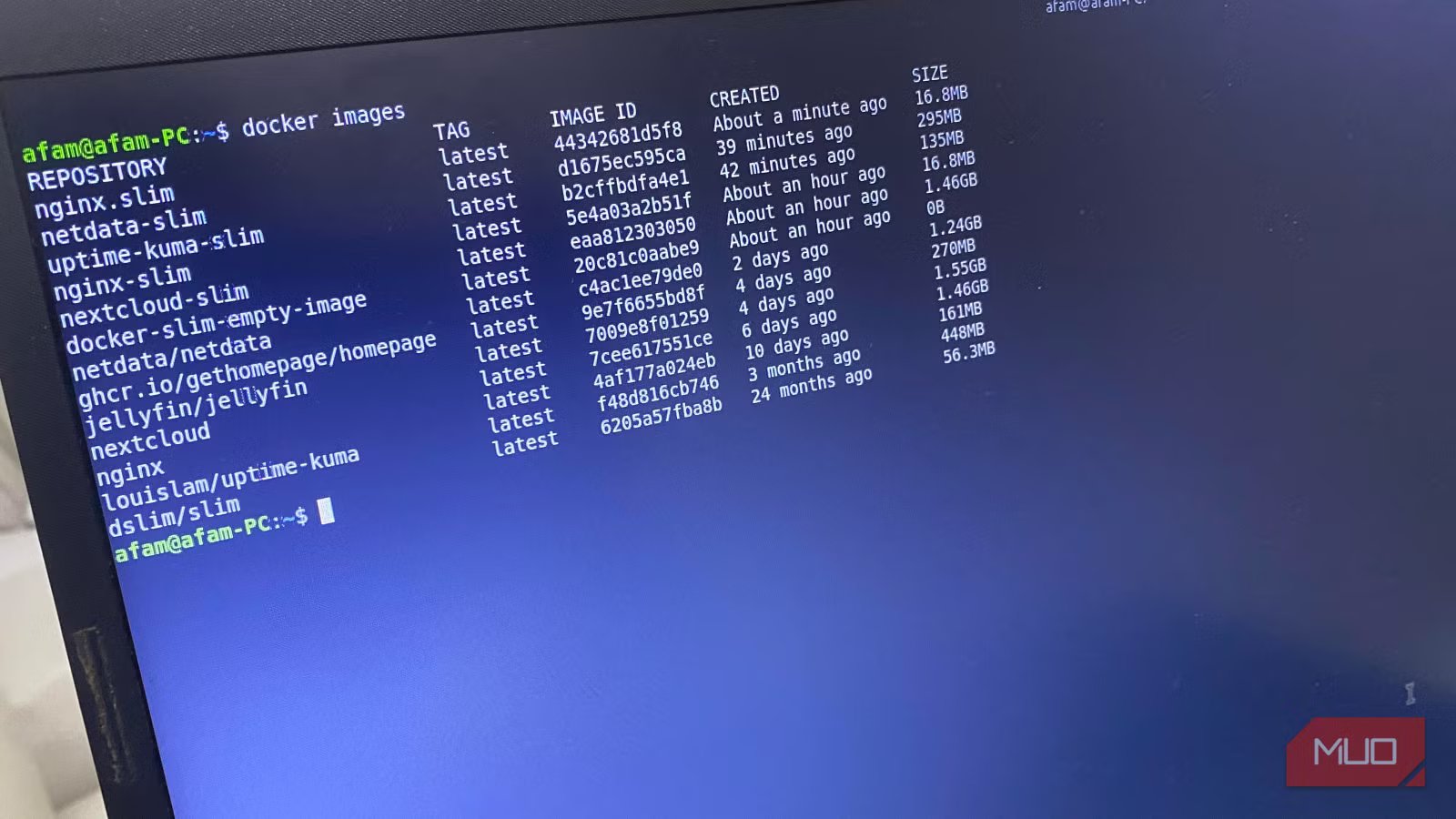
I had just set up a new Linux Mint installation and, to test a few tools, I installed Docker and a few servers. Within just two days, I checked my container sizes and was shocked at how large they were for a simple test. Nextcloud was occupying 1.46GB, and my local media server, Jellyfin, took up 1.55GB. Even Nginx, which is extremely lightweight, sat on 161MB of space. I concluded this was inevitable given base images and leftover dev tools, shells, and caches.
However, after running the docker history command, it became clear the problem wasn’t my Dockerfiles. Layers that are not needed at runtime were bloating my images. These include libraries and packages installed just in case they are needed. For the first time, I was appreciating how opaque container sizes are. You can’t assume any image is lean without first checking its content.
It became clear why SlimToolKit could fix the problem. It can inspect and analyze containers dynamically, observing what they use and what the container doesn’t use.
How it works and what it can do
Afam Onyimadu / MUO
In the past, to optimize my containers, I’ve tried multi-stage builds, package cleaning, and custom scripts; they all felt too fragile. SlimToolKit was different. It fixed the problem by watching the container while it ran, tracking which files it used or accessed, and building an image that included only those files.
It was also transparent. My first time running the slim build command, I observed the CLI pause at certain points, then prompt me for new input. Everything it analyzed, including libraries and temporary files, was clear to observe. This was an approach that gave me control and was different from other optimizers.
It removed unused shells, binaries, and packages. This not only reduced image size but also improved security by reducing the attack surface.
My exact setup and first test run
Installing SlimToolKit is quite a straightforward process. You first need to verify that Docker is installed and running, then download the SlimToolKit image. You can follow these steps:
- Run the command below to show if you have Docker installed; you should get an output similar to Docker version 24.0.0, build xyz. docker –version
-
If Docker isn’t running, you can run the commands below to start it: sudo systemctl start docker
sudo systemctl enable docker
- Pull the official Docker image for SlimToolKit by running this command: docker pull dslim/slim
SlimToolKit runs inside a container, so there’s no installation needed beyond this. My first test was running SlimToolKit on my Nginx container, which stood at around 161MB. To start the process, I ran the command below:
docker run –rm -v /var/run/docker.sock:/var/run/docker.sock dslim/slim build –target nginx:latest –tag nginx-slim:latest
Throughout the process, I could see how SlimToolKit inspected the image. At one point, it spun up a temporary container, and it also probed HTTP endpoints. Ultimately, I recorded a 9.58x reduction, from 161MB to 16.8MB. This gave me the confidence to go ahead with shrinking other containers, and the results were equally impressive: Netdata went from 1.24GB to 295MB, and Uptime Kuma went from 448MB to 135MB.
Lessons, tips, and making this part of your workflow
What I learned along the way
Afam Onyimadu / MUO
After using SlimToolKit, the first lesson I learned was that container optimization shouldn’t be a painful process. For the first time, I could fix large containers without abandoning my real work. It carried out dynamic analysis during the process. This was far more efficient than manually tinkering with Dockerfiles.
In the process, I discovered time-saving workflow tricks. For instance, the slim xray command shows me what’s bloating my container even before I start shrinking it. I can troubleshoot minimal containers by running the slim debug command, eliminating the need to write custom scripts. I also realized that I can preserve smooth transitions by documenting paths for multi-container setups.
However, the most significant learning was that using SlimToolKit wasn’t a one-off experience; I can integrate it into CI/CD pipelines to ensure future builds are leaner.
Related
8 Docker Best Practices You Should Know About
Make sure you’re using Docker images to their full effect with these handy tips.
When smaller images change how you build
Using SlimToolKit ended up being an experience that changed how I view containers. It’s easier for smaller images to move through registries, but they also deploy faster and break less often.
However, the more important experience was noticing the improved clarity that comes with managing leaner images. It’s made debugging easier and security reviews less abstract. This tool makes me feel like I’ve finally understood Docker.
