

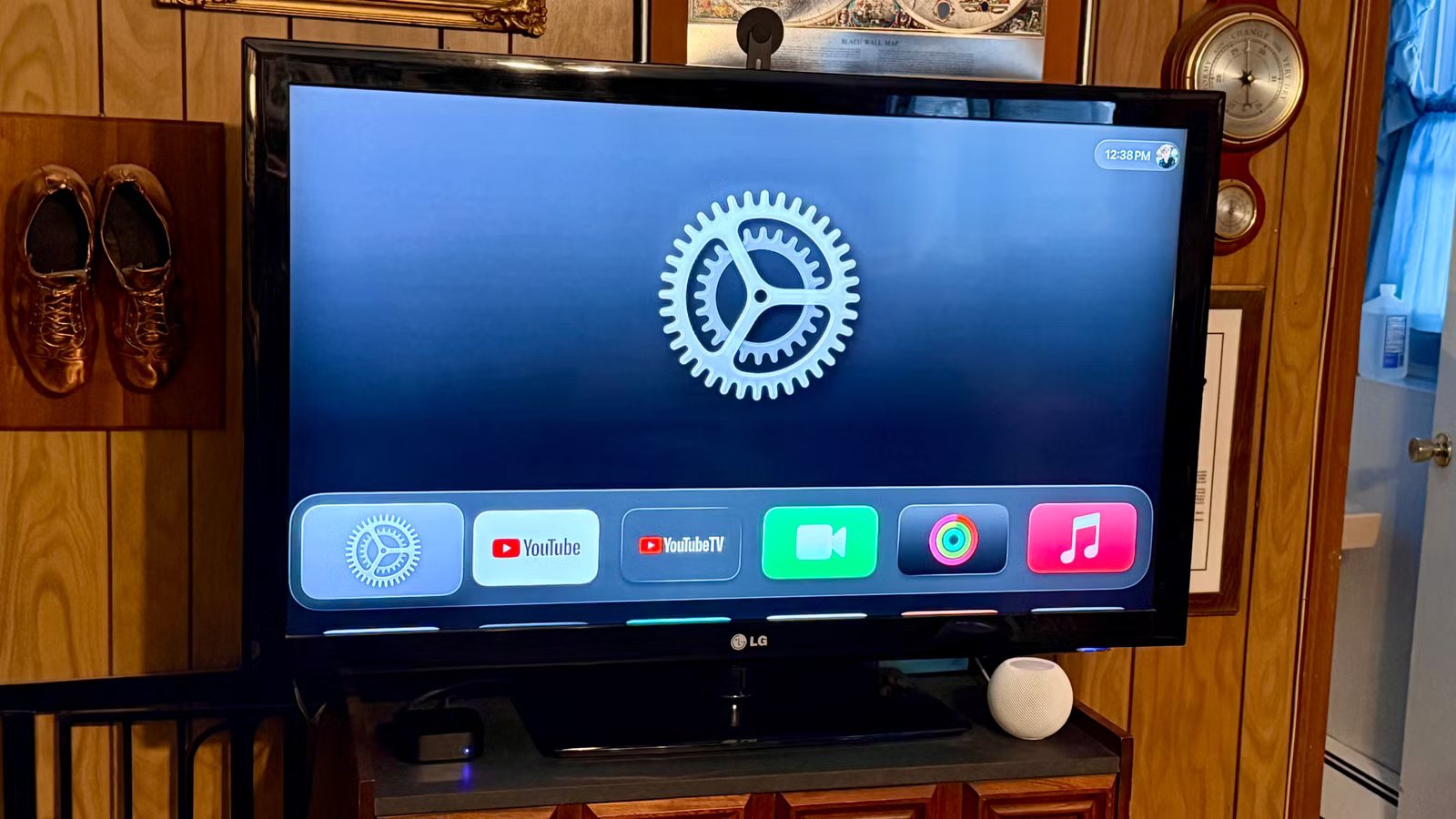
We all have at least one TV collecting dust after an upgrade. If you’re like me, you probably have a few older sets tucked away around your home.
But just because they lack modern features doesn’t mean they can’t still be used in the modern streaming age. Here’s how I continue to get value out of a TV that’s over a decade old with these accessories.
Why I still use my older TV
Unlike with phones, you probably don’t upgrade your televisions that often. Most upgrades happen when your TV breaks, or you want a nicer picture.
Credit: Nathaniel Pangaro / How-To Geek
Even so, you’re probably not upgrading it every two or three years. Our living room TV, which was the central TV in the house, wasn’t replaced until 2020 after being purchased in 2010—a ten-year gap—and it’s still in use today.
At 47 inches, it’s still a beautiful TV, but unlike today’s models, it isn’t smart. To put its age in perspective, it was released when networks, such as Disney, aired separate channels for standard-definition and high-definition programming.
Credit: Nathaniel Pangaro / How-To Geek
Even though it’s old, I’ve paired it with several accessories to bring it into the modern age. This approach lets me save money by avoiding a new TV purchase while adding features and capabilities that often rival—or even exceed—those of a new model.
1
Streaming box or stick
Credit: Nathaniel Pangaro / How-To Geek
One of the best ways to turn a dumb TV into a smart one is by connecting a streaming stick or box to it. These—which are usually inexpensive—additions let you access various streaming platforms and cast your device to your TV.
When we first got the TV, we only had our cable box and a DVD player connected, but three years later, we added a streaming stick, which was a Google Chromecast. This was the first generation of the streaming stick, so it lacked a remote and functioned primarily as a casting device rather than the complete streaming platform it is with Google TV.
Credit: Google
Once we got a smart TV and moved this one downstairs into my office, where it currently resides, I added an Apple TV 4K. Since the TV supports only high definition and not 4K, I knew I would not get the full benefits of Apple’s latest streaming box.
However, it still does everything I need. It lets me listen to music, complete Apple Fitness+ workouts, and calibrate the TV’s color balance using the Apple TV and my iPhone.
Operating System
tvOS
Resolution
4K
Audio codecs
Dolby Atmos
RAM/storage
64GB or 128GB
Connectivity
Wi-Fi or Wi-Fi and Ethernet
Immerse yourself in stunning 4K HDR with Apple TV 4K. Stream your favorite content with exceptional clarity and color, powered by the A15 Bionic chip. Enjoy seamless access to apps, games, and Apple Originals, all with the convenience of Siri voice control and personalized recommendations.
Dimensions
6.4in x 3in x 1in
Wi-Fi
Yes
Ethernet
Yes
Ports
HDMI
Operating System
Google TV
Experience stunning 4K streaming with Google TV Streamer. Enjoy seamless access to your favorite apps, shows, and movies with a powerful, easy-to-use interface. Elevate your entertainment with voice control, personalized recommendations, and smooth performance in vibrant Ultra HD.
No matter which streaming device you choose for an older TV, it is now easier and more cost-effective to make it smart. Furthermore, if your TV lacks the supported connection port—most commonly HDMI—you can purchase an adapter to connect the devices.
2
External speaker
Credit: Nathaniel Pangaro / How-To Geek
While my TV already has a built-in speaker, it has become dull and less powerful over the years. This has led me to connect an external speaker to it for better sound volume.
Since I have an Apple TV plugged in, I chose to use the HomePod mini in my office as the external speaker. This lets me adjust the volume—while also playing or pausing media—with my voice.
Credit: Apple
Plus, if I got another HomePod mini, I could pair the two together and make them a stereo pair. This would enhance my listening experience, but for now, I’m okay with just having the one for what I use my TV for.
The HomePod was an easy choice as an audio source since I already had it, but before I did, I used an external speaker I found on Amazon. It was nothing too fancy, just one that offered good sound and fit the aesthetic of my setup.
Since my TV was from 2010, plugging in an external speaker had a bunch of audio benefits. For example, the speakers on the TV are located in the back, not facing me, so having the sound finally pointed in my direction made a big difference.
Furthermore, the external speaker helped make the sound fuller, dialogue clearer, and the overall audio more balanced. It was a significant improvement over the built-in TV speakers from 15 years ago.
Credit: Lucas Gouveia/How-To Geek | st.noon/Andrey_Popov/Shutterstock
You can always purchase expensive speakers, but there are plenty of good-sounding ones well under $100. Just like you can make your TV smart, you can also drastically improve its audio without breaking the bank.
3
IR Blaster
Credit: Adam Davidson / How-To Geek
Depending on how old your television is, it may or may not have CEC built into it. This allows one remote to control multiple devices.
You’ll most likely notice this when you turn on a streaming stick or box, and it also powers on your TV. The remote controls both the streaming device and the television it’s connected to.
Credit: lidiasilva / Shutterstock.com
My TV, however, does not have this feature built in, and while it’s not game-changing, it is useful to have. This is especially apparent when all my other TVs in the house have the feature, given they are vastly newer than my 2010 TV.
The tricky part is that I can’t just add CEC to my TV, since it involves internal wiring through the HDMI port. To solve this, I resorted to a smart IR blaster to power my TV on and off.
7/10
Size
3.15 x 2.76 x .91in (8 x 7 x 2.3cm)
Connections
WiFi 802.11 (2.4 GHz only) and Bluetooth 4.2
There are several IR blasters available, but I use the SwitchBot Hub 2, which has the technology built in. I recorded each function in the app, such as turning the TV on and off. Then, I created Siri Shortcuts to make those functions easier to use, primarily through my HomePod.
Creating the shortcuts helps prepare everything before I go downstairs to work out, such as turning on the TV, waking the Apple TV, and opening the Fitness app. It also lets me add these functions to automations and control the TV’s power using only my voice.
Credit: Nathaniel Pangaro / How-To Geek | Apple
IR blasters are an effective way to make an older TV feel smart, allowing you to control it remotely even when you’re not in the same room or on the same floor. Since older TVs lack complex functions, using an IR blaster to manage basic controls works exceptionally well.
Just because your TV is old and showing its age doesn’t mean it belongs in the trash. There are various ways to revitalize it and bring it up to par with—or even outdo—current smart TVs.
While adding a streaming device, a new speaker, and an IR blaster definitely helps achieve that modernization, I also added less essential accessories that still come in handy. This includes a MagSafe adhesive arm to place my iPhone during FaceTime calls and various USB charging cables to charge multiple devices from the TV, such as the Siri Remote.
Credit: Nathaniel Pangaro / How-To Geek
No matter which option you choose, there are plenty of ways to modernize an older TV, even one that is more than a decade old. Before buying a new television, consider whether upgrading it with external accessories makes more sense. The answer may be yes.
