

I can get overwhelmed easily. I’m not afraid to admit that and I also think it’s completely normal that, in this day in age, things can get a bit cluttered on your screen. Whether you’re looking through any of the cavalcade of apps you have downloaded on your phone or the amount of titles that are available to stream on Netflix, excess is staring us in the face at all times when we’re looking at screens.
It can feel like a lot, especially when you’re trying to find some semblance of organization in your life. One of my biggest sources of chaos is my browser. I end up searching for story ideas and researching different angles and I have like 25 tabs by the time I’m ready to write. I seldom use all of those tabs, but I want some of them. A way to mitigate this chaos is to filter out the ones that you want and save them for later with OneTab.
Related
This built-in but underrated Chrome feature fixed my tab chaos
Separating your personal and work life with a built-in Chrome feature.
OneTab is a Chrome extension meant to reduce clutter
It can save you time and memory
Credit: Chris Hachey / MakeUseOf
Installing OneTab for free on your Google Chrome browser is simple, as it can be found on the Chrome Web Store. This extension takes all the tabs that you have in your browser at a given time and saves them to a list while also closing out that browser.
It helps you in an “out of sight, out of mind” kind of way by getting rid of the tabs that you’ve been hoarding. Do I really need those tabs of different pairs of shoes I was looking at mixed among my work tabs? No. But I’m afraid to close the tab because I’ll lose their place.
With OneTab, you can save those tabs for later usage with one click of a button. Pinning it to your extensions bar makes it easily accessible and even simple to use. What I like about OneTab is that it opens up a new browser and OneTab is the first tab in that browser.
From there, you can look at your history and go through all the tabs that you’ve saved. It’s similar to History but it only keeps track of the tabs that you actually want to go back to.
The organization is very smart and simple to use
You can store sites in a number of ways
OneTab is different from History because it doesn’t record every site that you’ve been to. It keeps track of the sites that your tabs were on when you added them to OneTab.
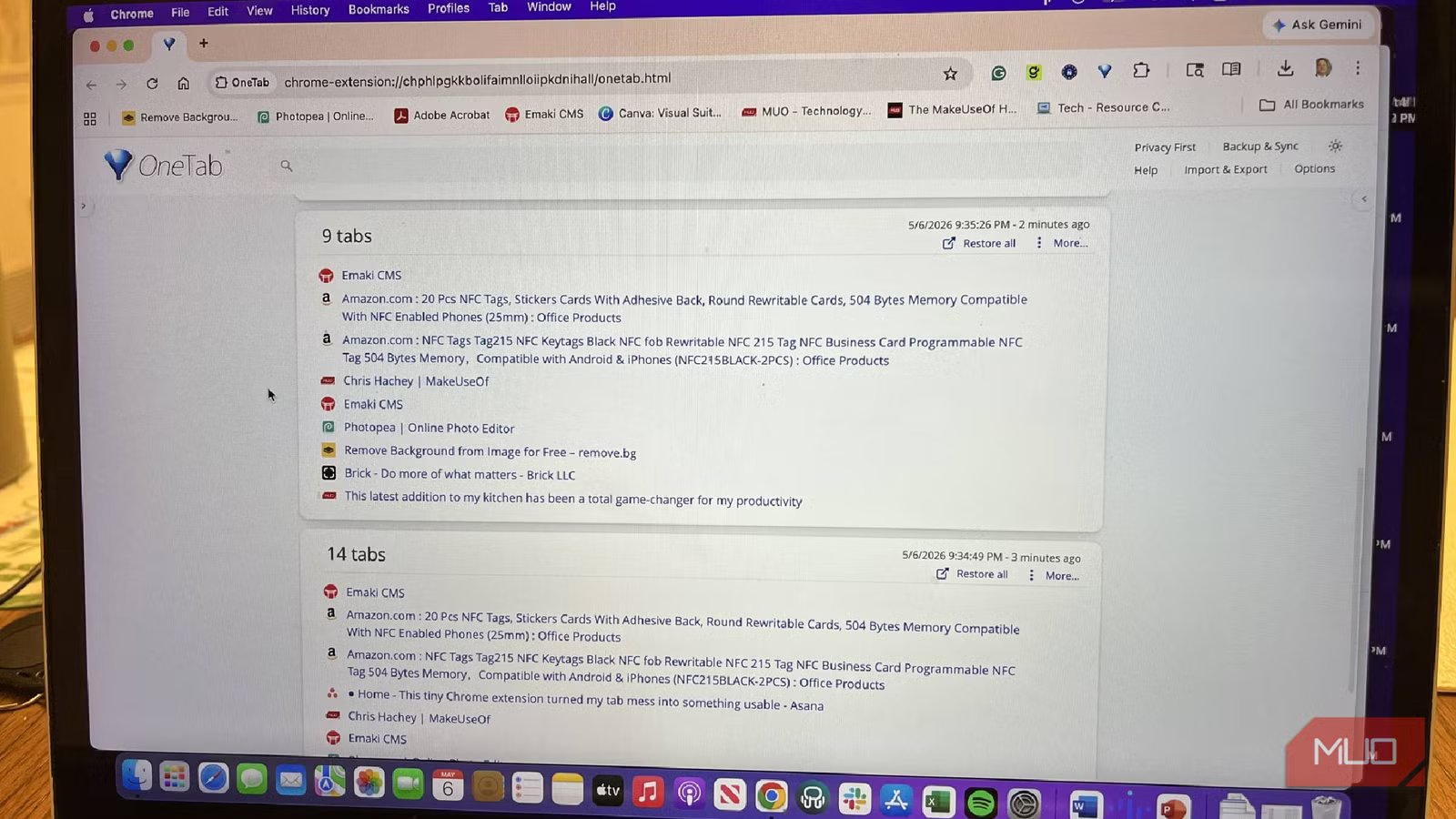
The interface is simple to digest, as it reads downward in a list format. It will show you how many tabs you had open at the time you used the extension as well as what they were. It provides you with the time that you clicked on OneTab as well, helping you record when you were on those sites.
One of the biggest problems that users face with Google Chrome is that many of the tabs use up extraordinary amounts of memory. This can make your computer run slower. But OneTab can save up to 95% of your memory by taking long-running tabs and minimizing them to a smaller output of memory.
It shrinks what your computer was doing in terms of its memory usage, helping your computer run more efficiently. You don’t even have to get to the point where Google Chrome is asking you about certain tabs that are using a lot of memory and whether it can stop them from loading to free up space.
You can store your work in various ways. You can put your sites into folders, which is something that I like to do. I did it where I put them in one folder each day and chose which browsers were full of tabs I wanted to store and kept a running tab for that day.
OneTab also lets you move all of your sites, or just some of them, at once in a bulk manner. You can combine them with another set of tabs, creating a massive stack. But, if you realize that you don’t want all of those tabs, you can select individual ones and either delete them or move them into their own grouping.
Keep a set of tabs for the future
I’m a big fan of this functionality
Credit: Chris Hachey / MakeUseOf
Whenever I’m getting ready to write a story for MakeUseOf, I open up about five or so websites. I need access to the content management system as well as the website to check links. I like to have my email up as well as a photo editing site. Plus, our backend team organization site is how I sign off that I’ve written something.
By essentially bookmarking this set of tabs, I can open them all up at once whenever I want to start doing some work. I don’t have to open a new browser and open up all the sites individually. By clicking on the labeled MUO grouping of sites in OneTab, it populates them all for me.
Another solid feature that this extension offers is a search function. You can search for keywords that help you find the specific tab you’re looking for. This comes in handy when you want to remember a certain product you were looking up on a site or even a story that you wanted to remember to share with someone. You can type in some details about it and it might populate in the search bar.
You can also import and export URLs to your groupings. If you want to add a tab for future use as a part of a larger group that you’ve already saved, there’s an option for that. OneTab makes it easy to help your future self.
OneTab alleviates a big headache for me
The reason why I love using OneTab is because of how quickly it can organize my computer for me. I’ve had Chrome slow down too many times because of tabs that are running in the background and taking up a ton of memory. I’ve also lost many tabs because the computer did an update and shut down or it died and had to reboot again. With OneTab, I can save my grouping of tabs to keep track of the sites I want to revisit.
