

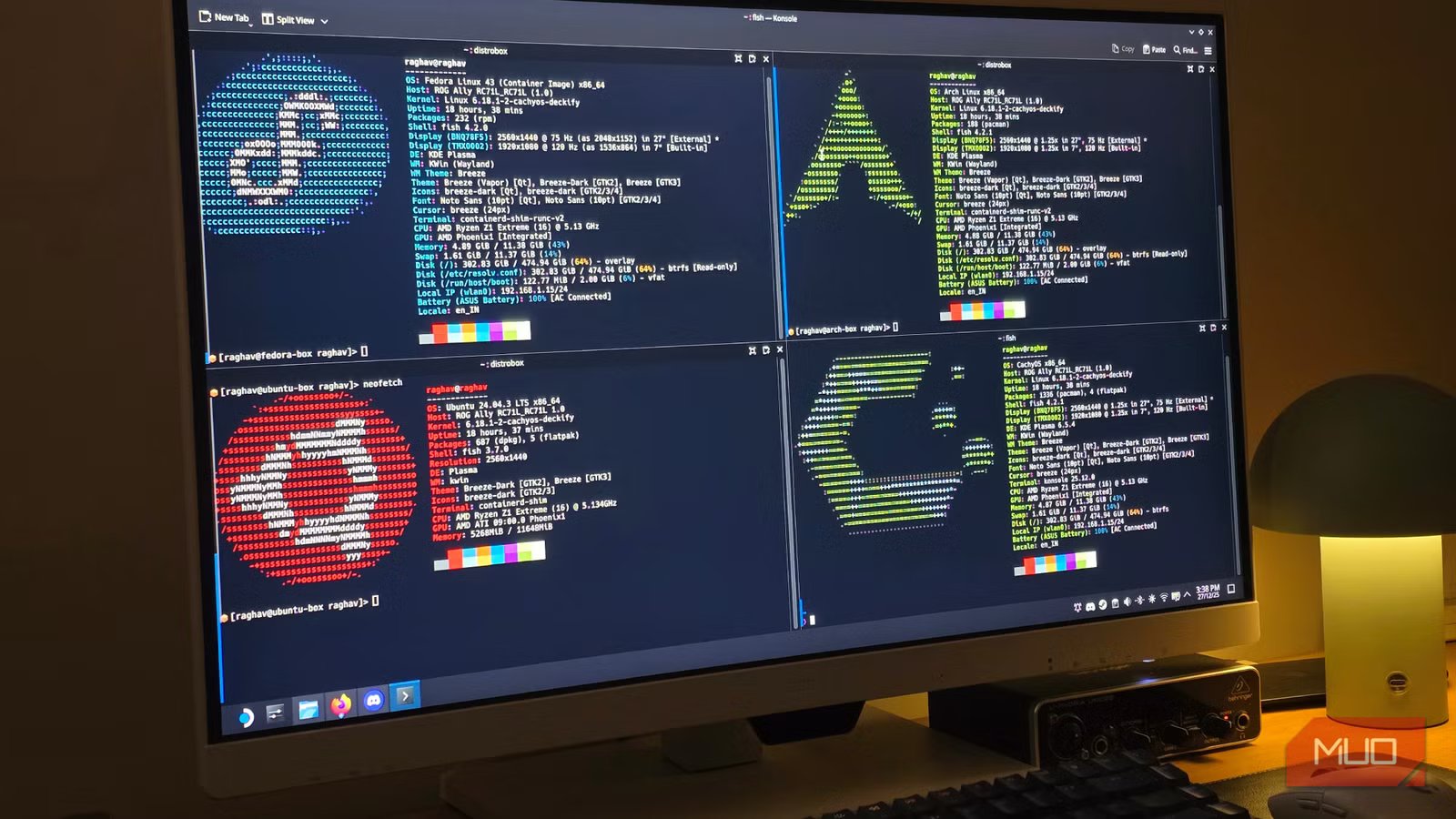
I’ve tried a lot of Linux distros over the years, to the point I even have a list of ones I would recommend to other people. But distro-hopping gets tiring after a while.
Spinning up virtual machines helps, but it wasn’t really lightweight enough for me. What I really wanted was something closer to Docker, but built specifically for everyday Linux use. A tool that lets me jump into another distro when I need it, and I think Distrobox is just the perfect tool for that.
What is Distrobox?
A better idea than VMs
At its core, Distrobox lets you run other Linux distributions inside your current one, akin to running Linux via WSL. It does this by building on top of container tools like Podman or Docker, which means you’re sharing the same kernel instead of virtualizing an entire system like a VM would.
That’s why it’s so much more efficient. Since there is no separate kernel. Instead of booting a full virtual machine, it shares the host system’s kernel, which keeps overhead low. Using it feels closer to switching environments in the terminal than running another operating system.
This kind of setup makes sense in a lot of real-world scenarios. If you’re a developer, you can keep a stable host system while running different toolchains side by side, like an Ubuntu environment if you want to use apt, or an Arch one for newer packages.
But it’s not just for devs. You might want to run a single app that behaves better on another distro, test software without risking your main install, or try out a different distro properly without committing to a reinstall. These are exactly the situations that usually push people into distro-hopping, and Distrobox handles all of them without forcing you to change your base system.
Related
Sorry, Linux fans: This OS is actually the better Windows replacement
Not Linux, not Windows. Something better.
Setting it up is easy
No, you don’t need to download a 4GB ISO
Screenshot by Raghav – NAR
Installing Distrobox is about as simple as installing any other package. On an Arch-based system, you can install it directly via Pacman.
sudo pacman -S distrobox
If you’re using another package manager, the command will obviously look a bit different, but Distrobox is available on most package managers. Keep in mind you’ll also need either Podman or Docker installed, since Distrobox uses one of those to run containers under the hood, as I mentioned earlier.
Creating a container is just one command. For example, this creates an Ubuntu environment:
distrobox create –name ubuntu-box –image ubuntu
The –name flag is simply there, so you know what the container is for, and –image defines which distro you want to use. You can replace Ubuntu with something like Arch Linux or Fedora.
Once the container is created, enter it using this command:
distrobox enter ubuntu-box
You’re dropped straight into a shell that behaves like a normal Ubuntu install, complete with its own package manager and tools.
You can repeat this process as many times as you want. One container for Arch tools, another for Ubuntu-only apps, maybe a Fedora one for testing. They all live side by side, and if you ever don’t need one anymore, you can just delete it and move on.
You can do some other cool stuff with it, too
CLI-apps are kinda boring
Screenshot by Raghav – NAR
Distrobox can do much more than just run an OS in your shell. For example, it can run apps with a full GUI, and you can also make them show up as normal apps in your host system by entering this command:
distrobox-export –app appname
This creates a desktop entry on your host system for that app. From that point on, it shows up in your app launcher like any other native application, even though it’s still running inside the container. Obviously, make sure to replace appname with the actual name of the app you’re trying to add.
You can also export command-line tools in the same way. Once exported, you can run them directly from your host terminal without manually entering the container every time. Behind the scenes, Distrobox just forwards the command to the right environment for you.
The important part is that nothing is actually being installed on your main system. If you delete the container later, the app disappears with it. That makes this feature perfect for running distro-specific apps or experimental tools without permanently cluttering your host OS.
It’s great for keeping things separated without making life complicated. You can dedicate one container to experiments, another to work tools, and keep your main system clean. If something breaks, you don’t troubleshoot it for hours; you just delete the container and move on.
It’s not magic, and it won’t replace your host distro
It’s great for spinning up quick environments and doing development work, but there are a few things you should keep in mind before overhyping Distrobox.
GUI apps can work well, but they’re inconsistent. I’ve run into plenty of issues with Electron apps specifically, so don’t expect everything to behave perfectly. Most CLI tools, on the other hand, work just fine and are where Distrobox really shines.
Another common misconception is security. Distrobox is NOT a security sandbox. Containers share your home directory with the host, and your system can still be affected if you run something malicious. It’s a convenience tool, not an isolation or hardening solution.
