

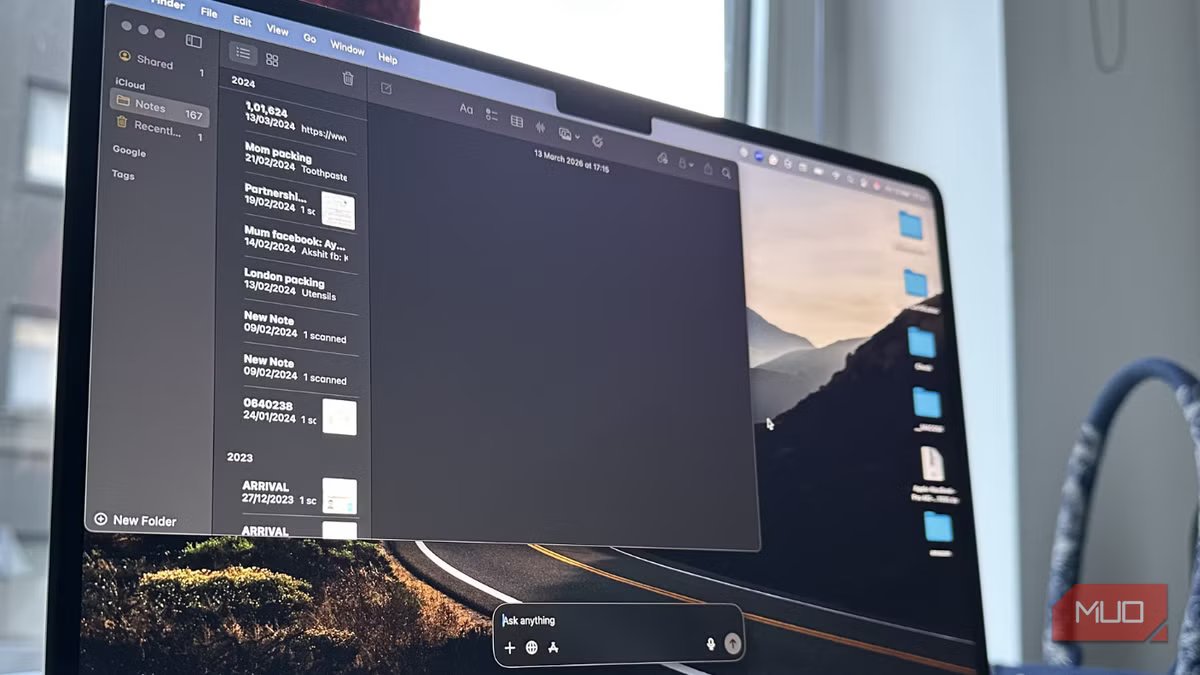
Over time, ChatGPT has become one of the tools that I use every day. Be it drafting email replies, brainstorming ideas, summarizing lengthy pages, or solving quick problems, I use ChatGPT for several everyday tasks. That being said, for a long time, accessing it became a little inconvenient. Every time I needed ChatGPT, I would open my browser, search through the tabs, or visit the website. Frankly, this didn’t feel like a big task in the beginning. Slowly, it started to feel like friction.
That’s why I decided to switch to a simple shortcut that allows me to open ChatGPT instantly. I no longer need to head to my browser first. It just took me a minute to set up the shortcut, and it has completely changed how efficiently I can use ChatGPT now.
Opening ChatGPT in a browser adds friction
A close up of Windows laptop with ChatGPT Plus on the screenCredit: Kanika Gogia / MUO
If you also regularly use ChatGPT on your laptop or computer, you know you have to follow small steps to access it through the browser. First, you have to open the browser, then you either have to type the website address or find the tab where it’s already open. And, I have dozens of apps open at once. Sometimes, it takes longer just to locate the right tab.
Moreover, browsers are full of distractions. I know I have to use ChatGPT for a specific task, but as soon as I head to my browser, I get easily pulled into checking my email or reading an article I saved for later. This breaks my workflow.
Of course, one of these is a major issue on its own. If you use ChatGPT once or twice a day, this won’t be a problem. However, if you use ChatGPT multiple times a day, those extra steps create friction. I realized that I definitely need a quicker way to access ChatGPT on my laptop.
The shortcut that gave me instant access to ChatGPT
A better way to launch ChatGPT
Screenshot by Kanika Gogia
I used the ChatGPT desktop app and its built-in keyboard shortcut to access ChatGPT on my laptop. Once I installed the app on my machine, I could easily open ChatGPT at any time with a simple keyboard shortcut. Now, instead of browsing through the tabs or typing the address, a small ChatGPT window is always ready for my prompts. The best thing is that I can invoke it from anywhere on my computer.
Whether I’m browsing, drafting my articles, or working in another app, ChatGPT is always at my fingertips now. No need to switch back and forth between browser tabs. I was seriously getting annoyed because of this. Since ChatGPT now appears as a lightweight floating window, it’s just perfect for my quick tasks. It doesn’t interrupt what I’m doing, and this alone made the shortcut worth it.
If you want, you can also install ChatGPT as a web app shortcut in your browser. Once you’ve done that, you can launch it directly from the taskbar, dock, or desktop. This works the same way as you use any other app on your computer.
How to set up this shortcut in under a minute
Get it running in no time
Setting up this ChatGPT shortcut is pretty quick and straightforward. Here’s what you need to do:
- First and foremost, head to the official website and install the ChatGPT desktop app.
- You can sign up or log in to your account.
- Once you’ve done that, you’re good to go.
ChatGPT automatically supports the Option + Space keyboard shortcut on macOS and Alt + Space on Windows. As soon as you hit the keys, it will open a quick access prompt window where you can start typing your questions, upload a file or photo, or take a screenshot. You can also customize this shortcut in the ChatGPT settings.
As long as the ChatGPT app is running in the background, the shortcut works anytime for quick AI assistance.
How this small change improved my workflow
It made ChatGPT more practical
Screenshot by Kanika Gogia
At first, this shortcut seemed like a small convenience. But over time, it made a huge difference in the way I use ChatGPT on my laptop. This little change has helped me save more time than I imagined. One of the biggest benefits is quicker and easier access to the AI chatbot. Instead of switching tabs in my browser, I can now open the ChatGPT app and get back to my work within seconds.
On my Mac, I use the Option + Space keyboard shortcut to invoke ChatGPT from any app that I’m using. It feels as easy as accessing Spotlight on my Mac. On my Windows PC, I hit the Alt + Space keys to use the ChatGPT desktop app. As soon as I press the keys, it instantly opens a text bar over my current app or window.
Using the desktop app also reduces distractions. ChatGPT opens in its own window, so I’m not tempted to check dozens of other tabs open in my browser. I can quickly ask a question, draft an email, or upload my screenshots to ChatGPT, and then return to what I was doing on my machine.
Another surprising benefit is that I now use ChatGPT more often for my quick tasks. After all, when a tool is easier to access, it naturally becomes an integral part of your workflow. As a result, it’s much easier to jump into small tasks like brainstorming ideas, drafting email replies, or quickly finding information with ChatGPT.
Related
This ChatGPT trick feels too good to be hidden
Did you know ChatGPT can do this?
This shortcut makes AI assistance feel instant
I feel ChatGPT is most useful when it’s easier and quicker to access. When I used to access it through the browser every time, it added unnecessary steps and friction. Now that I’ve switched to the shortcut, ChatGPT feels like a built-in productivity app, rather than a third-party tool. It opens instantly, stays separate from my browser tabs, and fits more naturally in my workflow. Keeping my favorite AI tools within easy reach definitely worked like a productivity upgrade for me.
