

I’ll admit it: upgrading to Windows 11 wasn’t exactly a pleasant experience for me. The UI felt sluggish, the boot times were slow, and I experienced random freezes and lag while gaming. Since I use my Windows PC exclusively for gaming, I could live with slower boots and choppy UI navigation, but a significant drop in FPS while gaming was a big no. I knew it was time for some spring-cleaning… or not.
At first, I made the classic mistake: I bought one of those “game-booster” apps—PC Game Booster 7, to be specific—that claim to improve gaming performance. Fortunately, it didn’t take me long to realize I could manually adjust the relevant settings and save a few bucks in the process. If you’re in a similar situation, skip the lag-reduction apps and make these changes instead.
Enable Windows 11 Game Mode
Genius, I know
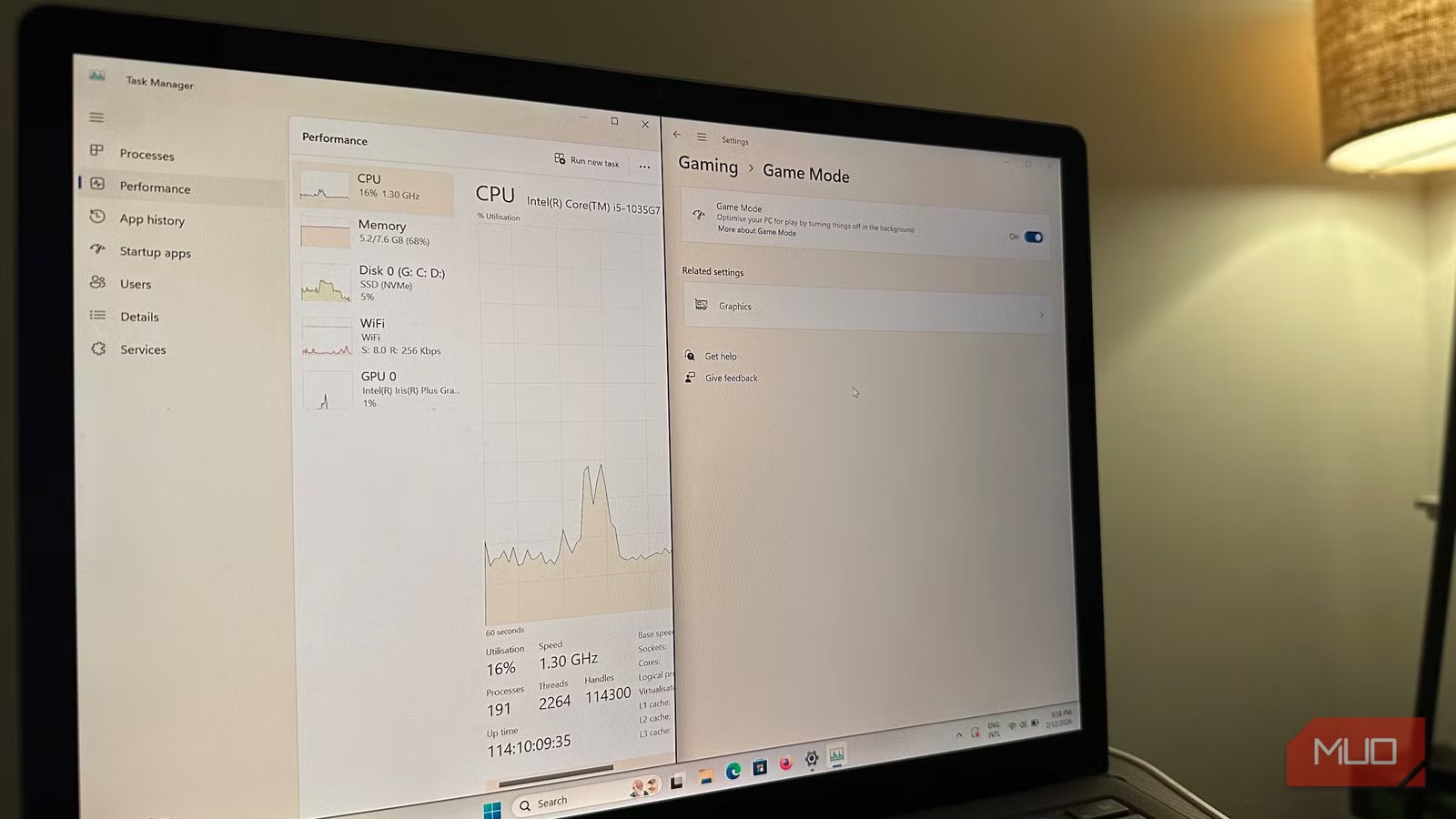
Windows’ background processes and tasks often use up a big chunk of your CPU and RAM, leaving your poor old video game with scraps. Now, you could either manually end these processes using the Task Manager or simply enable Windows Game Mode. Once enabled, Windows will prioritize resources for the video game you’re playing by minimizing other activities and background processes. These processes include scheduled Windows Update scans, background app notifications, and telemetry services taking up your CPU’s resources. However, ongoing Windows Store and Windows Update downloads won’t be paused.
To enable Game Mode, just go to Settings > Gaming > Game Mode, and toggle it on.
While Game Mode is good on its own, it may interfere with other apps and overlays you use while gaming. In my case, there was a one-off instance where I had trouble cycling between different DPIs (set using Razer Synapse, which runs in the background) on my Razer Deathadder Elite mouse.
Tweak Windows’s default graphics settings
The Game Mode settings page has other useful stuff, too
In the Game Mode settings screen, go to Graphics > Change default graphics settings, and you’ll find three other features depending on your hardware: Hardware-accelerated GPU scheduling (HAGS), Variable refresh rate, and Optimizations for windowed games. Enable all these settings.
With Hardware-accelerated GPU scheduling turned on, I saw a noticeable improvement in the average FPS while playing Counter-Strike 2. This was expected, as HAGS reduces the CPU overhead, making it ideal for CPU-intensive games like Fortnite and CS2. You may not see the same gains in GPU-intensive video games.
The Optimizations for the windowed games setting are perfect if you play games in windowed full-screen mode. It noticeably lowers latency in games running on DirectX 11 and DirectX 12, matching what you would get when running the game in full-screen mode. Again, the use case for this is subjective: it allows you to take advantage of easy task switching in windowed full-screen mode without increasing latency.
Switch off memory integrity
There are some risks involved, though
Memory integrity, also called hypervisor-protected code integrity (HVCI), is a security feature in Windows 11. Disabling it can give you a 5-20% performance improvement in some games, which is substantial. However, it does leave your system’s core processes more open to malicious code.
In my case, it made sense to disable it because I don’t use my computer for work or storing important files. Unfortunately, disabling memory integrity gave me the most noticeable increase in gaming performance.
If you’re willing to take this calculated risk, disable memory integrity via Windows Security > Device security > Core isolation details. You will need to reboot your PC for this setting to take effect.
Related
These 5 changes instantly made my Windows PC faster
Everyone needs a performance boost sometimes
Disable startup apps and uninstall the ones you don’t use
You don’t need all of them
You may be surprised how many Windows and third-party apps are set to launch as soon as Windows boots. Disabling them can free up resources for gaming. To do this, open Task Manager (CTRL + SHIFT + ESC), click the Startup apps tab, and disable the apps you don’t use. For example, if you have multiple game stores and launchers (Steam, Epic Games, Ubisoft Launcher, etc.) installed, it’s best to disable them from launching on startup.
While you’re at it, why not uninstall apps you no longer use? These apps may not be running in the foreground, but most have services that constantly run in the background. Go to Settings > Apps > Installed apps, and uninstall the ones you don’t need. Be ruthless.
Related
The 9 Most Annoying Windows 11 Features (and How to Fix Them in Minutes)
Make Windows 11 work for you, not against you.
The optimization rabbit hole goes deep
Don’t over-optimize
The tweaks I’ve listed are just the tip of the iceberg when it comes to optimizing Windows 11 for gaming. Regardless, they are the ones that worked best for me. While you can experiment with other methods like modifying the Registry Entries and changing the power plan, chances are they won’t make much of a difference. In fact, some of them may make your gaming experience worse if you don’t know exactly what you’re doing. Like the saying goes, “keep it simple, stupid.”
