

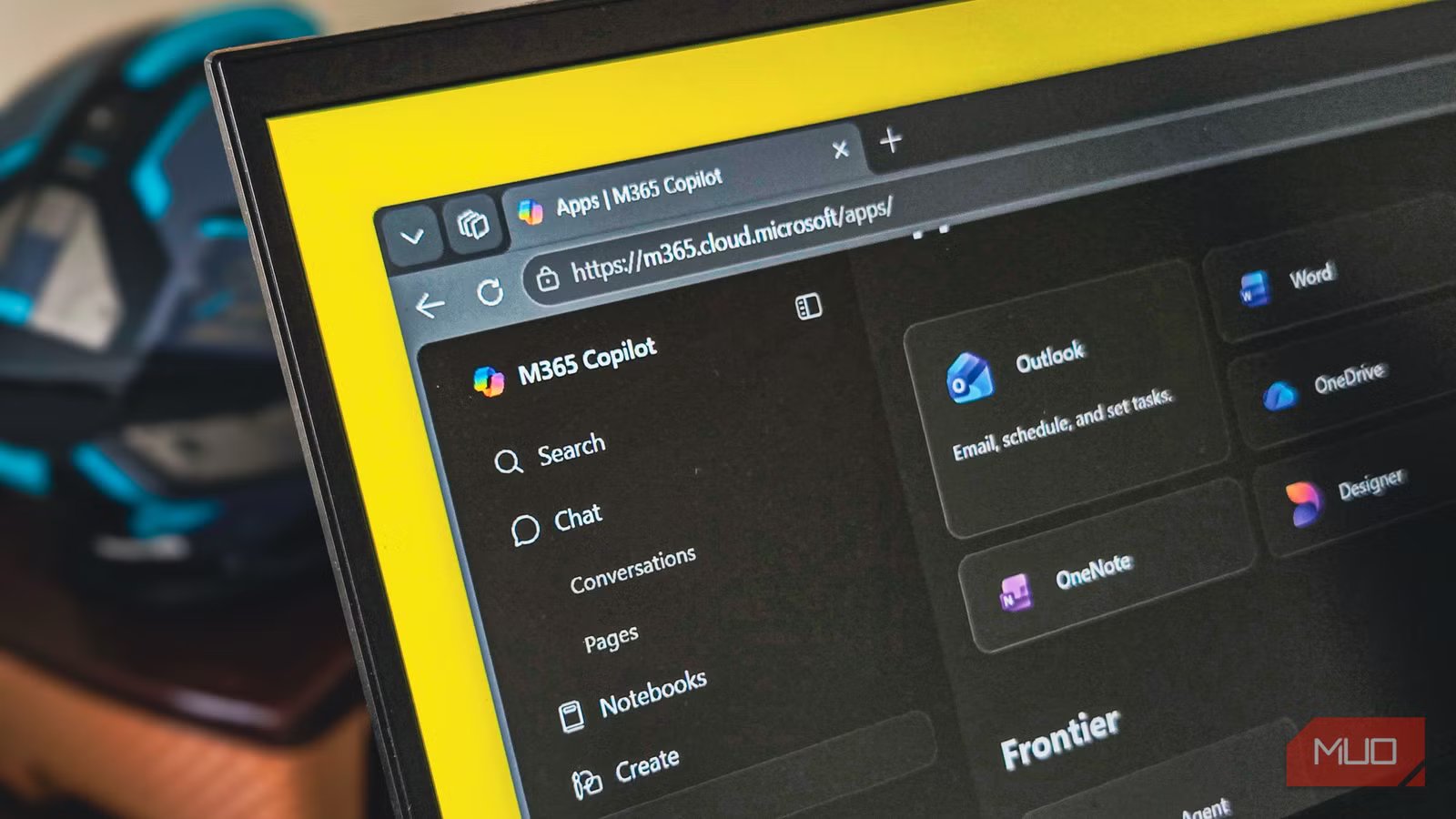
The three reasons I paid for a Microsoft 365 subscription for years were the Word and Excel apps, the seamless sync between devices for anywhere access, and, of course, the tempting 1TB of cloud storage. However, since I switched fully to Obsidian as my preferred text editor, I had been thinking of canceling the subscription to see if I could do without it, and there was a monetary benefit to it as well.
So six months ago, I finally pulled the plug on what Microsoft now calls Microsoft 365 Copilot. That doesn’t mean I stopped using Microsoft Office altogether. I switched to the online version of the service, which is completely free, and while it has its quirks, it’s a perfectly good option if you don’t need all the bells and whistles of the paid plan.
Related
I’ve been paying for Microsoft 365 wrong — here’s what I actually get for the money
Microsoft 365 packs many apps and services that can replace third-party subscriptions.
You can still use most Office apps
All the essentials live in your browser
The free web version still gives me access to every Office app I actually use, including Word, Excel, Outlook, and PowerPoint when I need them. OneNote is also part of the package, which is handy for the rare times I want to jot something down outside of Obsidian.
The experience in a browser is closer to the desktop versions than I expected. The ribbon interface looks familiar, the keyboard shortcuts I rely on still work, and Word handles my usual writing and editing without any noticeable lag. Excel feels almost identical to the desktop app for everyday spreadsheet work, and PowerPoint is more than enough for the occasional slide deck.
To get started, you only need a free Microsoft account. Head over to the Microsoft 365 free page, sign in, and you’ll land on a dashboard with all the apps listed on the side. Click on any app to start a new document, or upload an existing file from your computer to continue working on it.
Office apps anywhere
One account, every device, no installs
Tashreef Shareef / MakeUseOfCredit: Tashreef Shareef / MakeUseOf
The biggest advantage of using the web version is that I can access my files from anywhere, as long as I have a browser. This is one feature that could make or break my workflow because I tend to switch between devices throughout the day. I use my HP Pavilion gaming laptop at home, and occasionally carry a different machine, often my HP two-in-one when I travel, and rely on my HONOR tablet for quick edits when I’m away from a proper desk.
With the desktop apps, this kind of flexibility means installing Office on every device, signing in, and waiting for files to sync. With the web version, I just open a browser, sign in to my Microsoft account, and pick up exactly where I left off. The files are already there because everything is saved to OneDrive by default.
This also helps when I need to make a quick edit on a device that isn’t mine. I can borrow a friend’s laptop, sign in to my account in a private browser window, fix what I need to, and sign out without leaving anything behind.
Fewer features, but a less cluttered interface
Fewer buttons, easier to focus
Tashreef Shareef / MakeUseOfCredit: Tashreef Shareef / MakeUseOf
The free web app does lack a lot of advanced features compared to the paid plan. Macros and VBA aren’t supported, password-protected files open as read-only, and several advanced data tools in Excel are either limited or missing. PowerPoint loses some of its design tools and add-ins, and you don’t get desktop apps like Access or Publisher at all. Many third-party Office add-ins built for the desktop versions also don’t work in the browser.
For power users who rely on these features, this can be a deal breaker. But for someone like me, who mostly writes documents, builds simple spreadsheets, and puts together the occasional presentation, none of these are features I miss.
In fact, the trimmed-down interface is one of my favorite parts of the switch. The ribbon has fewer buttons, the menus are easier to navigate, and there’s less visual clutter to distract me.
You still get some free cloud storage
5GB to be precise
Tashreef Shareef / MakeUseOfCredit: Tashreef Shareef / MakeUseOf
While I do believe the Microsoft 365 paid plan can pay for itself, that’s only true if you actually use the generous 1TB of storage it offers. When I started thinking about canceling, the storage was the one thing holding me back because I still needed somewhere to save my documents.
Microsoft gives every free account 5GB of OneDrive storage by default. That sounds puny compared to 1TB, but it’s more than enough if you only use it for Office documents and a few personal files. Word and Excel files are tiny, and unless you’re storing a lot of media, 5GB lasts a surprisingly long time.
That said, I needed a bit more headroom for Outlook attachments and the occasional larger file. So I opted for the Microsoft 365 Basic plan, which costs $19.99 per year and bumps the storage up to 100GB. That’s plenty for my use case, especially since I run my own Nextcloud setup on the side for bigger storage needs.
It has its quirks
A few trade-offs you should know about
Tashreef Shareef / MakeUseOfCredit: Tashreef Shareef / MakeUseOf
The web version isn’t a perfect drop-in replacement for the desktop apps. The most obvious downside is that you need an active internet connection at all times. Also, there’s no real offline mode, so if your connection drops or you’re working from somewhere with flaky Wi-Fi, you’re stuck.
Performance can also take a hit with larger files. A small Word document or a basic Excel sheet feels snappy, but heavy spreadsheets with lots of formulas can feel sluggish in the browser due to network round-trips and browser overhead. Browser crashes or accidental tab closes can also interrupt your work in a way that feels worse than a native app.
Then there’s the workflow friction. Instead of just opening a file from your desktop, you need to upload it to OneDrive first, work on it in the browser, and then either share it from there or download a copy when you’re done. It’s not a big deal once you get used to it, but it adds extra steps for simple edits.
A free option that’s good enough for most people
To be honest, if you want a free, full-fledged Office replacement, you don’t really have to compromise on features at all. There are excellent free alternatives to Microsoft Office, like LibreOffice, that you can install entirely for free and use offline without any of the web version’s quirks. They’re worth a look if your priorities are different from mine.
But for someone who is already comfortable with the Microsoft ecosystem and prefers the familiar interface, the free web version makes more sense. Excel is one app I’ve never been able to replace with anything else because Microsoft still does spreadsheets better than any competitor I’ve tried. And if you really want the desktop apps without paying a yearly fee, Microsoft still sells perpetual licenses for the standalone Office suite that you can buy once and use for as long as it works.
