

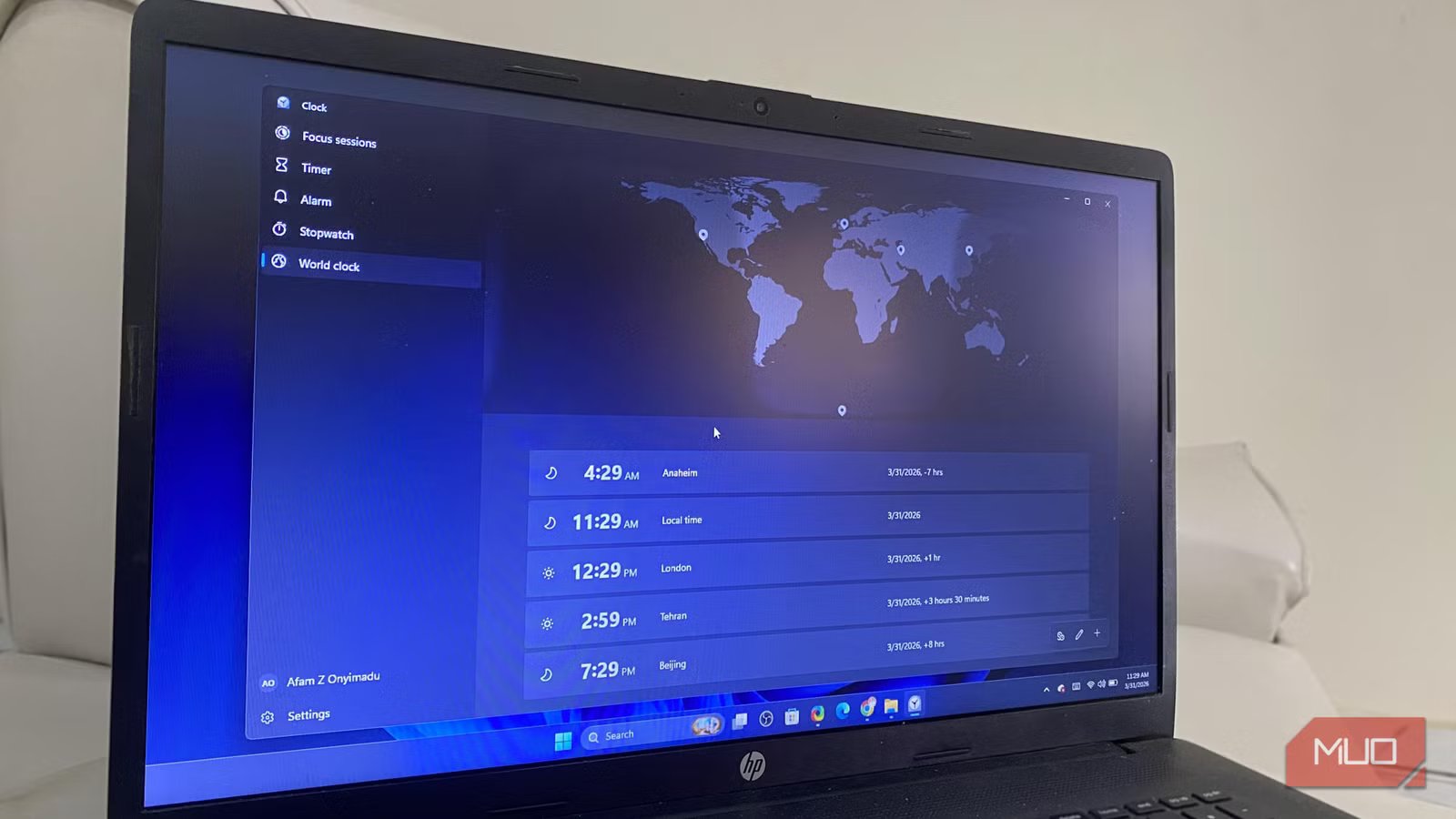
For everyday workflows, I use a focus timer, a quick world clock, and a countdown tool. I don’t even remember when I started this habit, but over the years, this productivity setup has helped me complete tasks efficiently.
I never expected any built-in Windows tool would replace them, but that changed the day I opened the Windows Clock app. I’ve always considered the Windows Clock app boring, but it seems that while I kept it closed for years, Microsoft has been working hard to make it a real productivity tool.
The focus timer I didn’t expect to replace
Windows Clock’s Focus Sessions quietly handled it
Microsoft finally found a way to make the Windows Clock’s Focus Sessions fit seamlessly into my workflow. This feature uses the Pomodoro Technique. Once I set my session length, typically between 10 and 240 minutes, it automatically creates break times when my sessions are long. The tool does not stick to a rigid 25-minute break pattern — rigid patterns train you to slow down to match the clock, not speed up to match the task.
At the start of every session, Windows automatically applies the Do Not Disturb setting. This silences notifications, hides taskbar icon badges, and makes your entire system feel settled on the one task you’re performing.
If you install Spotify and link it with the Clock app, Focus Sessions can include a podcast or music from a few curated focus playlists. This may be a productivity boost for certain people, even though I’ve never been able to get much done with background music or podcasts. Compared to Focus To-Do, which I used previously, here’s how the Windows Clock compares:
Feature
Focus To-Do
Windows Clock (Focus Sessions)
Cost
Free / $11.99 premium
Free (built-in)
Setup
Account required
Instant, no login
Session flexibility
Fixed Pomodoro structure
10–240 min, custom
Extra features
Tasks, subtasks, sync, reports
Timer only
Daily friction
Requires opening a separate app
Already in your taskbar
Windows Clock app’s Focus Sessions aren’t as robust as Focus To-Do, but they don’t need any installation and work great for my specific use case. There was no real incentive to always default to Focus To-Do.
The world clock I kept forgetting to open
The built-in clock made time zones effortless
Afam Onyimadu / MUO
A world clock isn’t a tool you use frequently. Still, whenever you need it, the default process for most people is to open a browser tab, search for a world clock, and then close it. Over the years, it’s been one of the tools that I use quite often when I need to schedule calls, publish content, or check the time in another region. This is effective, but the habit didn’t stick.
Windows Clock offers the perfect solution with its World Clock feature. I have pinned cities where my colleagues live, and at a glance, I can see the exact time for everyone.
There is also a comparison option that shows you the 24 hours of the day, with equivalent times across all the pinned locations. It’s so handy when I need to schedule a meeting. At a glance, I can see active work hours for all teammates.
On the comparison view, drag the slider to any hour and instantly see who’s available.
In the past, I had tried browser tabs, phone widgets, and standalone apps, but none were as seamless and effective. While all these options require some manual steps, once I had pinned locations in the Windows Clock app’s World Clock, they were always available whenever needed.
The timer I never thought I needed on my desktop
Having it built in changed how often I actually use it
Afam Onyimadu / MUO
Timers are simple tools. Often so simple, you may not think you need one. Timers on the Windows Clock app have changed how I consider these tools, and they’ve become an integral part of my workflow.
By default, there are four preset timers. However, you can create yours and add custom labels. The more interesting part is running timers simultaneously. I didn’t know this could be a productivity hack until I tried it. Now I may have a 30-minute and a 10-minute timer running together. The second may have a “check email” label, and when it goes off, I handle that task and dismiss it. With the first timer still running, I go back to the original task without really breaking my focus, only a pre-approved interruption.
Label your timers before you start them, not after. Once a timer is running, the label is the only thing that tells you which countdown is which at a glance.
Timers now help with these three aspects of my workflow:
- Writing sprints
- Short breaks
- Quick task boundaries
Because it’s now part of my active workspace and includes the features I need, I use it more, and it helps my productivity.
It reduced more friction than I expected
Fewer decisions made it easier to stay consistent
Afam Onyimadu / MUO
The most significant improvement from Windows Clock was removing the decision-making when I need an app.
Previously, a small action typically required me to consider which app to open, whether it was worth opening at all, and whether I’d use it consistently. Because Windows Clock is already installed, opens instantly, performs several functions, and doesn’t require a login, it’s an easier choice.
This is what my workflow before and after was like:
Before
After
3 apps
1 tool
App switching
Single workflow
Setup friction
Instant access
Irregular usage
Habit-based usage
What Windows Clock still can’t replace
Windows Clock is now a very useful app, but it doesn’t automatically replace everything. If you need detailed time-tracking reports, a dedicated time-tracking app may be a better option. However, that’s fine because it isn’t a full productivity suite. You don’t get an overwhelming number of features, but it handles the basics very well.
Related
I deleted 3 productivity apps for this one open-source tool, and I love it
One app that fixed boosted my productivity 10x.
