

Chances are, you probably own or use a USB-C hub, dongle, or adapter to connect to your favorite devices and accessories. The switch to USB-C created one connector to rule them all, but it also marked the beginning of dongle life for many. If you use USB-A accessories, take photos or videos, or frequently hook up to external monitors, your laptop or tablet’s onboard ports likely won’t cut it. That’s why USB-C hubs and docks are a dime a dozen these days, but what if one offered something special?
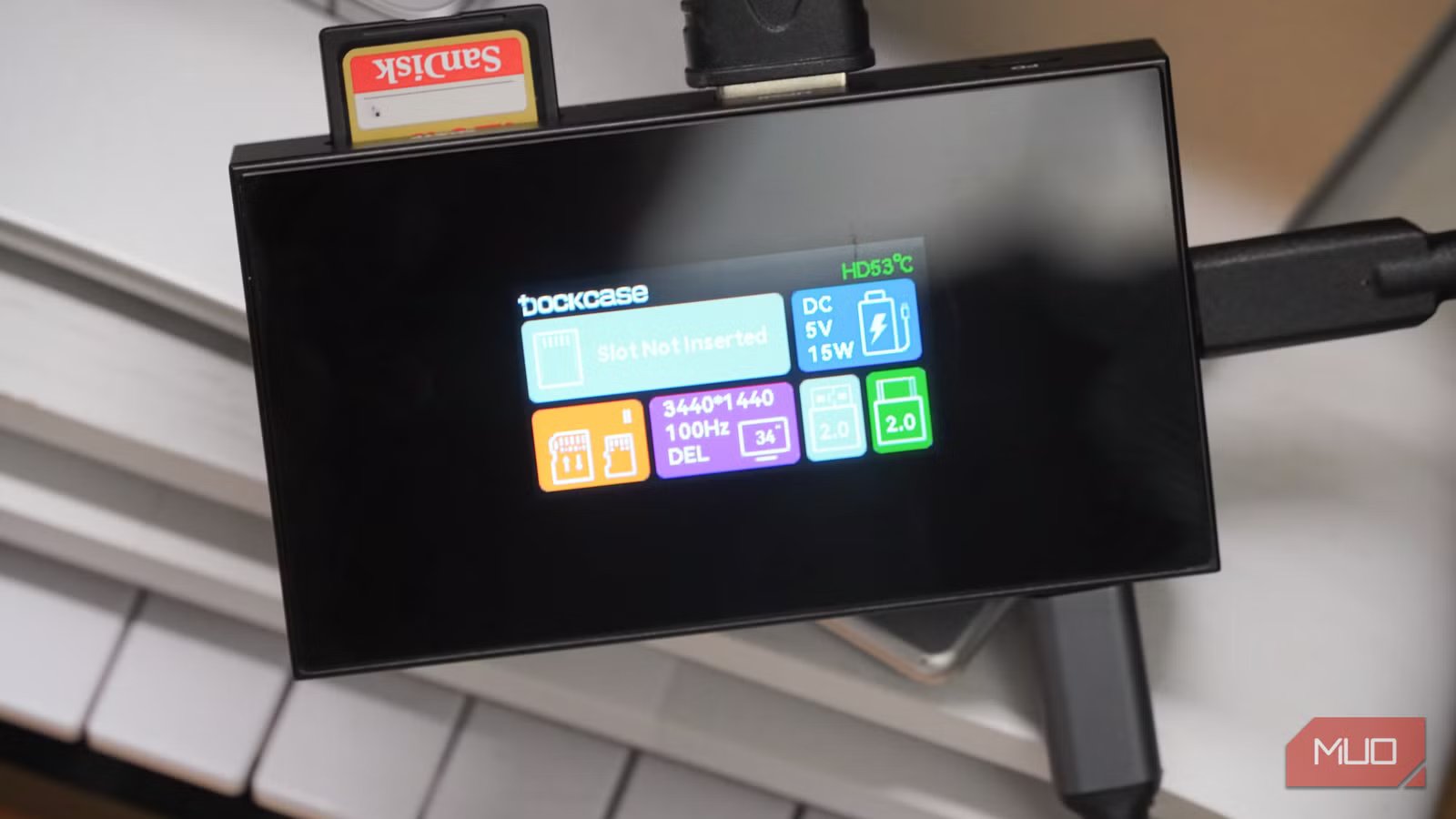
I’ve been testing the Dockcase Studio 8-in-1 USB-C hub for over a year (review sample provided by Dockcase), and this is a premium option that does just that. It supports all the connectivity specs you’d expect with a content creation focus, but its killer feature has nothing to do with ports or cables. This USB-C hub is unique because it offers a smart 1.9-inch touchscreen that can handle device management, reveal key diagnostics, and lend a hand during troubleshooting. It’s not the hub I use daily, but it has proved to be an invaluable part of my kit.
The screen isn’t just a gimmick
This 1.9-inch touchscreen is a game-changer for diagnostics
By now, you’re probably wondering why a USB-C hub needs a screen in the first place. The truth is, it doesn’t need one, but the 1.9-inch touchscreen on the Dockcase Studio becomes useful in a variety of situations. I’ve used it to test USB-C cables for speed and power delivery, check display specifications, and monitor temperatures on my memory cards. The screen offers additional insights for every port and connected device you plug into the Dockcase Studio.
It’s impressive just how much information the Dockcase Studio can provide in such a tiny package. For example, when you plug the USB-C hub into a host device and an HDMI display, you can tap the HDMI card on the home screen to reveal detailed information about the monitor. That includes the display’s manufacturer, model number, manufacturing date, resolution, and refresh rate. You might be able to uncover the same data points by digging through your PC or monitor settings, but it won’t be this easy.
The Dockcase Studio shines in situations where you’re troubleshooting and diagnosing problems on a recurring basis. If you’re a tinkerer that likes to build with NAS servers or single-board computers (SBCs), having a USB-C diagnostic hub that can reveal quick details about your projects may be useful. The same goes for IT managers, tech enthusiasts, and other professionals that need to solve tech problems daily.
USB-C uses complicated communication and charging protocols, and it can be hard to figure out which one your device supports. With a screen-based device like the Dockcase Studio, it’s much simpler. You can view the USB data and Power Delivery specifications for a cable or device right on the USB-C hub’s screen. My favorite feature is definitely the temperature sensing, which helps you keep tabs on whether your memory cards or SSDs are overheating during data transfers.
It’s a versatile USB-C hub, too
There’s even a version with an SSD enclosure
This USB-C hub in particular is positioned toward photographers, featuring memory card slots for a variety of media types. Namely, there’s support for CFExpress, SD, and TF memory cards. For the mainstream audiences, the dock offers a USB-A port, two USB-C ports, and an HDMI port. It doesn’t have the most versatile port selection — I’m sure some would rather see Thunderbolt support or more USB-A ports here — but that’s because this dock’s calling card is the screen.
The ports themselves are quite impressive, with one of the USB-C ports being capable of 100W Power Delivery for charging other devices. Additionally, the USB-C hub supports up to 4K at 120Hz, 5K at 60Hz, or 8K at 30Hz, giving users a ton of options. There’s compatibility with Windows, macOS, Android, Linux, and iPadOS, so it’ll work with just about any computing device you own.
Although the version I tested doesn’t support this feature, there’s a Dockcase Studio model with an M.2 enclosure compatible with up to 2TB 2230 or 2242 SSDs. That model adds an active cooling fan to keep the SSD running at optimal temperatures, and it’s the more well-rounded option. I might just buy one for myself when it’s time to expand my laptop’s storage space.
Who needs a USB-C hub with a screen?
Any creator, IT pro, or tech enthusiast could benefit from one
Credit: Brady Snyder / MakeUseOf
Of course, there are other USB-C hubs on the market with a screen, although they’re rare. You can find others with similar functionality that better match your USB-C hub needs with the right port selection. Really, my surprising experience with the Dockcase Studio is less about this particular accessory and more about the prospect of USB-C hubs with displays in general. It’s the kind of feature that makes you question why it even exists.
Then, you start using it, and everything becomes clearer. If you’ve never wondered about the exact manufacturing date of your monitor, why your USB cables are slower than expected, or how hot your memory cards are running, you can safely skip buying a USB-C hub with a screen. However, if you’re fascinated by all kinds of data or are constantly wasting time troubleshooting IT problems, a USB-C hub with a screen can actually be useful.
Brand
Dockcase
Connection
USB-C
Ports
HDMI, USB Type A, USB Type C
USB-C Power Delivery
100W
Maximum display resolution
4K
The Dockcase Studio is a smart USB-C hub with eight ports and a 1.9-inch display for diagnostics and device management. You can use the touchscreen to monitor thermals, change settings, and watch data transmission at a glance.
