

My gaming laptop is the best. I mean, quite literally. In terms of 14-inch Windows devices, it doesn’t come much better than the ASUS ROG Zephyrus G14 (2025). The RTX 5080 config that I own can play Cyberpunk 2077 with ultra ray tracing features at over 100 FPS at its native screen 2.8K screen resolution (2800 x 1800). It turns out, though, it’s also a great workstation … provided I connect it to a very special screen.
As someone who adores ultrawide monitors when it comes to work, writing/doing their day job on a 14-inch 16:10 screen can be a little difficult. Thankfully, since I started to pair my awesome laptop with a large, and very much in-charge 32:9 display, I no longer have to worry about the limitations of my Zephyrus’ (admittedly awesome), somewhat cramped screen.
Don’t ignore your laptop’s HDMI port
That display connection is there for good reason
Amir Bohlooli / MUO
Whether you want to daisy-chain dual monitor setups or plug your personal laptop into the monitor, that’s been assigned to you in the office, display ports do actually still matter when it comes to laptops. Even though I’ve been building my own PCs for 20-odd years, I’ll level with you: I only started connecting my laptop to an external monitor around a year or so ago. Shameful, I know. Bring forth your pitchforks.
That’s partially because I would never have dreamed of doing anything with my RTX 5080 portable Windows 11 machine but game on it when I first picked it up. Now that I’ve upgraded my monitor with a TV and my main RTX 5090 desktop subsequently lives in my living room, I’ve started to maximize my ROG gaming laptop’s usefulness. And that includes now using it as my primary workstation. And that’s mostly down to a super ultrawide monitor I can no longer work without.
Related
I’ll never buy another ultrawide without this feature — and it has nothing to do with the display
I thought I’d fall in love with an ultrawide for the extra screen space, but it was the integrated KVM switch and Thunderbolt dock that won me over.
Once you connect a laptop with an RTX 5080, an AMD Ryzen AI 9 HX 370 CPU and 32GB of DDR5 RAM, then a colossal external screen, all bets are off.
I struggled to use a half-and-half tab setup when trying to write on my gaming laptop previously. Two internet windows spread across a relatively small, 16:10 screen ain’t exactly optimal for productivity tasks. Honestly? It was about as pleasant as pulling my own molars out with an ice cream scoop.
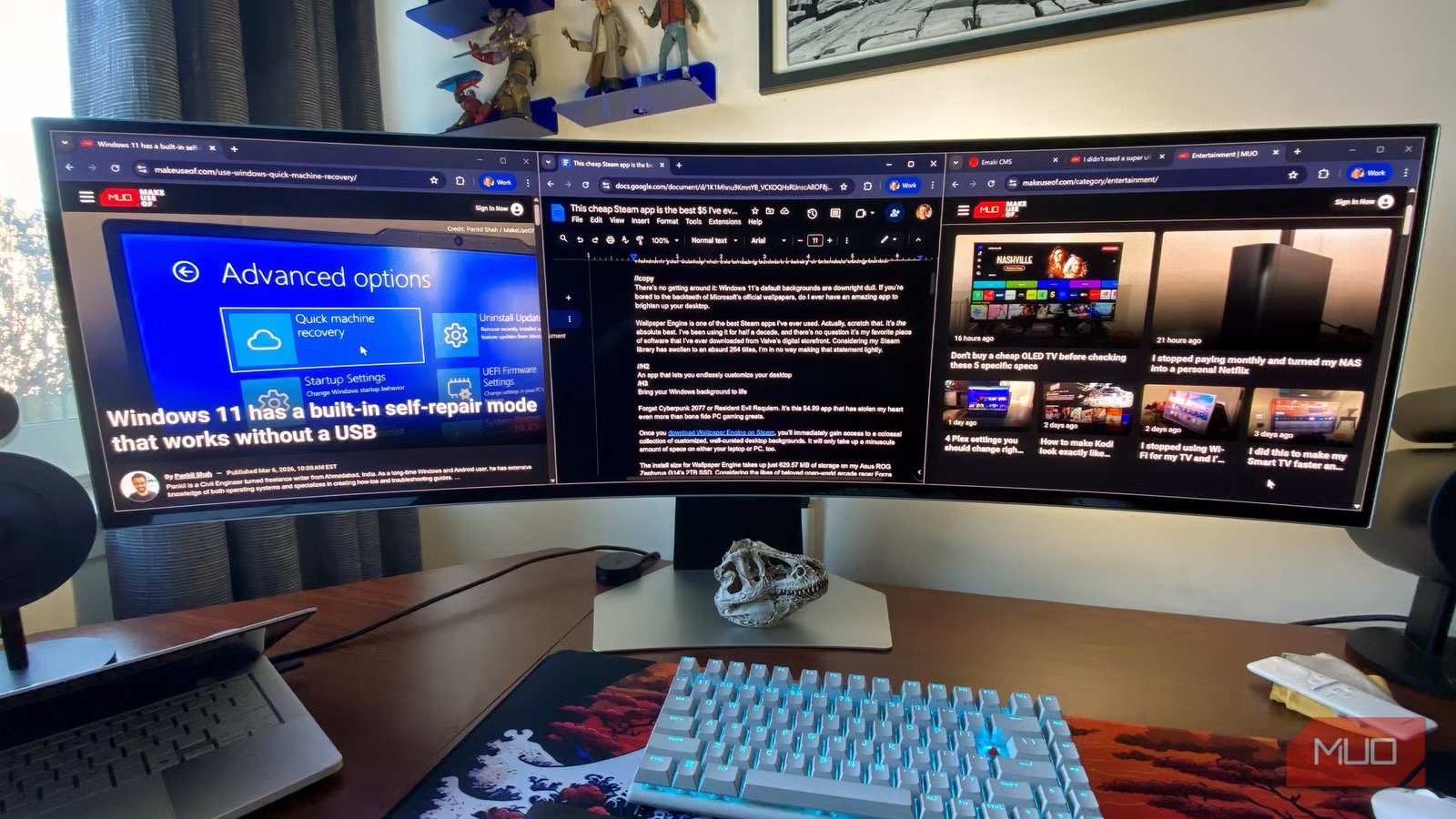
As someone who has been leaning on the productivity benefits of ultrawide displays for years, it’s no surprise my Samsung Odyssey OLED G9 swiftly swooped into the rescue work-wise.
Brand
Samsung
Screen Size
49-inch
Display Technology
VA, mini-LED
Resolution
5120×1440
Aspect Ratio
32:9
Refresh Rate
240Hz
This 49-inch, 5120×1440 pixel anomaly is a screen Goliath. Or as the kids would probably say, it’s pretty “thicc.”
While I admire the hardly sluggish 120Hz refresh rate of my G14’s screen, the max 240Hz output of the Odyssey OLED G9 has my fingers absolutely smitten; it feels so responsive. Also, here’s why you shouldn’t buy an ultrawide without this feature.
Regardless of whether you game or not, an ultra-buttery refresh rate can be felt in all manner of PC/laptop usage; be it desktop browsing or image editing.
Forget about window management
The more screen you have, the less you need to worry
Credit: Dave Meikleham \ MakeUseOf
While I can get by using my Zephyrus G14’s 16:10 screen for gaming and work, when it comes to the latter, I find it so much more beneficial to do my job on a 32:9 display.
Whatever work routines we all go through to be the most productive versions of ourselves will no doubt vary massively. For me? I’m at my best when I can spread three separate Google Chrome windows across a screen that’s connected to my laptop … normally each containing five tabs for research purposes. Alright, very occasionally, said “research” will revolve around reading about how my beloved Arsenal are ruining football (sorry, “soccer”) because they’re really good at setpieces.
When I am truly working, though, there’s nothing that beats getting tasks done on a super ultrawide. My gaming laptop has more than enough grunt to get any work task I can think of done with ease, so the least I can do is to assist its superb (yet relatively small) screen with a super-sized alternative.
Got a quality monitor? Hook it up to your laptop
Regardless of how satisfied you are with your laptop’s screen, never discount the possibility of pairing it with an external monitor if your office environment can accommodate it. If your laptop has an HDMI port, there’s a good chance you can connect it to a higher resolution/more responsive display.
As much as I bow down at the exquisite altar of my ASUS laptop’s 120HZ OLED panel, its limited screen dimensions mean I was always going to be seduced by other display options. That my 49-inch, 240Hz super ultrawide has captured my affections over my laptop’s native 14-inch screen is hardly a surprise. After all, size matters … and I say that as someone who would need to stand on stilts to reach 6ft tall.
