

Since my Windows XP days, I’ve felt that File Explorer could be much better. Naturally, I’ve switched to File Explorer alternatives, several of which offer dual-pane setups and keyboard-driven power tools. They are often better than File Explorer in specific ways.
However, the current File Explorer is a totally different tool from what it used to be. While it’s still not the most robust option, it’s become the most suitable for general use, and I’ve stopped recommending File Explorer alternatives as much as I used to. For good reason, I’ve also reverted to using it as my go-to file manager.
The experiment: trying to outgrow File Explorer
Why third-party file managers looked better on paper
It was the friction in daily use that made me dissatisfied with File Explorer. It was clumsy for moving large files because of its single-pane navigation, and it lacked sufficient functionality for bulk operations. I always relied on extra tools to make File Explorer better. That was the only way to make folder comparisons, queued transfers, or intelligent renaming feel fluid.
All these became reasons to shift to third-party file managers. Using their dual-pane layouts allowed comparison during file movement. For a specific group of users, Directory Opus and XYplorer offer deep scripting, metadata control, and invaluable batch tools. Modern file management tools like Files and One Commander offer a UI fitting for Windows 11, plus a range of productivity features that File Explorer historically lacked.
These file managers delivered exactly what they promised and are superior picks for workflows requiring media sorting, backups, and development assets. But I used them long enough to decide that raw functionality wasn’t the only metric that mattered. I wasn’t only interested in what they did, but in the friction they might introduce.
Where File Explorer quietly caught up
Evolution that most haven’t consciously noticed
Afam Onyimadu / MUO
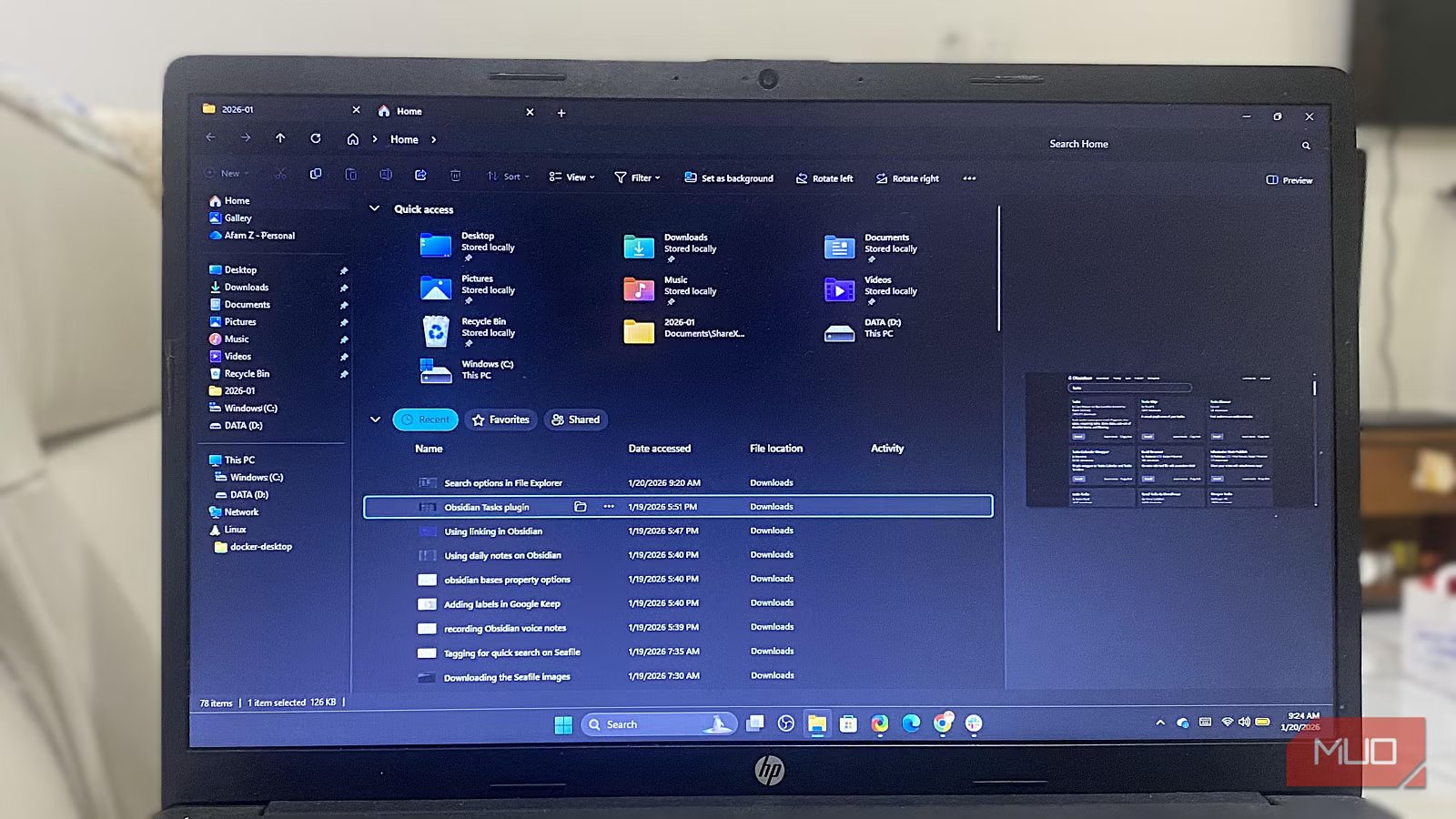
Most people who judge File Explorer do so with the mindset that it has not changed, and that’s a huge mistake. There is a remarkable structural difference between the File Explorer in Windows 11 and the one in Windows 10. The addition of tabs changed how I work with and consider the tool. They are not the direct equivalent of dual panes, but they eliminate window sprawl. Now, complex moves don’t feel chaotic.
File Explorer search is another misunderstood element. The problem wasn’t just about speed, but more about precision. This is much less of a problem with the current File Explorer, since you can combine filters, metadata columns, and scoped searches. The real problem is that most people do not bother to adjust columns or views per folder and erroneously assume search is still unreliable.
There is a lot more: the improved and streamlined context menu, details pane, previews, ZIP handling, and drag-and-drop responsiveness make it better for cross-app interactions. None of these changes made big headlines and are easily missed, but they remove the need for several workarounds we used in the past for basic tasks.
The real cost of “better” file managers
When power tools introduce friction instead of removing it
Screenshot by Pankil Shah — No attribution required
When you opt for some of the more powerful file managers, you implicitly assume the responsibility to learn shortcuts, memorize modes, and maintain configurations. There isn’t a problem with this trade-off if your primary daily routine is centered on file management. But for the millions with mixed workloads, it may be too much of an ask.
Significant customization is required to get the best out of these tools, but it becomes a maintenance burden. The biggest issues I faced were that layouts would break, my settings didn’t always sync cleanly, and the moment I had to switch to a new device, my muscle memory would reset. Even when I used Directory Opus, it felt noticeably heavier once I stepped outside its ideal use case.
However, the biggest issue with using third-party file managers is Windows shell integration. I did not always get consistent context menu behavior, and default dialogs often still opened File Explorer. These add a level of friction to apps you hoped would eliminate exactly that friction.
I was faster when using the third-party file manager, but slower overall because I spent time working around it and switching between tools. And since you don’t manage files in isolation, File Explorer’s biggest strength becomes the fact that it’s natively integrated and behaves accordingly.
File Explorer works better the more “Windows-native” your work is
Integration beats optimization in daily use
The real advantage File Explorer has is that it’s the default interface all your other Windows apps expect. There are no compatibility gaps or translation layers when you need to share, open, save, attach, or preview.
This is important because you can expect File Explorer to have consistent behavior across a new PC, work laptop, or borrowed system. Integrations for network drives, external storage, and cloud folders are predictable without rebuilding workflows or importing configurations.
File Explorer also has a better infrastructure that allows it to handle mundane stress like transferring large files better than most alternatives. It doesn’t require any extra plugins or any special modes for flaky USB drives and mixed storage environments. If you don’t manage files all day, this advantage becomes more significant. It’s stable, and even though it’s not as elegant as the competition, it requires less context switching.
Related
Why I Prefer Windows File Explorer Over macOS Finder
It’s just easier.
File Explorer won by getting out of the way
I tried as many file managers as I could find, and the biggest lesson I learned was restraint. We are mistaken when we assume the best tool for most people should be the one that has the most features. I lean toward the one that begs the least attention.
This was why I reverted to File Explorer. It easily fades into the background while I do my actual work. Third-party alternatives are excellent if you need a specialist tool, but for general work, they are overkill you can do without.
