

I have a few Android phones lying around at home. Some are still in great working condition, while others are just waiting to be sold. Instead of letting the good ones gather dust, I decided to put one of them to better use.
My home Wi-Fi is generally reliable, but there are a few annoying dead zones that always seem to test my patience. Those are the areas I wanted to fix. So, I took one of my spare Android phones and turned it into a makeshift Wi-Fi extender. It’s not something I thought I’d ever do, but it turned out to be a simple way to improve connectivity exactly where I needed it most.
Related
14 Useful Ways to Reuse an Old Router (Don’t Throw It Away!)
Old router cluttering up your drawers? Here’s what to do with an old router and save some money instead of throwing it away!
What exactly is a Wi-Fi extender, and why should you care?
Filling in the gaps your router conveniently ignores
Credit: Shimul Sood / MakeUseOf
A Wi-Fi extender is a device that receives the signal from your main router and rebroadcasts it, helping the network reach areas it couldn’t before. It acts as a middleman, extending your existing Wi-Fi a little further. This is especially useful in big houses where certain spots don’t get a stable connection. For example, your Wi-Fi might work perfectly in the living room but suddenly drop in the bedroom down the hall, or maybe your balcony, kitchen corner, or even the bathroom ends up being a dead zone. Instead of moving your router or dealing with weak signals, placing an extender somewhere in between can help carry that connection into those tricky areas.
In real-world use, it means fewer frustrating moments where videos buffer endlessly, calls drop mid-conversation, or pages refuse to load. It won’t magically make your internet faster, but it does make your connection more consistent across your home.
It’s worth clarifying that what we’re doing here isn’t quite the same as using a dedicated Wi-Fi extender or repeater. A true extender bridges your existing network, so devices connect to the same network seamlessly. With this method, your phone creates a separate hotspot network that your devices connect to instead. It works, but it’s a different beast under the hood.
A step-by-step guide to turning your old phone into a Wi-Fi extender
Giving your old Android phone a second life
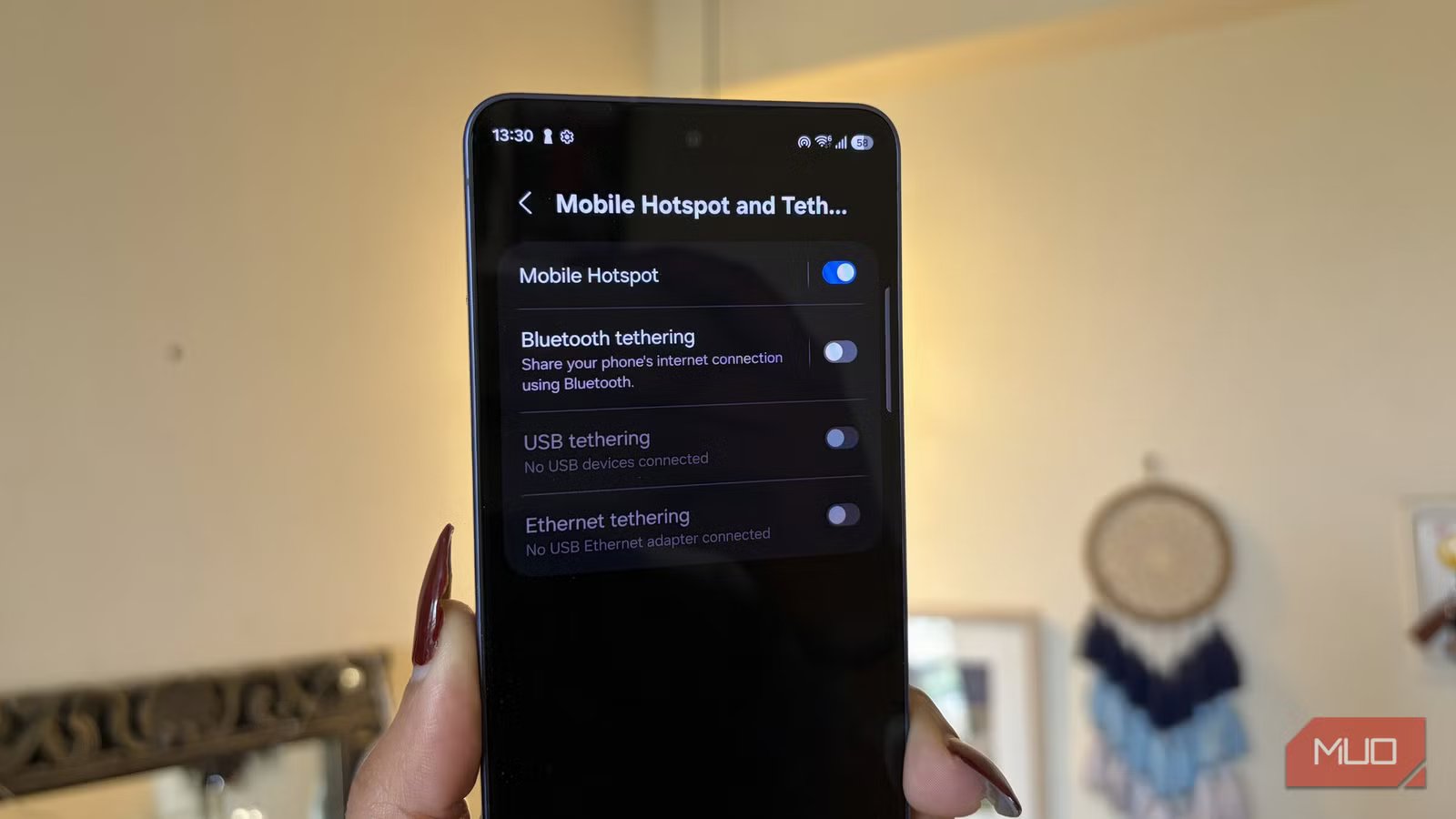
Before you jump in, there’s one thing to keep in mind: the exact steps can vary slightly depending on the Android phone you’re using. Here’s how to set it up:
- Open the Settings app.
- Go to Connections.
- Tap Mobile Hotspot and Tethering.
- Turn on Mobile Hotspot.
- Then tap on Mobile Hotspot again to open its settings.
Credit: Shimul Sood / MakeUseOf
Once you’re inside, you can tweak things to your liking. You’ll see options to rename the network and set a password, which is helpful if you want something easy to remember.
There’s also an option to select bands, and this part is important. If you choose 2.4 GHz, the signal will reach farther and work with almost all devices, which makes it a reliable option. If you go with 5 GHz, you’ll get faster speeds, but the range is shorter. In my case, the Samsung I’m using automatically chooses between 2.4 GHz and 5 GHz to save battery life. However, this option may or may not be available on your Android phone.
There are a bunch of additional settings. One useful option is the auto-turn-off feature, which turns off the hotspot when no device is connected. If you want the extender to stay active all the time, set it to Never timeout. Otherwise, you can choose a Timer based on how often you plan to use it.
You’ll also come across a few advanced toggles, such as hiding the network, enabling Wi-Fi 6 support, or turning on extra security features. These aren’t essential for your Android phone to work as an extender, but it’s worth taking a minute to review and adjust them based on your needs. Once everything looks good, just leave the hotspot on, place the phone somewhere between your router and the weak signal area, and you’re all set.
When your phone is actively sharing its internet connection via a hotspot, it’s working overtime and handling both incoming and outgoing data simultaneously. That extra load quickly eats into the battery. In most cases, you’ll see the battery drop much faster than usual, often within just a few hours. For this, you’ll need to keep the phone plugged into a charger or connected to a power bank.
Related
9 Ways to Make Your Old Android Phone Useful Again
Don’t toss that old Android device just yet! With a little creativity, you can give it a second life.
Outdated doesn’t mean out of use
An old Android phone doesn’t deserve to be forgotten in a drawer, especially when it still has plenty left to offer. With a little creativity, it can take on entirely new roles. You could turn it into a dedicated bedside companion that handles alarms, reminders, and sleeping music. If it’s feeling sluggish, a lightweight and free launcher can breathe new life into it, making it feel surprisingly usable again. Or, as I did, you can give it a more practical job by turning it into a Wi-Fi extender.
There’s a big difference between this and an actual extender: because your phone is acting as a middleman between your router and your devices, there’s an extra hop in the connection that a dedicated extender wouldn’t have. This is known as double NAT — your router assigns the phone an IP address, and the phone then assigns a separate IP address to each device connected to its hotspot. The result is two layers of network address translation sitting between your devices and the internet.
In practice, this adds latency and means connected devices won’t roam seamlessly between your main network and the phone’s hotspot. For casual browsing and streaming, you likely won’t notice the difference. For gaming, video calls, or anything latency-sensitive, a proper extender or a mesh node would serve you better.
