

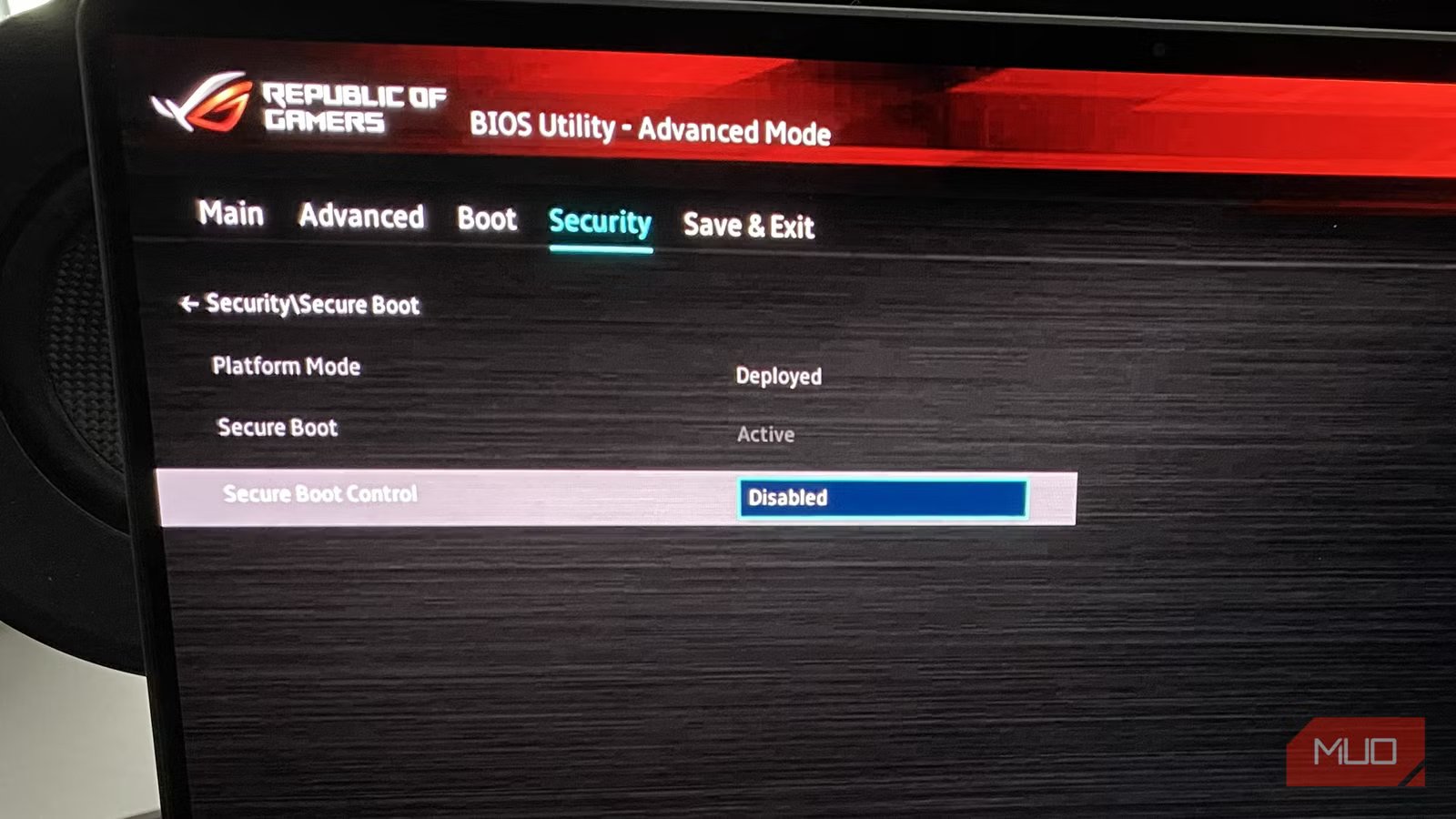
Brace yourself for my maverick ways: I turned off Secure Boot recently. I’m a loose cannon of the highest order, I know. Though Microsoft and Linux systems urge you to have this feature enabled, your PC will often run just fine without it.
Why did I disable Secure Boot on my Windows 11 machine? I’m currently replaying Dark Souls 2, and a couple of the texture mods I’m using in FromSoftware’s underrated sequel won’t run with Secure Boot because of the game’s anti-cheat software. A niche reason, I know.
What is Secure Boot?
Getting to know this security feature
Credit: Dave Meikleham \ MakeUseOf
Now, I’m not saying that you should necessarily turn off Secure Boot — there are certainly potential downsides to disabling the UEFI security switch, which I’ll run through shortly. I can tell you, though, that happily, my PC didn’t go boom the second I disabled it. My rig is very much still intact, and at least for the time being, malicious software is not running roughshod over my OS.
Secure Boot is a security system that can play a vital role in keeping your PC safe from malware. When it’s enabled, your system will only run trusted software upon booting. Doing a fresh OS install? You can create a Windows 11 bootable media file that bypasses Secure Boot with Rufus.
Related
Security Settings in Windows You’re Not Using (and Hackers Hope You Don’t Find)
Uncover the hidden Windows security gems that hackers dread you’ll discover.
Shortly after you power up your PC, Secure Boot verifies boot files via digital security checks. If you’re on a Windows desktop or laptop, software that’s trusted by either Microsoft or the manufacturer of your device will run without issue.
Conversely, if Secure Boot detects any type of malware, such as bootkits that can infect UEFI firmware, your system will refuse to run.
Unless you’re a high-level Windows or Linux user, you really should leave Secure Boot switched on. Thanks to its security checks, it provides an instant barrier against malware and other types of infections that could potentially corrupt your OS. In short, the majority of folks who use Windows should leave Secure Boot enabled.
The drawbacks to disabling Secure Boot
Know the risks before switching it off
Credit: Dave Meikleham \ MakeUseOf
Make no mistake, if you’re on a Windows PC, Microsoft really wants you to have Secure Boot enabled. And honestly, I can completely see why. For standard users, turning off this UEFI security measure is far more likely to cause headaches than happiness.
Obviously, the main downside to turning off Secure Boot is that you instantly put your system at a higher risk of being infected by malware/ransomware. Such malicious software can often load before any antivirus programs you may have installed on your OS can actually initialize. Disabling the security feature means your system could also have a harder time identifying infections.
Related
5 Ways to Fix the “Secure Boot State Unsupported” Error in Windows
Here’s how to get rid of the “Secure Boot state unsupported” error on Windows.
There are other potential drawbacks when it comes to disabling Secure Boot. For one thing, if you’re a big fan of multiplayer PC games, some online titles may not launch unless the UEFI feature is switched on. Without Secure Boot, your days of pulling off headshots in Battlefield 6 and Call of Duty: Black Ops 7 could be numbered due to their anti-cheat systems.
How to disable Secure Boot on Windows 11
Ready to live on the wild side? Here’s how
Credit: Dave Meikleham \ MakeUseOf
If you’ve decided to disable Secure Boot for a specific reason, the process is pretty simple. If you’re the sort of pro-level user who needs to switch it off because you want to mess around with experimental drivers or debug specific kernels, you’ll likely know how to turn off Secure Boot already.
For less experienced users, the easiest way to turn off Secure Boot in Windows 11 is as follows…
- Press Start -> Settings.
- Head to System -> Recovery.
- In Advanced Startup, hit Restart now.
- After your PC has restarted, click Troubleshoot -> Advanced Options -> UEFI Firmware Settings -> Restart.
- Your PC will then boot into its BIOS menu.
- From the BIOS, Secure Boot can normally be found under a Boot/Security/System Configuration tab.
- Once you locate Secure Boot, toggle it to Disabled.
Again, you really should have a good think about the precise reason why you want to disable Secure Boot before completing the steps above. Oh, and for folks on older systems, here’s how to enable Secure Boot if you’re upgrading to Windows 11 from Windows 10.
There are upsides to a Secure Boot-free PC
Less security, more flexibility
Though Windows will make you feel like you should be placed on the naughty step for years if you disable Secure Boot, doing so can be of real benefit to certain folks. While casual users are unlikely to take advantage of the perks that come with running a Secure-Boot-free desktop, developers certainly can.
Put simply, switching off Secure Boot can provide more flexibility. If you’re a Linux fan and are using an older kernel, you might find that your system will run more smoothly without the security measure. The same goes for those running custom Linux kernels. Generally speaking, these types of Unix systems don’t particularly like Secure Boot, so disabling it will leave some less prone to issues.
Expert users may also want to disable Secure Boot to mod their OS or to experiment with video game mods that may not play nicely with anti-cheat systems. Again, though, it’s really only people who have a high level of expertise who should be turning this security measure off. If you have disabled it and are having issues, these five ways to fix the “Secure Boot State Unsupported” error in Windows should hopefully help you out if you’re on Microsoft’s OS.
Disable Secure Boot at your own risk
Unless you’re a developer who is comfortable modding their OS, you probably shouldn’t mess around with Secure Boot. It plays an important role in helping to protect your system from boot-level malware.
Of course, there’s the slim chance you could be in my incredibly specific shoes. Namely, you want to run a PC game that has heavy online features with tweaked texture mods that require you to disable an anti-cheat system in order to work. If that’s the case, well, take comfort in knowing that my PC hasn’t exploded… yet.
