

Speed and privacy are two things I care about when I use a computer. So it was concerning that first-page loads on my new Windows 11 installation felt slow. I switched browsers to see if the issue was isolated, and even Brave, my favorite browser, acted the same way. The problem affected the entire OS.
So, I explored broader fixes and saw improvement when I enabled system-wide DNS over HTTPS. This was the key to fixing the problem. I got faster lookups and encrypted queries.
Most people fix DNS in the wrong place
Browser-level tweaks only cover one app
Afam Onyimadu / MUO
This problem was tricky because the trigger wasn’t obvious. I consulted numerous resources, and several suggested enabling DNS over HTTPS (DoH) on my browser. Browser DoH encrypts queries only inside that browser, so it doesn’t fix system-wide unencrypted DNS queries.
Windows 11 has a DNS Client service (Dnscache) that handles resolution in the OS. It’s independent of browser settings. So, even after updating the DNS over HTTPS settings on a browser, the computer, including Windows Update and installed apps like Teams and Slack, will continue to send plain-text DNS queries.
In certain situations, individual apps can override the DNS Client service (Dnscache) if they implement their own DNS stack.
It was only after I had run DNSLeakTest that I was able to come to this conclusion. With the test results, I could deduce that my browser was indeed secure, even though other apps continued to send unencrypted DNS queries.
The hidden Windows 11 option
Enabling DoH on Wi-Fi and Ethernet
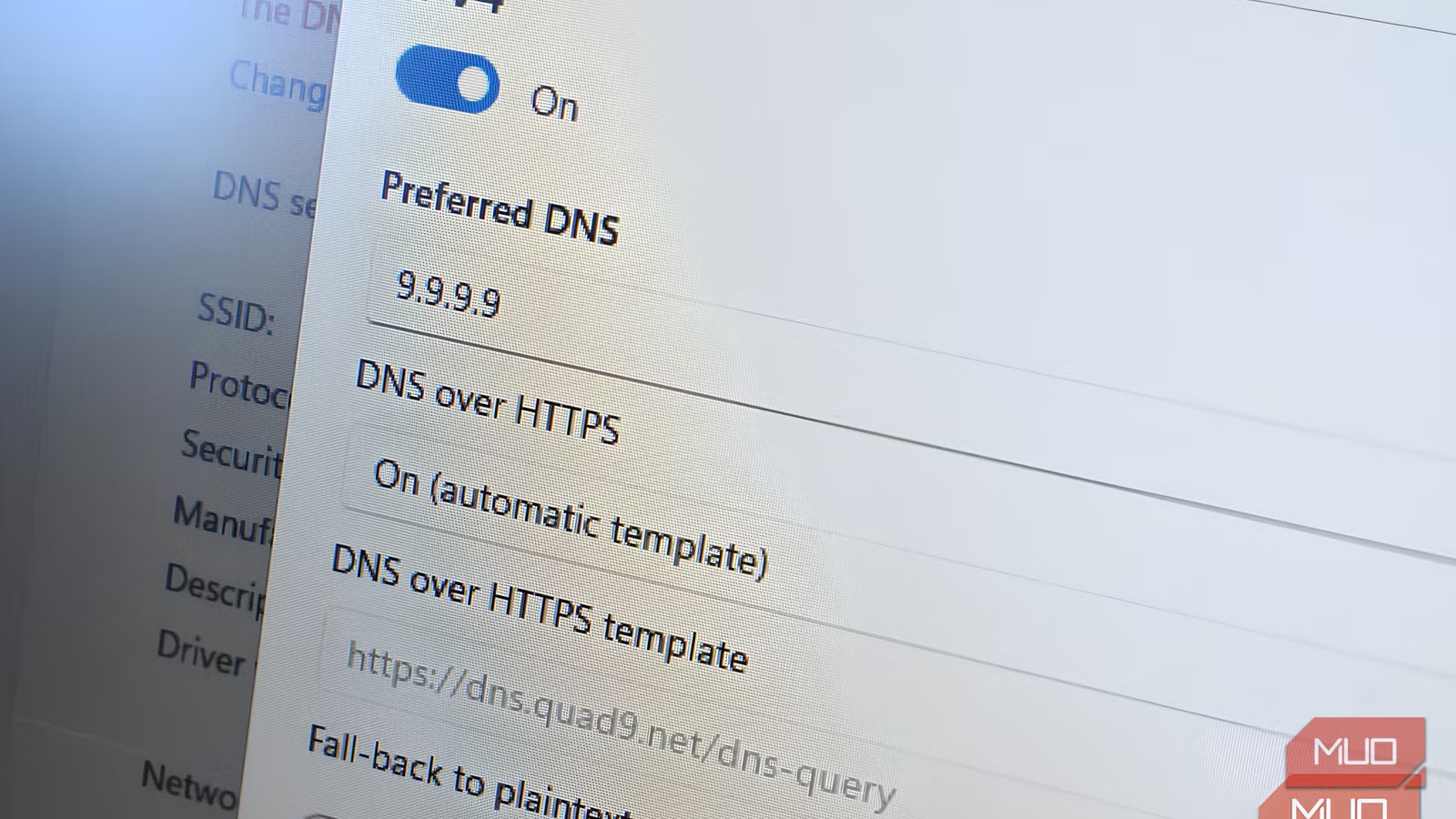
Windows 11’s system-wide DoH option is hidden within the Settings app. On a Wi-Fi connection, you can enable it by following these steps:
- Open the Settings app and navigate to Network & Internet > Wi-Fi, then click on your connection.
- Scroll down and click the Edit option for DNS server assignment.
- Click the drop-down button and select Manual.
- Toggle on IPv4 and/or IPv6 and select the preferred DoH option.
The process is similar for enabling DoH on an Ethernet connection. The one difference is to select Ethernet rather than Wi-Fi in the first step. When you configure DoH on Windows 11, you have three DNS over HTTPS options to pick from. Leaving the setting off means all queries will be sent without encryption and in plain text. This is Windows’ default.
The On (automatic template) option pulls a template from your chosen resolver to encrypt DNS queries. But this works only if the resolver is on Microsoft’s known DoH providers list. The last option, On (manual template), requires you to supply a DoH URL. This option is useful when your resolver provides a unique DoH URL (for example a custom or self-hosted resolver not on Microsoft’s approved list). This last option is suitable when you use a custom or self-hosted resolver not on Microsoft’s approved list. After going through this process, you get system-wide encryption on every DNS query from your computer.
Choosing a DNS resolver
Speed, privacy, and features differ widely
Picking the right resolver is crucial for getting the full benefits of manually configuring a system-wide DNS over HTTPS setup. It took a lot of testing for me to land on what works best. In exploring four of the most common options, I realized that latency and privacy policies depend on location and the features of individual resolvers. This is how the resolvers stack up against each other:
Resolver
IP Address
Average DNS Latency
Logging Policy
Best Use Case
Cloudflare
1.1.1.1
Typically under 20ms
No logging
Balanced speed + privacy
8.8.8.8
Typically under 20ms
Logs IP addresses for up to 48 hours
Google ecosystem users
NextDNS
Custom
Comparable to Cloudflare (nearest node dependent)
Configurable
Ad/tracker blocking system-wide
Quad9
9.9.9.9
Typically under 25ms
No logging
Malware blocking
Choosing NextDNS gives system-wide coverage similar to having uBlock Origin on the OS. When your location is near a node, you also get competitive speed. Choosing Quad9 provides simple malware protection without logging. For pure speed without additional filtering, Cloudflare is the most consistent option.
Related
Your router and phone are probably fighting over DNS without you realizing it
How a DNS conflict might be slowing down your phone’s internet.
Real-world results
Faster pages, less snooping, and a surprising nuance
Afam Onyimadu / MUO
Enabling DoH and setting it up with NextDNS brought a consistent but subtle change. Cold-cache page loads felt snappier. Also, across multiple sites, there was a drop of a few milliseconds in DNS lookups via nslookup. Even when I re-ran DNSLeakTest, there was encryption on every app’s DNS.
For a more privacy-conscious user, a positive is that your ISP stops seeing the domains you visit.In Chrome and Firefox, Encrypted Client Hello (ECH) can hide the TLS SNI from ISPs, meaning the site you’re connecting to can remain private. This makes it a step better than browser-level DoH, even if it’s not complete anonymity.
However, aside from flipping the toggle, certain steps made a noticeable difference. The first was verifying encryption. This way, I was able to confirm that my apps were using encrypted DNS. But picking the fastest resolver may be the most important for browsing speed. A utility like DNS Benchmark by GRC can help identify the fastest resolver for your region, especially since numbers vary significantly in Africa, Southeast Asia, or South America.
One other significant step is flushing DNS. Running the ipconfig /flushdns command ensures that old cached queries are not leaking in plain text.
Using a VPN may conflict with DoH if both the VPN and the OS try to handle DNS.
The Windows 11 setting I wish I had found on day one
Since I configured DoH, I haven’t looked back. It only takes a few minutes to configure, but it delivers on every front. It instantly gave me the privacy edge I wanted. Pairing it with a fast resolver like Cloudflare trims DNS lookup times by milliseconds and noticeably improves cold-cache page loads. It’s now one of the first things I configure to make Windows feel faster and safer to use.
