

My Samsung phone is still fast, even though it’s a couple of years old. But there’s a big difference between a phone being fast and how fast it actually feels to navigate. As someone who uses their phone all day for work, all those extra swipes and taps really add up.
To get to my favorite settings, menus, and favorite features as quickly as possible, I rely on a few Good Lock modules. These don’t affect performance in a technical sense, but they still make my phone feel quicker and easier to navigate.
OS
Android
Developer
Good Lock Labs
Price model
Free
Good Lock is a powerful customization suite for Samsung Galaxy devices, offering a collection of modules and plugins that let you personalize almost every aspect of your phone. With Good Lock, you can tweak the lock screen, home screen, navigation bar, keyboard, notifications, and more to match your style and workflow.
This is how it should’ve been
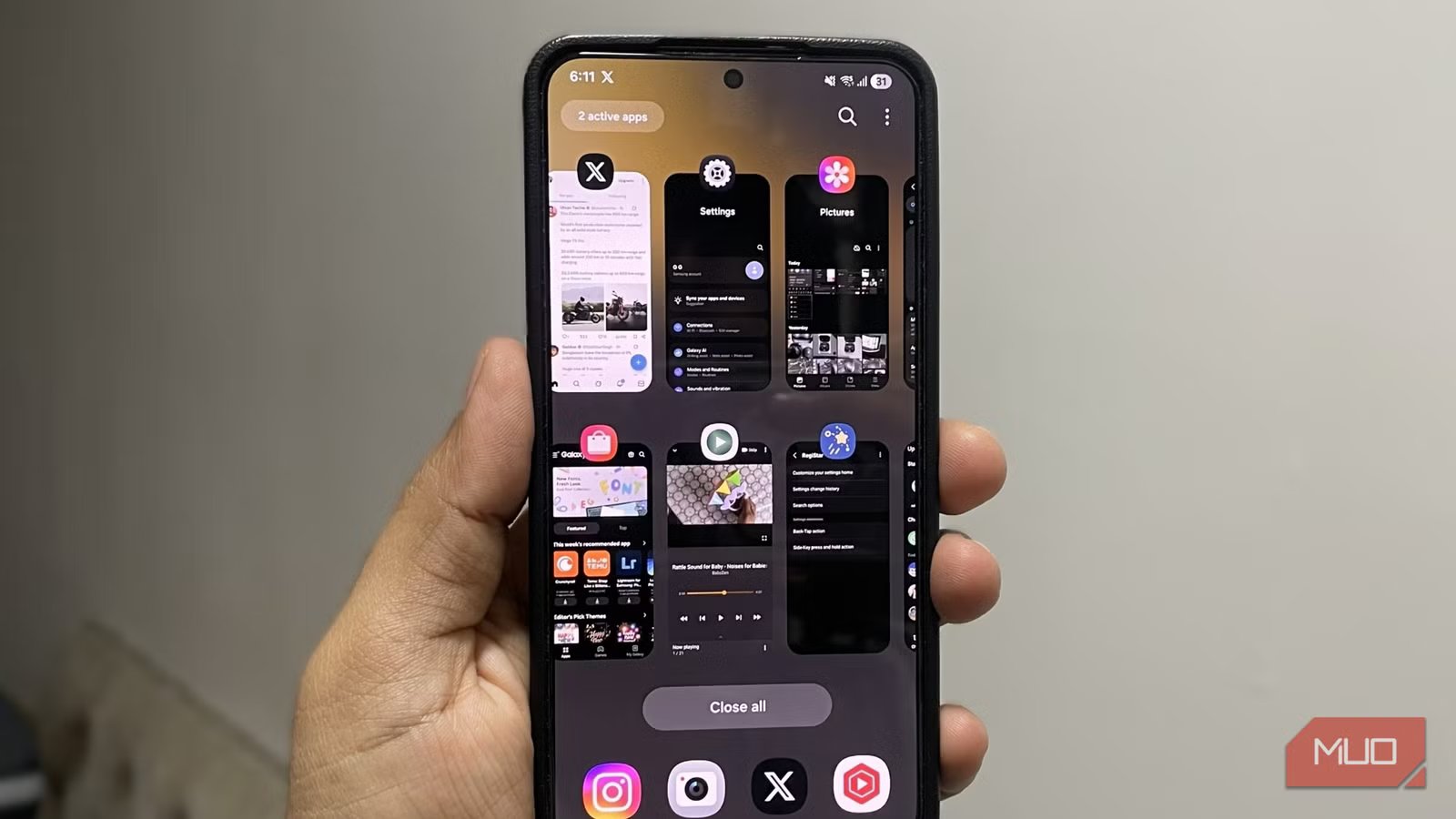
I don’t know about you, but I personally find the Recents menu on Samsung phones awkward to navigate. As someone who rarely clears apps from this list, I often have to swipe far too much just to get back to an app I used a few minutes ago. Sometimes, it’s genuinely easier to navigate to the home screen and search for the app instead. That kind of defeats the purpose of the Recents menu.
Good Lock’s Home Up module solves this problem for me. It offers a few different layouts that actually make sense. For instance, you can switch to a grid view, which shows six apps at once, or choose a vertical list that looks similar to the Recents menu from the older Android versions. There’s also a slim view where you see a clean list of apps.
I personally find the grid view the most useful, as it shows more apps at once without getting rid of previews. I’ve also used Home Up to add a search bar on the recent apps menu, so I can look for an app that’s not open.
Back tap functionality for productivity
Two taps that save real time
Screenshot by Pankil Shah — No attribution requiredScreenshot by Pankil Shah — No attribution requiredScreenshot by Pankil Shah — No attribution required
Unlike Google Pixels and iPhones, Samsung phones don’t offer the back tap feature natively. To get it, you need the RegiStar Good Lock module. With it, you can simply double or triple tap the back of the device to trigger various actions.
You can set up these gestures to open an app, capture a screenshot, trigger your digital voice assistant, or even open apps in a pop-up view. I’ve set up mine purely for productivity. A double tap opens a new note so I can jot something down, while a triple tap opens my work email in Gmail. It sounds simple, but these are actions I have to repeat dozens of times a day.
Less clutter means faster access
Screenshot by Pankil Shah — No attribution requiredScreenshot by Pankil Shah — No attribution requiredScreenshot by Pankil Shah — No attribution required
One of the things I hate the most about Android is how every manufacturer arranges the settings menu differently. When I first switched from a Pixel to a Samsung phone, I found Samsung’s Settings menu almost impossible to navigate.
The RegiStar module helps with this. With it, you can customize the Settings menu as you want. For instance, you can change the order of sections, move frequently used menus to the top, or even hide specific options entirely.
I’ve set mine in a way so it lets me get to Connections, Display, Sound, Battery, and Apps quickly. To keep the menu short and easy to navigate, I’ve hidden sections like Themes, Google, Digital Wellbeing, User guide, About phone, and a few others. These are options I almost never touch, so there’s no point in keeping them there. The good thing is I can still search for any of the hidden sections whenever I need them.
10 Samsung Galaxy Features All Android Phones Should Copy
Take notes Google.
Custom gestures to speed up everyday actions
Everyday actions, one swipe away
Screenshot by Pankil Shah — No attribution requiredScreenshot by Pankil Shah — No attribution requiredScreenshot by Pankil Shah — No attribution required
Using a phone with a giant screen is great for multitasking and watching videos, but it also makes certain things difficult to pull off with one hand. Samsung’s one-handed mode solves this problem, but I’m not a fan of using it since it makes everything appear smaller and ends up wasting screen space.
The One Hand Operation+ module turns the left and right edges of the screen into customizable shortcuts. From either side, I can swipe straight, diagonally down, or diagonally up and trigger actions like play/pause music, split screen, open the notifications panel, toggle the flashlight, or even turn on DND. Similarly, I can set up each of these six gestures to perform a different action when I swipe and hold.
Beyond the usual actions, I can configure these gestures to open things like a quick tools menu, which opens a compact version of the Quick Settings panel, a quick launcher that shows me my favorite apps on any screen.
No matter how fast a phone is, it can still feel slow if I’m constantly swiping, searching, or digging through menus. The above Good Lock modules solve some of my biggest headaches with how I access apps and favorite One UI features. And honestly, that’s what makes the biggest difference in daily use.
