

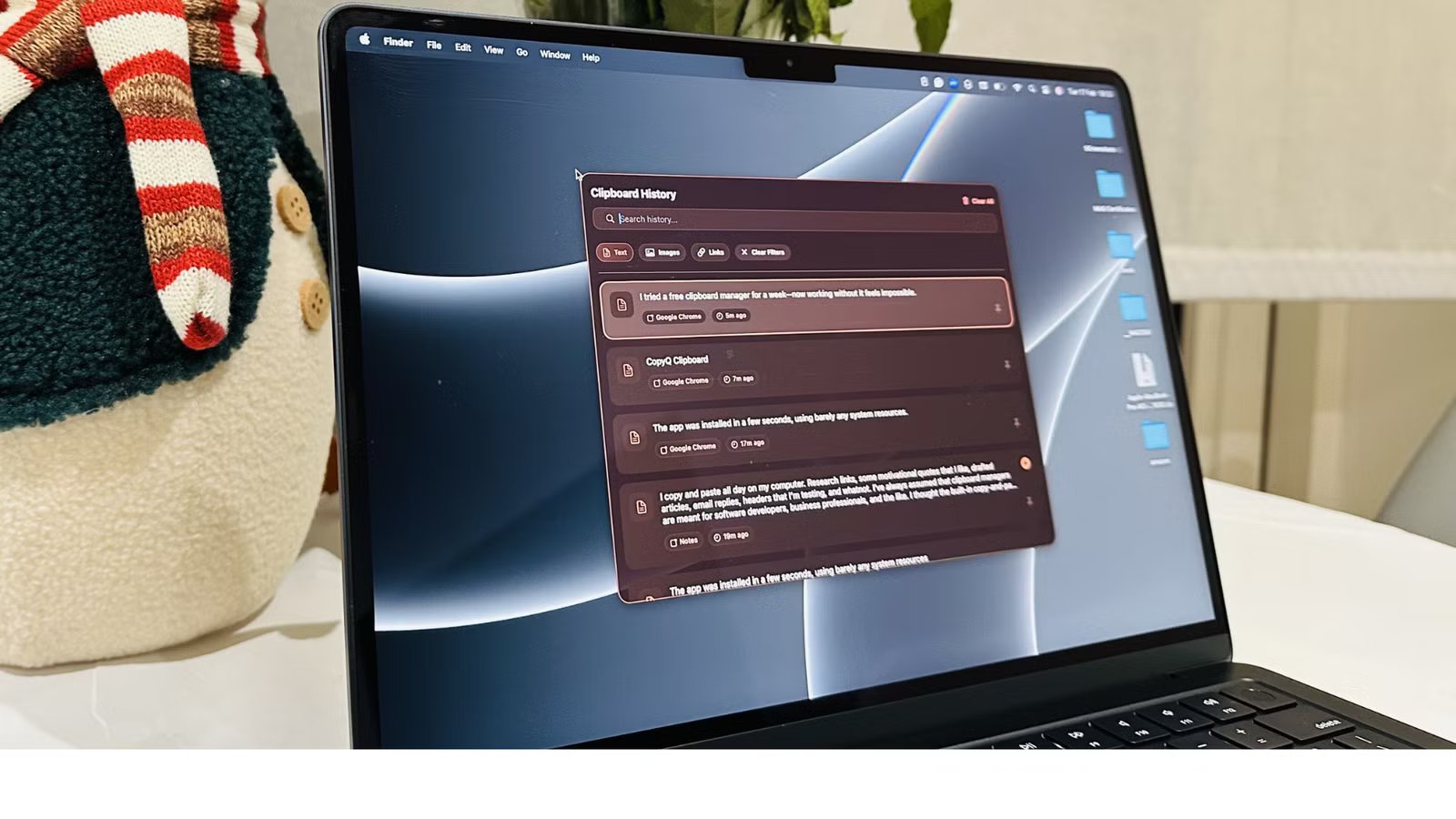
I copy and paste all day on my computer. Research links, some motivational quotes that I like, drafted articles, email replies, headers that I’m testing, and whatnot. I’ve always assumed that clipboard managers are meant for software developers, business professionals, and the like. I thought the built-in copy-and-paste worked just fine for me. That was until I paid attention to how often I’m re-copying the same links, digging through my browsing history just to find what I had copied, or accidentally overriding something really important.
It wasn’t a huge problem. Rather, it was a small one happening constantly and creating friction in my workflow. That’s when I thought of trying a clipboard manager for a week to see if it would actually make a difference. Interestingly, it did. Now, I realize how annoying my default clipboard was, and I don’t see myself going back to it.
Meet CopyQ
A lightweight clipboard manager with some serious power
Screenshot by Kanika Gogia
I came across several clipboard managers that are absolutely worth trying. I tested a few of them, and CopyQ finally clicked with me. It’s a free and open-source clipboard manager that’s available for Windows, macOS, and Linux. CopyQ quietly runs in the background and stores everything you copy, be it your text, images, or HTML. Unlike standard clipboards, CopyQ saves your history across sessions, so you can search, organize, edit, or reuse it whenever you want.
It’s worth knowing that CopyQ isn’t available on the Microsoft Store, but you can easily download it from GitHub for free. CopyQ is also available on the Mac App Store, and it saves your clipboard history across your iPhone and iPad with iCloud Sync turned on.
CopyQ is super simple to use. It doesn’t force any sign-up or annoying subscription pop-ups. Also, it doesn’t walk you through a flashy onboarding tutorial, which you would skip anyway. It’s a small and lightweight utility sitting in your Status Menu or System Tray, waiting to make your work easier.
First impressions
Simple, lightweight, and surprisingly powerful
Let me admit it. When I first installed and opened CopyQ, it didn’t look very impressive or powerful. It has a minimal interface with no modern design language or fancy animations. At first, CopyQ appeared quite technical. Once I started using it, I loved its clean interface with a list of clipboard entries. It instantly started maintaining my clipboard history without slowing anything down or making me feel that something is running in the background. I was working on an important project at that time, and I didn’t notice any lag or slowdown in my work.
Within just a day, I developed muscle memory and started relying on CopyQ. A quick keyboard shortcut that could open my clipboard history instantly was always at my fingertips. And that’s when I realized that CopyQ isn’t just a regular clipboard viewer, it’s a workflow tool that saved time and boosted my productivity.
The features that changed my workflow
Tools I didn’t know I needed
CopyQ packs a ton of useful features that helped me improve my workflow. Here are some of my favorite features:
- Unlimited clipboard history: This is my favorite thing about CopyQ. It stores a complete, scrollable list of everything I copy. While I’m drafting an article, I can copy five different links, multiple headline ideas, and more, without losing them. It’s like having a little memory bank that I can access with customizable hotkeys. The best part? CopyQ saves my clipboard history even after I restart my computer.
- Search and filter that actually works: CopyQ’s search bar is pretty fast and accurate. I can type a keyword from the text or link I just copied a few hours ago, and CopyQ finds it for me instantly. I can also customize themes, fonts, colors, and overall appearance the way I like.
- Customizable tabs: I can create different tabs for different types of content. So, I can have all my work-related stuff in one tab, personal browsing links in another, and so on. This thoughtful separation saves me from unnecessary copy-paste clutter. I can even pin important items so they aren’t removed accidentally.
- Editable clipboard items: This sounds small, but it’s actually a huge feature. I can actually edit text inside CopyQ. If I’ve copied a messy formatting, I can clean it inside CopyQ before using it somewhere else.
- Automation and scripting: I didn’t dive deep into automation yet, but CopyQ also supports advanced scripting capabilities. That means you can automate your repetitive tasks, manipulate clipboard data, and optimize your workflow. It doesn’t force complexity by default, but it’s ready when you need it.
Basically, CopyQ packs all the essential features and customization options I would expect from a worthy clipboard manager.
So, any trade-offs?
What you need to know before diving in
Screenshot by Kanika Gogia
CopyQ is a capable clipboard manager, but it’s not perfect. First and foremost, the interface isn’t very polished. When you are using it for the first time, you might feel that this clipboard manager isn’t beginner-friendly. Also, the advanced features like scripting capabilities might feel overwhelming. So, you’ll need a day or two to get the hang of it and build new habits.
CopyQ stores everything you copy. So, you have to be mindful of any sensitive information. If you still copy your important passwords or save them in your notes app, you might have to tweak your settings accordingly. Even better, you must use a dedicated password manager.
So you see, CopyQ is powerful, but you should know how to take control of it.
Related
You’re losing time without this Windows clipboard upgrade
Stop pasting like it’s the early 2000s.
CopyQ didn’t transform my workflow, it removed the friction
I did not expect such a lightweight and free tool to make a huge difference, but it did. After trying CopyQ for a week now, I’m surprised to see how a small tool has changed the way I work. No, I didn’t do any revolutionary, and I didn’t even expect that. Rather, CopyQ removed the friction that my default clipboard was creating. Now, there’s less retyping, fewer interruptions, and less context switching. Above all, I have to deal with less mental clutter, which is a big win for me.
Now, going back to the built-in clipboard feels a bit weird. I’m not exaggerating, but it feels like going back to a phone that can’t search my messages or call history. Now that I have got my hands on a capable clipboard manager that can track down my clips, copy formatting, and work across my devices, I genuinely can’t imagine going back to the older method.
OS
Linux, Windows, macOS
Price model
Free
CopyQ is an advanced, open-source clipboard manager that saves your full clipboard history. It transforms the standard clipboard into a productivity hub, allowing you to organize clips into tabs, search history instantly.
