

If you’ve ever put too much faith in a storage device, you’re not alone. We’ve all been there. It doesn’t matter if you’re buying a portable SSD, an NVMe drive that goes inside your PC, or even a good old HDD—the risk of data loss is always real, and always mildly scary.
The problem is that many people are still doing backups the wrong way, or are unaware of the various points of failure along the chain of data. These are the major issues with many backups, and how to fix them.
A single drive is never a backup
It’s better than nothing, and that’s about it.
Credit: Tim Rattray/How-To Geek
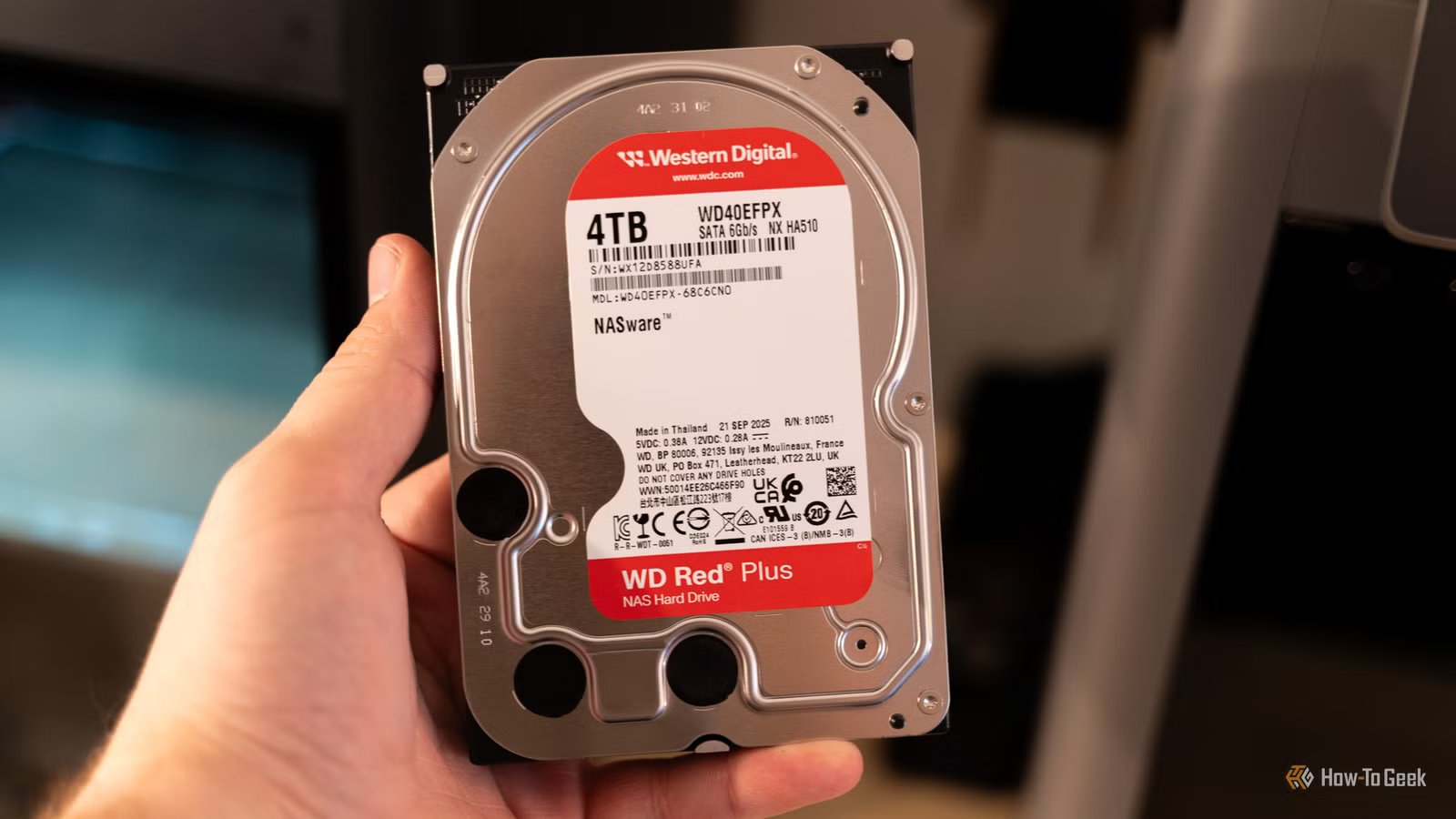
It’s easy to feel like your files and photos are safe as long as you have a single portable drive to store them on, but this couldn’t be further from the truth. In fact, this goes against the (perhaps outdated) 3-2-1 backup rule, and it’s never enough.
The sad truth is that if your files or photos only exist in one place, you don’t have a backup; you just have a storage device that can fail at any given time. With photos, most of us also back them up to the cloud, often without meaning to, but files? It’s the wild, wild west out there, and I know many people who have a 10-year-old HDD as the only thing that stands between them and data loss disaster.
Beyond just placing too much trust in one device, these “one drive” backup setups fail for reasons that often have nothing to do with the drive itself. One unfortunate disconnect during file transfers can lead to data corruption, especially on older devices.
The next problem is exposure. If your backup drive is always plugged in, it’s essentially vulnerable to all the same stuff as your PC, from ransomware to power loss. If it’s not, it might die from being idle, and you won’t even know until it’s too late.
Then, there’s the file system. Unplugging your drive during transfers is one thing, but unplugging it during background writes is just as common, and you might not even see that the OS is doing some indexing work behind the scenes. If you’re using exFAT for compatibility, you’ll find that it’s less forgiving if the drive gets yanked or randomly disconnects mid-write. This can mess up the entire file system, even if your files were intact just a moment ago.
External drives can fail in more ways than you think
And each option leads to disaster.
Credit: Patrick Campanale / How-To Geek
Monitoring your SSD health can help prevent disaster, but depending on the type of backup device you use, you might have quite a task ahead of you. SSDs can fail even at 100% health, and the same can be said of other types of media, from HDDs to USB drives.
Outside of regular drive failure (which is likelier to happen if your drive’s been in use for years, or, conversely, laid forgotten in a drawer somewhere), there are other risks to consider.
Physical damage is a big one here, and it ties into why it’s not a good idea to keep all of your backups in one location. If you drop the drive, there’s a power surge, or your drive gets taken for a bumpy ride inside your backpack, it might not make it out alive.
Random disconnects may still cost you data even if the drive makes it out unscathed, so while not a failure per se, they’re still dangerous.
Portable HDDs can develop bad sectors, as can SSDs. Some of these issues may not kill the drive, but can still damage your backups.
The drive isn’t the only thing that can fail
It’s far from the only link in that chain.
Credit: Patrick Campanale / How-To Geek
The drive itself is just one part in a long list of tech that all adds up to a backup solution. The full chain is your USB port, the cable, any hub or dock, the enclosure’s USB bridge controller, and the file system. A failure anywhere along that line still means your files could be in danger.
Cables are the easiest thing to overlook. A slightly loose plug or a cable rated below spec or only for charging can cause micro-disconnects during file transfers, damaging data integrity. Ports and hubs are notorious here, too. Not only do they kill your transfer speeds, but they can also drop data transfers, especially if you’re connecting via a hub instead of directly.
Enclosures can add a layer of risk, too. Putting your SSD in an enclosure is a good solution if you have an older drive lying around, but cheap SATA to USB or NVMe to USB bridge chips can overheat or crash.
And even if everything else is perfect, one bad disconnect or power surge can corrupt the directory structure. Just one glitch is all it takes to lose all your files if all you have is a single backup.
The habits that kill your backups
And how to do better.
Credit: Patrick Campanale / How-To Geek
There’s nothing wrong with backing up your photos or files on an external drive, but you should always treat it as the risk that it truly can be. It’s convenient to have a portable SSD always plugged into your PC, but it’s just an extension of your existing storage instead of a proper backup.
That’s the biggest habit that can backfire: treating your backup drive like a second internal drive. If it’s always connected, always writable, and you always move and edit files directly on it, you’re making it part of the same failure event as your computer … which means it can’t be a proper backup.
Many of us also tend to lean on cloud storage, expecting it to be good enough. I’m definitely guilty of letting my photos back up to a Google Drive and forgetting about it. But trusting a third-party service means that you’re not in full control of what happens to your files, and without being alarmist, it’s always better to know you have something else to fall back on.
So, how do you fix this?
You can’t fully prevent drive failure, so instead, treat every backup as the fallible device that it truly is. Never assume it’ll be fine, as it might crash at any given moment. (It probably won’t, but this is where you decide what’s more important: convenience or your files.)
Keep one backup drive offline by default. Don’t plug it in unless you have to, but do check on it once every few months to monitor its health. Keep a second backup, ideally in a different physical location. If you have an always-connected drive, don’t rely on it to keep your files safe.
Also, adopt a quick routine that catches problems early. Once a month, pick one random folder, copy it to a different location, and check that all the files are opening and playing correctly. Sometimes SSD health programs will tell you that the drive is fine, but copy errors happen during transfers and won’t be spotted by software.
