

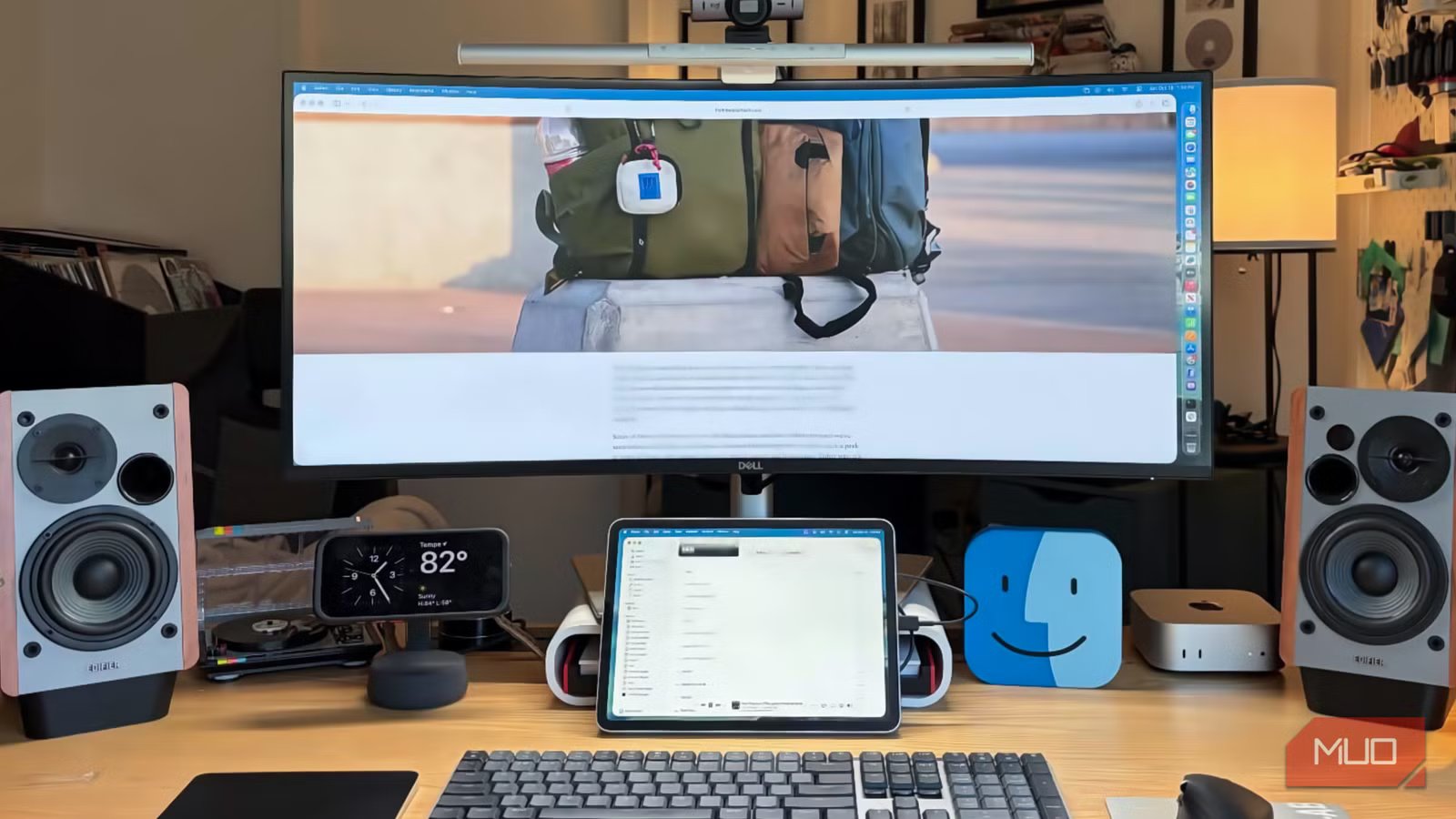
The perfect desk setup starts with a standout monitor. There’s debate about whether a single monitor, dual-monitor workstation, or ultrawide monitor is best for productivity, and there’s no right or wrong answer. One thing is for sure — you’ll interact with your computer monitor more than any other part of your desk setup, so you shouldn’t overlook it. For a while, I only considered display specs when upgrading my screens, and that was a mistake.
There’s a lot more to a monitor than just the display. You have to weigh the value of extra features like inbuilt speakers, microphones, and webcams. Personally, I don’t care much for monitors with those built-in peripherals. They usually aren’t as high-quality as standalone accessories and limit your upgrade flexibility in the future. Instead, I look for monitors that can enhance my upgrade flexibility and facilitate seamless connections with PCs and peripherals. It’s why I won’t buy another ultrawide monitor unless it offers two crucial features: a KVM switch and Thunderbolt hub.
A great ultrawide simplifies your desk setup
It’s less clunky than multi-monitor setups, but why stop there?
For context, I used to avoid ultrawide monitors completely before the category finally won me over. Although the prospect of a large and unified workspace was appealing, the affordability and modularity of single- and dual-display workstations captivated me early on. Switching to a review unit of Dell’s UltraSharp Curved Thunderbolt Hub Monitor completely changed my perspective, but the 34-inch curved ultrawide display was just a small reason why.
Ultrawide monitors are immersive by nature, and my desk setup immediately became cleaner after I switched. I didn’t need to use monitor arms, to manage twice as many cables, or to painstakingly align multi-screen workstations perfectly. There is now one screen to worry about, and the included stand on Dell’s ultrawide monitor features a cable routing channel to streamline connections to my computers and peripherals. All told, an ultrawide monitor gave me the extra screen real estate of a dual-display workstation with the simplicity of a single-monitor setup.
I’m late to the ultrawide monitor trend, and you’re probably more than familiar with the advantages of a widescreen computer monitor. You might not be as familiar with the niche feature that sealed the deal for me. The integrated KVM switch and Thunderbolt hub are the most underrated parts of Dell’s ultrawide monitor, and they allow me to connect multiple PCs to the same screen while sharing peripherals.
Related
The real benefits of an ultrawide monitor only hit me after I tried one
Here’s how ultrawide monitors finally won me over after years of disbelief.
KVM switches are essential for multi-PC workstations
I love using them, but they’re even better when built right into my ultrawide
Credit: Brady Snyder / MakeUseOf
I use computers, plural, at my desk setup — and it can be tricky to manage them all. At a minimum, I run a Mac Mini M4 and a Windows 11 mini PC at the same desk. I have an old Mac Pro that functions as a local music and media server on the desk as well. It’s not uncommon for me to use three PCs interchangeably or simultaneously connected to the same display and peripherals. While I’ve tested standalone KVM switches and Thunderbolt docking stations before, having one built into an ultrawide monitor unifies my desk setup.
KVM stands for Keyboard, Video, Mouse, and put simply, KVM switches allow you to use the same inputs and outputs with multiple devices. In this case, the Dell ultrawide monitor I used offers upstream Thunderbolt and USB 3.2 ports that you can use to connect to your PCs. The Thunderbolt connection handles my Mac Mini M4, while the USB 3.2 port connects to my Windows 11 mini PC. After hooking up my PCs to the upstream I/O ports, I get nine total downstream USB 3.2 Type-A and Type-C ports that connect my keyboard, mouse, webcam, speakers, and optical drive to both systems.
A KVM switch uses virtualization software to move the peripherals between the connected devices based on which one is actively being used. When the Thunderbolt display is active, the switch uses my peripherals to control my Mac. If the HDMI or DisplayPort connections are running, the peripherals automatically move to my Windows PC. It’s a seamless process that eliminates the need to use twice as many peripherals, or manually move them between computers.
Thunderbolt hubs just make sense in an ultrawide
I consider Thunderbolt hubs and KVM switches to be essential features now
Ultrawide monitors aren’t the cheapest, nor are they the most flexible. You can buy multiple high-resolution monitors for a fraction of the price of a similar ultrawide unit. The reason people pay for the luxury of an ultrawide is for simplicity. An ultrawide cleans up your desk setup by limiting wires and reducing complexity, but having a Thunderbolt dock and KVM switch built-in takes the experience to new heights.
I can stash my Macs and mini PC somewhere away from my desk, running a single Thunderbolt or USB 3.2 upstream connection to each computer. Since the peripherals are connected to my monitor rather than each PC, I can use shorter cables. Only one or two actually go all the way to my PCs, while the shorter cable runs to my monitor make for easier cable management. With a Thunderbolt dock and KVM switch built into an ultrawide monitor, I end up using a fraction of the cables that would’ve been required for a dual-display setup without these features.
Anyone using a docking station, KVM switch, or Thunderbolt hub already could benefit from having one integrated into their ultrawide monitor — even if they don’t use multiple PCs at the same desk. In fact, they might benefit more than someone with a complex multi-computer workstation, as only one Thunderbolt cable would be required to connect a single computer to a host of I/O ports. Now that I know what it’s like to eliminate dedicated Thunderbolt hubs and KVM switches from my desk, I can’t buy a new monitor unless it can match this functionality.
