

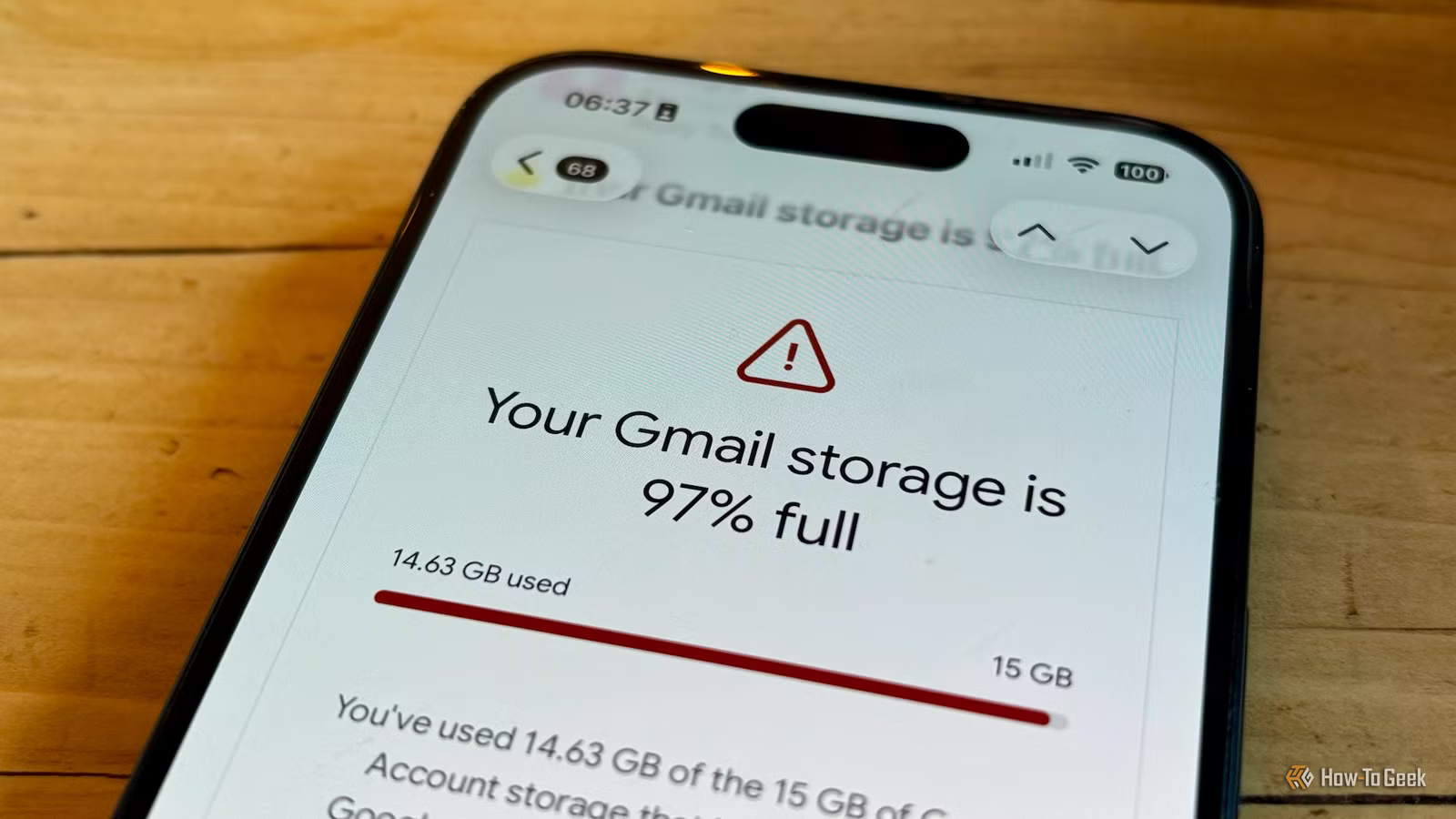
I recently received an email from Gmail, informing me that my Gmail storage was almost full. I didn’t want to have to pay for extra storage, so I decided to clean out the junk instead. Using a few search operators, I freed up plenty of space in under five minutes.
Related
How to Add Emails to Your Tasks To-Do List in Gmail
Create Tasks from emails.
My Google storage was almost full
Gmail was about to stop working
The email I received from Google informed me that my Gmail storage was at 97%. The worrying part was that the email listed several of the things that would happen if I ran out of storage completely. At the top of the list was that I would no longer be able to send or receive emails.
Obviously, this isn’t ideal. I didn’t want to miss important emails or not be able to reply to them. The email suggested paying for extra storage, but that’s not something I wanted to do.
A free Google account gives you 15 GB of storage, but this is shared across apps, including Gmail, Google Photos, and Google Drive. If you have 14 GB of photos in Google Photos and Google Drive, for example, then Gmail will only have 1 GB of storage available.
When I checked my storage, however, it confirmed that Gmail was taking up by far the most storage space, with more than 13 GB of my storage allowance. I knew it was time to clean out the junk from my Gmail account.
Cloud Storage
15GB
Mac Compatibility
Yes
Google Photos is a cloud-based service that lets users store, organize, and manage photos and videos. It offers automatic backup from devices, search tools powered by image recognition, and options for sharing and basic editing across mobile and web platforms.
The five-minute cleanup that fixed things
Search operators cleared out the junk
There were two key objectives that I had. The first was to reduce the size of my Gmail storage, and the second was to ensure that I didn’t delete any important emails that I might want to access again at a later date.
Gmail provides some useful search operators that you can use to search for emails based on specific criteria. I decided to use some of these search operators to track down all the junk emails in my account and delete them.
Some of the useful operators include:
- older_than: combine with time periods such as 2y or 6m to show all your oldest emails
- larger: combine with a size such as 10M to find emails larger than 10 MB
- category:social: lists all the emails that would end up in the social tab in Gmail
- category: promotions: lists all the emails that would end up in the promotions tab in Gmail
You can use these operators in combination to find exactly the emails that you want to get rid of. I started with category:promotions older_than:1yand this surfaced nearly 34,000 emails. There were so many that Gmail had to add them to the trash in batches. I followed up with category:social older_than:6m and this moved nearly 4,000 more emails to the trash.
Moving emails to the trash doesn’t remove them from your account; they will stay in your trash for 30 days by default. You need to click Empty Trash Now to remove them completely and reclaim your storage space.
Just using these two searches, I was able to free up more than 3 GB of storage space. It took just a few minutes to do, and the majority of the time was waiting for Gmail to delete the thousands of emails from the trash.
Google says that it can take up to 72 hours for your storage usage to update after deleting multiple files. It only took a few moments for mine to update, but your mileage may vary.
Storage Manager can help
See where your Google storage is being used up
Another way to quickly remove unwanted junk emails from your Gmail account is to use the Storage Manager. This is Google’s own tool to help you clear up space. It’s a little less granular than using the search operators, which is why I chose that option.
Go to one.google.com/storage, and you can see details of your current Google storage. Clicking Usage details will show you how your storage breaks down by app.
There are some useful tools below, including a tool to review emails with large attachments and a tool to review spam emails. You can also select Gmail under Clean up by service to see Emails with large attachments, Emails in Trash, and Spam emails. You can search through these and delete any that you don’t want to keep.
This method isn’t that quick to use, as it’s likely that you won’t want to delete every email with a large attachment or every email that’s been marked as spam. It can take some time to select only those emails that you’re happy to remove.
How to stop Gmail from filling up again
A regular clean-out can help
Using the right combinations of search operators, I was able to quickly remove thousands of junk emails that I didn’t need and free up a significant amount of space. It was quick to do, but I shouldn’t really have let my email get to this state in the first place.
A lot of the emails were promotional emails that I just chose to ignore. A better option is to click the Unsubscribe button that appears at the top of promotional emails, which stops the emails at source.
I’m also planning to clean out the junk more regularly. I’ve set up a calendar reminder to do it again in six months, which should help to ensure that I never end up close to running out of space again.
Try removing junk before you start paying
When your Gmail fills up, it’s tempting just to start paying for extra storage. Before you do, you may be able to save yourself some money by clearing out your junk. You could free up a lot of space in a matter of minutes.
