

At one point, Pivot Tables were the greatest feature in Excel, but as with most tools and tricks, that’s no longer the case. Instead of setting up a Pivot Table, adjusting the layout, and refreshing it every time you add or replace figures, you can now write a single formula that produces the same results with far less effort and time.
Using PIVOTBY, you can group summaries across two axes and aggregate values, just as you would with a Pivot Table. However, because everything lives inside a formula, your summaries will update automatically, making it easier and faster for you to identify trends in your data.
PIVOTBY isn’t just another pivot table
It’s a single formula that builds a full summary instantly
Screenshot by Ada
Despite producing similar-looking outputs, PIVOTBY has nothing to do with Excel’s traditional PivotTable feature. It’s a dynamic array formula available in Excel for Microsoft 365, Excel 2024, and Excel 2021 (including Mac versions) that groups, aggregates, sorts, and filters your data in a single step. You write one formula, press Enter, and Excel spills a complete summary table directly into your worksheet without requiring any additional configuration.
The syntax looks like this:
=PIVOTBY(row_fields, col_fields, values, function, [field_headers], [row_total_depth], [row_sort_order], [col_total_depth], [col_sort_order], [filter_array], [relative_to])
You only need four arguments: the column or columns you want as rows (row_fields), the column or columns you want across the top (col_fields), the data you want to aggregate (values), and the aggregation method. This aggregation method can be something familiar, like SUM, AVERAGE, or COUNT, or something more advanced, such as a custom LAMBDA function. Everything else remains optional and gives you additional control if you choose to use it.
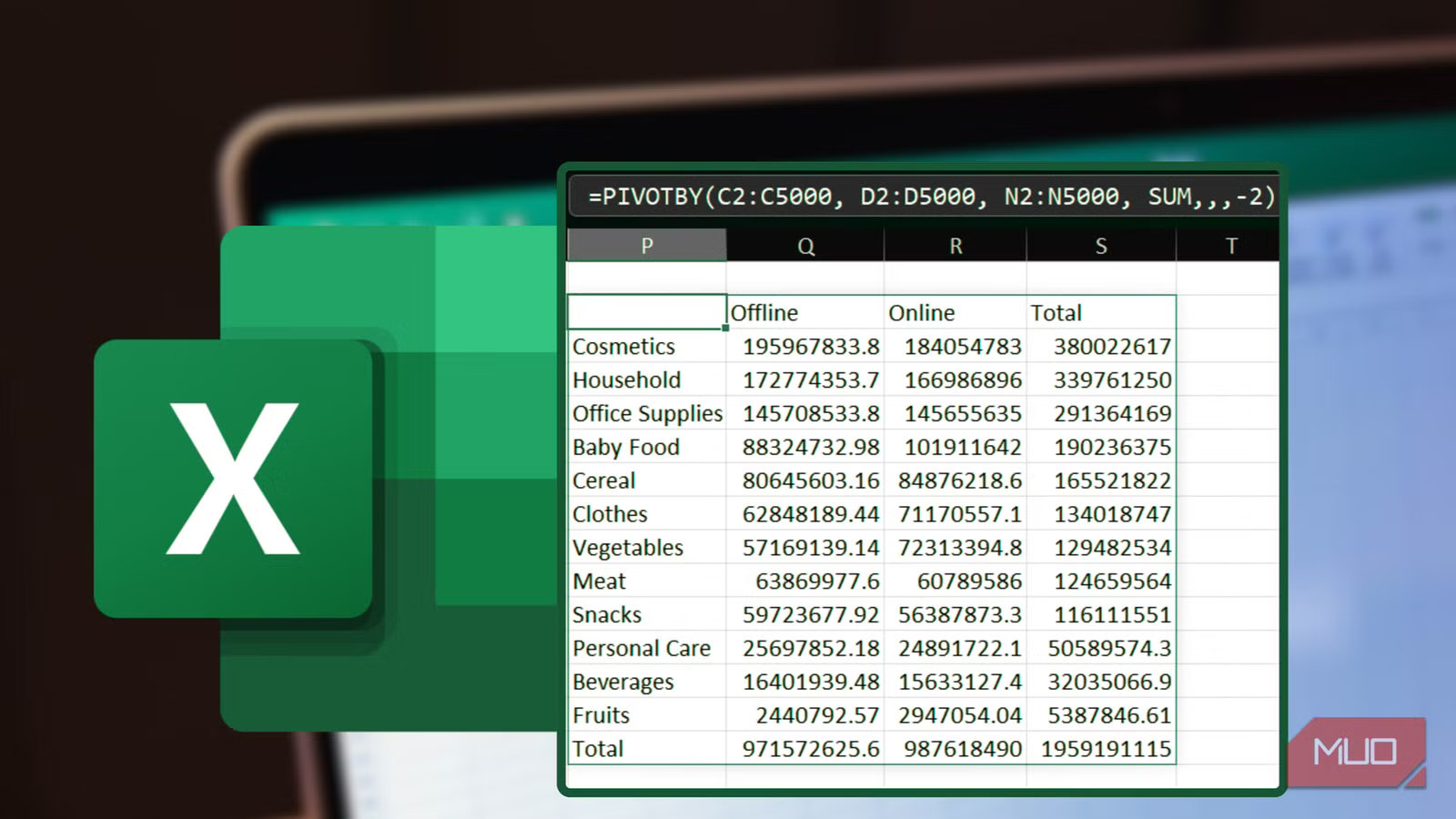
For example, suppose you want to summarize total profits by item type (rows) and sales channel (columns), sorted by highest profit. The formula would look like this:
=PIVOTBY(C2:C5000, D2:D5000, N2:N5000, SUM,,,-2)
In this case, column C contains item types, column D contains the sales channel, and column N contains profits. The -2 in the sort argument tells Excel to sort the results in descending order. You’ll also notice three commas before it, which exist because the row_sort_order argument sits in the seventh position, and Excel requires placeholders for the arguments you choose to skip.
Just like a traditional Pivot Table, you can also combine multiple row and column groupings:
=PIVOTBY(HSTACK(YEAR(F2:F5000), C2:C5000), D2:E5000, N2:N5000, SUM)
Here, I’m grouping the year of order from column F alongside item types from column C as row categories, while using sales channel and order priority from columns D and E as column categories. Because the row groupings come from separate columns, I used the HSTACK function to combine them into a single array. Meanwhile, since the column groupings are next to each other, I just expanded the range. I also wrapped the order date range in the YEAR function so that Excel groups by year rather than by individual dates.
Related
9 Excel DATE Functions You Should Know
Want to master Excel’s date functions? Here are some essential ones you need to know.
Now that you’ve seen how this function replicates what Pivot Tables can do, the differences will make more sense. First, PIVOTBY updates automatically whenever your source data changes, so you no longer need to manually refresh. Second, because PIVOTBY is just a formula, you can treat its output like any other part of your worksheet, which means you can connect it to dropdown menus, apply formatting, or build interactive dashboards without worrying about the layout breaking. Third, because it supports LAMBDA, you can create custom aggregation logic that goes beyond the built-in options and enables analyses that traditional Pivot Tables simply cannot replicate.
How PIVOTBY fits into my workflow
Fast, flexible summaries directly from formulas
The sweet spot for PIVOTBY is situations where you want fast, automated reporting with minimal maintenance. Because it exists as a formula, there’s no risk of stale summaries or outdated results; what you see always reflects the current state of your data. I find it especially useful when I already know which groupings and aggregations I need, since I can define everything upfront instead of manually rearranging fields.
That said, traditional pivot tables still have their place. If you share your workbook with colleagues who don’t have Microsoft 365, Excel 2024, or Excel 2021, PIVOTBY won’t work for them. In collaborative settings where not everyone feels comfortable editing formulas, the drag-and-drop interface of a classic Pivot Table also makes maintenance easier. Also, PivotTables still offer advantages for quick exploratory analysis and for expandable hierarchies that let others drill into the data interactively.
In most other cases, however, PIVOTBY fits seamlessly into my workflow. I often use it to summarize a single dataset because it produces results much faster and requires no additional setup. But it also scales beyond a single sheet. By nesting VSTACK inside PIVOTBY, you can combine data from multiple worksheets into a unified summary almost instantly. For example, if you have sales data for three employees, Mercy, Mike, and Mitchell, on separate sheets and want to summarize revenue by location and employee grade, you could write this:
=PIVOTBY(VSTACK(Mercy!C2:C5, Mike!C2:C5, Mitchell!C2:C5), VSTACK(Mercy!D2:D5, Mike!D2:D5, Mitchell!D2:D5), VSTACK(Mercy!B2:B5, Mike!B2:B5, Mitchell!B2:B5), SUM)
You can also make your summaries interactive by linking the filter_array argument to a dropdown menu. For instance, this formula counts orders by country and priority, but only for the item type selected in cell V2:
=PIVOTBY(B2:B5000, E2:E5000, G2:G5000, COUNT,,,,,,C2:C5000=V2)
The expression C2:C5000=V2 serves as a Boolean mask that evaluates each row and returns only the matching record. If you want the formula to display all orders whenever V2 contains “All,” just wrap the filter_array argument in an IF statement:
=PIVOTBY(B2:B5000, E2:E5000, G2:G5000, COUNT,,,,,,IF(V2=”all”, TRUE, (C2:C5000=V2)))
If you want to visualize your summaries, you can link standard charts directly to the PIVOTBY spill range, which ensures your visuals update automatically as the data changes. So, you shouldn’t be missing Pivot Charts either.
Related
8 Types of Excel Charts and Graphs and When to Use Them
When numbers get boring, let these charts and graphs do the talking.
A faster way to summarize data
PIVOTBY won’t replace PivotTables in every scenario, but when I’m building dynamic dashboards, consolidating data from multiple sheets, or eliminating repetitive setup steps, it offers a clear advantage. Because everything runs through a single formula, I can create summaries that stay current automatically and remain easy to integrate with the rest of my worksheet. This makes the entire reporting process more efficient and far less dependent on manual intervention.
The best way to get comfortable with PIVOTBY is to take one of your existing PivotTables and rebuild it using the formula. Chances are, you’ll be surprised by how much easier and faster it is to recreate.
