

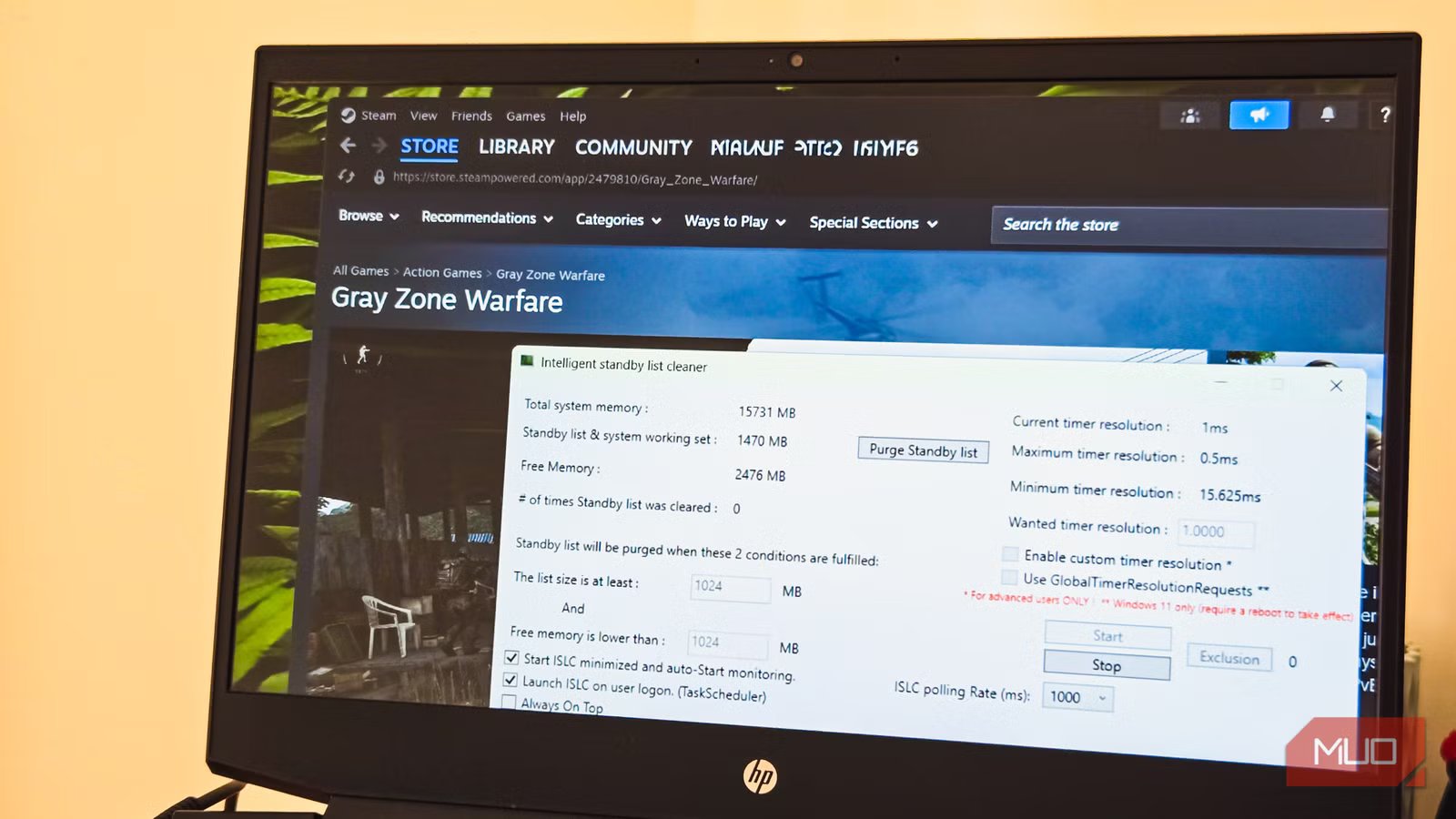
I play games on my 4-year-old HP Pavilion gaming laptop with 16GB of RAM. I don’t run my games on max settings, nor do I need crazy high FPS to enjoy my games. However, recently, my games, specifically Gray Zone Warfare, have been crashing after every 60 minutes of gameplay.
I went through reports of bad memory management issues in Gray Zone Warfare and even tried tweaking my RAM settings, but the crashes continued. What finally did the trick was Intelligent Standby List Cleaner (ISLC), a tiny tool that automatically cleans the standby list in your RAM.
What’s ISLC
A tiny tool that clears cached memory before it causes problems
Tashreef Shareef / MakeUseOfCredit: Tashreef Shareef / MakeUseOf
Many games have memory management issues, and Gray Zone Warfare, too, had several reports of chewing through the memory and causing crashes. A game is supposed to load assets like textures, sounds, and level geometry into RAM while you play, then free that memory when you no longer need it. But sometimes, a bug can stop the game from releasing that memory. Every new match or level loads more data on top of the old, unused stuff, and your RAM usage keeps climbing until the game stutters or crashes.
Windows, on the other hand, uses something called the standby list to cache recently used data in case you need it again. The idea is to speed things up, but this cached data can eat into your available memory. When your standby list grows too large while your free RAM shrinks, you get stutters and crashes.
ISLC tries to fix this conflict by automatically purging the standby list when it crosses a threshold you set. It’s a small, portable tool from WagnardSoft, from the same developer who gave us the popular Display Driver Uninstaller (DDU). The tool sits in your system tray, monitors your RAM, and clears the standby list only when both conditions you’ve set are met. This prevents constant flushing while still reacting when RAM usage is high.
Configuring ISLC
Setting the right thresholds for your system
You can download ISLC from WagnardSoft’s official page. It’s a portable utility, so extract the archive to a folder like C:\Tools\ISLC\ and run the executable. You’ll need to run it as an administrator, so it has the necessary permission to work.
The main settings you need to configure are the two standby list thresholds. For my 16GB system, I set List size is at least to 8192 MB (8GB) and Free memory is lower than to 1024 MB (1GB). This means ISLC only clears the standby list when both conditions are true: the standby list is at least 8GB, and my free memory has dropped below 1GB. This prevents unnecessary flushing while still catching the moments when my RAM is actually under pressure.
If you have 32GB of RAM or more, you can adjust these values higher. A good starting point for 32GB systems is setting the list size threshold to 8192-12288 MB and the free memory threshold to 2048-4096 MB. The goal is to let ISLC run only under genuine heavy load like gaming, not constantly purge memory that might actually be useful.
ISLC also has a custom timer resolution feature to request a more precise system timer while ISLC is running, which can help with input latency in some games. You can set the Wanted timer resolution to 0.5 ms and enable the custom timer resolution option. I’ve enabled it on my setup, set the polling rate to 1000 ms, and haven’t noticed any downsides. That said, the timer resolution feature can cause odd mouse behavior or audio glitches, so treat it as optional and test it yourself.
Once you’ve configured the app, click Start to begin monitoring. You can also enable Start ISLC minimized and at Windows startup if you want it running automatically, though I’d recommend testing your settings manually first.
Who should use ISLC
Gamers dealing with memory-related crashes and stutters
Credit: Shaun Cichacki/MUO
My use case has no mystery to it. Gray Zone Warfare has known memory management issues, and my 16GB of RAM wasn’t enough to keep up with the game’s appetite for memory over extended sessions. After configuring ISLC, my crashes stopped for good, and I went from predictable 60-minute crashes to multi-hour gaming sessions without a hitch. This may not be conclusive, but it’s the only thing that has had any effect so far.
That said, ISLC isn’t a magic fix for everyone. If your crashes are caused by outdated GPU drivers, overheating, or actual hardware issues, clearing the standby list won’t help. ISLC is primarily useful when your problem is memory-related, which is when Windows is holding onto cached data that’s no longer useful, and your game needs more memory.
If you’re already trying to free up RAM on Windows and still experiencing crashes after extended gaming sessions, ISLC is worth a shot. It’s also useful if you notice your free memory slowly declining over time during gameplay, even when you’re not loading new content.
ISLC is an incredibly useful little utility
ISLC won’t fix poorly optimized games or replace the need for adequate hardware. If a game has severe memory leaks, you’re treating the symptom rather than the cause. Ideally, developers would fix their memory management, and Windows would handle caching more intelligently. But until that happens, tools like ISLC can offer a temporary solution for an issue that you have no control over.
