

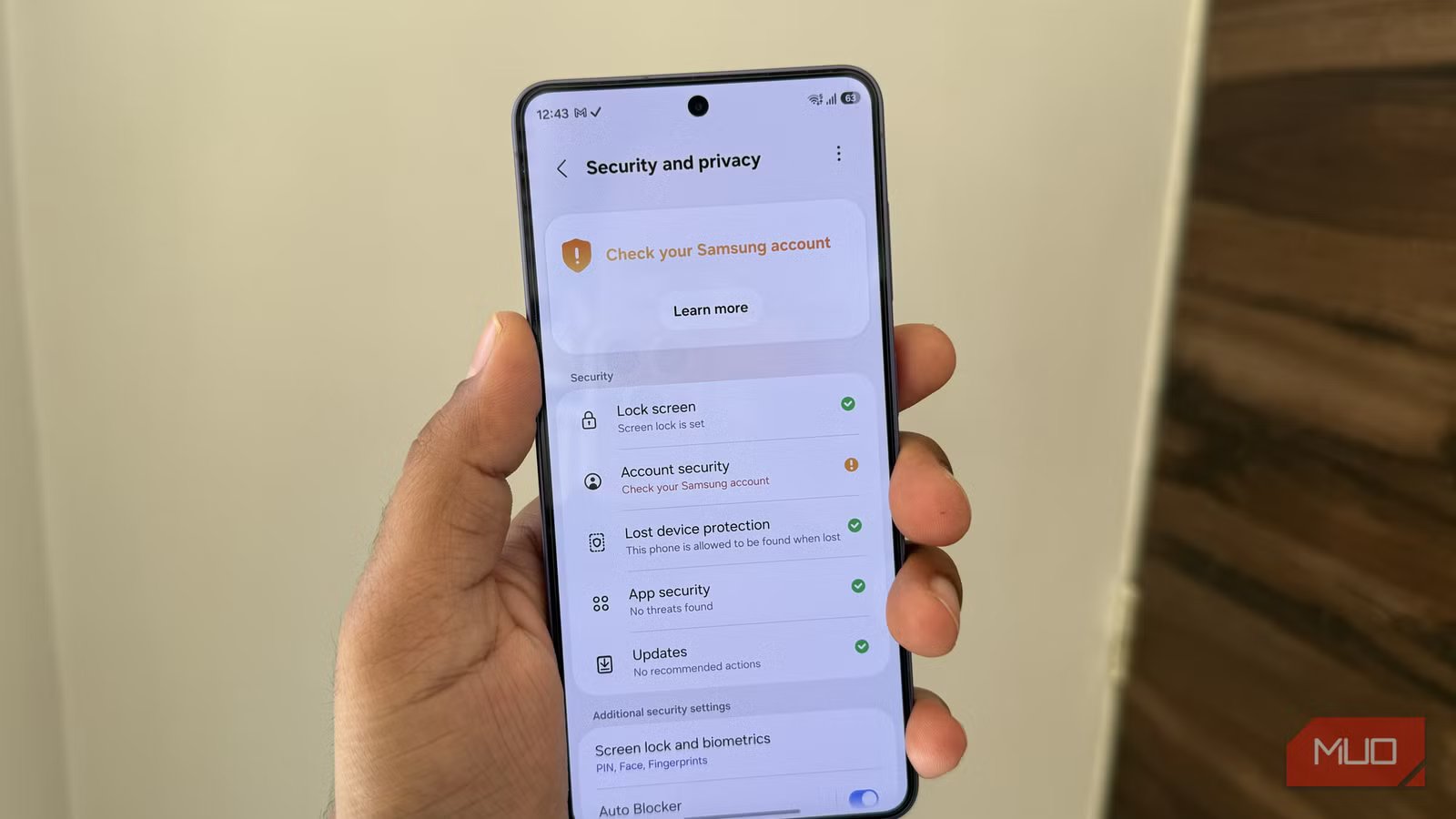
Android has come a long way in terms of security, but most of the features still largely focus on keeping people out of your phone. If you have a Samsung phone, though, things are slightly better. One UI’s exclusive security features can protect your data even after someone gets in.
These security features are no gimmicks. They’re built to safeguard critical parts of your phone, your accounts, private files, and security settings, even in worst-case scenarios. Honestly, it makes me wonder why these features aren’t part of Android itself.
Identity check
Stolen PINs shouldn’t mean stolen access
Screenshot by Pankil Shah — No attribution requiredScreenshot by Pankil Shah — No attribution requiredScreenshot by Pankil Shah — No attribution required
Most Android phones come with important security features, like theft detection lock and offline device lock. But there’s one big weak spot you may not have realized. If someone manages to guess your lock screen PIN or pattern, they can dive straight into your settings and turn off all these protection features.
To avoid that, Samsung phones now come with a feature called Identity Check. The way it works is quite simple. When your Galaxy phone detects you’re not in a safe, trusted place, like your home or office, it requires biometric authentication for changing any security or privacy settings.
Things like accessing Samsung Pass data, unlocking Secure Folder, changing Samsung account password, or turning off Find My Device requires your fingerprint or face verification. Your lock screen PIN or password alone isn’t enough when you’re in an unusual location.
Your phone also adds a one-hour wait period for resetting biometrics data. This gives you enough time to lock and disable your Samsung phone when you lose access.
Maintenance mode
A stress-free way to get your phone fixed
Screenshot by Pankil Shah — No attribution requiredScreenshot by Pankil Shah — No attribution requiredScreenshot by Pankil Shah — No attribution required
The biggest concern when handing over your phone for a repair is your personal data. After all, your photos, messages, banking apps, and personal files are only a lock screen PIN away, which you may end up sharing with the technician.
Maintenance Mode solves all these problems. When you enable it, your Samsung phone essentially creates a clean environment where none of your personal files, photos, messages, and contacts are visible. Even apps you’ve installed yourself don’t appear.
In this mode, your Galaxy phone only shows pre-installed apps, and even those don’t show your personal accounts or any other data. This means you can simply enable Maintenance mode while handing over your phone, and there’s no need to share your PIN or password.
To use this feature, head to Settings > Device care > Maintenance mode. Once the repair is complete, you can enter the lock screen PIN to return to normal mode.
Private Share
Control who sees your shared files and for how long
Screenshot by Pankil Shah — No attribution requiredScreenshot by Pankil Shah — No attribution requiredScreenshot by Pankil Shah — No attribution required
Normally, when you send a photo, document, or video through messaging apps or tools like Quick Share, you have no control over what the other person does with it. Once it’s on their device, they can modify it, forward it, or keep it forever.
Private Share changes that. It lets you send files with others while having control. You can decide who can access the file, how long they can view it, and what they can do with it. You can even prevent the receipt from saving or resharing the file. Best of all, you can revoke access to the shared file at any time.
Using it is as simple as it gets. Simply select Quick Share in the share menu, tap the three-dot icon at the top, and turn on Private Sharing. You’ll then see options to send the file as SMS or a QR code.
The only thing is, Private Share is exclusive to Samsung phones, which means you can’t use it to share files with other Android users. It uses Samsung accounts of both the sender and recipient to control the shared file.
Related
I’ve used Samsung for years, but these 5 features make me feel like a pro
It’s sad that most Galaxy users never find or try these features.
Secure Folder
Your phone within a phone
Your Samsung phone may be locked behind a PIN or password, but there’ll still be things you might not want others to see. Secure Folder offers a private, encrypted space on your Galaxy phone where you can keep photos, videos, files, and anything else you want, separate from the rest of your phone.
It even lets you run a second instance of an app with its own data. For example, you could have one WhatsApp account outside and another one inside the Secure Folder. Everything is locked behind a PIN or password that’s separate from the one on your lock screen.
Pixel phones do offer something similar called Private Space, but it still feels incomplete compared to Secure Folder. Also, you can’t move your Private Space data to a different phone while upgrading, nor can you back it up to external storage. Secure Folder, on the other hand, lets you do both these things.
Security features may not get the same attention as flashy cameras, sleek designs, or performance upgrades, but they’re far more important. After all, your data is the most valuable thing, and how well your phone is protecting it makes all the difference. That’s what makes Samsung’s exclusive features stand out for me.
